

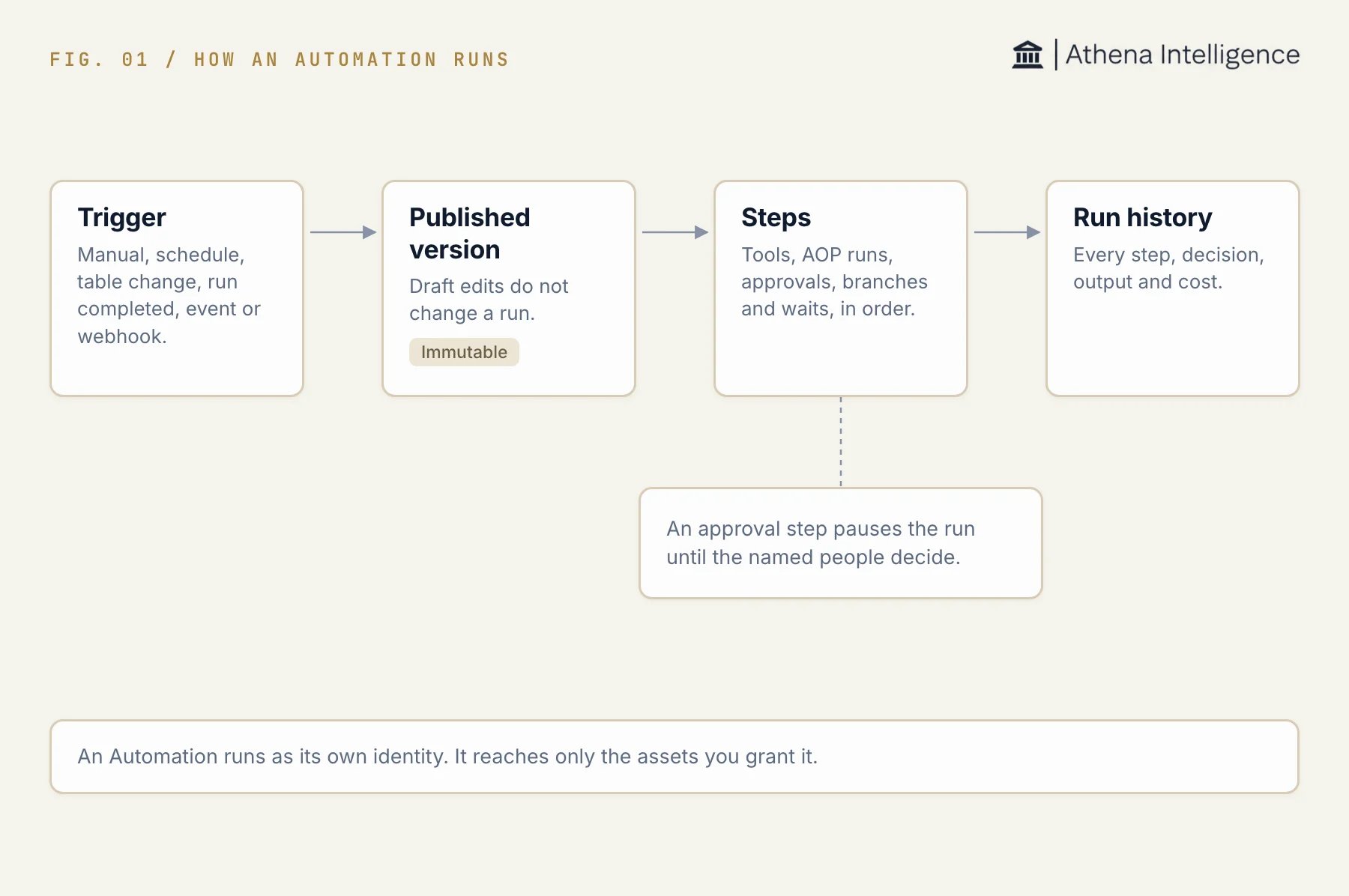
A trigger starts a run of the published version. Steps run in order and every run is recorded.
Choose how to run your work
An Automation is separate from an AOP. An Automation can include an AOP run step when part of the workflow needs an agent to follow a procedure.
Check availability and access
Your deployment must have Automations enabled, and your workspace must be enrolled. You must be a signed-in, active workspace member acting as yourself, or an authorized admin. On Athena’s managed cloud, all workspaces pass the enrollment check. Other deployments require workspace enrollment or a deployment setting that enrolls every workspace. Enrollment alone does not turn Automations on. You need view access to read an Automation. You need edit access to change its draft, publish from the editor, run it from the UI, or pause its triggers.If Automations are unavailable, ask your deployment admin to check the deployment setting and workspace enrollment. Access to an individual Automation still depends on its asset permissions.
Create an Automation in Athena
- Open Automations from the navigation.
- Select New automation, then Blank.
- Enter a name and select Create Automation.
- Open Definition. Start a definition, then use Outline to select and configure triggers, steps, and policies. You can also edit the definition in JSON or YAML.
- Set
home.project_asset_idto the home project’s asset ID in JSON, and configure the assets and inputs the steps need. - Review the validation results and fix reported errors.
- Select Publish and confirm with Publish. For later draft changes, the button reads Publish changes.
Ask Athena to draft one
- Select New automation, then Describe it, or describe the workflow in a session with the Automations tools available.
- State the trigger, work to perform, expected result, and any required approvers.
- Ask Athena to create an Automation draft. Athena uses
create_automation_draftto generate and validate the definition. - Open the draft Athena returns. Review the steps, permissions, triggers, and budgets before publishing.
Choose a trigger
Available event sources and integration steps depend on the capabilities configured for your deployment. Publishing checks the definition and refuses unsupported capabilities.
Choose steps
The tool picker contains tools eligible for Automation steps. A tool available in a session is not necessarily available as an Automation step.
Keep drafts separate from published versions
Definition edits the draft. Runs use a published version, so changing the draft does not change a run’s pinned plan. A published version is immutable. Publishing a changed definition creates another version. Versions records publication history. Review the version a run used when comparing results after a change. Publishing activates the configured triggers. Check schedules and event sources before you confirm.Grant the Automation access
The Automation runs as its own identity. It does not inherit the publisher’s or starter’s asset access or admin privileges.- Open Settings and find Identity and access.
- Check Runs as and the listed grants.
- Select Add asset to grant access to an asset the workflow needs. You must have the required sharing rights on that asset.
- Use Revoke to remove a grant when it is no longer needed.