

Key Features
This section provides an overview of all the different capabilities offered by Athena Chat.Attach Files
Attach files from your computer directly either by dragging and dropping them onto the Chat bar or using the attachment control in the composer.
Web Search
Turn on Web in the composer to let Athena search and browse the web for current information.Versatile Toolkits
Choose from a number of toolkits designed to optimize and automate workflows. Toolkits are specialized suites designed to handle discrete tasks efficiently within larger workflows. They are the building blocks of complex processes, each performing a specific function such as document analysis, email management or coding tasks.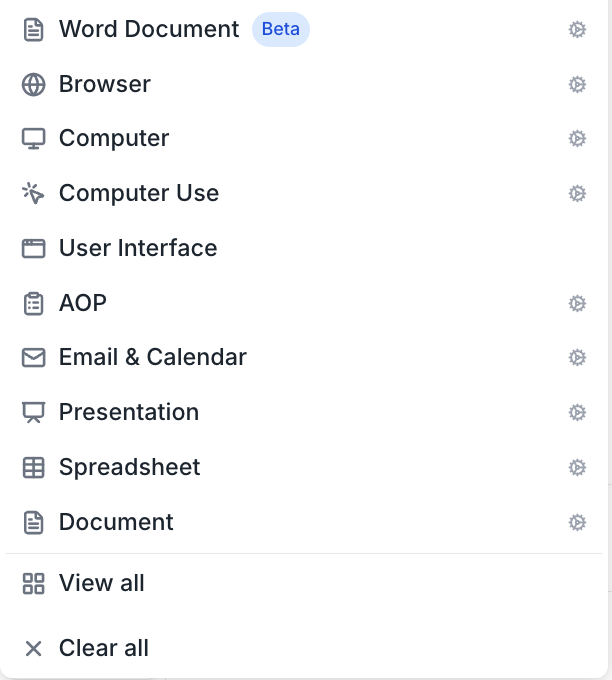
Configure Your Session
Choose tools and a model for the task. The model menu offers Balanced (the default), Fast and Best presets, plus the full list of available models.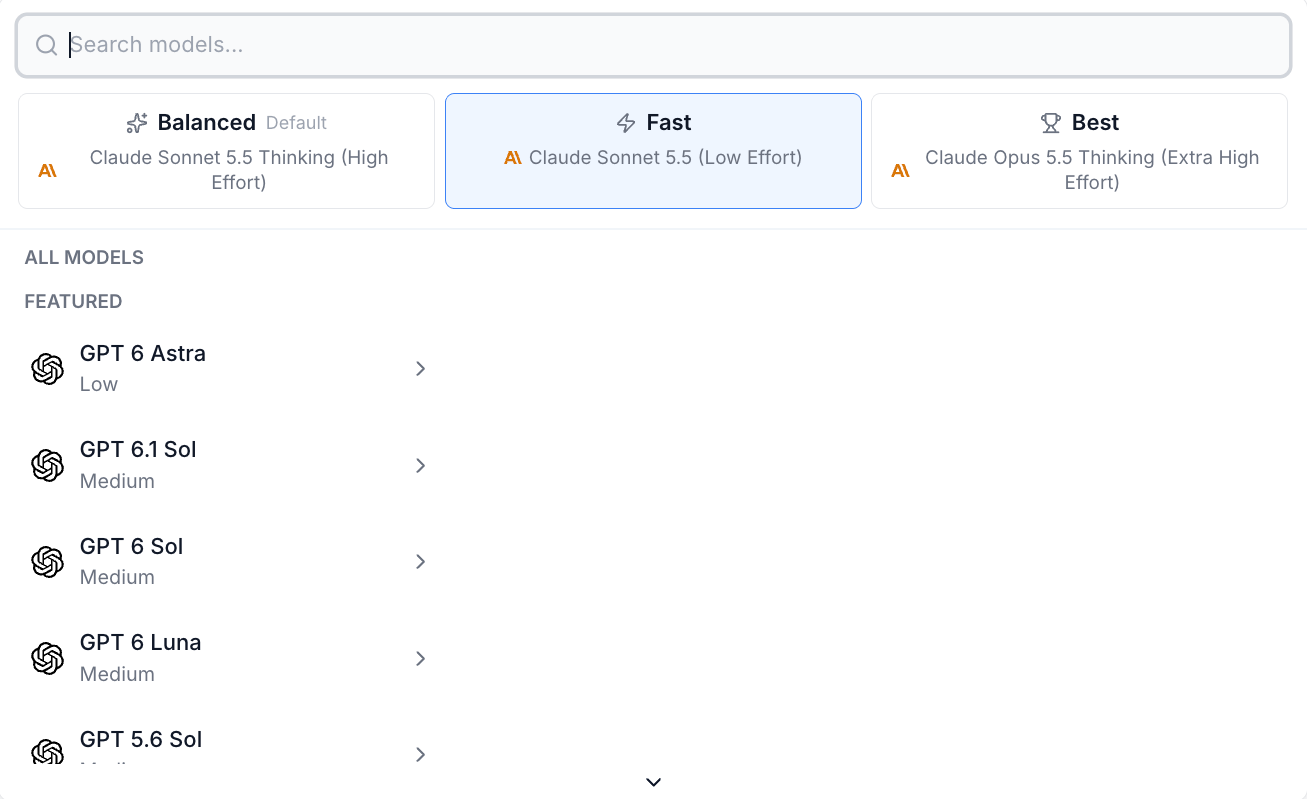
- Research and summaries - Describe the question and the sources Athena should use. Include relevant files or asset mentions so Athena can work from the right material.
- Drafting and editing - State the output you want and identify the document or spreadsheet to change. Select the tools needed for the task and review the resulting work.
- Complex analysis - Describe the decision, comparisons and deliverables you need. Choose a suitable model and enable the relevant tools before sending the request.
Example request
Name the sources, the output, and what Athena should not do. Replace the mentions with your own assets.Saved as Harbor Line delivery update. Nothing was sent.
- Deliveries to the Riverside depot move to Tuesdays from November 4 (Harbor Line delivery dates, row 12).
- The agreement requires 10 business days’ notice for schedule changes (Harbor Line agreement, section 4.2).
- Contradiction: the change was logged on October 28, which gives 5 business days’ notice, not 10.
Agent Context
Open More Options, then Agent Context, to view the session runtime configuration where agent settings are available. Use @mentions to include assets in your message. See Run configuration for the available settings.Additional Options
- More Options - Open the three-dot menu for additional session controls. Some controls depend on your deployment and permissions.
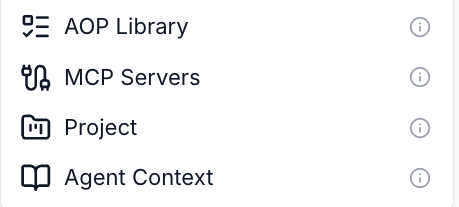
- Agent Context - Open session runtime configuration where agent settings are available. Review the model and execution settings before changing them.
- Model Picker - Choose a preset (Balanced, Fast or Best) or a specific model for your task.
- AOP Library - Open this entry from More Options to view or run Agent Operating Procedures (AOPs) for recurring work.
- Transcribe - Click the microphone in the composer to turn speech into text. Review your message and send it when ready.
- Toolkit Selector - Choose the tools available to the session for research, document work and other tasks.
Review submitted feedback
When Athena submits feedback, expand the completed tool card to read the submitted note. The card shows Category and Receipt when supplied. Keep the receipt if you need to refer to the submission later. A failed submission shows Feedback could not be sent.FAQ
How do I reopen an earlier conversation with Athena?
How do I reopen an earlier conversation with Athena?
Open the Sessions tab in the Spaces sidebar and select the conversation.
Does opening a file tell Athena what to do with it?
Does opening a file tell Athena what to do with it?
No. Opening or mentioning a file gives Athena the context and, for some assets, the matching tools. Your message tells it what work to do.
Does enabling a toolkit give Athena access to files I can't open?
Does enabling a toolkit give Athena access to files I can't open?
No. Athena works with your permissions. Asset sharing and your connected accounts still decide what it can read or change.