

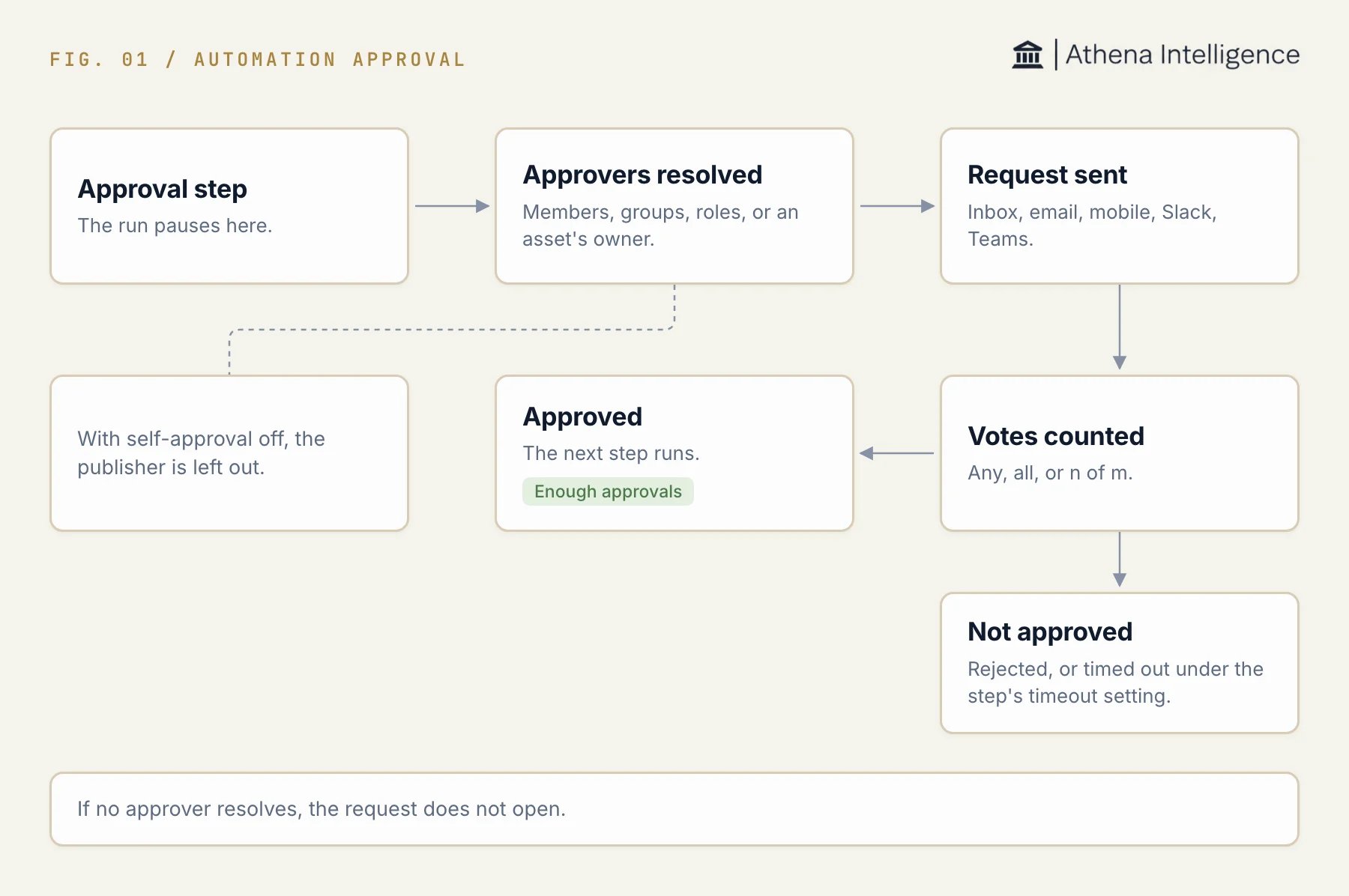
An approval step resolves its approvers, sends the request, and counts votes before the run continues.
Choose approvers
You need edit access to configure the draft. In Definition, select an Approval step and configure its approvers. The people field lets you pick workspace members and groups or enter a supported selector.owner and role:owner choose different people. The first names the publisher; the second names members with the workspace owner role.
Athena resolves selectors when the request opens. A selector that cannot resolve, or resolves to no active member, prevents the request from opening. It never opens the request to everyone.
Athena checks the deciding person’s active workspace membership and current eligibility again when they vote. Leaving a group or losing the required role can remove their ability to decide an existing request.
Agent approvers are off by default; an admin must enable them in the workspace approval policy and the organization’s decision-authority policy, with an approval limit and rubric, before an eligible agent can decide an authored approval step.
Set the voting rule
Configure the step’smode and, for n_of_m, its n value.
Self-approval is off by default (
allow_self_approval: false). With it off, the person who published the Automation version cannot decide that version’s approval steps, even when a selector names them. If removing the publisher leaves no approver, the request does not open.
Choose delivery channels
The default channels are the Athena inbox and email. Configure the step’schannels to request other supported channels.
Selecting a channel does not configure its integration. Missing configuration or a missing linked account can make a delivery unavailable or undeliverable.
Decide in the Athena inbox
- Open Inbox, then Approvals.
- Under Waiting on you, open the request.
- Read the request, payload, approvers, and any recorded decisions.
- If the request provides editable fields, review any changes before approving.
- Select Approve or Reject for the default options, or the custom option the step offers. Review the confirmation and complete any required passkey check.
- Check the recorded decision. Your vote may leave the request waiting for other approvers under
allorn_of_m.
Configure waits and repeated approvals
A step can settimeout and on_timeout. The supported timeout actions are fail, skip, proceed, and escalate. Escalation adds the configured approvers and waits for one more timeout period before failing. Reminders use offsets from the time the request opens.
proceed records that nobody approved. It does not authorize a tool that requires approval. For a required second-person checkpoint, keep timeout behavior at fail or use escalation that ends in failure.
For eligible tool approval gates, Standing approval lets you choose Just this once or an offered duration when the definition and policy allow it. A standing grant can cover later matching calls until it expires or is revoked. Authored approval steps do not issue standing grants.
An admin can change an Automation’s trust level under Overview, Details, Trust. Trust can reduce eligible tool approval prompts. Explicit approval steps and tools that require human review still ask at every trust level.
Promotion is an explicit admin action after the required clean runs. Trust grants expire; a lapsed grant makes gates ask again until an admin renews it.
Require approval before publishing
An admin can change the workspace’s publication rule in Environment, Automations admin, Policies. The default requires no publish approval.
Publish approval is separate from approval steps inside a run. When publication is held for approval, the requested version does not become published until that approval completes.
Require a second person before an application release
You can use an Automation approval as a review checkpoint before a release owner deploys an application version.- Configure an Approval step naming a workspace approver group. Include the version to review in the request.
- Keep
allow_self_approvaloff and use a timeout that cannot proceed without approval. - Have an eligible second person decide the request.
- After approval, have the release owner deploy the reviewed version from the application’s Deployment tab.