

Athena 101 · Give your team an agent, everywhere
When to use agents
Create custom agents when you frequently repeat specific tasks, handle work that follows consistent patterns, or want to optimize processes so you can focus on strategic work. Agents are particularly valuable for tasks you perform several times a week that can be automated or standardized.Key Features
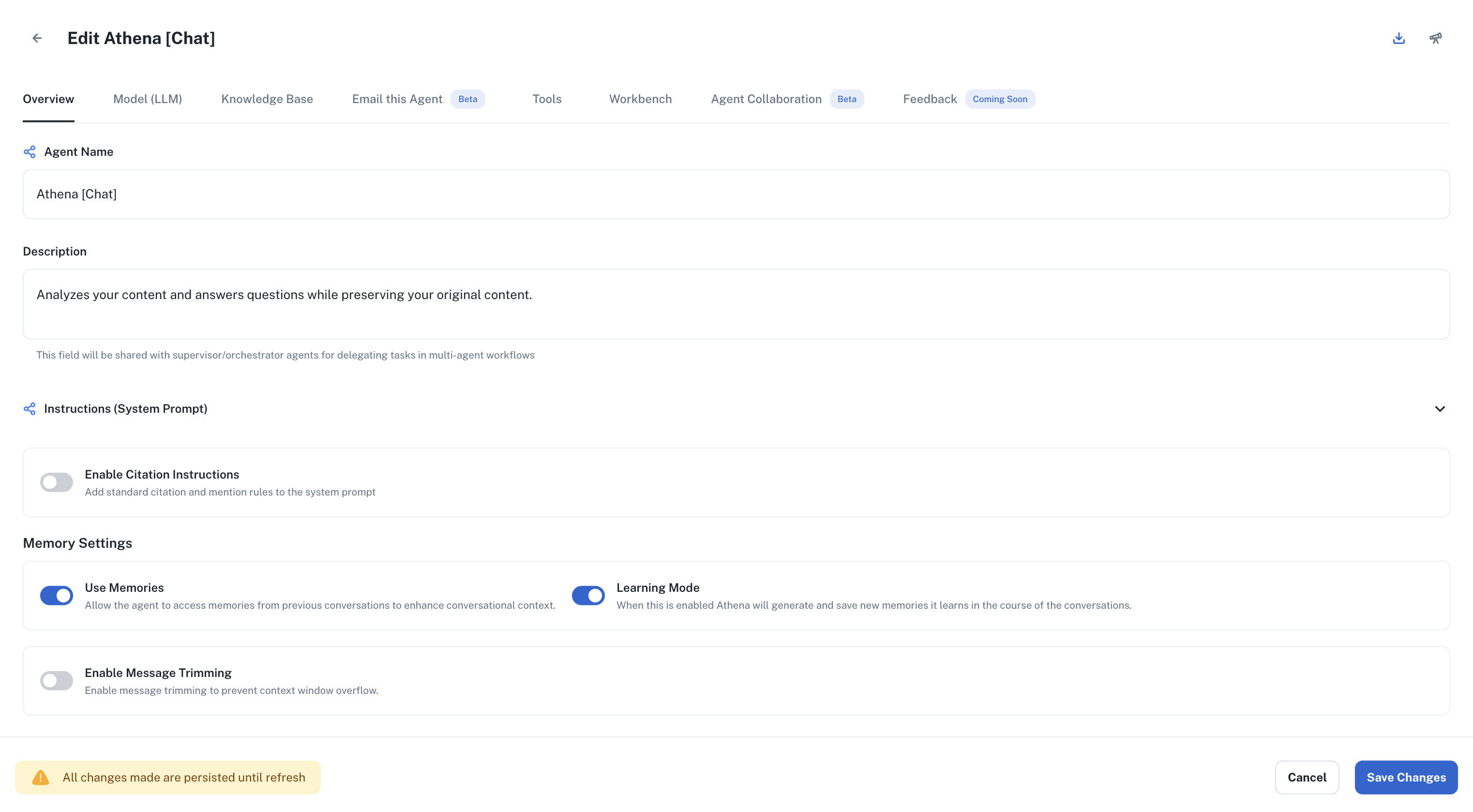
Every agent has the same Configuration tab. Change it, then publish to put the new version live.- Contextual Knowledge
- Agent Collaboration
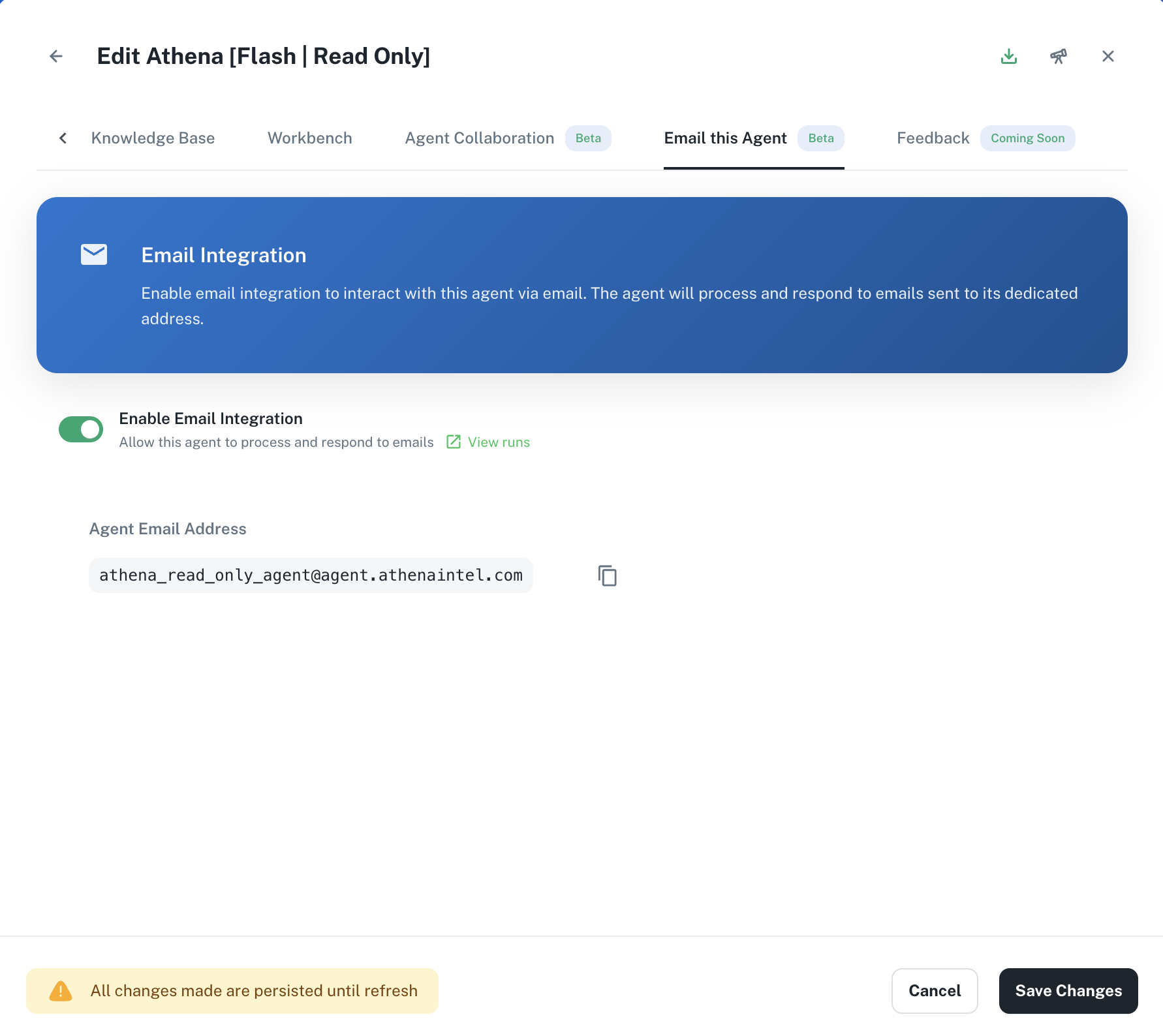
- Email Integration
- Memories
Athena empowers its agents with contextual intelligence through two complementary systems: the Knowledge Base, which acts as a comprehensive information repository, and the Workbench, which provides project-specific context. This dual approach ensures agents can access both broad knowledge and targeted information, enabling them to deliver more accurate and contextually relevant responses.
Agent event triggers
You need edit access to the agent to configure event triggers.- Open the agent’s Automations tab.
- Describe the event in the plain-language trigger field and select Draft with AI.
- Review the generated source, conditions, and prompt. Adjust them before selecting Add.
- Select Publish on the agent to activate the trigger. Drafting or adding a trigger alone does not activate it.
Slack reactions
- Select Add an event trigger and choose slack_reaction under Source.
- Set Reaction to the emoji name without colons, such as
eyes. - Optionally set Channel ID to limit the trigger to a channel. Add a reactor condition to limit it to a Slack user ID.
- Enter the prompt the agent should receive, select Add, and publish the agent.
Accept email from another agent
You need edit access to the receiving agent and an enabled agent email address.- Open the agent’s email channel settings.
- Under Accept email from other agents, enter the sending agent’s handle and press Enter.
- Give the sending agent’s creator access to the receiving agent if they do not already have it.