

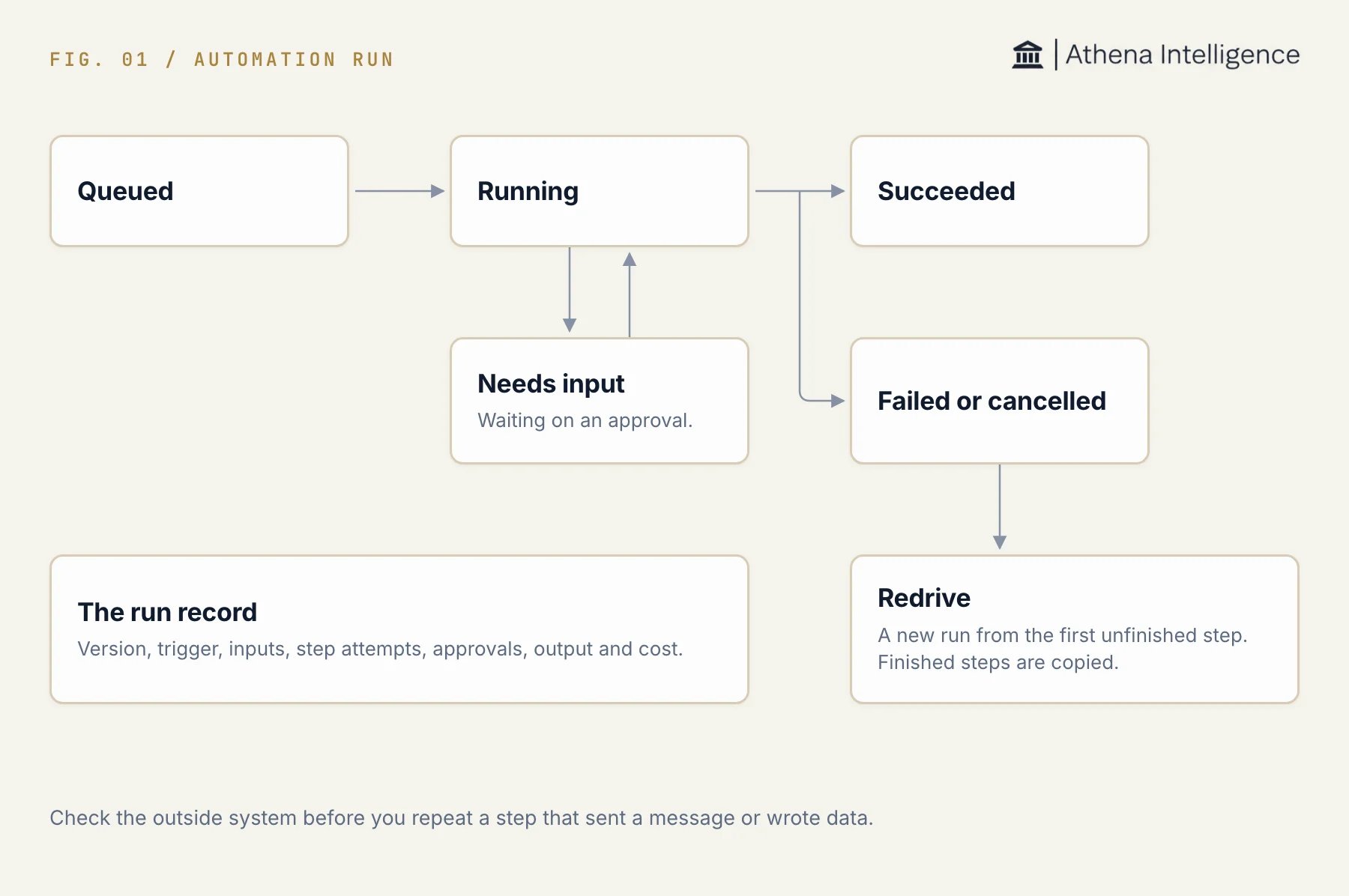
A run moves from queued to running, can wait for input, and ends succeeded, failed or cancelled. A redrive starts a new run.
Open a run
You need view access to the Automation. Cancel and redrive actions require edit access.- Open Automations and select the Automation.
- Select Runs.
- Open a run to inspect its details.
- Follow its run ID link to open the full run inspector.
Read the run record
Expand steps to inspect their recorded inputs, outputs, and errors. The inspector groups loop iterations, parallel branches, and error-handling scopes under their parent steps.
An attempt number identifies a repeated attempt within the same run. A copied step identifies work retained from an earlier run during a redrive.
Large step outputs can be stored separately. The inspector shows a preview and provides access to the stored output when available.
Some run content can be withheld when you lack access to it, even when you can read the run’s summary.
Understand statuses
The table lists the UI labels and the status values used in the run record.
An approval step can be waiting while the stored run status remains
running. The run view shows Needs input when it detects that approval wait.
The outcome gives more detail than the status. For example, a completed run can have a skipped outcome. Read it alongside the step results.
Inspect approvals
- Open the waiting run.
- Review the approval attached to the waiting step.
- Check the requested decision, eligible approvers, and votes already recorded.
- In the run inspector, review the approval delivery history if a reviewer did not receive a request.
Retry failed work
A definition can configure automatic retries for eligible steps. The step history keeps their attempts within the same run. Retry settings allow up to ten attempts, with no backoff, fixed backoff, or exponential backoff. For a failed or cancelled live run, Redrive starts a new run from unfinished work. It uses the source run’s pinned version and inputs, even if a newer version is published.- Inspect the failed step and any completed external actions.
- Select Redrive in the run details or inspector.
- In the inspector, choose From the first step that did not finish or a specific top-level step under From a step.
- Review the confirmation and select Redrive.
- Open the new run and check its results.
Cancel an active run
- Open the active run.
- Select Cancel run.
- Review the confirmation and select Cancel run again.