

Get Athena for Microsoft 365
Install the add-in directly from Microsoft Marketplace. If your organization blocks Office Store add-ins, ask your IT administrator to deploy it for you.
Questions or problems? Email support@athenaintel.com or contact your Athena account team. We’re happy to join a short call while your admin deploys.
At a glance
Before you start
- Athena accounts. Every user who will use the add-in needs an Athena account. If your organization uses SSO for Athena, users sign in to the add-in the same way.
- Microsoft 365 licenses. Users need Microsoft 365 Business, Office 365 / Microsoft 365 Enterprise (E1, E3, E5 or F3) or an equivalent plan, with an Exchange Online mailbox.
- Office versions. Microsoft 365 Apps on Windows (version 1704 or later), Office for Mac (version 15.34 or later), or Office on the web. Admin-deployed add-ins are not available on iPad.
- Admin role. The person deploying needs one of the Global Administrator, Exchange Administrator or AI Administrator roles in the Microsoft 365 admin center.
- A pilot group. We recommend starting with a group of 10–25 users. Use a top-level Microsoft 365 group or mail-enabled security group. Nested groups and non-mail-enabled security groups are not supported for add-in assignment.
Why can’t users install it themselves?
Many organizations turn off “Let users access the Office Store” in the Microsoft 365 admin center. When that setting is off, a user who opens the listing sees a message such as:Microsoft 365 has been configured to prevent individual acquisition and execution of Office Store add-ins.This is expected, and Athena is working normally. It means an administrator must deploy the add-in for those users with one of the options below. Users don’t need to do anything else until it is deployed.
For IT administrators: deploy the add-in
Choose one option. Option 1 is recommended because Microsoft keeps the add-in up to date automatically. Use Option 2 if your organization blocks the Office Store and the add-in is not available, or doesn’t appear for users, after Option 1.- Option 1: Deploy from the Microsoft Store
- Option 2: Upload the manifest (Office Store blocked)
1
Open Integrated apps
Sign in to the Microsoft 365 admin center and go to Settings → Integrated apps.
2
Start an add-in deployment
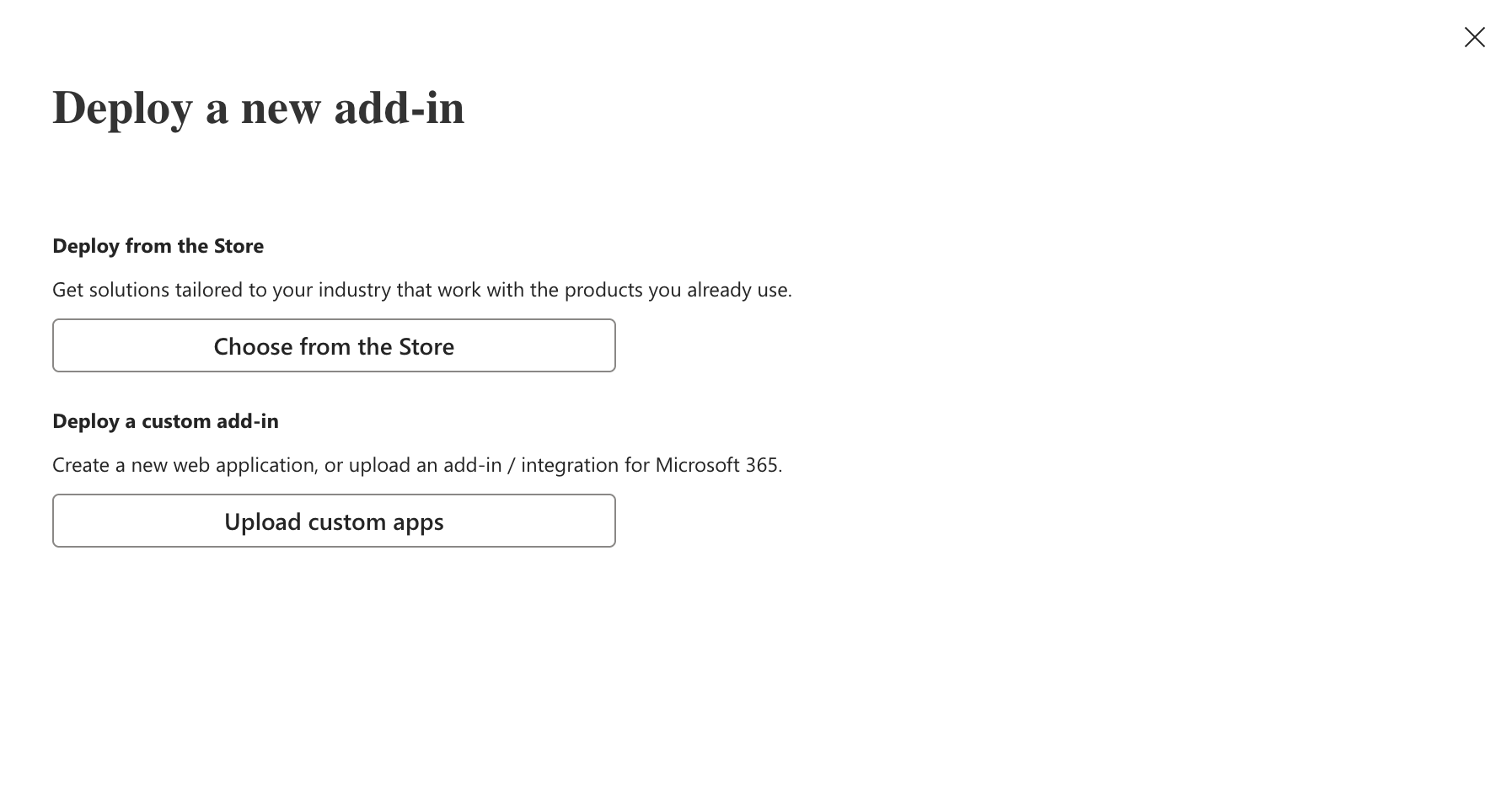
Select Add-ins at the top of the page, then Deploy Add-In.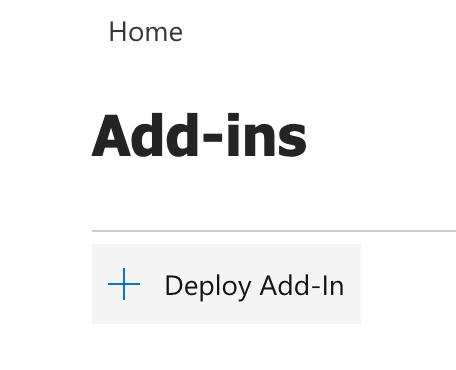
3
Find Athena
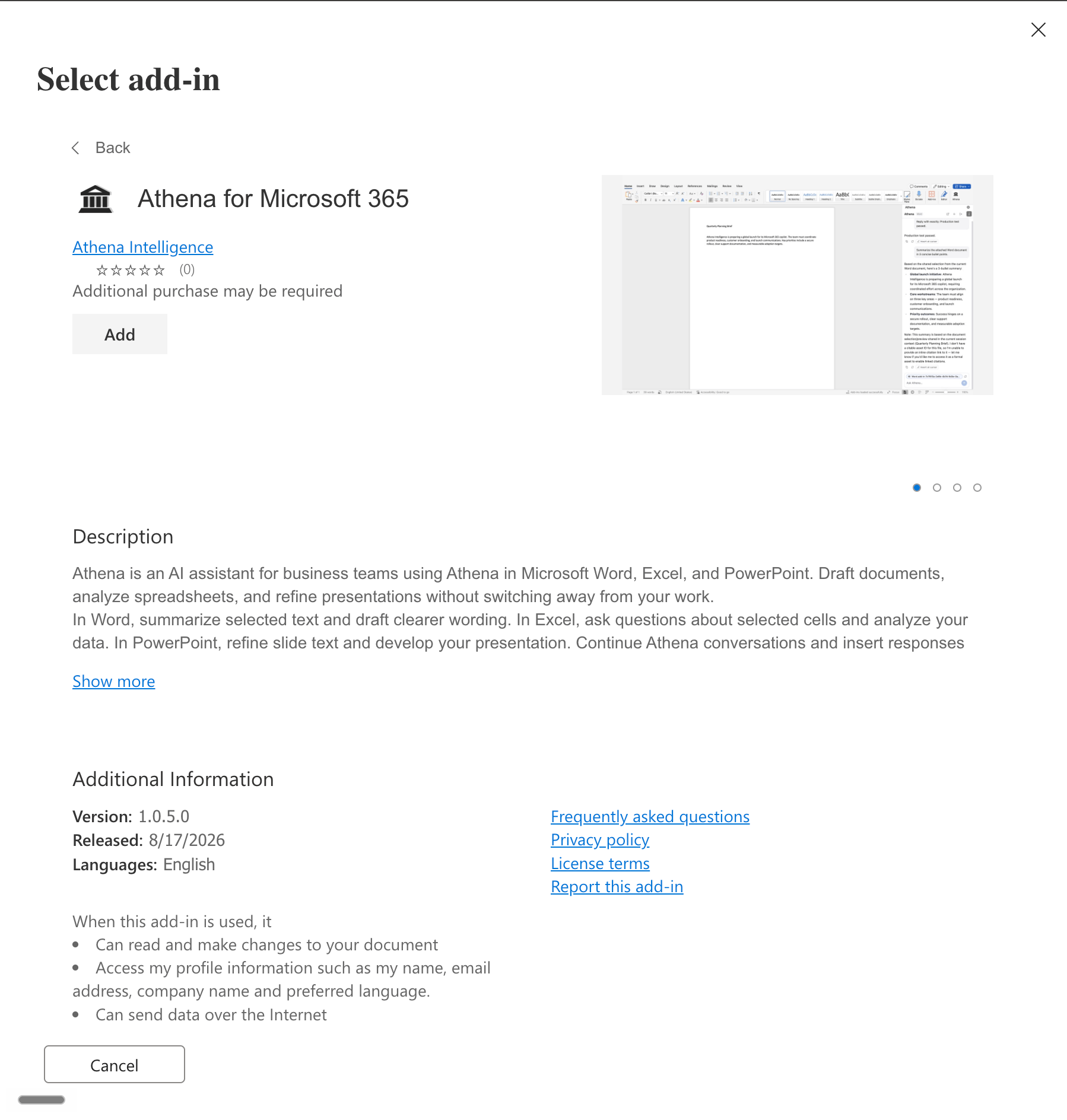
Search for Athena and select Add next to Athena for Microsoft 365.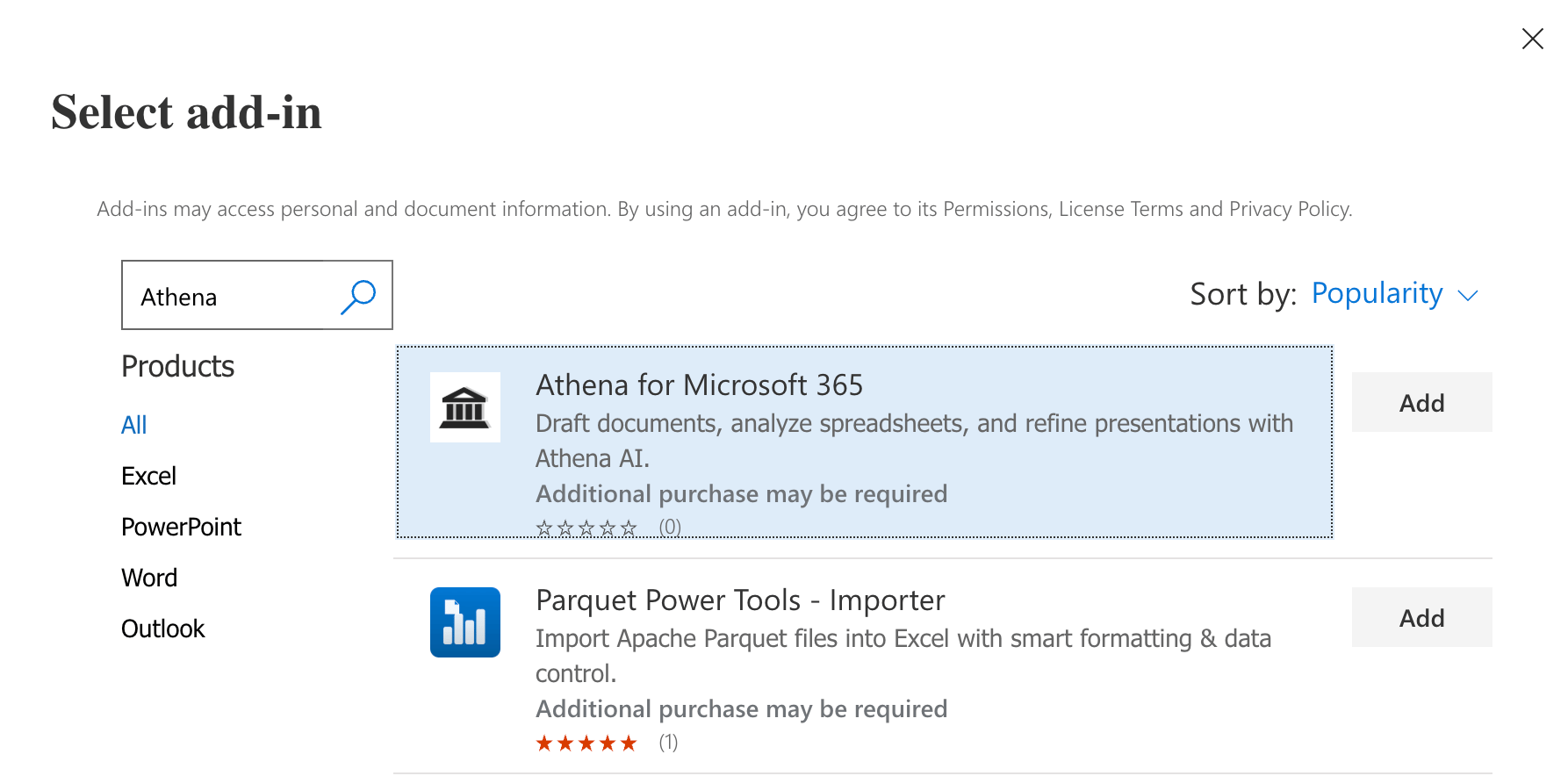
4
Assign it to yourself
On Configure add-in, choose Just me, then continue and select Deploy.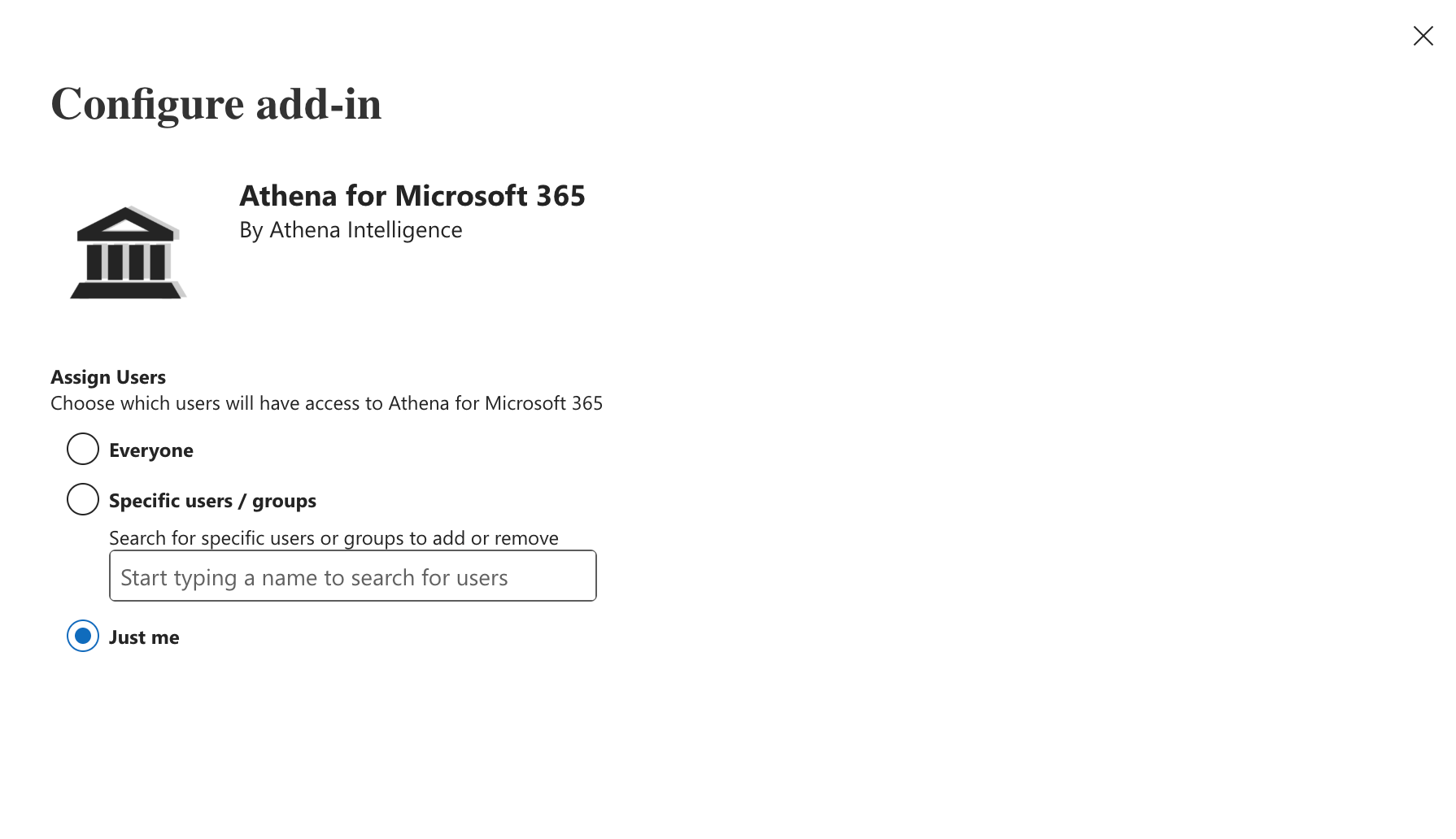
5
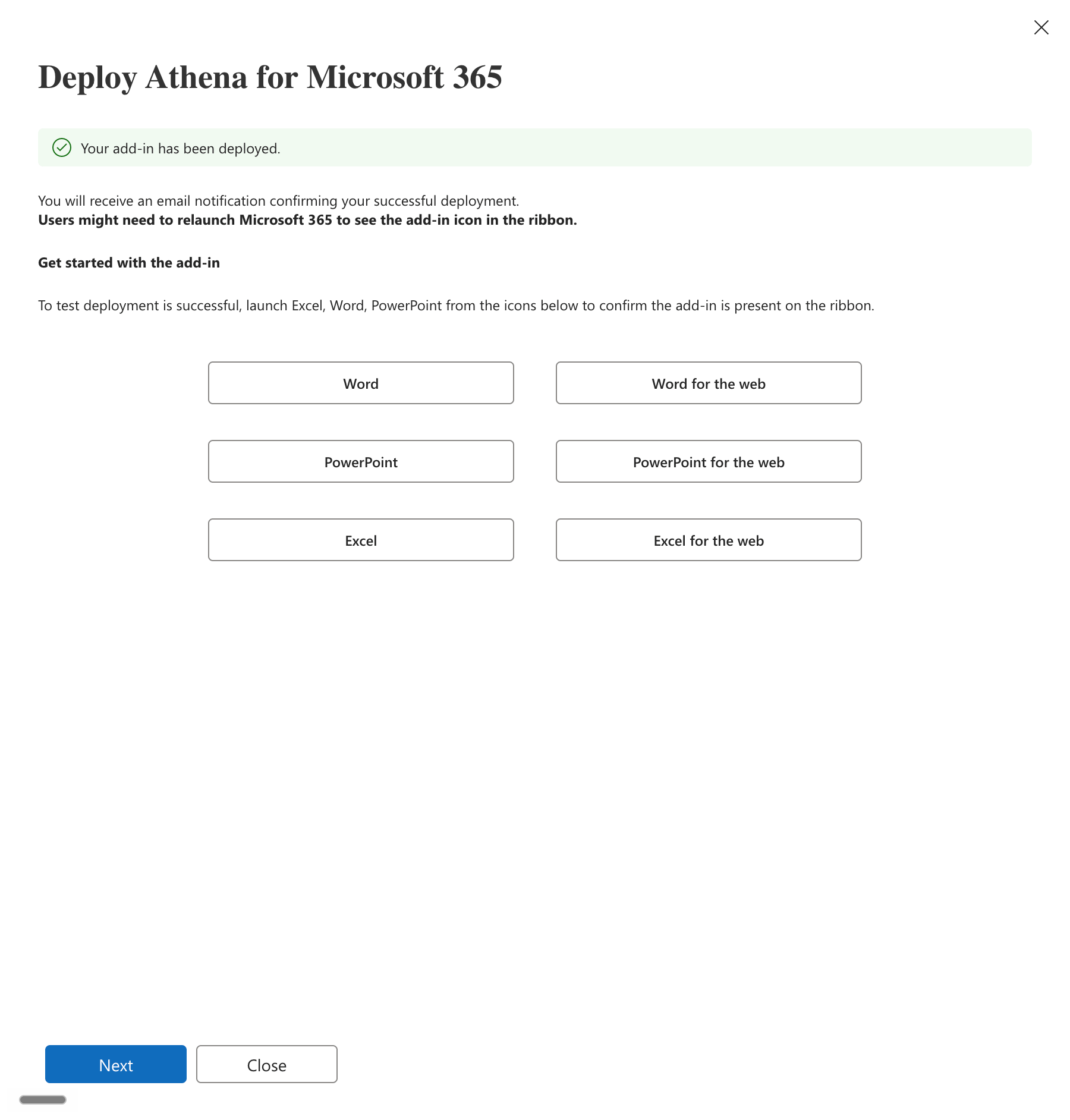
Wait for the deployment
The admin center shows Getting your add-in ready. This can take a few minutes.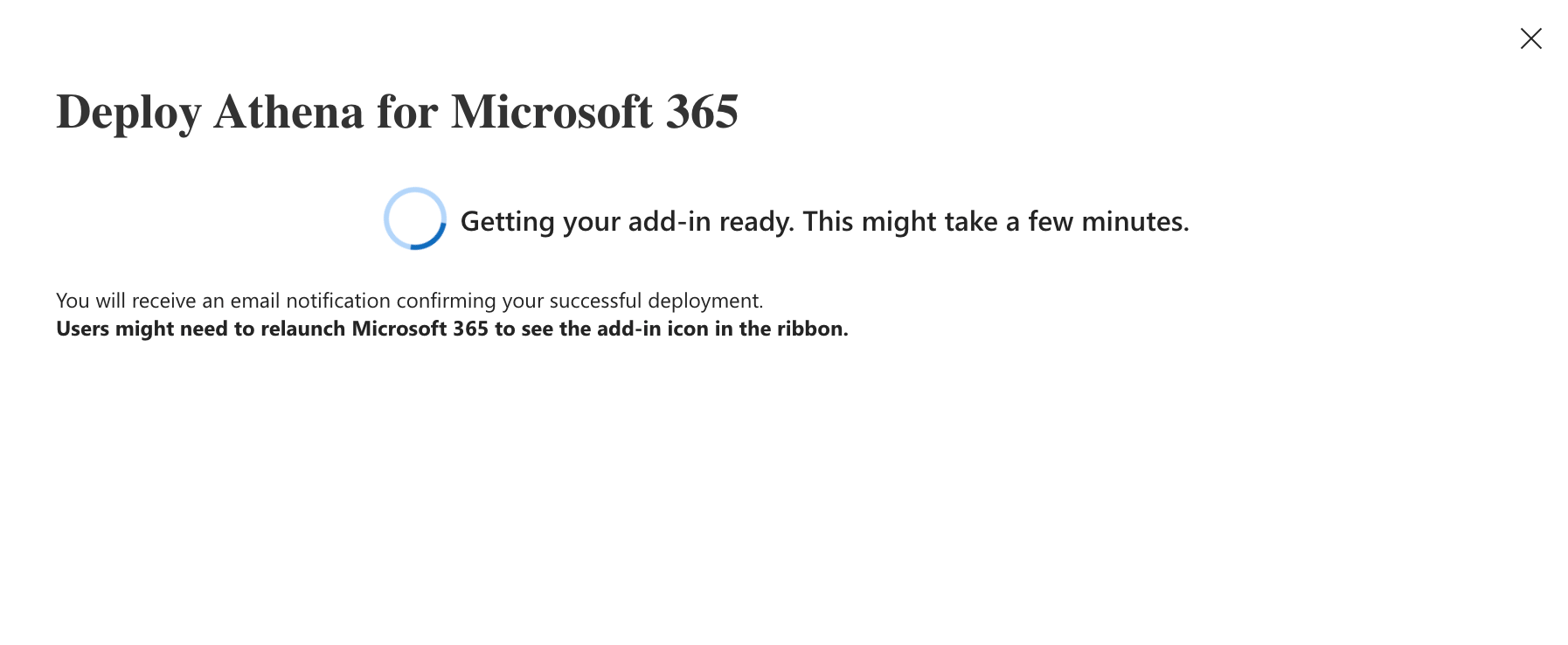
6
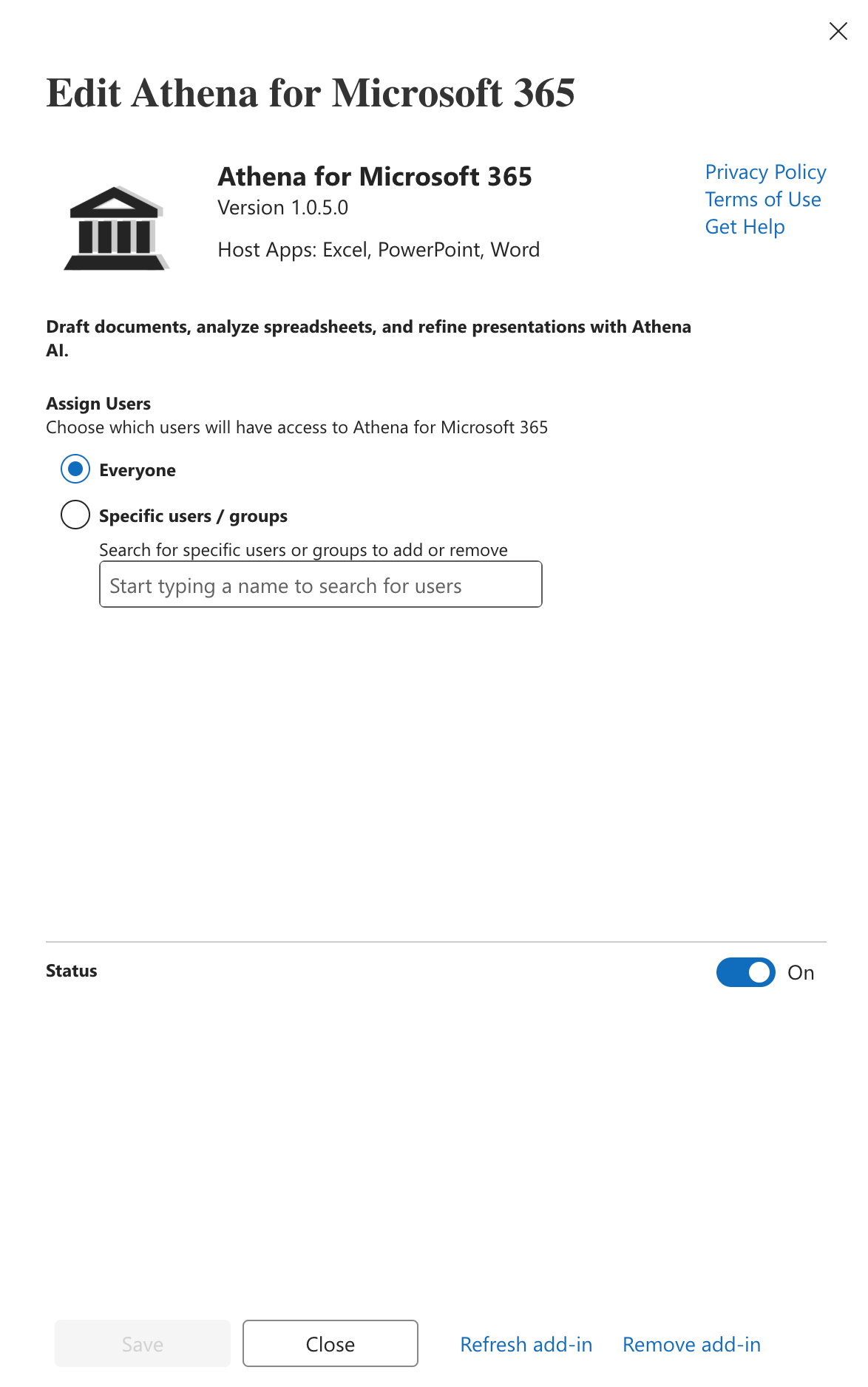
Give your users access
Select Change who has access to add-in.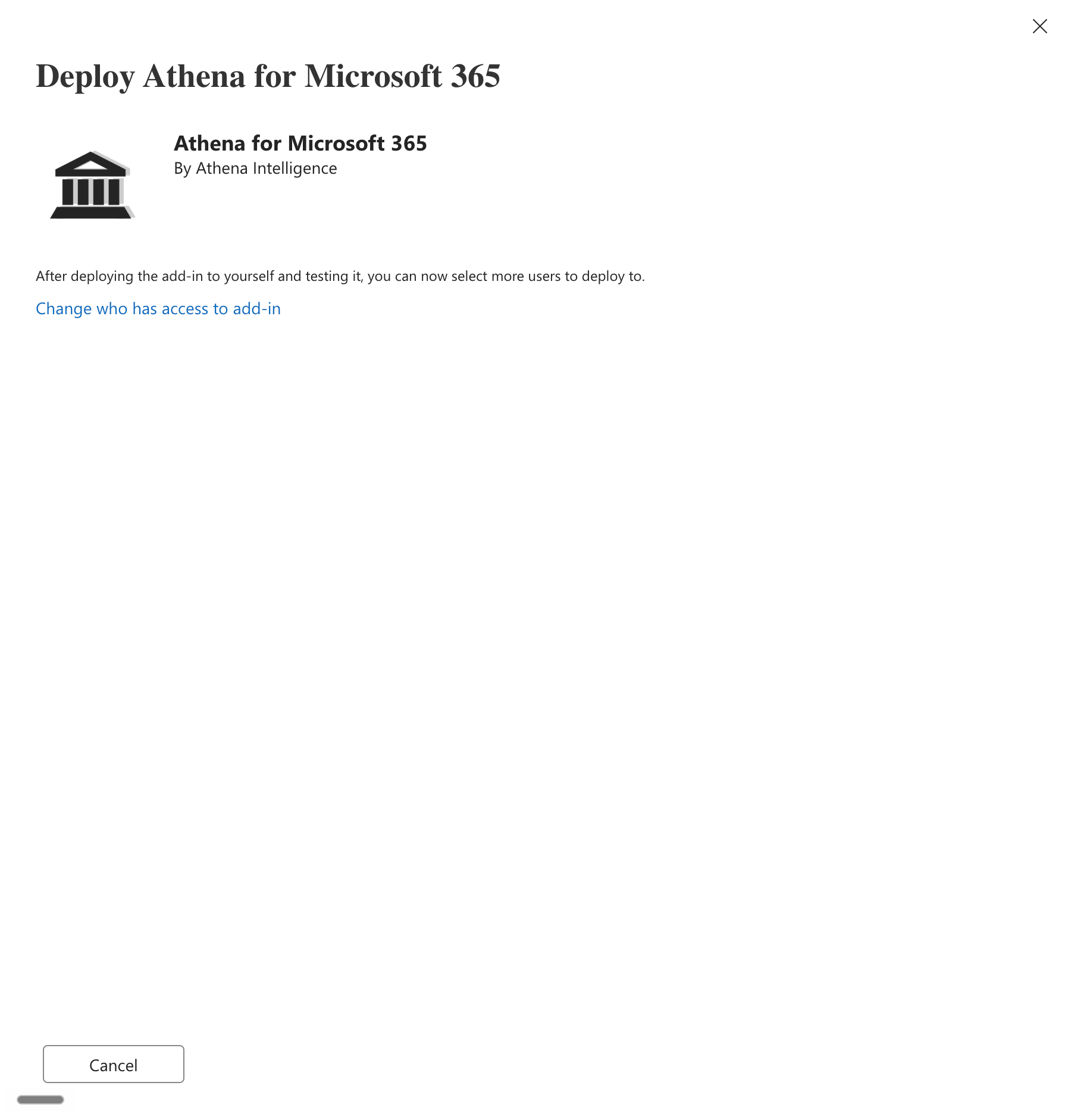
How long until users see it?
Microsoft says deployment can take up to 24 hours to reach every user. Some clients take longer before the button appears on the ribbon. Users should close and reopen Office after the deployment.Check the deployment
- Ask one pilot user to open Excel, Word or PowerPoint and go to Home → Add-ins (or Insert → Add-ins → My Add-ins), then open the Admin Managed tab.
- Confirm Athena for Microsoft 365 is listed and opens.
- Have them sign in and send a test message (see For users below).
Expand to more users
When the pilot is working, go to Settings → Integrated apps → Add-ins, select Athena for Microsoft 365, and under Assign Users add more groups or choose Everyone. Select Save.Network and firewall allowlist
If your organization uses a proxy, firewall, SSL inspection or a secure web gateway, allow the following hosts over HTTPS (port 443). Secure WebSocket (wss://) traffic must be allowed to the hosts marked below. Chat responses stream over WebSockets.
If your organization signs in to Athena through SSO, your identity provider’s sign-in pages must also be reachable from Office.
Security and data
- Document access is limited to the open file. The add-in requests the Office
ReadWriteDocumentpermission only. It cannot read the user’s mailbox, OneDrive or other files, and it does not request Microsoft Graph or Entra ID consent. - Users control what is shared. A chip above the message box identifies the document context (for example, the current selection) that will be sent with the next message. It shows a summary, not a full preview of the contents. Turning it off stops sharing document context with chat and turns off Athena’s document tools. Live sync runs separately: if a document is live-synced with Athena, turning off the chip does not stop edits from syncing. Use Stop or Unlink in the live-sync panel to stop it.
- Edits need approval. Athena asks before it changes the open document. Allow approves edits for the rest of that conversation, Decline rejects them, and Allow for 8 hours in this document skips later prompts for that one document for eight hours. Approval never carries over to other documents. Users can also insert results themselves with Insert.
- Sign-in uses your Athena account. Users sign in through an Office sign-in window with their Athena credentials or SSO. Sessions use short-lived access tokens, and signing out of the add-in revokes the session.
- Your Athena security controls apply. Conversations are stored in your Athena workspace under the same policies as the rest of Athena, and Athena never trains models on customer data. See Security and Data Handling for compliance details, or email team@athenaintel.com for compliance documentation.
For users: get started
1
Open the add-in
In Excel, Word or PowerPoint, go to Home → Add-ins, open the Admin Managed tab, and select Athena for Microsoft 365. After the first launch, Athena appears on the Home ribbon.
2
Sign in
Select Sign in in the task pane and sign in with your Athena account in the window that opens. If your organization uses SSO, you’ll be taken to your usual company sign-in.
3
Ask Athena about your document
Select some cells, text or a slide, and ask a question. The chip above the message box identifies the context shared with chat. Turn it off to stop sharing that context and turn off document tools. Turning off the chip does not stop live sync: if the document is live-synced with Athena, use Stop or Unlink in the live-sync panel.
4
Put the results to work
Use Insert to place an answer in your document, or ask Athena to make the change and approve it when prompted.
Things to try
Troubleshooting
Users see 'configured to prevent individual acquisition…'
Users see 'configured to prevent individual acquisition…'
Your organization blocks self-service installs from the Office Store. An administrator must deploy the add-in using Option 1 or Option 2. This is expected and is not an error in Athena.
The add-in was deployed but users can't see it
The add-in was deployed but users can't see it
- Allow up to 24 hours, and have users fully close and reopen Office.
- Look under Home → Add-ins → Admin Managed, not the Store tab.
- Confirm the user is a direct member of the assigned group. Nested groups are not supported.
- If your tenant blocks the Office Store and you used Option 1, deploy with Option 2 instead.
- An Exchange admin can run
Get-OrganizationConfig | fl AppsForOfficeEnabledin Exchange Online PowerShell. If it returnsFalse, add-ins are disabled for the organization.
Deployment shows 'The requested action failed'
Deployment shows 'The requested action failed'
This generic admin center error usually has one of these causes:
- The first deployment was assigned to Everyone or a group. Deploy to Just me first, then use Change who has access to add-in to widen access (see Option 1).
- The admin role was activated through Privileged Identity Management (see below). Deploy from an account with Global Administrator or Exchange Administrator permanently assigned.
- The deployment was started from Get apps. Start again from Settings → Integrated apps → Add-ins → Deploy Add-in.
- The Store deployment is blocked by tenant policy. Use Option 2 to upload the manifest instead.
Deployment fails for an admin whose role is activated through PIM
Deployment fails for an admin whose role is activated through PIM
The Integrated apps page doesn’t recognize admin roles activated through Microsoft Entra Privileged Identity Management. Deploy from an account where the required role is permanently assigned.
'We are unable to initiate the deployment' from Get apps
'We are unable to initiate the deployment' from Get apps
Use Settings → Integrated apps → Add-ins → Deploy Add-in instead of Get apps.
The sign-in window is blank or closes immediately
The sign-in window is blank or closes immediately
Check that
app.athenaintel.com, auth.athenaintel.com and your SSO provider’s sign-in pages are reachable and not blocked by your proxy. Then try again from the task pane.Messages send but responses never arrive
Messages send but responses never arrive
Your network is likely blocking WebSocket traffic. Allow
wss:// connections to iris.prd.athenaintel.com (see Network and firewall allowlist), and exclude it from SSL inspection if your gateway interrupts WebSockets.The task pane is blank on Windows
The task pane is blank on Windows
Office on Windows displays add-ins with Microsoft Edge WebView2. Make sure the WebView2 runtime is installed. If your organization uses Windows Information Protection, add
msedgewebview2.exe to its list of protected apps.