Folders in Athena provide a hierarchical structure for organizing your assets, similar to traditional file systems. They support parent-child relationships, allowing you to create nested folder structures that match your organizational needs.Key Features
- Hierarchical Organization: Create nested folder structures to organize assets logically
- User Sandbox: Each user has a protected sandbox folder (
sandbox/{username}/) for personal assets
- Sharing & Permissions: Control who can view and edit folder contents
- Asset Management: Move assets between folders with drag-and-drop or bulk operations
Creating Folders
Create a folder
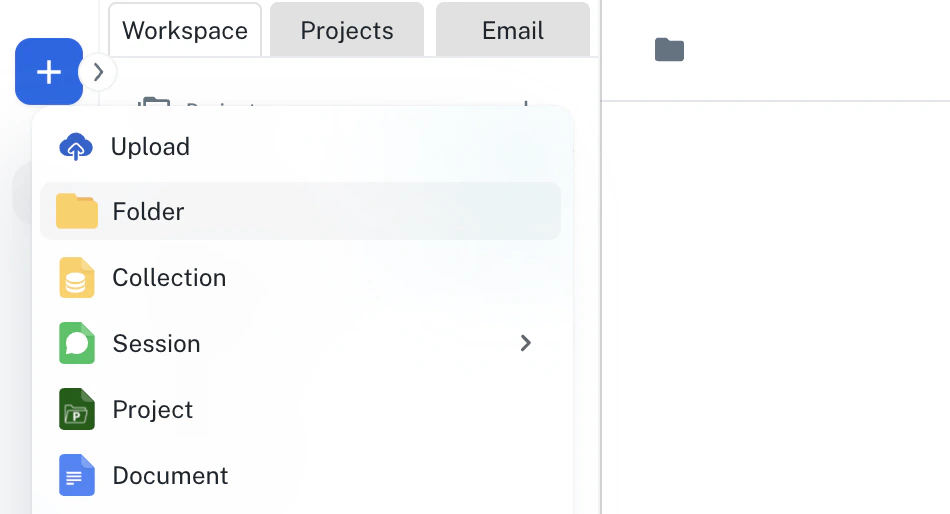
Go to Spaces and click on the + icon. Select Folder from the menu. Name your folder
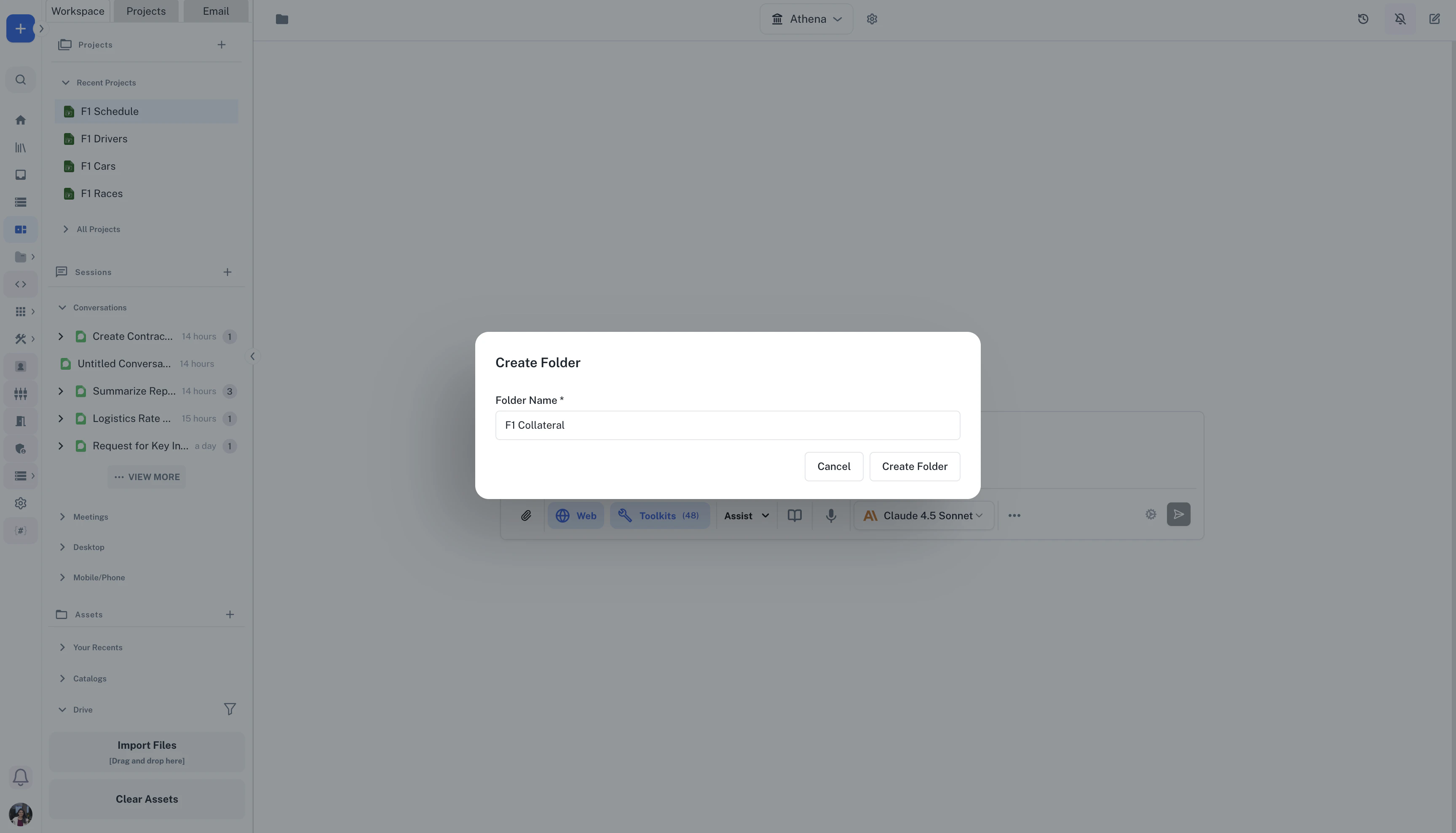
Give your folder a descriptive name and click on Create Folder. Organize Assets
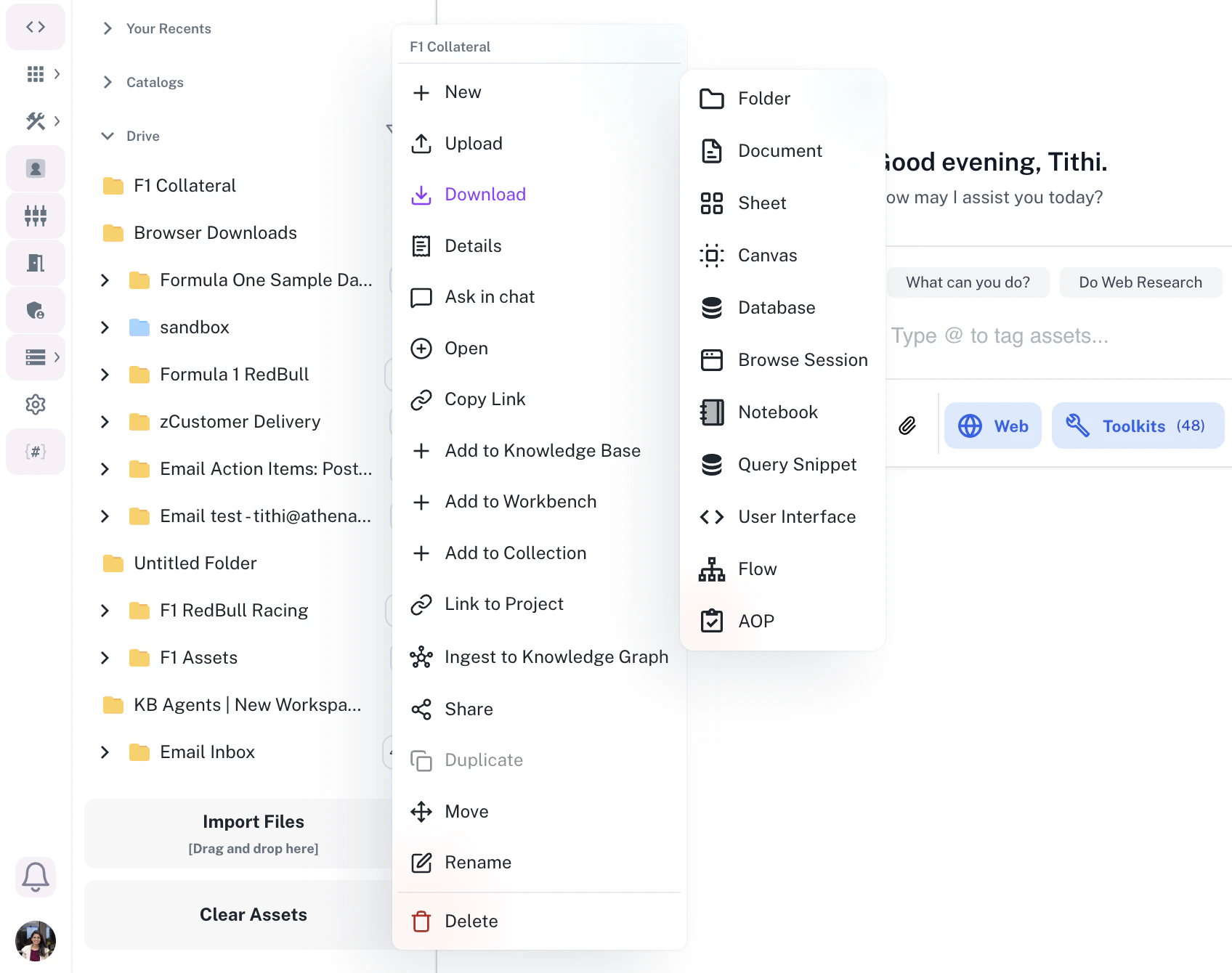
Drag and drop assets into your folder, or use the context menu to move multiple assets at once. Folder Structure
Folders can contain:
- Assets: Documents, sheets, notebooks, and other file types
- Subfolders: Create nested hierarchies for complex organization
- Live Assets: Files from external providers like SharePoint or Google Drive
Your personal sandbox folder is automatically created and provides a private space for your assets. Other users cannot access your sandbox unless you explicitly share assets from it.
Collections allow you to group related assets together without changing their folder location. Think of collections as custom tags or playlists for your assets - an asset can belong to multiple collections while remaining in its original folder.Key Features
- Asset Grouping: Combine assets from different folders into a single view
- Descriptions: Add rich text descriptions to document the collection’s purpose
- Dynamic Membership: Easily add or remove assets without affecting their original locations
- Multiple Collections: Assets can belong to multiple collections simultaneously
Creating Collections
Access Collection Creator
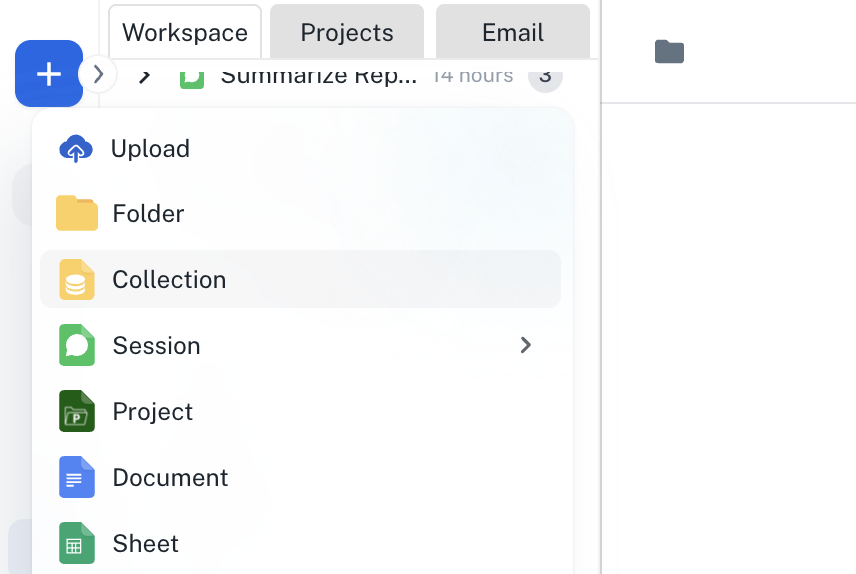
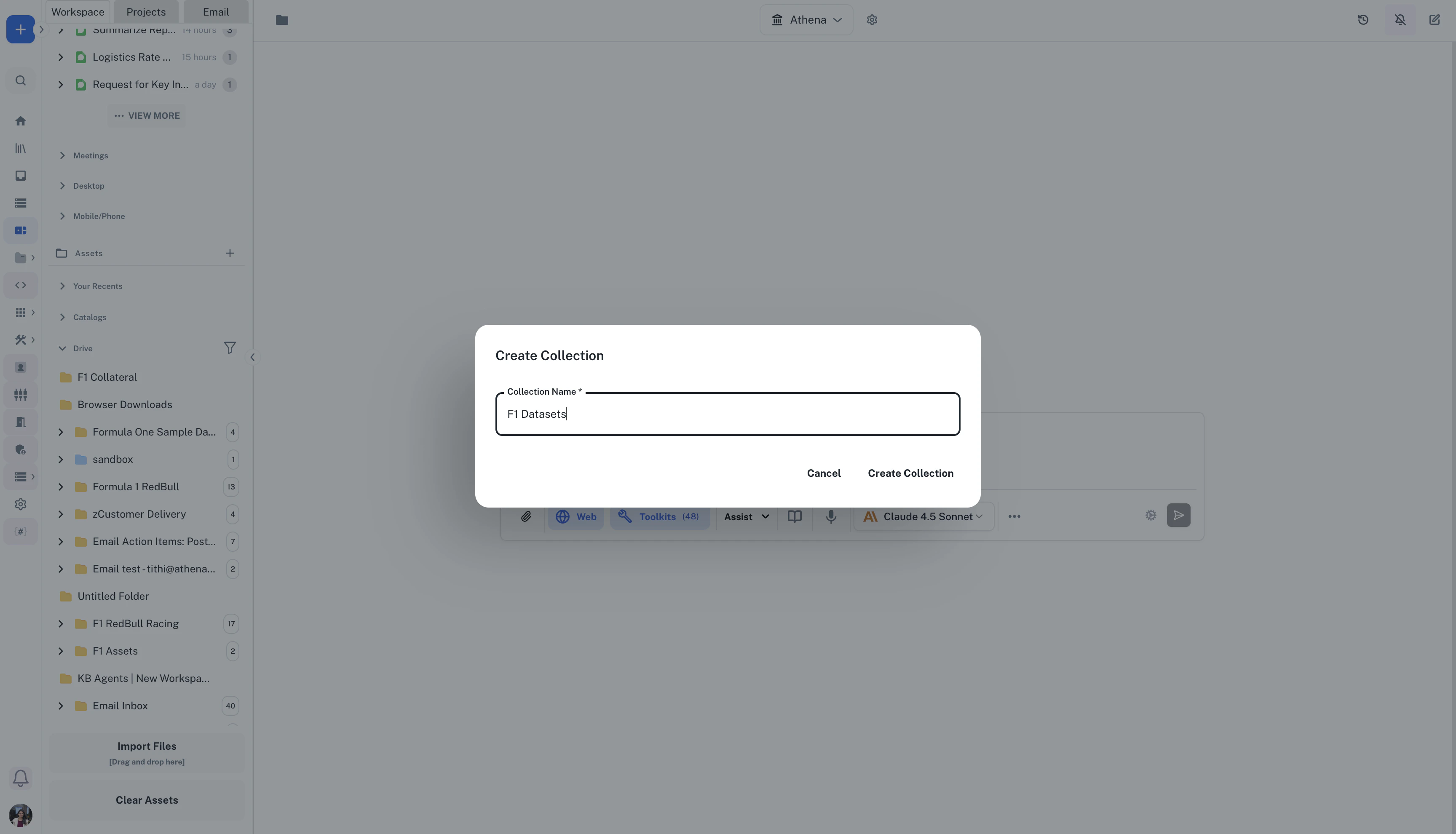
From Spaces, click the + icon and select New Collection. Name and Describe
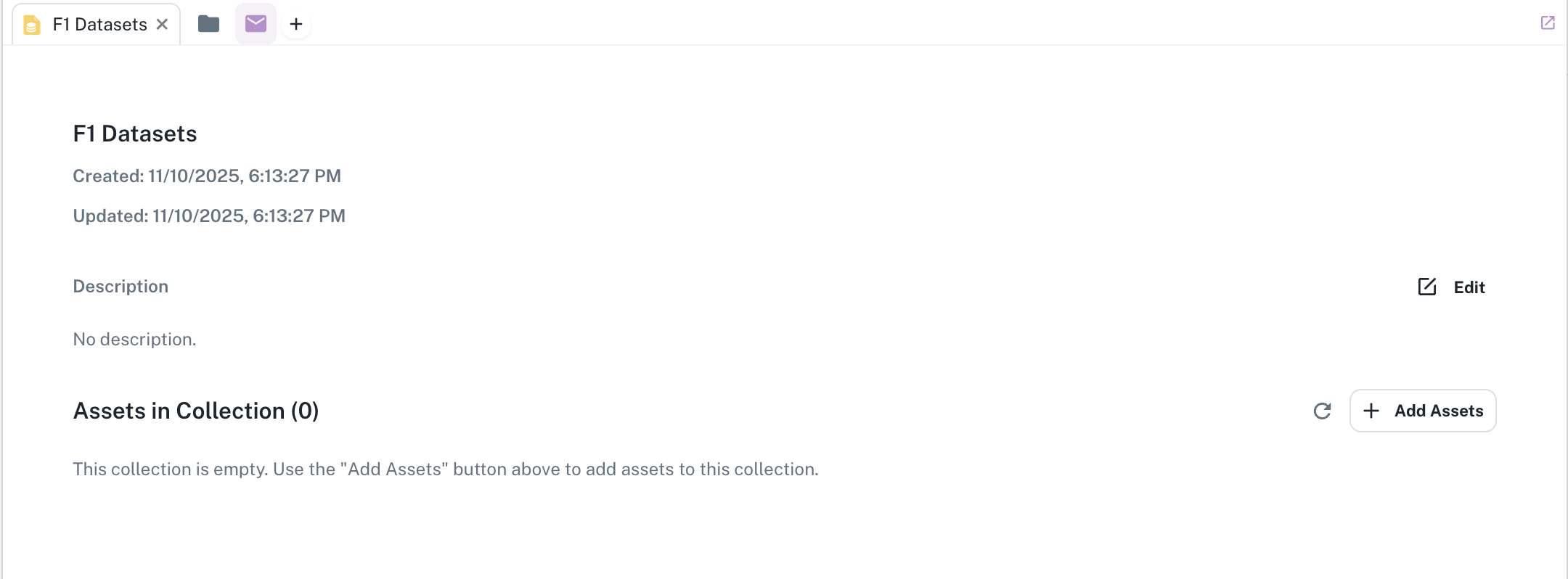
Give your collection a meaningful name and add a description explaining its purpose or contents. Add Assets
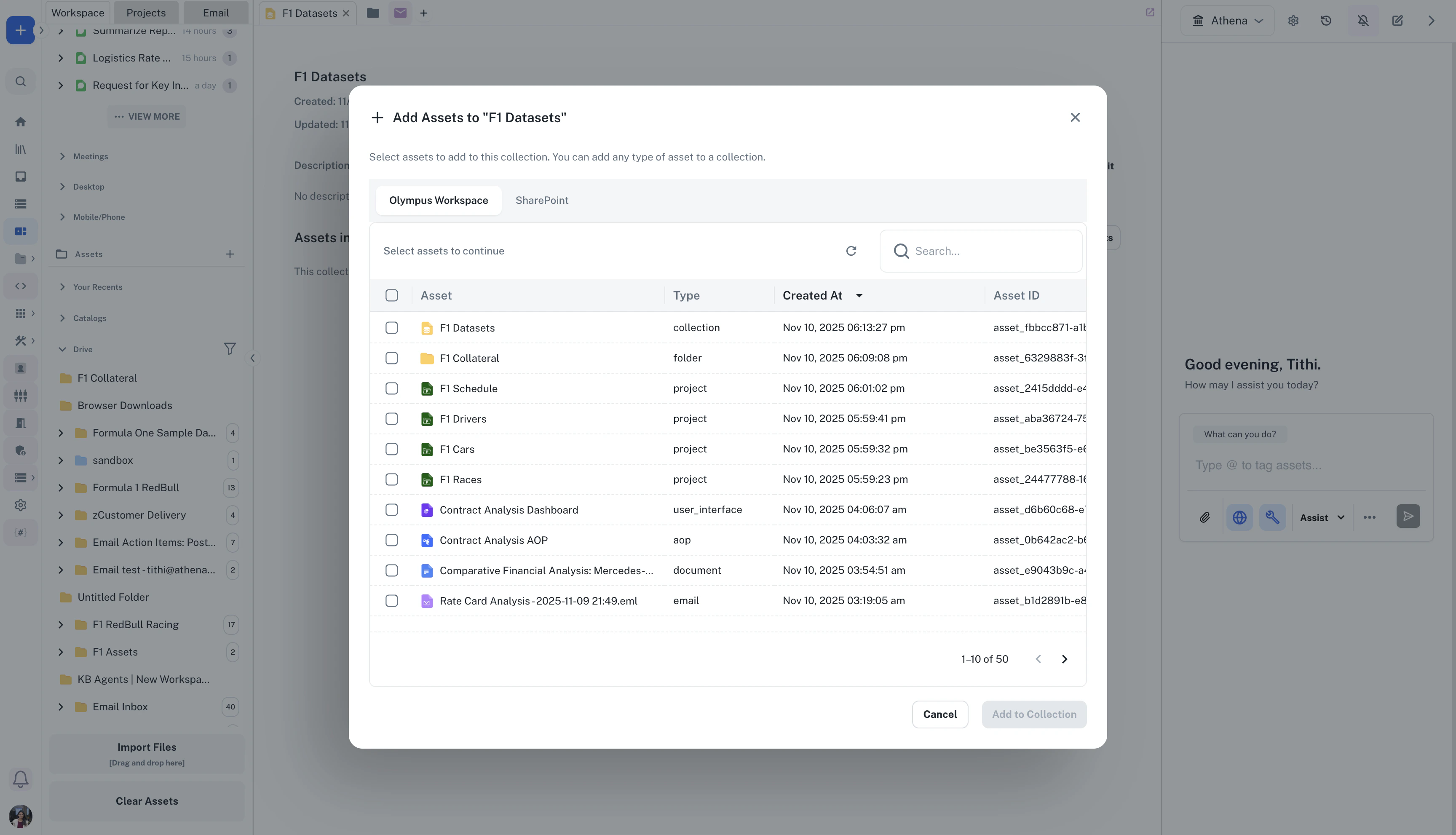
Click Add Assets to select items from your workspace. You can add assets from any folder you have access to.
Note that you can add files directly from your SharePoint by switching to the SharePoint asset selector.
Manage Contents
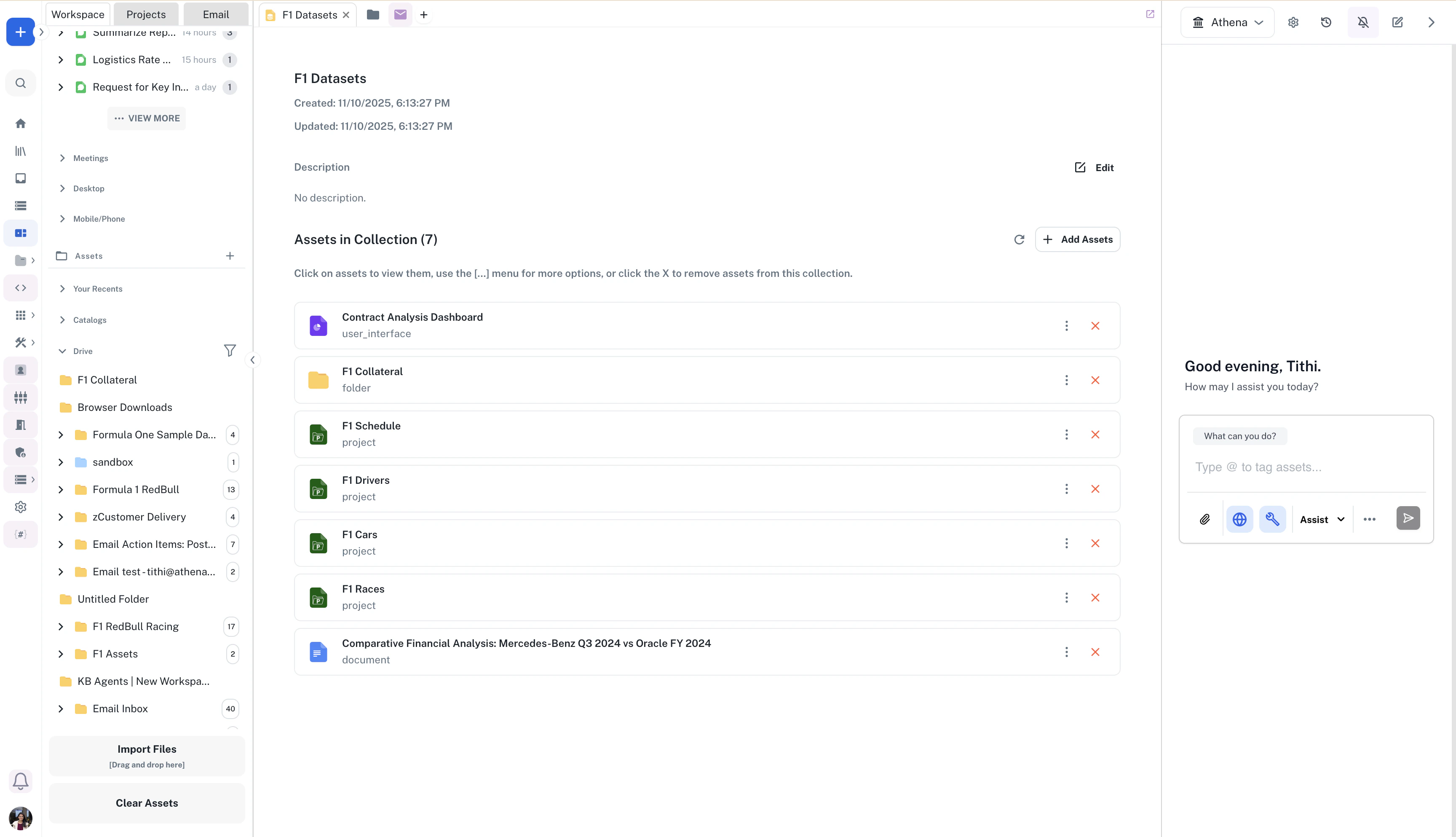
View and interact with all assets in the collection. Use the […] menu for additional options or click X to remove assets. Working with Collections
Collections display:
- Asset List: All assets in the collection with their types and metadata
- Description: Rich text explanation of the collection’s purpose
- Quick Actions: Add new assets, remove items, or refresh the view
- Asset Preview: Click any asset to view it without leaving the collection
Collections are perfect for organizing assets across folder boundaries. For example, create a collection of all Q4 reports even though they’re stored in different department folders.
Catalogs provide connections to external data sources, enabling you to access data without importing it into Athena. There are two types of catalogs: Database Catalogs for structured data sources and Live Asset Catalogs for external file providers.Database Catalogs
Database catalogs connect to structured data sources like Snowflake, BigQuery, PostgreSQL, or other SQL databases. They provide a hierarchical view of your data: Catalog → Schema → Table → Columns.Features
- Schema Browser: Navigate database schemas and tables visually
- Query Integration: Use catalogs with Query Snippets to analyze data
- Column Information: View column names, types, and metadata
- Real-Time Access: Query live data without copying it into Athena
Database Catalog Structure
Use fully qualified names when querying: catalog_name.schema_name.table_name to ensure accurate results.
Live Asset Catalogs
Live asset catalogs connect to external providers like SharePoint, Google Drive, and Gmail. They enable you to access and work with files that remain in their original locations.Learn how to connect your SharePoint to Athena
here!
Supported Providers
- SharePoint: Sites, document libraries, files, and folders
- Google Drive: Files and folder structures
- Gmail: Email messages and attachments
- More providers: Additional integrations available through Paragon
Features
- Real-Time Sync: Access the current state of external files
- No Migration Required: Files stay in their original systems
- Unified Interface: Work with external assets alongside native Athena assets
- Multi-User Support: Team members can connect to shared catalogs independently