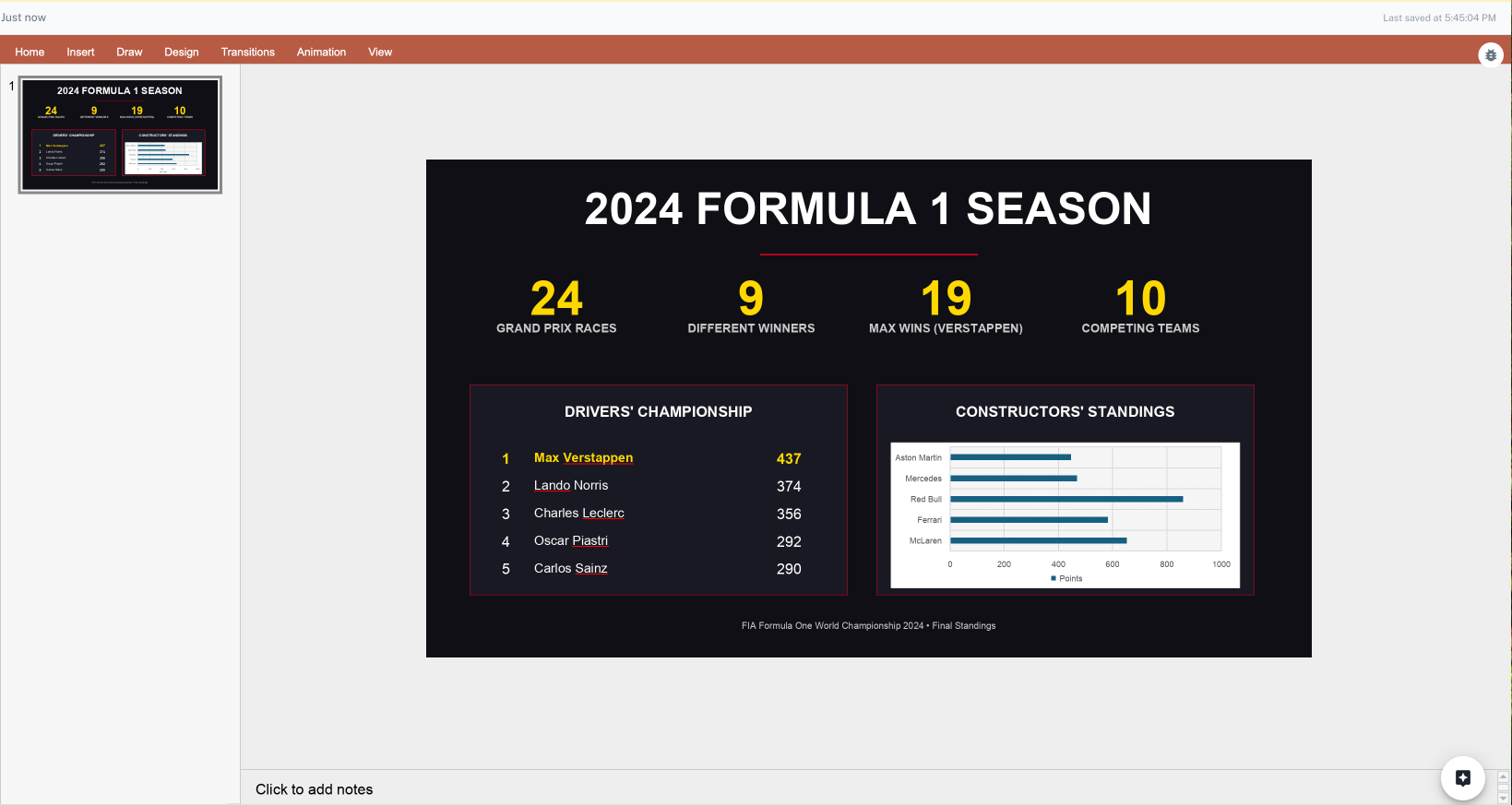
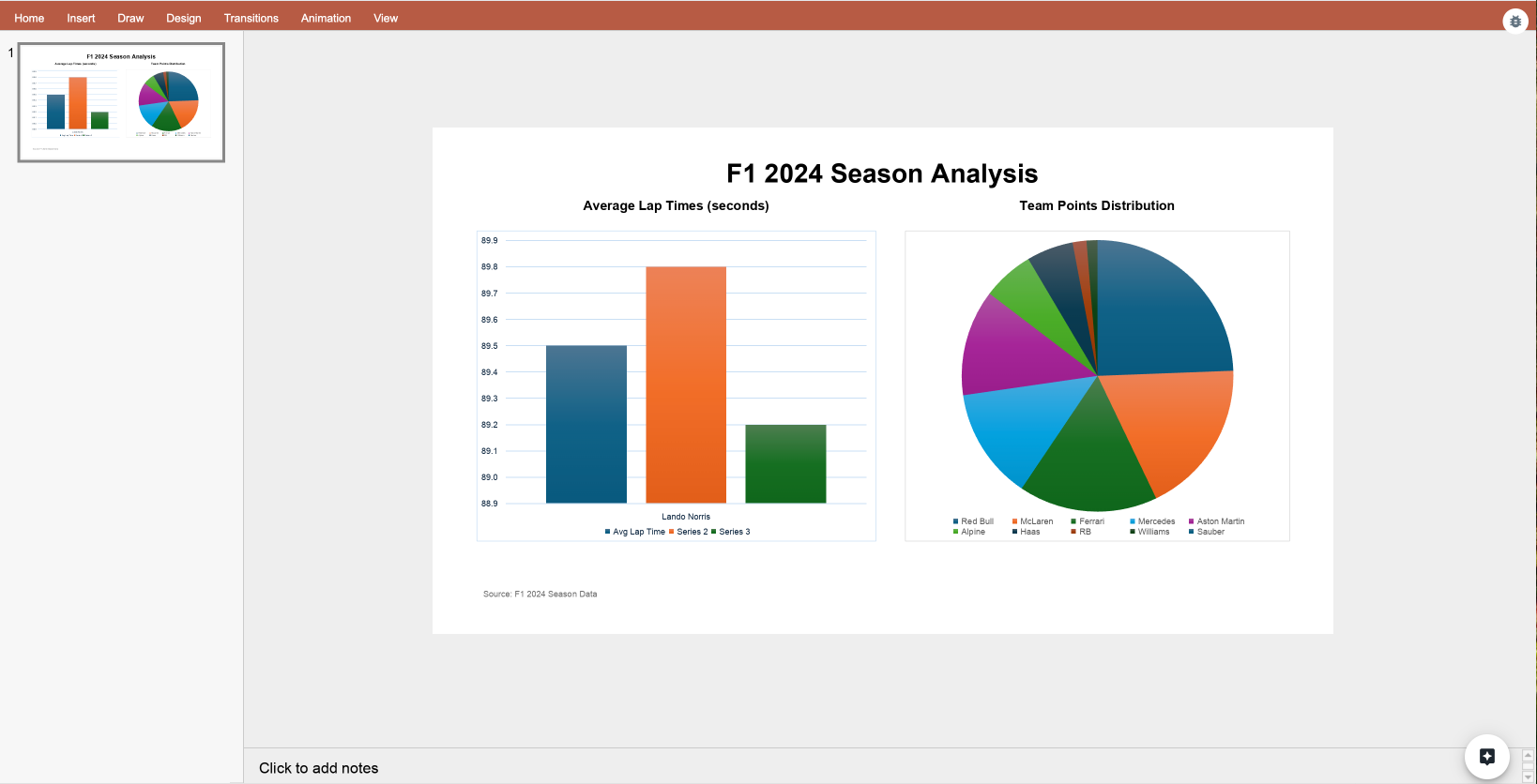
Athena Presentations enable you to create professional, AI-driven slide decks that seamlessly integrate data visualizations, charts, and compelling narratives. Transform your data and ideas into polished presentations that captivate your audience.Using Presentations, you can generate entire slide decks, customize individual slides, and incorporate dynamic visual elements—all through natural language interactions with Athena.
Create beautifully designed slides with professionally crafted layouts that adapt to your content. Athena automatically formats text, headings, and content for maximum visual impact.
Use natural language to describe your presentation needs, and Athena will generate complete slide decks or individual slides. Request modifications and refinements through simple conversational instructions.
Incorporate charts, tables, graphs, and images directly into your slides. Athena can visualize your data with professional-grade charts and infographics that enhance your storytelling.
Work alongside your team members in real-time, with multiple users able to view and edit presentations simultaneously while Athena assists with content generation and refinement.
Create presentations that automatically pull data from Athena Sheets, databases, or other data sources. Generate slides with live data visualizations, charts, and metrics that update as your underlying data changes, ensuring your presentations always reflect the latest information.
1
Start with Athena Assist
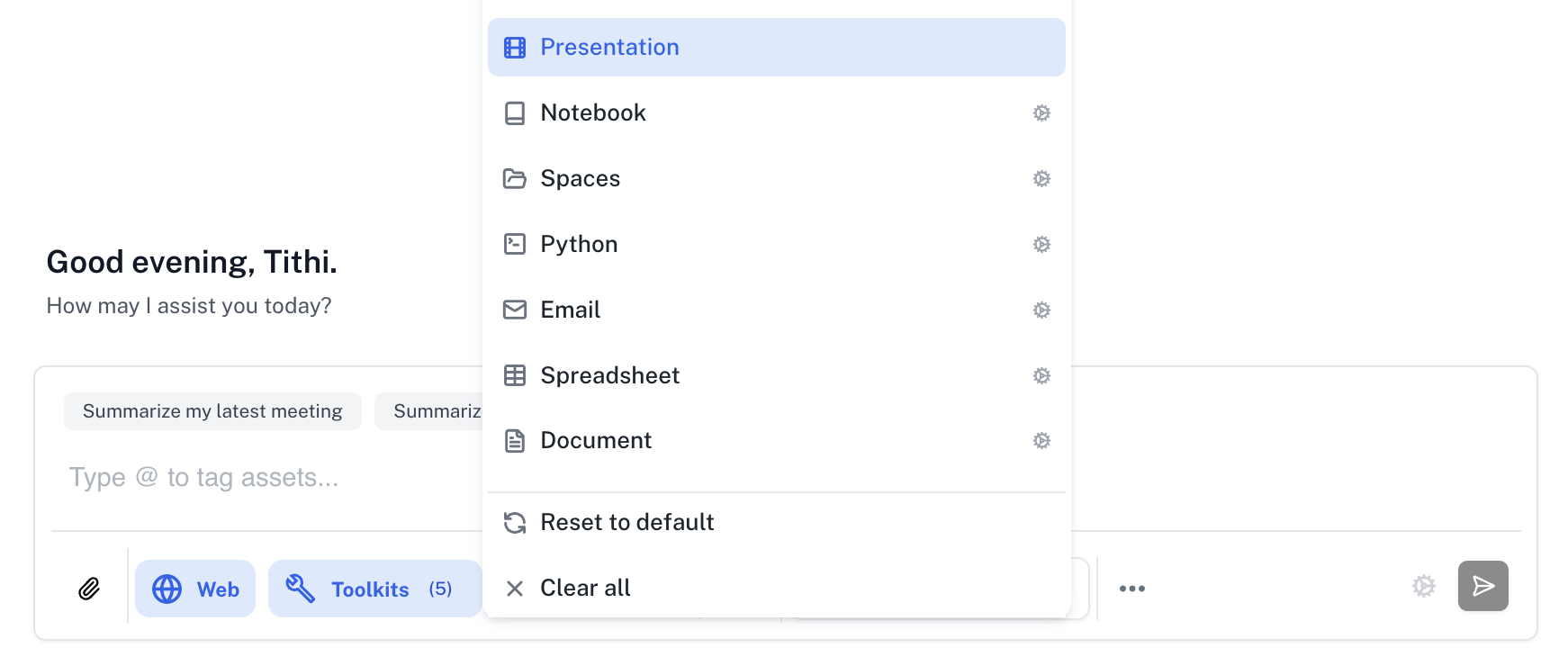
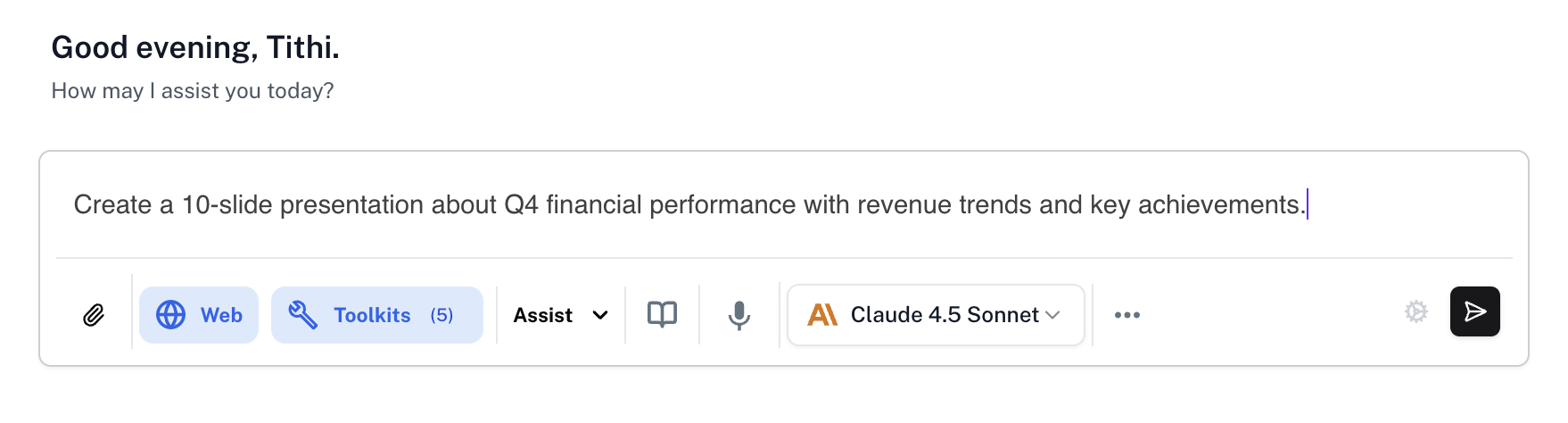
In the chat UI, select Athena Assist and make sure the Presentation Toolkit is selected.
2
Describe
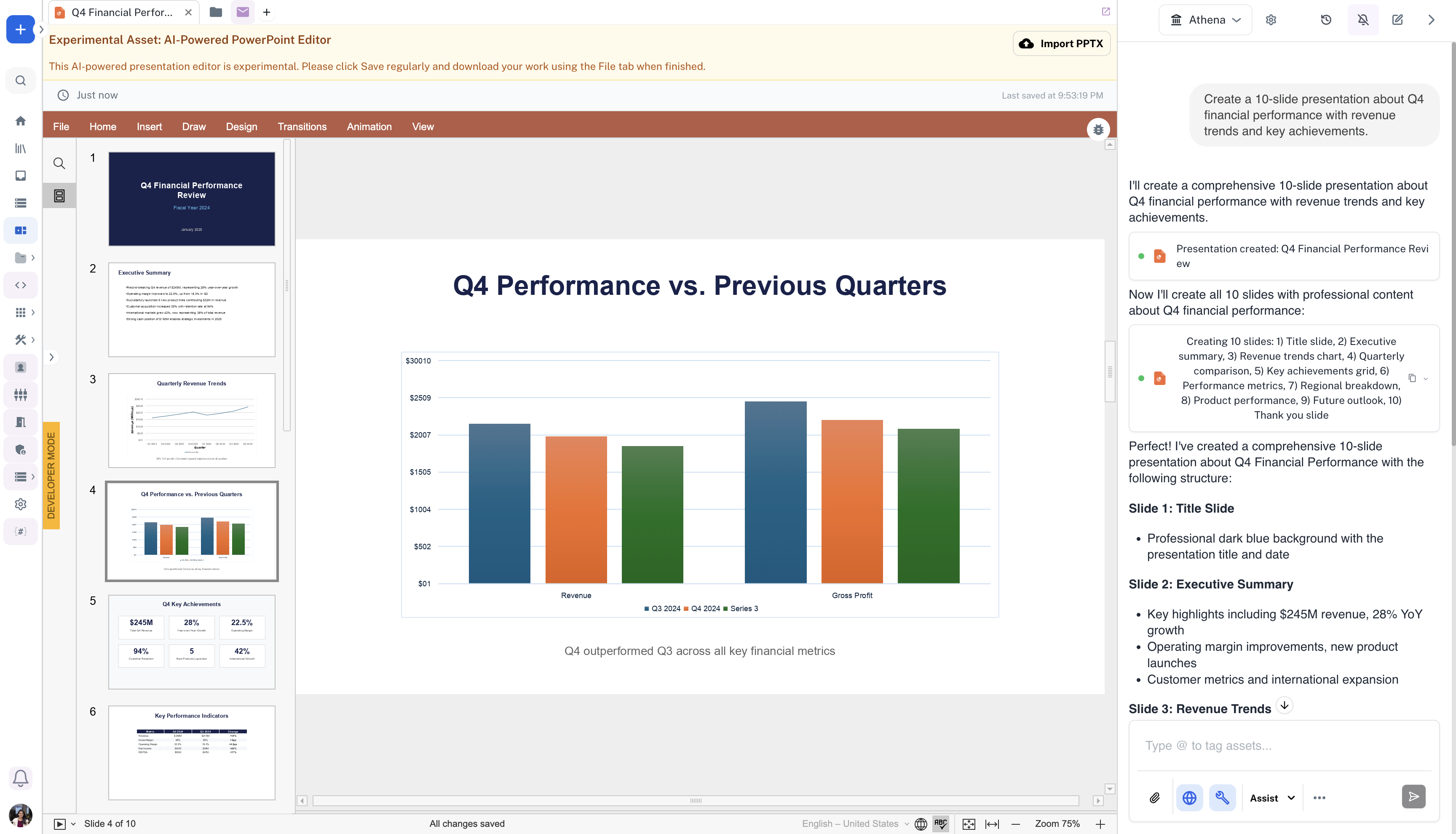
Describe your presentation in natural language and press Enter. For example: “Create a 10-slide presentation about Q4 financial performance with revenue trends and key achievements.”
3
Review
Athena generates your presentation. Review the slides and refine with additional instructions as needed.
4
(Optional) Include Image Assets
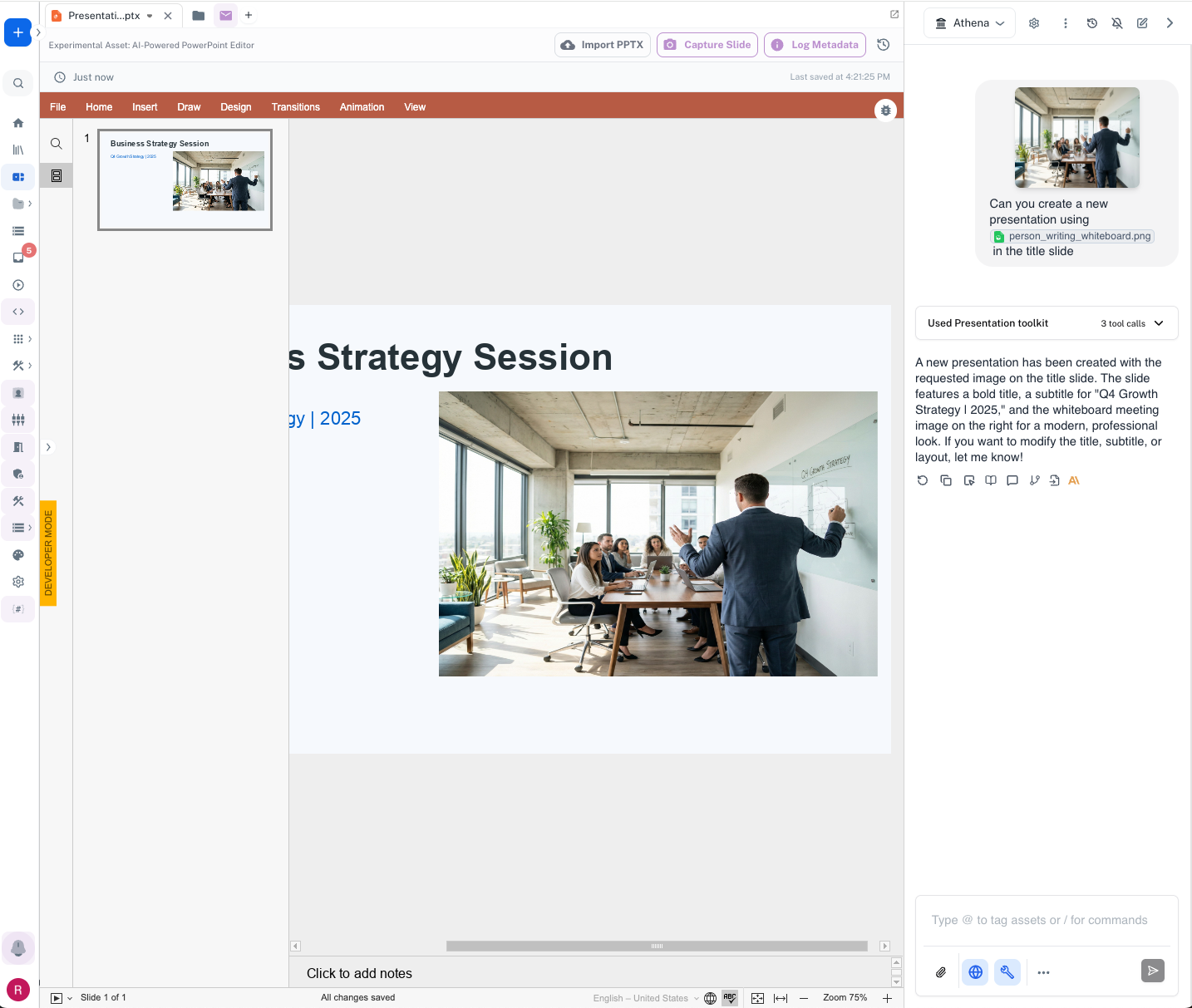
You can incorporate your existing Athena image assets directly into presentations by tagging them with the @ syntax. Simply reference any image asset from your workspace by typing @ followed by the image filename. For example, ask Athena to “Create a new presentation using @person_writing_whiteboard.png in the title slide” and Athena will include your specified image exactly where you want it.