

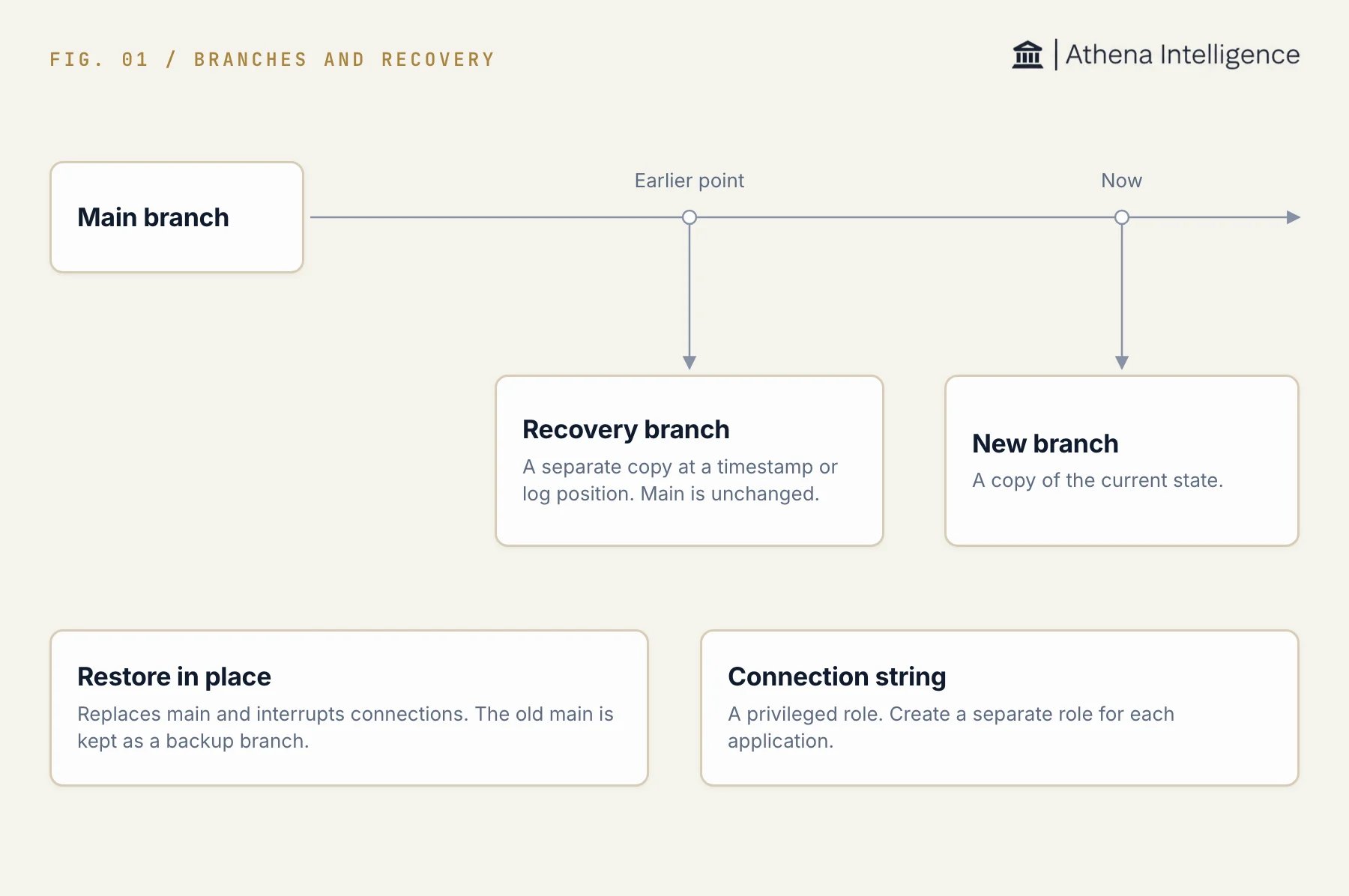
A recovery branch copies an earlier point and leaves the main branch unchanged.
Create and open a database
Database creation must be available for your account and deployment. The asset picker hides Database for self-serve accounts and when database creation is disabled.- In the Create new asset picker, choose Database.
- Enter a name in Database Name.
- If Database source appears, select Athena managed.
- Select Create Database, or Create database in the dialog with a source selector.
- The creation flow opens the new asset. Wait for provisioning before using it.
Create a branch
You need edit access to create or change branches. Reading the branch list and recoverable window requires view access. Branch actions become available after provisioning.- Open Branches and select New branch.
- Enter a Name and, optionally, a Description.
- Under Branch from, choose HEAD (current), Point in time, or Explicit LSN.
- For an earlier point, enter the timestamp or Ancestor LSN. An LSN is a Postgres log sequence number that identifies a position in database history.
- Review Schema only, Protected, and Auto-expire as needed.
- Select Create branch.
Branching and point-in-time recovery are marked Experimental in the database view. The retained history window determines how far back you can recover.
Recover into a new branch
A recovery branch preserves an earlier state separately from the current branch. You need edit access to create it.- Open Branches and find the source branch.
- Select its Point-in-time restore action.
- Review Recoverable window, including Earliest LSN, Latest LSN, and Retention.
- Under Restore by, choose Timestamp or LSN. Use LSN when timestamp restore is unavailable.
- Enter Restore to or Restore to LSN within the recoverable window.
- Optionally enter Recovery branch name (optional).
- Select Create recovery branch and check that the new branch appears in the list.