

Query in Notebooks
Run saved SQL queries from a notebook to use their results in your analysis.Queries in notebooks can be executed either by referencing a saved SQL snippet or by directly running SQL statements against your connected databases.
Step-by-step Instructions
1
Create a query snippet
Navigate to Spaces. Drag and drop the database you wish to query onto your Space. In the Chat sidebar, enter the following prompt and press Enter.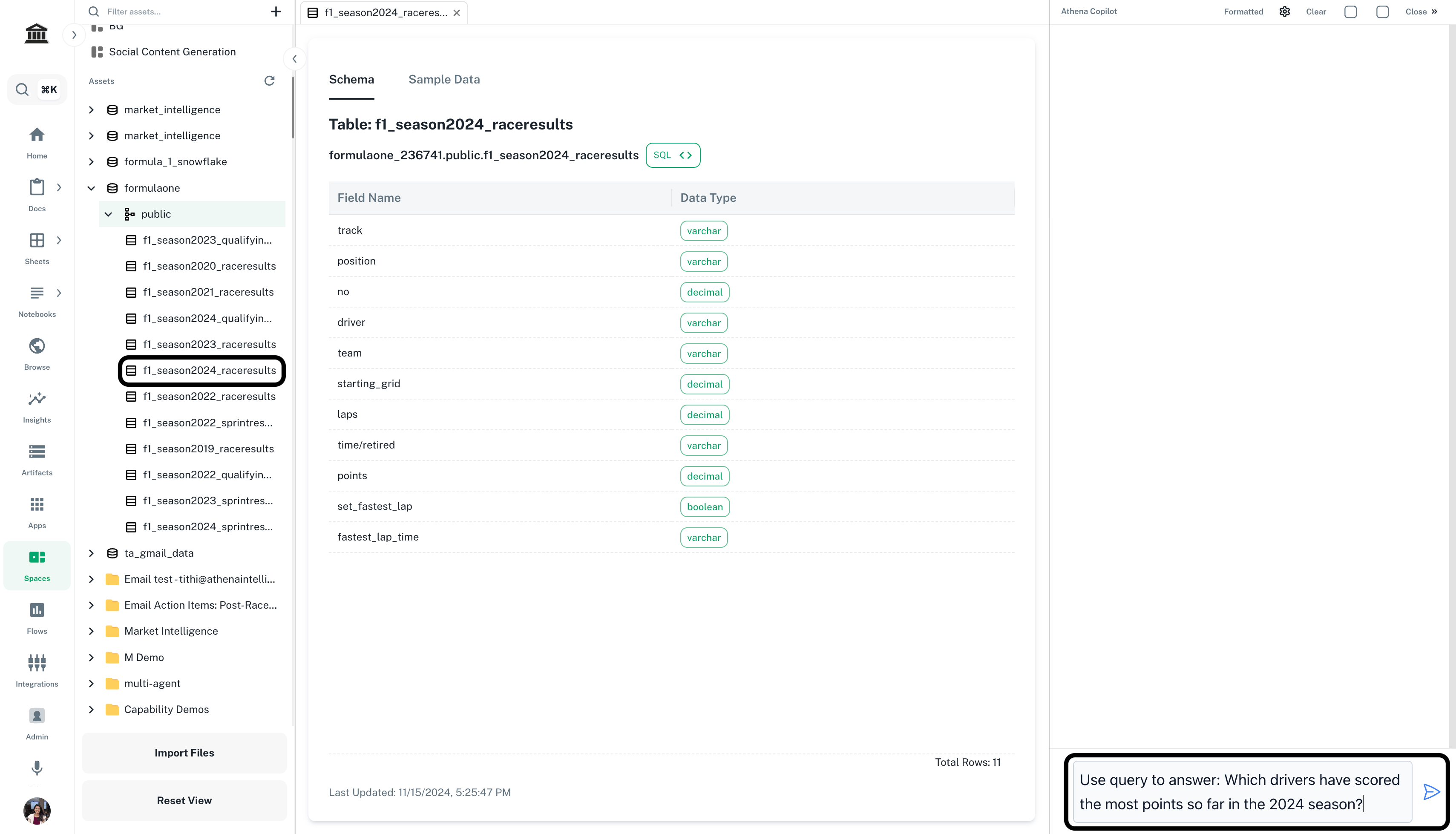
Prompt
2
Save the query
Save your query snippet by clicking on the save icon present on top-right of the query snippet.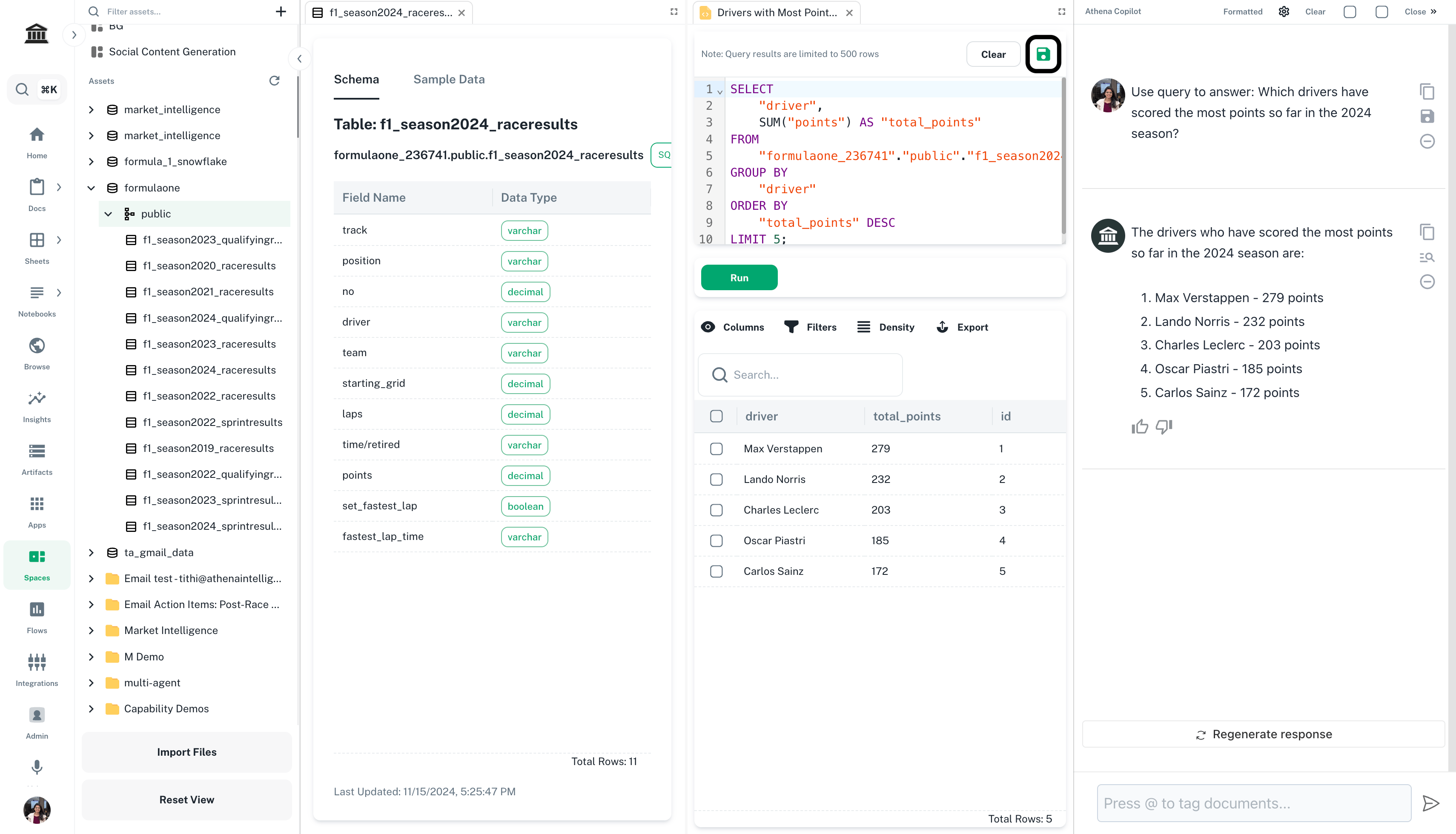
3
Get IDs
In the right Chat sidebar, enter the following prompt and press Enter.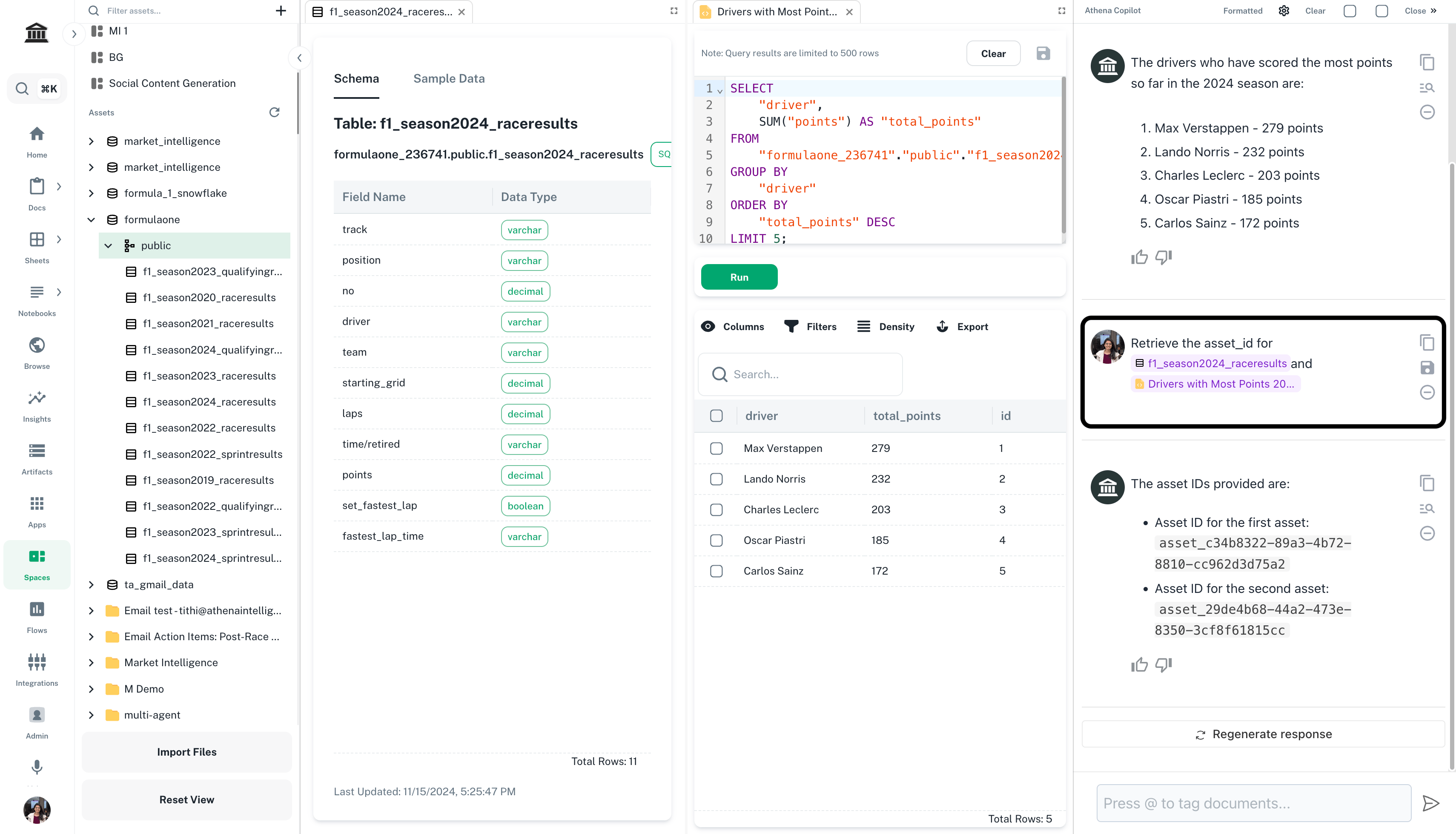
Prompt
Replace
your-query-name and your-database-name with the names of your query and database on which the query is executed.- Query a saved SQL snippet
- Execute SQL against your DBs
1
Create a Notebook
In the right Chat sidebar, enter the following prompt and press Enter.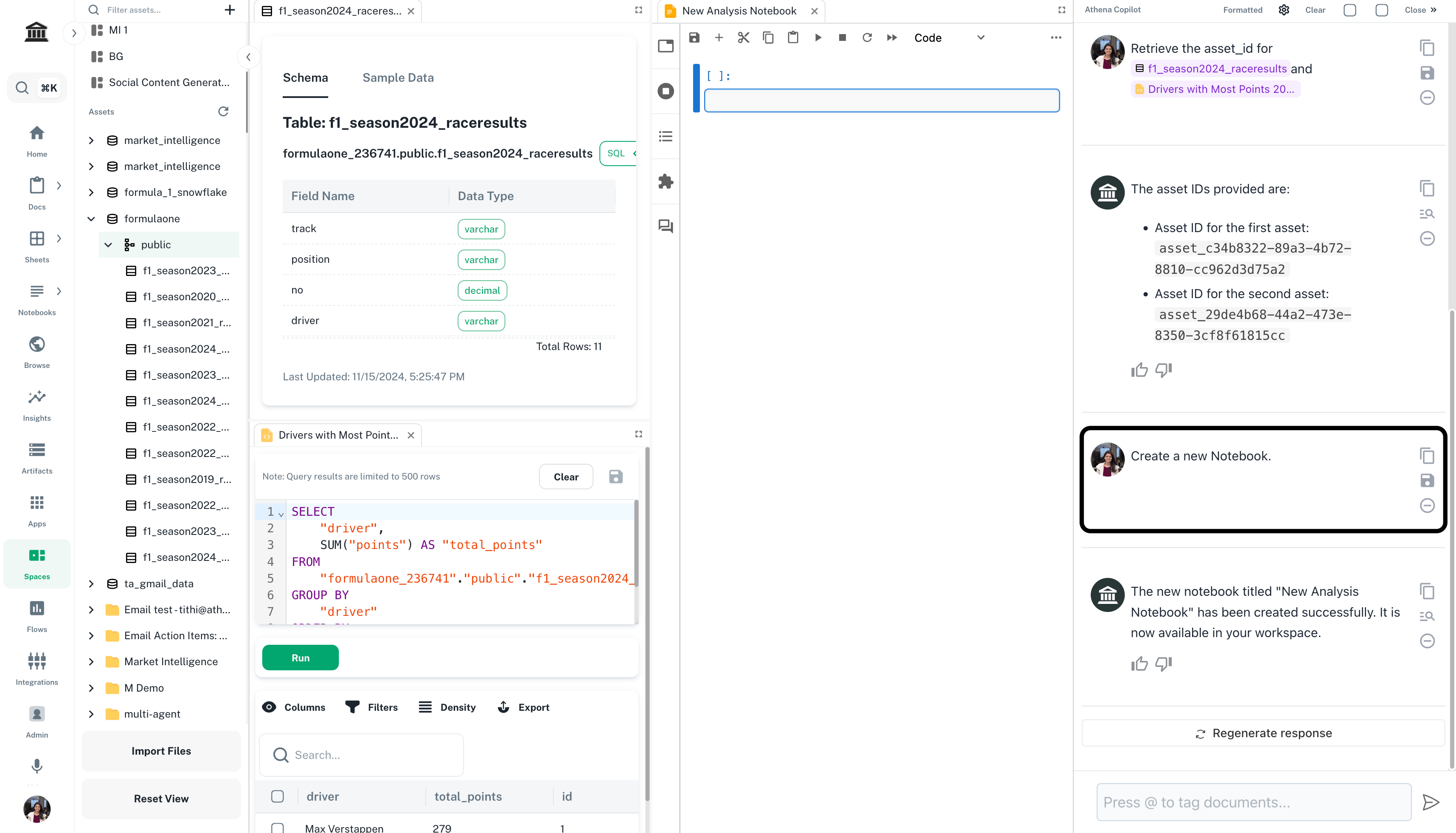
Prompt
1
Execute your query from the saved query snippet
Copy and paste the following python snippet in a new cell of the Notebook that just got created. Run the cell.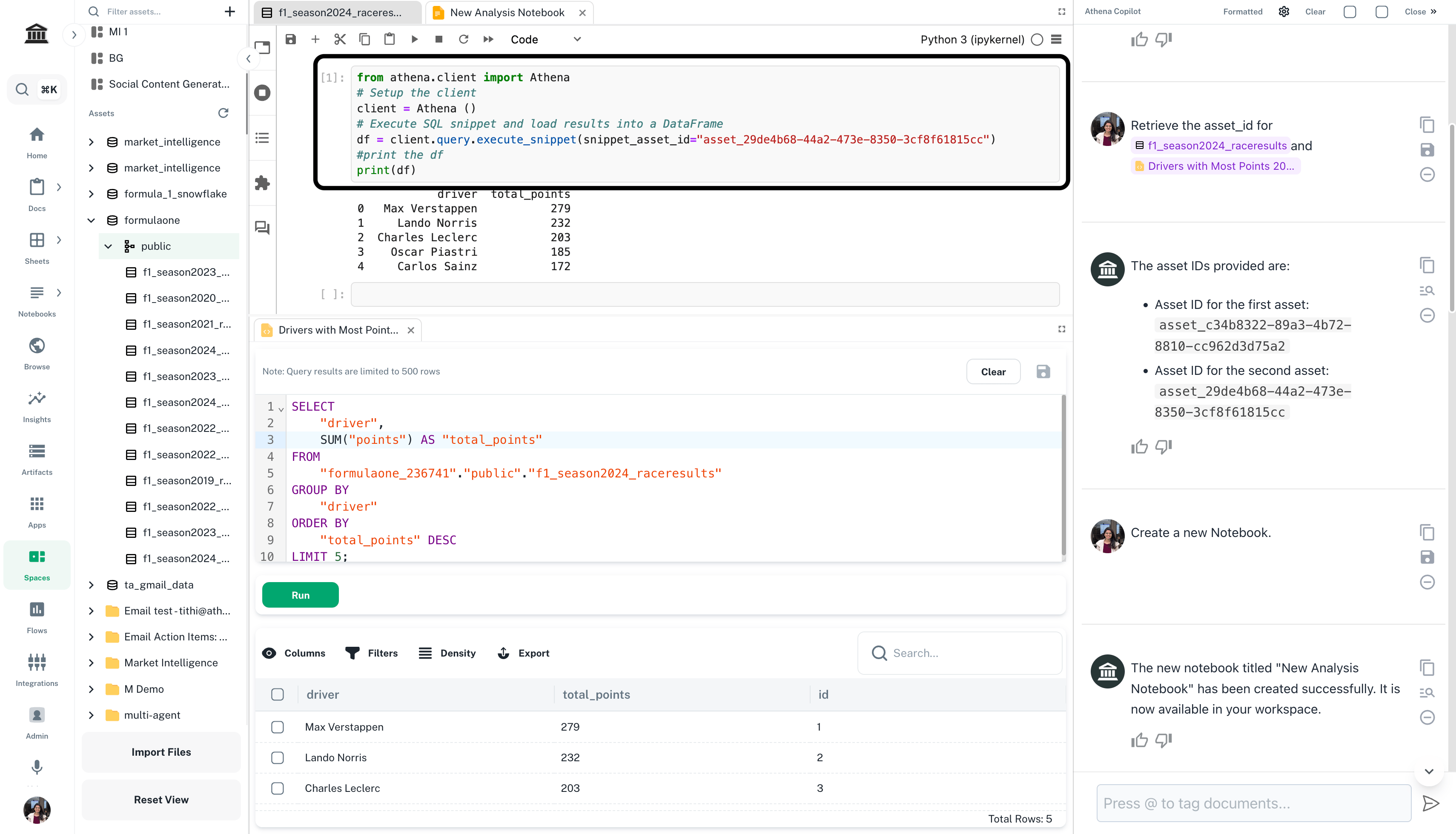
Replace
"query-asset-id" with the saved query’s asset ID.