Athena Sheets enable you with AI-driven spreadsheets, facilitating effortless interaction with Athena and simultaneous real-time collaboration with your team members.Using Sheets, you can explore datasets, derive insights, and work collaboratively, within a straightforward and easy-to-navigate interface.
Use the Chat to provide instructions for Athena to edit and manage your spreadsheets based on your requirements. Athena can perform complex data transformations, create formulas, generate summaries, and analyze trends automatically.
Connect your Sheets data to interactive User Interfaces and dashboards. Build custom applications that read from and write to your spreadsheets, enabling dynamic data collection forms, reporting dashboards, and business process applications that stay synchronized with your data.
Execute pre-configured AI workflows directly from your spreadsheets. AOPs can process spreadsheet data, perform analysis, generate reports, and automate complex multi-step operations on your data without manual intervention.
Collaborate with your team in real-time by simultaneously viewing and editing spreadsheets side-by-side. Multiple users can work on the same sheet while Athena assists with data analysis and formula creation.
Create interactive charts and visualizations from your spreadsheet data. Generate figures that can be embedded in documents, dashboards, or shared as standalone assets for data-driven decision making.
Execute your AOPs inside Sheets and get more insights in the form of structured data.
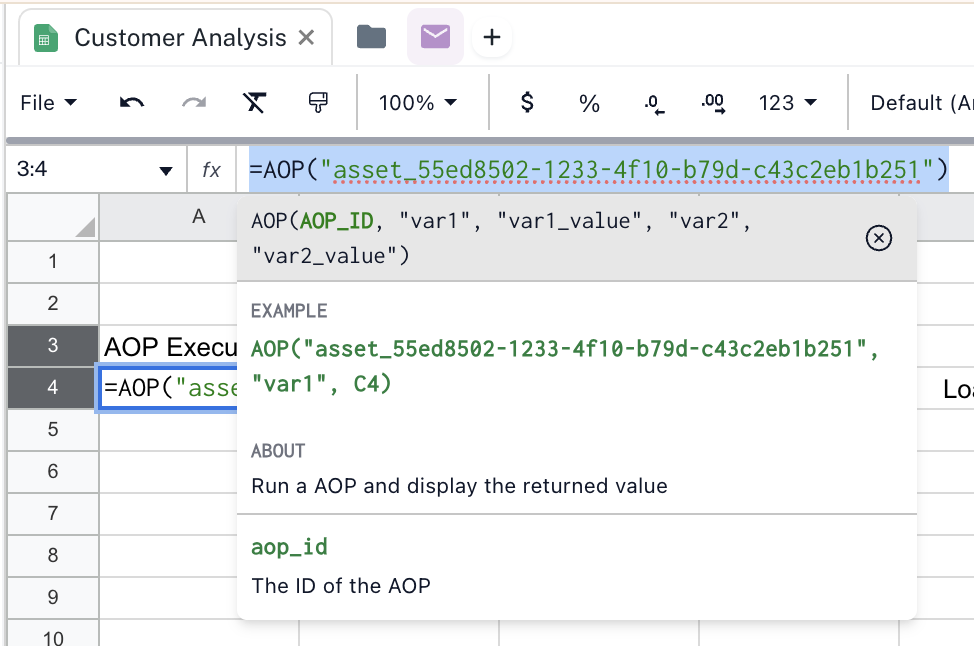
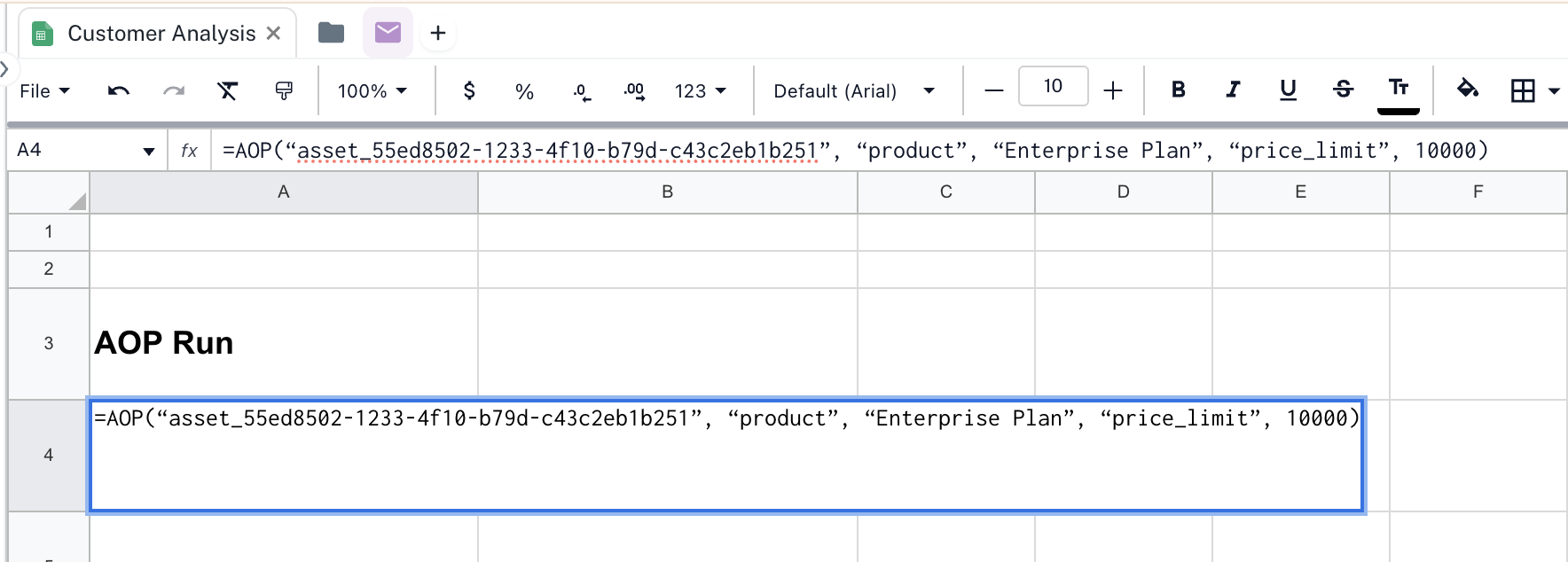
The =AOP() function executes an Agent Operating Procedure (AOP) directly from your spreadsheet and displays the returned value in the cell. This enables you to run pre-configured AI workflows on spreadsheet data without leaving Sheets.
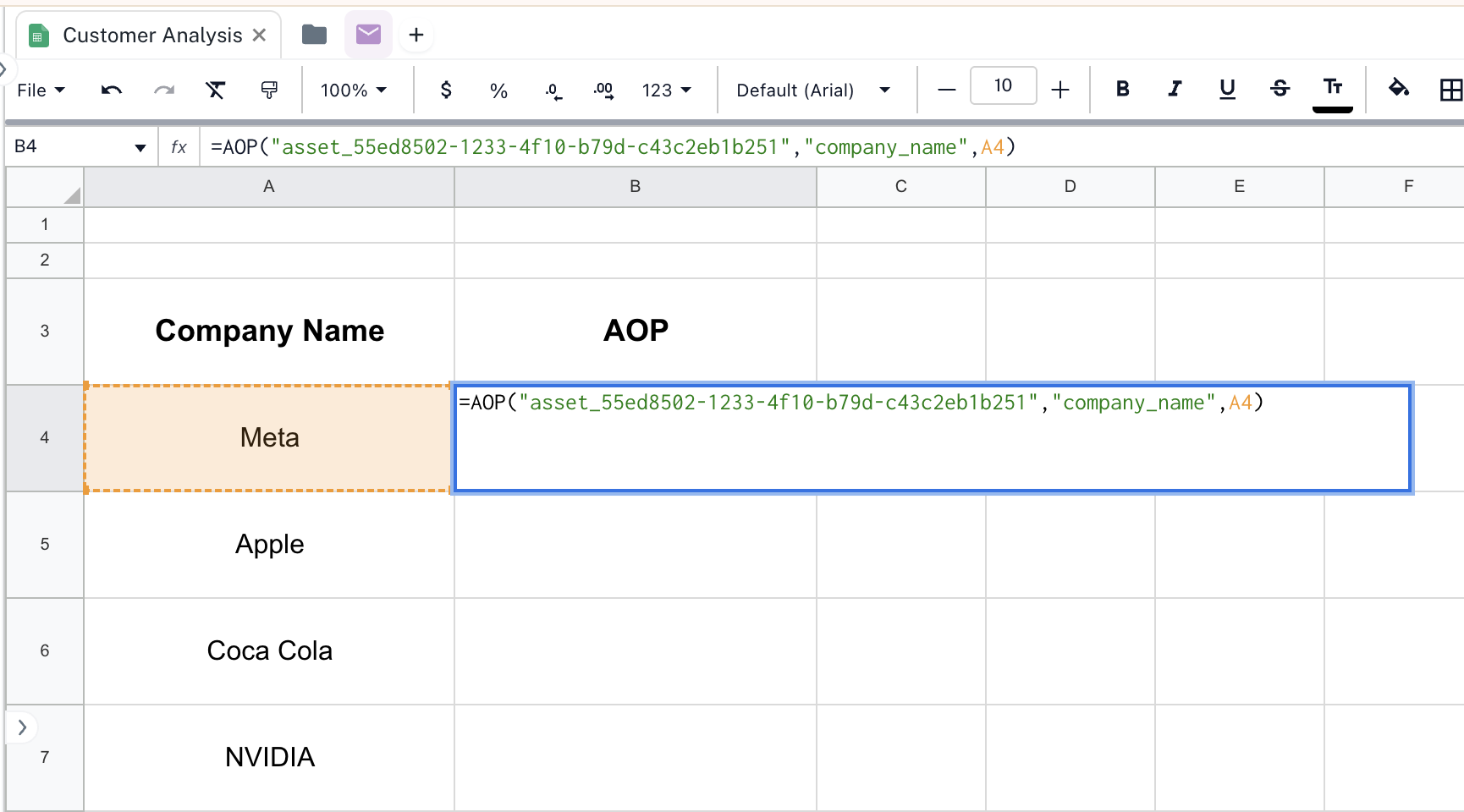
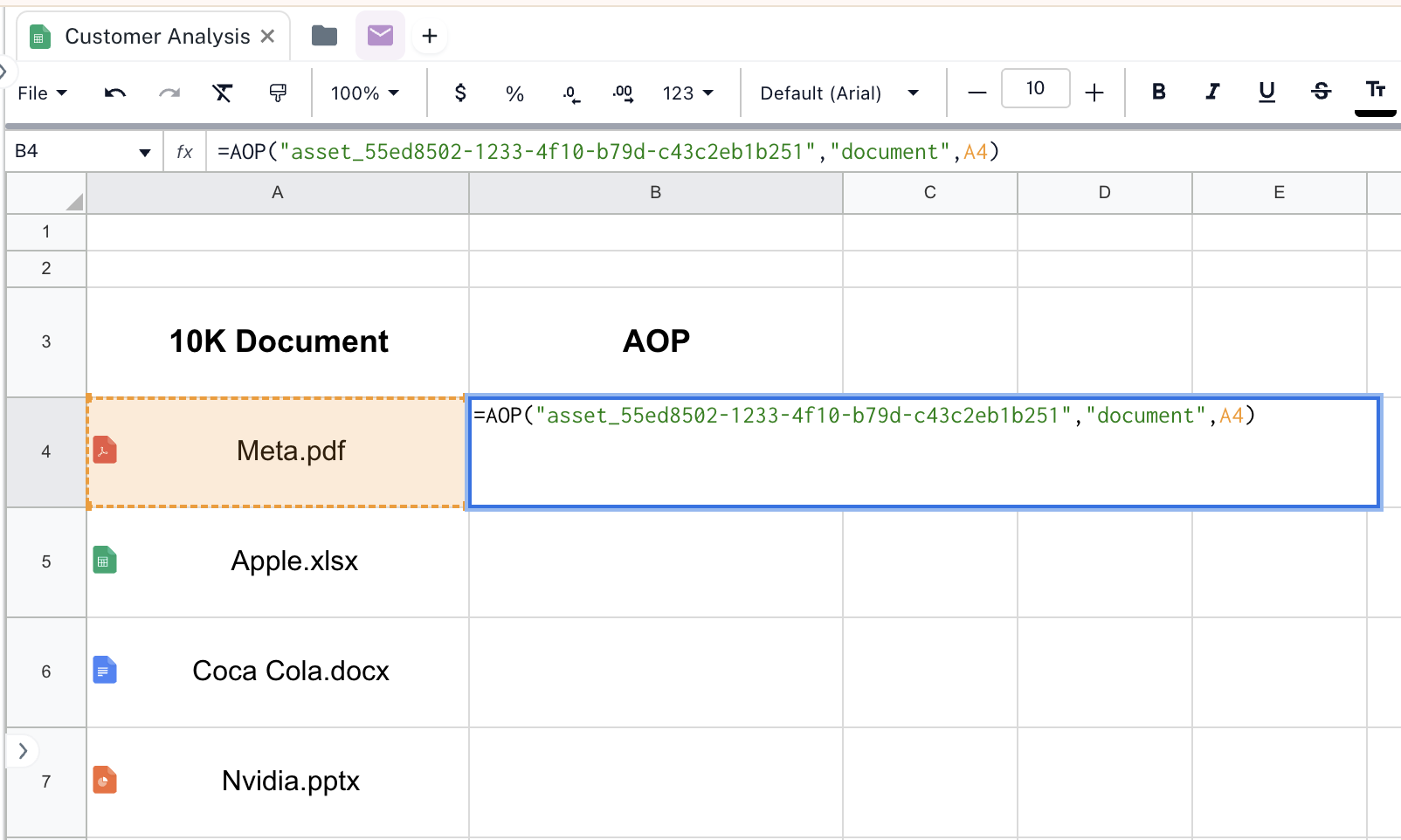
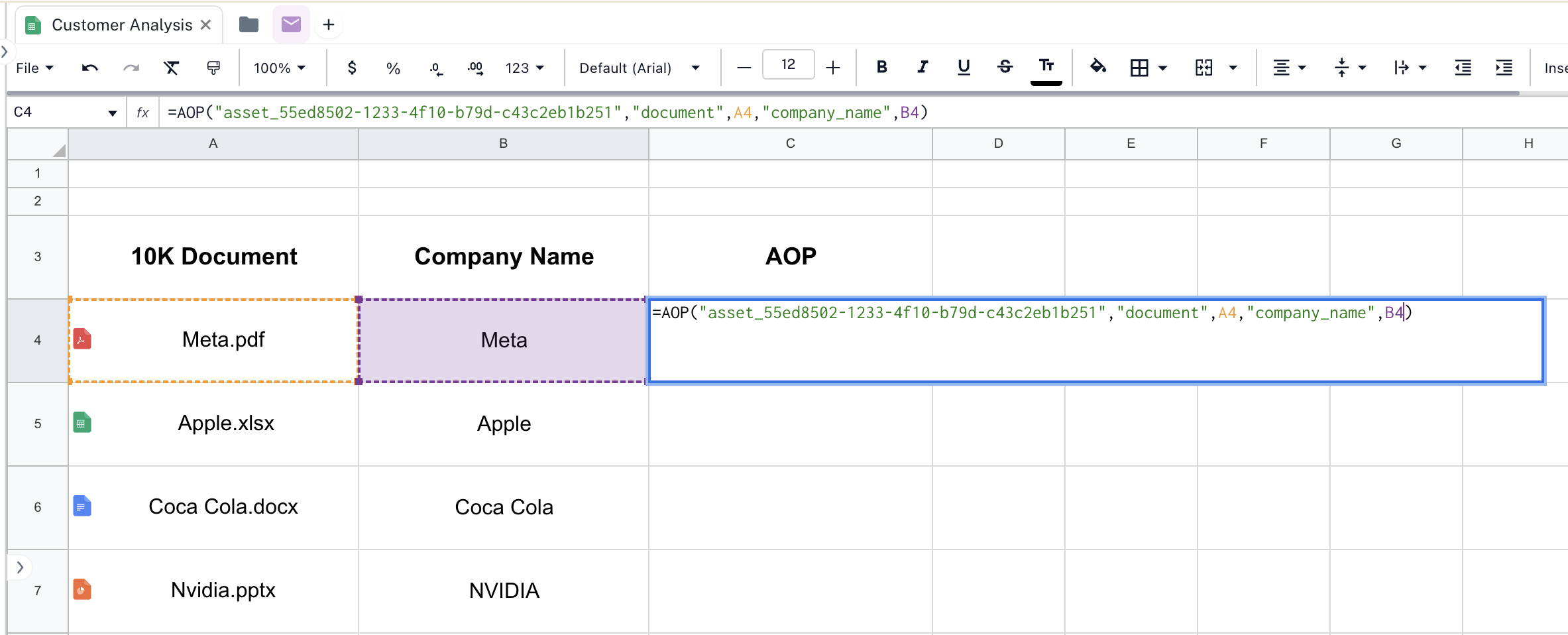
AOP_ID: The asset ID of the AOP you want to execute (required)“var1”, “var1_value”: Variable name and value pairs to pass as inputs to the AOP (optional)Additional variable pairs can be added as needed
Variable values can be:
Cell references: Reference other cells in your spreadsheet (e.g., C4, B2)
Literal values: Provide direct string, number, or boolean values
Formulas: Use the result of other spreadsheet formulas
This example passes literal values directly to the AOP without referencing cells.
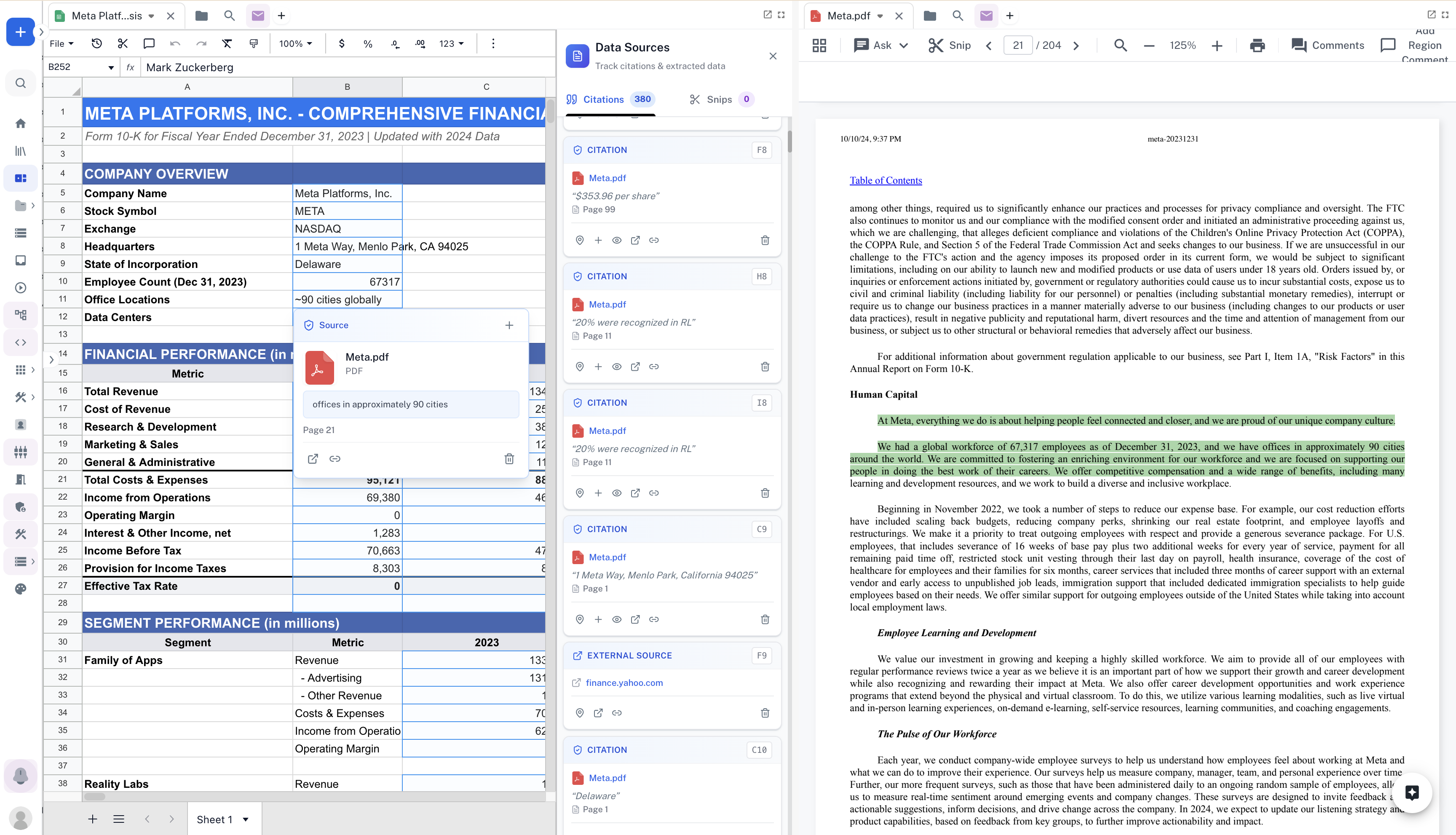
When extracting data from documents into Sheets, Athena automatically generates deep-linked citations that trace every value back to its source. The Data Sources panel provides a comprehensive view of all citations, enabling you to verify and navigate to the exact location in the original document where each piece of information was extracted.
Deep Citations in Sheets - Track citations and extracted data from source documents
When Athena extracts information from PDFs, documents, or other assets into your spreadsheet, each extracted value is automatically linked to its source location. The Data Sources panel displays all citations with:
Citation count: See the total number of citations extracted (e.g., 380 citations)
Source document reference: Each citation shows the source file (e.g., Meta.pdf)
Exact location: Page numbers and specific text excerpts from the source
Quick navigation: Click any citation to jump directly to that location in the source document
The Data Sources panel appears alongside your spreadsheet when working with extracted data. It provides:
Citations tab: Lists all citations with their source references and page numbers
Snips tab: View extracted snippets and their source locations
Side-by-side view: Open the source document alongside your spreadsheet to verify data in context
Source preview: Hover over citations to see the exact text that was extracted
This citation system ensures complete traceability for compliance, auditing, and verification workflows, making it easy to validate any data point back to its original source.