

Catch hallucinated figures by tracing inputs to source cells or documents, then independently recomputing the outputs. Athena adds version-aware citations and saved-change history to help reviewers inspect and correct the work.
Why does AI make up numbers in financial analysis?
OpenAI describes an AI hallucination as an incorrect or fabricated answer presented as fact. ChatGPT generates responses from learned patterns and can invent facts or citations. Start by separating three problems. A fabricated input needs a real source. A wrong calculation needs a corrected formula, while a stale figure needs current data. These hypothetical examples show what to look for:- Invented growth: A report says revenue grew 14%, without showing revenue for either period. Find both figures and calculate the change.
- An assumption presented as an actual: A forecast uses 8% growth and calls it historical performance. Label the assumption and name its owner.
- An unsupported citation: A summary points to page 42 of a filing, but the page contains no matching figure. Remove the unsupported value.
- Mixed periods: A margin calculation divides one quarter’s gross profit by another quarter’s revenue. Align the periods before recalculating.
- Old data: A current-period summary uses last month’s extract. Replace the extract and repeat the calculation.
How do I catch made-up numbers before sharing the model?
1. Preserve the files
Keep the original workbook, source extracts, and AI output. Record reporting periods and extract dates so everyone reviews the same version.2. Build a figure register
List material figures: numbers that could affect the decision. For each one, record:- Output cell, value, and unit.
- Reporting period and source version.
- Source file, sheet, and cell or range.
- Document page or table, when applicable.
- Whether it is an input, calculated output, or approved assumption.
3. Open each reference
Check that the source supports the exact figure. Confirm currency, scale, period, and whether the value is actual, budget, or forecast. A link to the right filing is only a starting point. Find the supporting table and match its definition to the model’s label.4. Recompute independently
Use verified inputs in a separate calculation. Revenue rising from 12 million gives(12 - 10) / 10 × 100 = 20%.
If the summary says 14%, investigate the difference. Use a calculator or a separately checked formula, rather than repeating the assistant’s result.
To check freshness, compare the input with an independently verified current source. Recalculating an old extract checks arithmetic without updating its data.
5. Follow the formulas
Microsoft explains how to trace formula relationships in supported desktop Excel versions. Select the output cell and choose Formulas > Formula Auditing > Trace Precedents. Use Trace Dependents to follow affected outputs. Check range boundaries, hard-coded values, and links to other sheets. Microsoft’s Formulas > Formula Auditing > Error Checking can help identify formula problems.6. Record the review
Check decision-driving totals, changed assumptions, and unsupported entries first. Sample other rows across periods and categories, including blanks and boundary rows. If a sample fails, expand the review across the affected calculation or data set. Record the checked rows, corrections, reviewer, and accepted file version.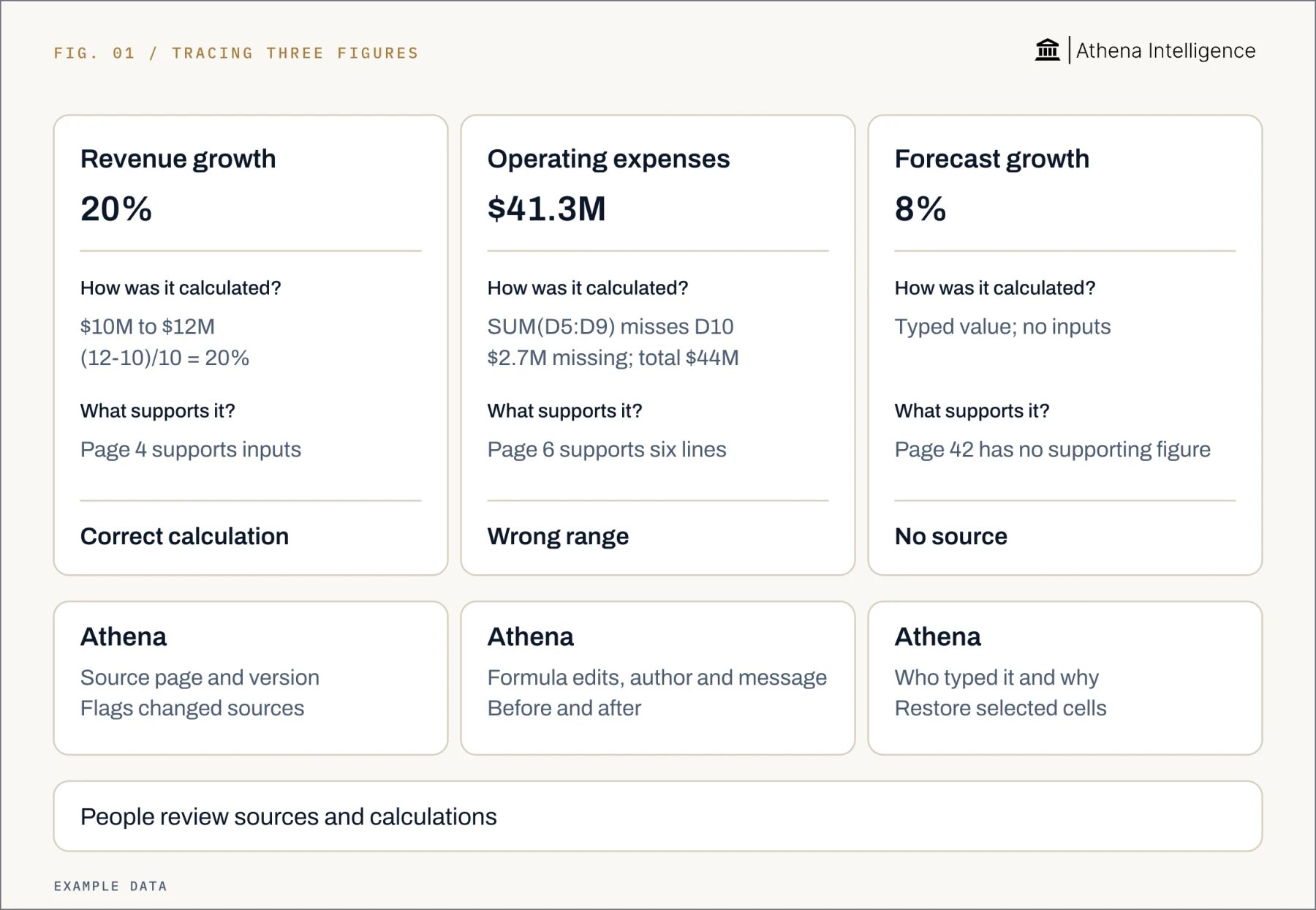
What should I ask the AI to return?
Give the assistant a defined source and clear instructions for missing values:Use only the attached workbook and approved assumptions sheet. Return each figure’s source file, sheet, cell or range, reporting period, and unit.
Show formulas and input references for calculated figures. Mark unsupported figures “unavailable.”
List missing inputs. Keep proposed assumptions separate for review.Use this checklist before sharing:
- Source: Material inputs have a specific location and version.
- Definition: Currency, scale, period, and metric definitions match.
- Assumptions: Proposed values are separated from actuals and approved by an owner.
- Calculation: Material outputs match an independent calculation.
- Changes: Altered formulas and affected outputs have been reviewed.
- Exceptions: Missing inputs and unexplained differences stay visible.
- Approval: The reviewer and accepted file version are recorded.
How do ChatGPT, Copilot in Excel, Gemini in Sheets, and Athena compare?
Compare the same task in each product: explain a revenue change, inspect the calculation, and correct the result. OpenAI’s ChatGPT and Microsoft’s Copilot offer calculation details in chat and calculation details in Excel. Google’s Gemini and Athena offer calculation details in Sheets and calculation details in a shared workbook that a reviewer can inspect.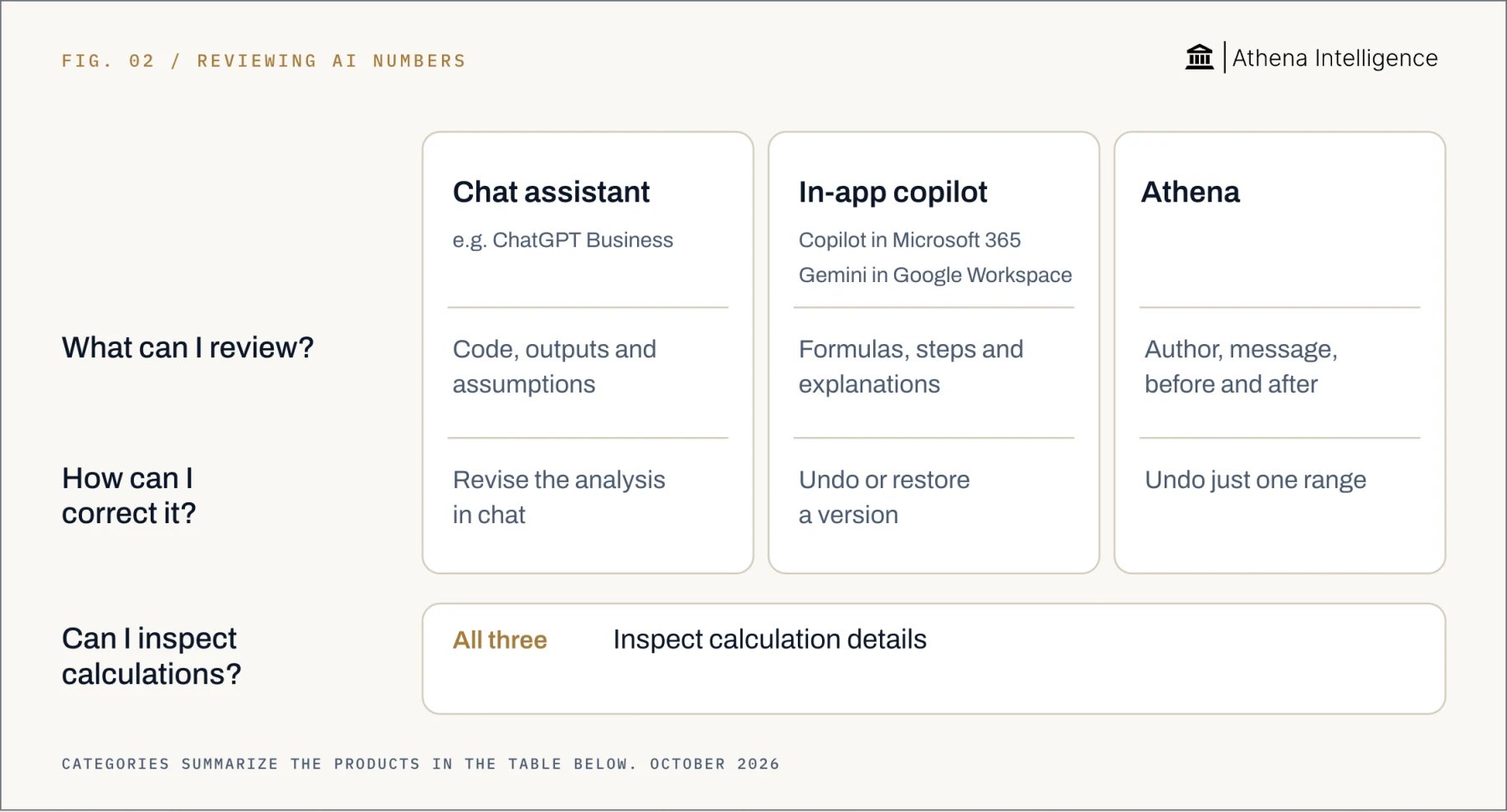
Full comparison with sources, October 2026
Full comparison with sources, October 2026
How does Athena help reviewers check the numbers?
In Athena Sheets, people and agents edit the same workbook. Each saved change carries its author and conversation context.- Open Activity Monitor. Find the changed range and its before-and-after values, and the message that triggered the edit.
- Use Compare in Editor. Inspect the agent’s change side by side, then check the inputs and formulas against your independent calculation.
- Open the citation. Source links lead to cells or document pages and flag sources changed since the agent read them.
- Correct the range. Roll back the affected cells while retaining other workbook edits, then recompute the outputs.
What to plan for
- Accuracy: OpenAI warns that ChatGPT can sound confident while giving false answers. Check references against the files, even when the response follows your prompt.
- Finance decisions: Microsoft advises verifying Copilot results and avoiding its use for decisions in sensitive areas such as finance.
- Review coverage: Samples cover only the checked rows. A review can miss a wrong definition, outdated source, or unchecked error.
- Excel links: Microsoft says references to another workbook require that workbook to be open. Excel’s error checks are incomplete.
- Gemini history: Google says side-panel conversations can disappear when a sheet closes or reloads. Inserted charts do not update when original data changes.
- Athena history: Athena’s attribution is per save. When a person and agent edit one cell within a save window, the record reflects the last writer.
- External actions: Athena says some actions, including sent email and rows written to enterprise resource planning systems, cannot be undone.
Questions teams ask
ChatGPT made up numbers in my financial analysis. How do I stop AI from hallucinating data?
ChatGPT made up numbers in my financial analysis. How do I stop AI from hallucinating data?
Require source references for inputs, formulas for outputs, and missing values marked unavailable. Independently check figures that affect the decision.
What are examples of AI hallucinations in financial work?
What are examples of AI hallucinations in financial work?
Hypothetical examples include an invented growth rate and a citation to a page containing no supporting figure. Wrong ranges and stale extracts also need checking.
Can Copilot in Excel hallucinate too?
Can Copilot in Excel hallucinate too?
Yes. Microsoft says Copilot’s explanations, insights, and formulas can be inaccurate. Review, edit, and verify the results.
What does Athena do differently for reviewing AI-generated numbers?
What does Athena do differently for reviewing AI-generated numbers?
Athena links each save to its author, session, message, and before-and-after state. Version-aware citations help reviewers inspect changes, and selected-range rollback helps them correct changes.
What should I do when AI fabricates data?
What should I do when AI fabricates data?
Find a supporting source or remove the value. Label any replacement estimate as an assumption and have its owner approve it.
Why does AI keep making mistakes in my Excel spreadsheets?
Why does AI keep making mistakes in my Excel spreadsheets?
Errors can come from the wrong source, range, period, or metric definition. Check the input and formula before rerunning the task.