

Fill Web Forms with Athena
Key Features
Automated Web Navigation
Navigate through websites and follow links automatically based on your instructions. Browser intelligently traverses web pages, finding and accessing the information you need without manual clicking.Browser Profiles
Create and manage persistent browser profiles that maintain login sessions, cookies, and browsing state across multiple automation runs. Browser profiles enable you to automate workflows on websites that require authentication without repeatedly logging in, making it ideal for accessing vendor portals, internal systems, or any authenticated web applications.Using Browser Profiles to Login to Licensed Resources
Browser Profile Configuration
When you create or edit a browser profile, you’ll see a configuration interface that allows you to customize how Athena interacts with specific websites on your behalf.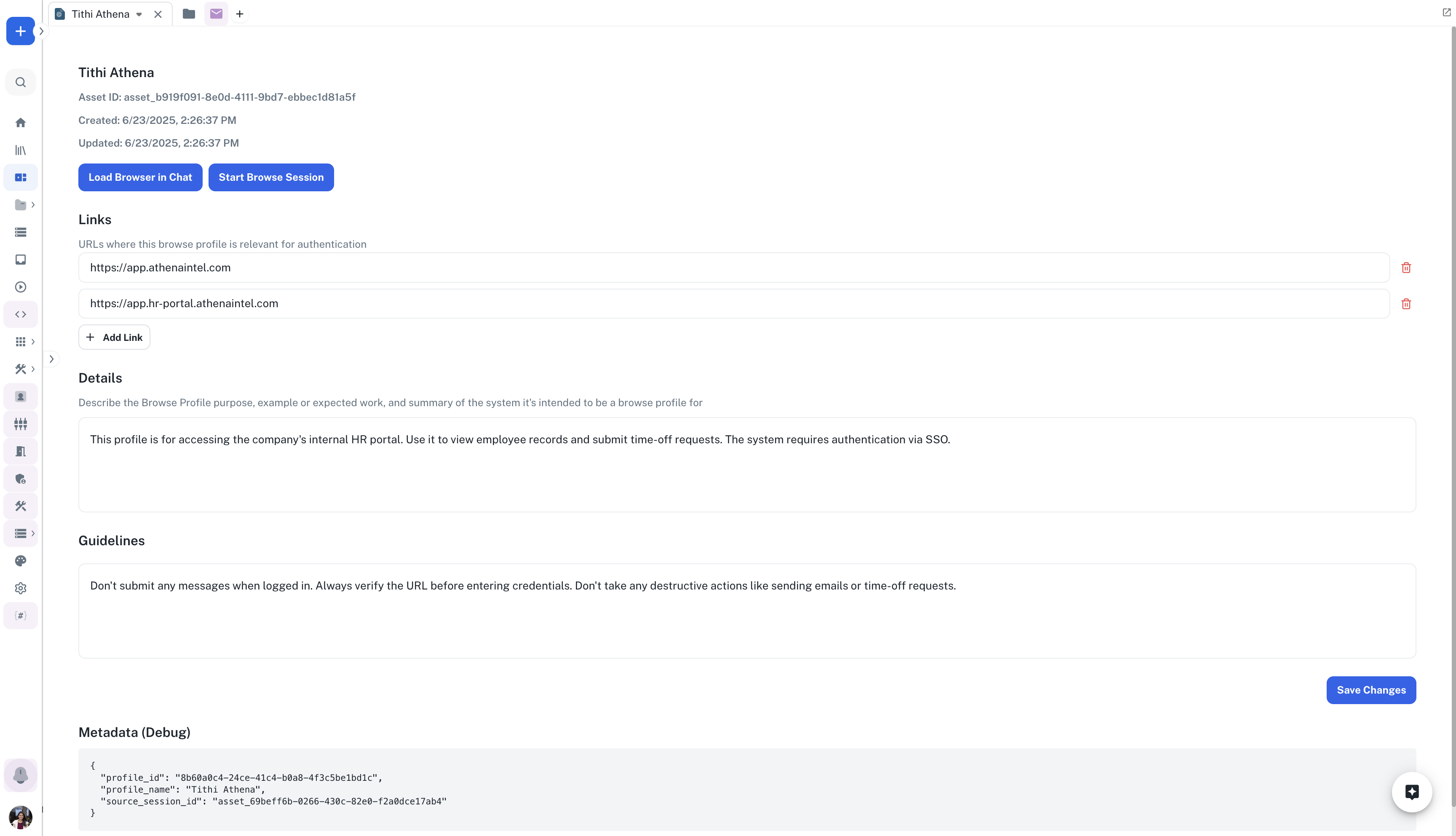
Browser Profile Configuration Interface
Content Download
Automatically download files, reports, and documents from websites. Files downloaded during Browser sessions are automatically stored in your drive, ensuring easy access and organization of your collected data.Integration with Athena Ecosystem
Integrate Browser seamlessly with other Athena applications like Docs, Sheets, and Spaces, allowing for efficient transfer of web-based information into your workflow and enabling powerful end-to-end automation.Interactive Element Control
Click buttons, fill forms, select dropdowns, and interact with any UI elements on web pages. Automate form submissions, login workflows, and complex multi-step interactions across websites.Data Extraction
Extract and structure data from web pages automatically. Browser can identify, collect, and organize information from tables, lists, and text content into structured formats ready for analysis.Legacy System Browser Automation
Session Recording and Playback
Browser automatically records session activities, enabling you to review what actions were taken during automation. Session recordings provide transparency and help troubleshoot issues, while also serving as documentation for compliance and audit purposes. Session recordings capture:- Page Navigation: Complete history of visited URLs and navigation paths
- User Interactions: Clicks, form fills, and element interactions
- Screenshots: Visual documentation of key steps and results
- Timing Information: Duration of each action and overall workflow execution time