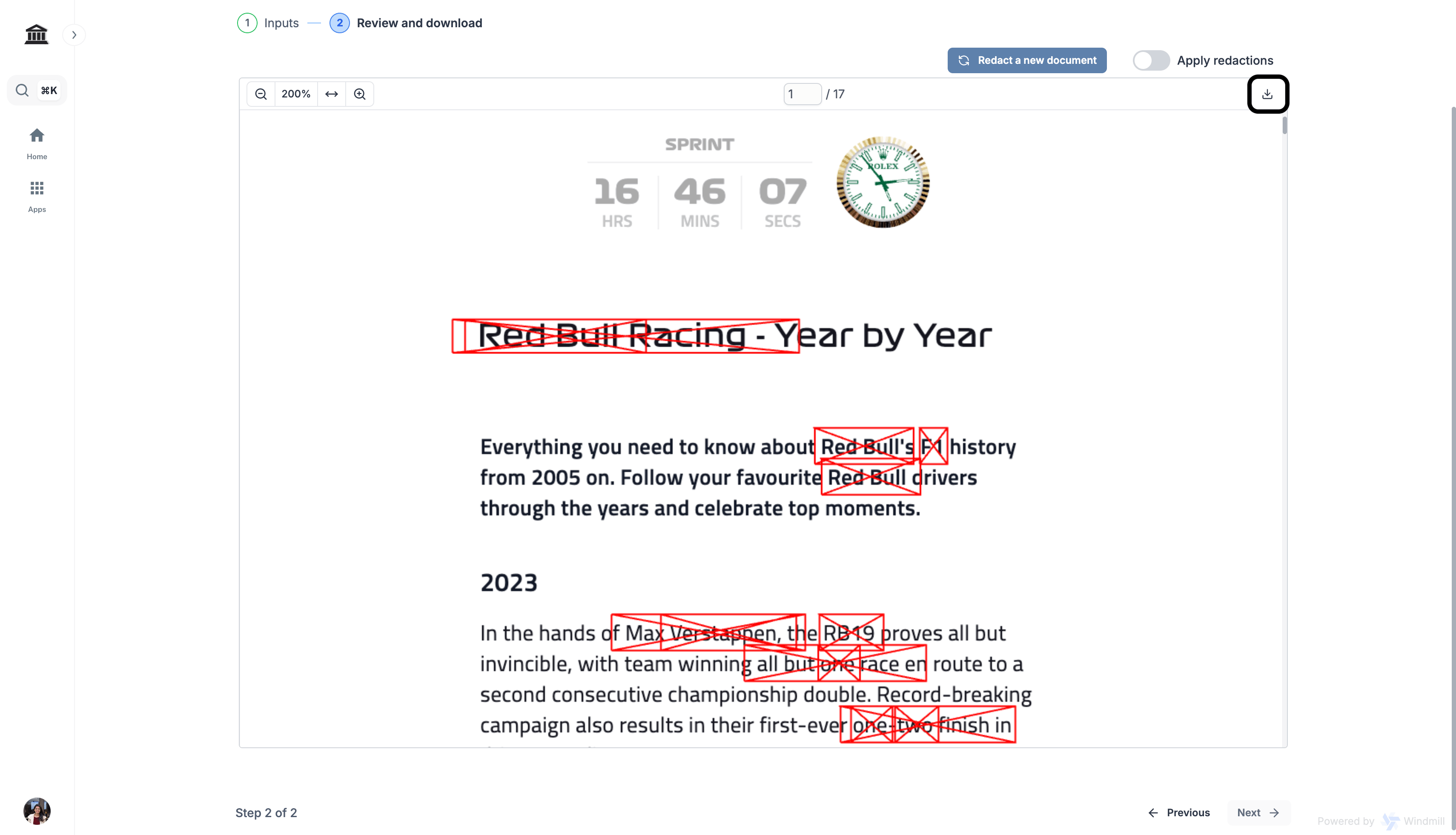

PDF Redaction using Athena
Step-by-step Instructions
1
Open PDF Redactor
Navigate to Apps -> Redactor from the applications sidebar on the left.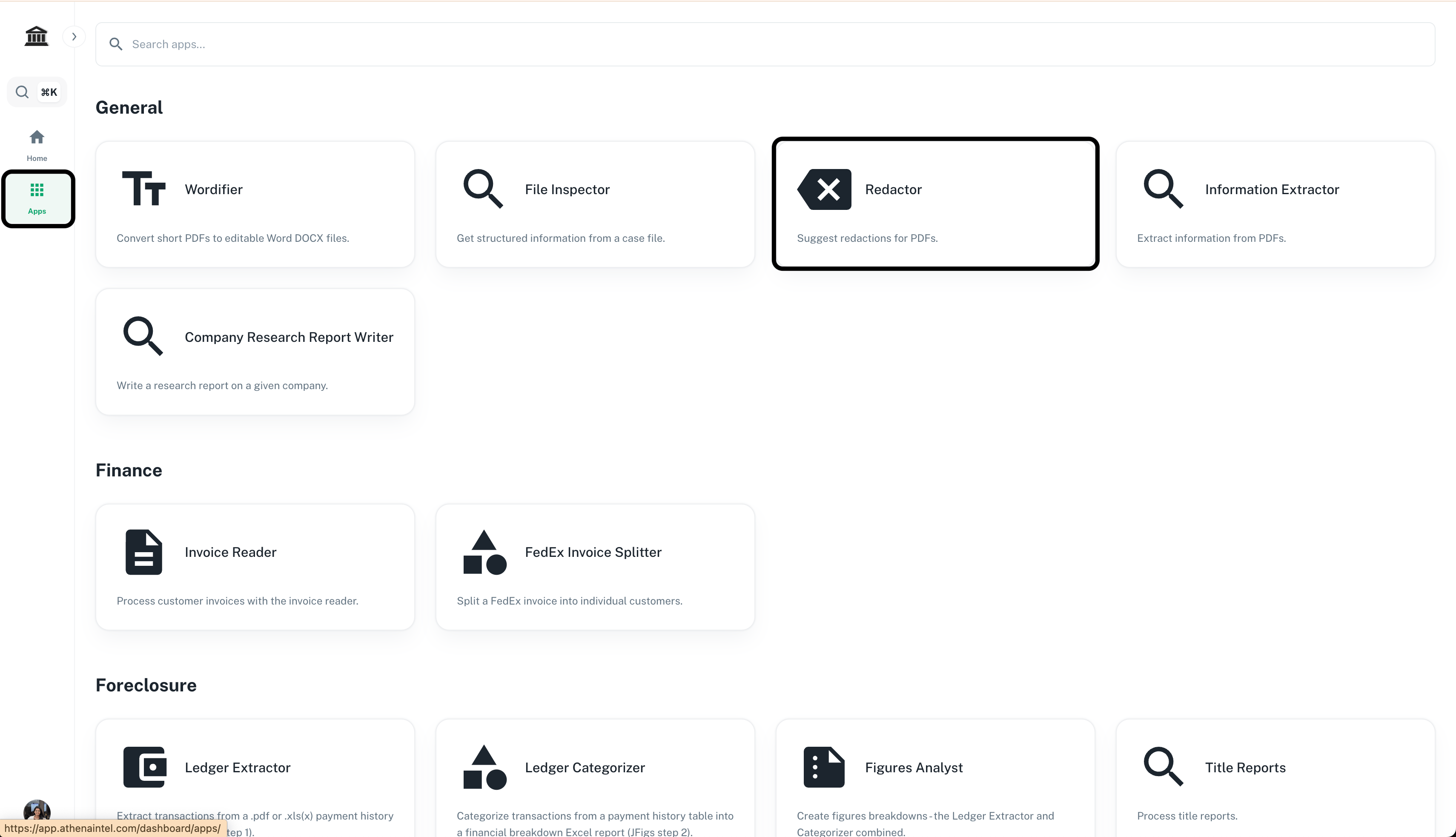
2
Upload PDF
Upload the PDF you wish to redact in Upload a PDF to redact.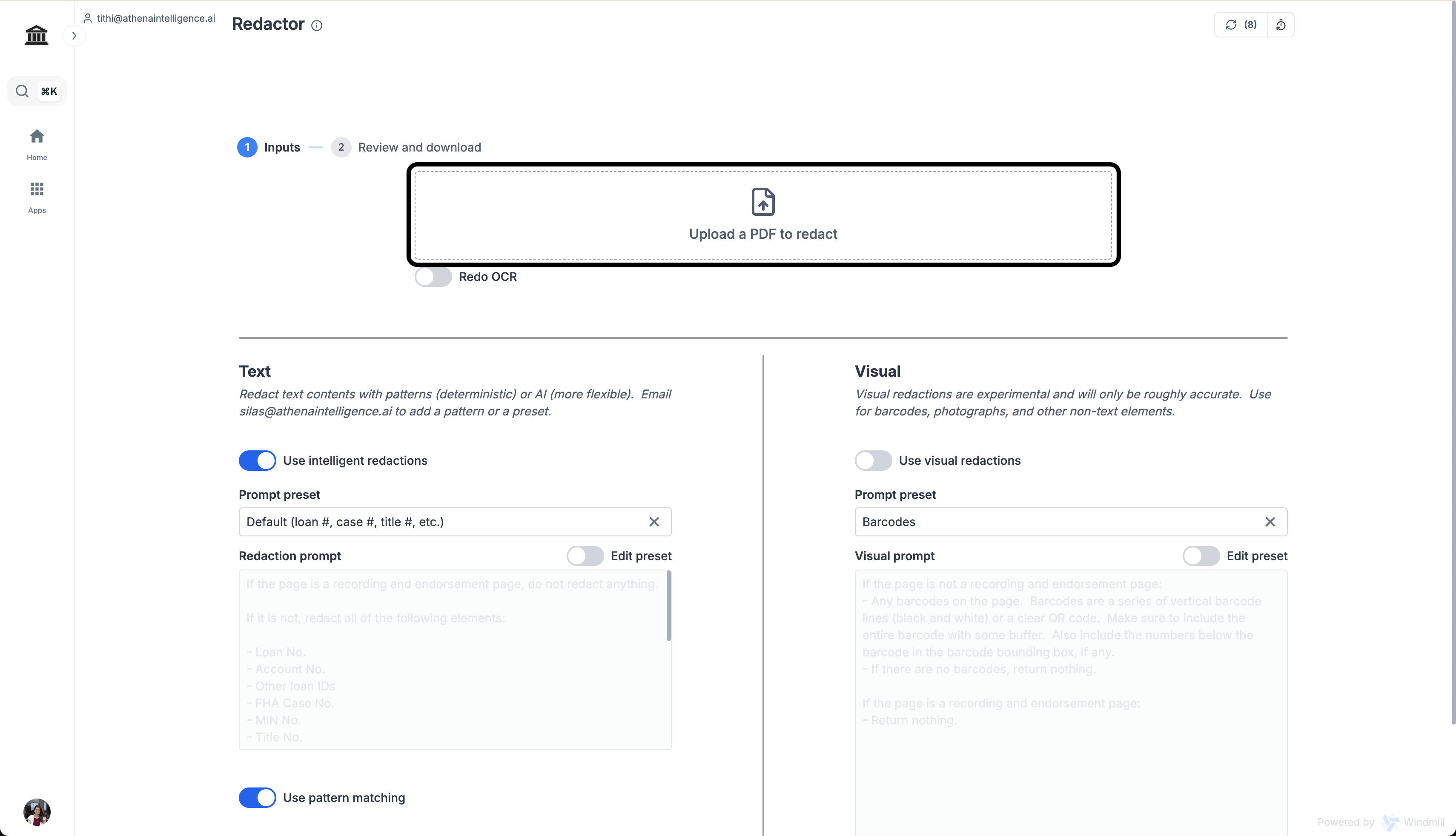
3
Choose custom prompt
From the Prompt preset dropdown, select Custom.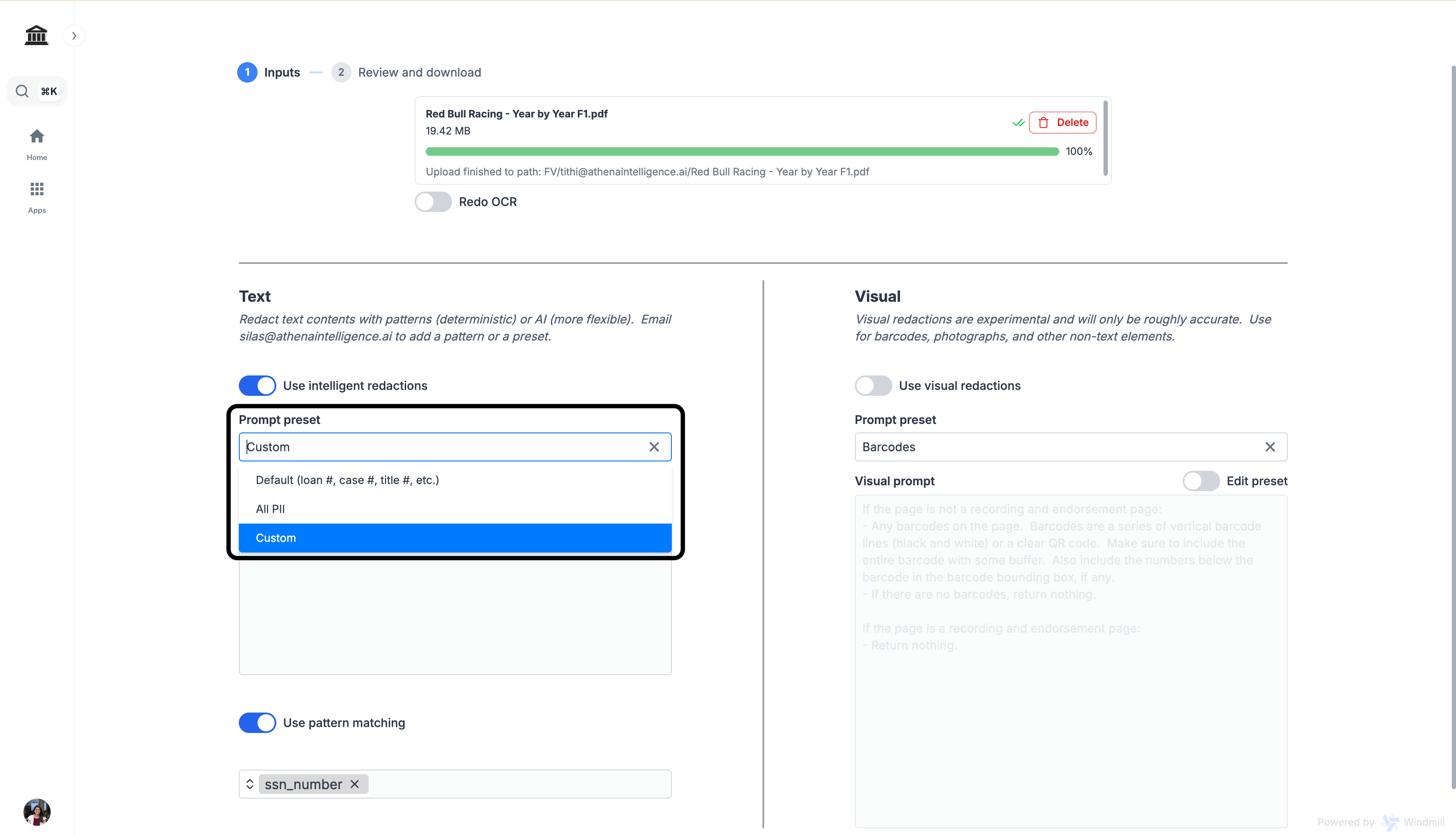
4
Enter your prompt
In the Redaction prompt, enter the following prompt and click on Next.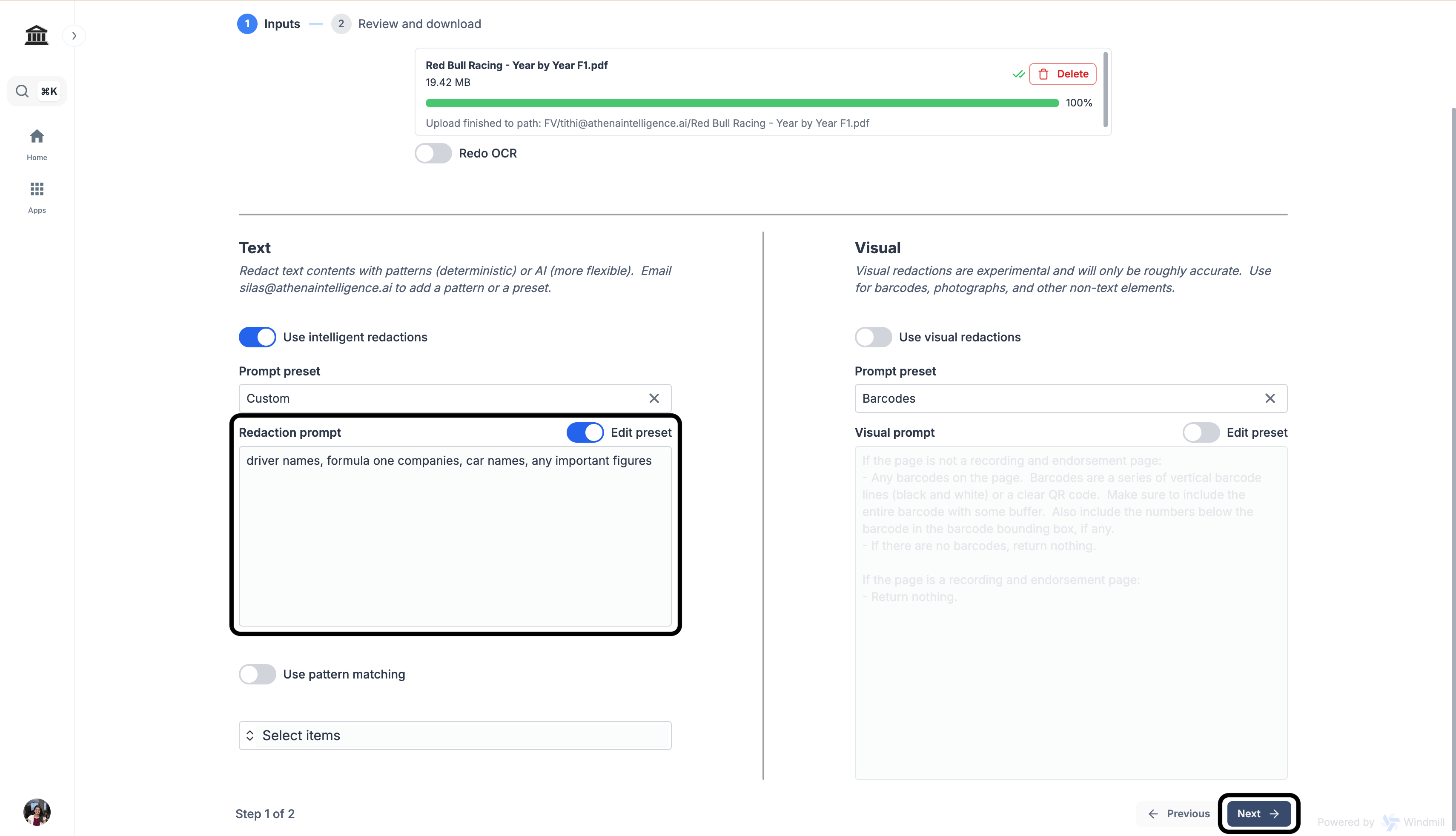
Prompt
5
Download your redacted PDF
Once completed, click on the Download icon on the top-right corner of the PDF.