

Athena runs your repeated work for you, with safe test runs, approvals, spending caps and a record of every run. The choice comes down to who decides the steps. In an AOP (Agent Operating Procedure), you write the task in plain words and Athena decides how to do it. In an Automation, you set the steps, approvals and budget, and Athena applies judgment only where a step needs it. An Agent is the specialist that does the work in either one.
What are the options?
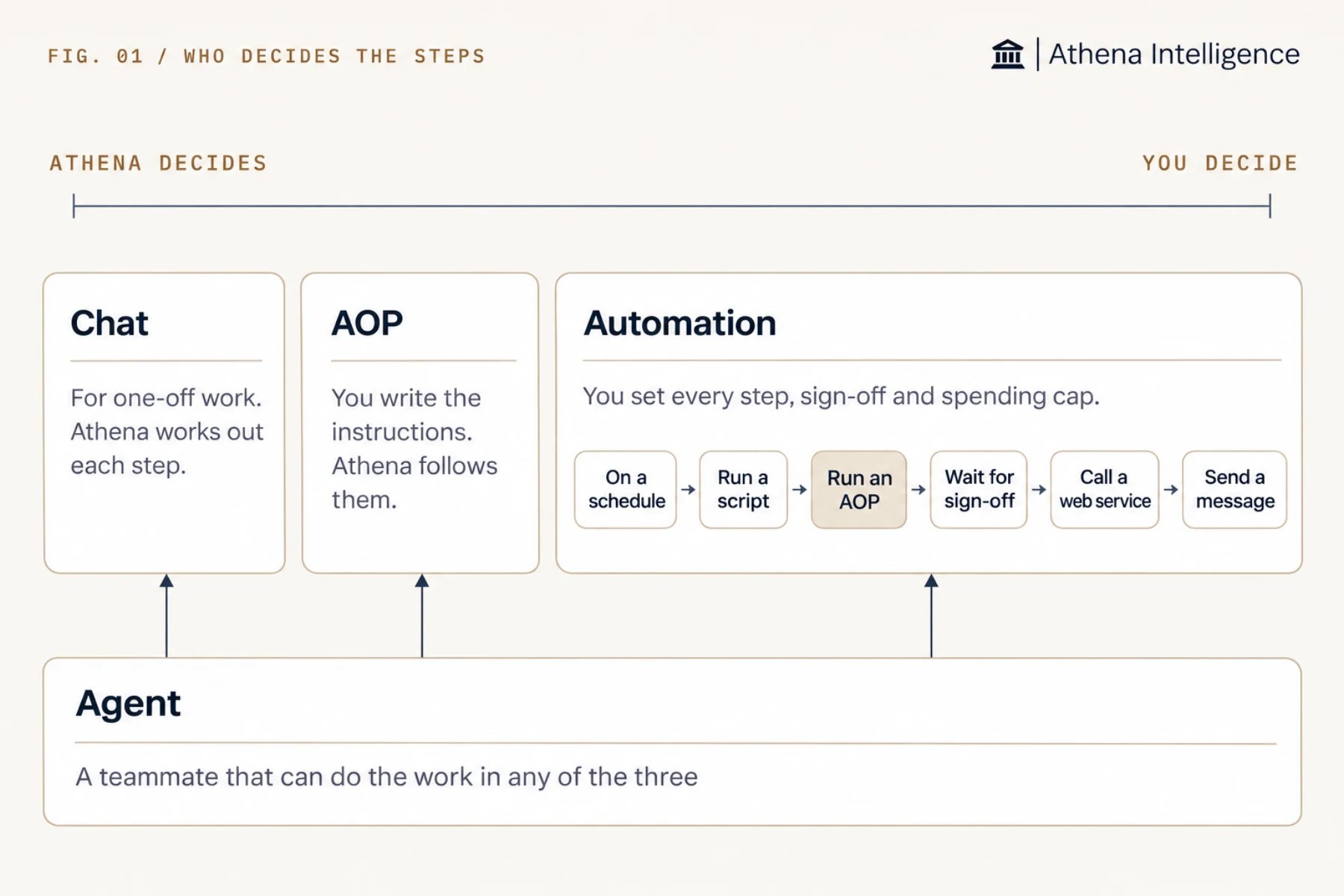
When should I use an AOP?
An AOP runs repeated work that needs judgment and fits on one page, such as checking a contract against a checklist, explaining monthly changes in your numbers, or sorting an inbox by priority. You write the procedure once, and Athena turns words in double brackets, such as[[ Client_Name ]], into fields to fill in each time. Athena records every run so you can read it afterwards, and can return the answer in a fixed format for other software to use. See Agent Operating Procedures.
Athena gives you ways to test, verify and publish an AOP before it runs without you:
- Run a safe test where Athena notes what it would change without changing anything, stopping at 40 AI calls or $2 by default.
- Save up to 20 past runs as examples, and rerun them when you edit the procedure to check that it still gets them right.
- Publish a version for scheduled runs to use while you keep editing your draft.
When should I use an Automation?
An Automation runs your steps in a set order, waits for human approval and keeps spending under a limit. Use one for workflows like a month-end close, checking incoming files and sending problems for approval, or a nightly data sync that alerts someone if it fails. Athena can call tools, run scripts, contact other systems, check conditions, repeat or wait during an Automation, and it can run an AOP or an Agent as one of the steps. See Automations. An Automation gives you stricter controls than an AOP:- Pause a step to wait for one approver, all approvers, or a set number. See Automation approvals.
- Set a spending cap per run and per day. See Automation budgets.
- Retry each step up to 10 times, and restart a failed run from the failed step in the main sequence.
- Run the workflow with its own permissions rather than yours, so it reaches only the data and systems you allow.
- Review a full record of every step, input, output and cost that Athena saves automatically. See Automation run history.
When should I use an Agent?
An Agent gives you the same specialist for many different tasks, keeping your instructions, AI model, tools and sources ready to use. Once you set up each channel for your workspace, people can reach the Agent by email, text, phone, Slack, Teams or a meeting invite. See Agents. Athena scopes what an Agent can see based on its owner, how you contact it and your workspace rules, and keeps its saved passwords private when people message it. When a job needs several specialists, an Agent Team lets a lead Agent split the work across them and combine the results. You can start a team from a chat, an AOP or an Automation.Where do Skills fit?
A Skill lets you write your team’s method down once, such as a review checklist or a house style, and have Athena follow it whenever you mention it in chat or add it to a specialist Agent or AOP. Many repeated tasks need nothing more. Put a Skill inside an AOP or Automation when you need a schedule or run history, since a Skill does not have its own. See Skills.How do they work together?
You can combine Automations, AOPs and Agents so an Automation controls the schedule, approvals and budget while calling one or two AOPs for the reading and judgment. Athena supports several ways to connect them:- Run an AOP as one step in an Automation and pass the result to the next step.
- Run another Automation from an Automation, keeping the second Automation’s own access and limits.
- Have an Agent start an AOP and wait for the result.
- Start an AOP from an app and read the result.
- Chain AOPs so one starts another when it succeeds or fails, with up to three handoffs in a chain.
What to plan for
Ask your admin to make sure your Athena setup allows Automations and your workspace is enrolled to use them. Set up each channel for an Agent (a phone number, a Slack or Teams connection, an email address) separately for your workspace. Test each AOP on its own before testing an Automation that calls it. When you test an Automation, Athena reads data and notes what it would write, while skipping AOPs, Agents, scripts and approvals. Leave room in your budget caps for one extra call. Athena checks spending after recording each call, so a call that is already running can take the total over the cap by one call. Put an approval step before any action you cannot take back, such as sending an email, because going back to an older version does not undo completed actions.Questions teams ask
Does an AOP do the same thing every time?
Does an AOP do the same thing every time?
Not exactly. Athena keeps the form, the answer format and the tools the same on every run, while the AI chooses the path that fits the input. Make a step an Automation step when it must happen the exact same way every time.
Can I turn an AOP into an Automation?
Can I turn an AOP into an Automation?
Athena can draft an Automation from an AOP or a past conversation, showing which parts are fixed steps and which still need judgment. Review the draft before you publish.
Where should a non-technical builder start?
Where should a non-technical builder start?
Start in chat, and save the method as a Skill when you find yourself asking for the same thing again. Turn it into an AOP when it needs to run on a schedule or from a form, and move to an Automation when you need approvals, a spending cap or a fixed order of steps.
Do Agents remember past work?
Do Agents remember past work?
Agents remember past work when you turn memory on. Athena keeps conversations that use private sources out of shared memory, and people can opt out.
See it work
Thirty minutes, your workflow, and you leave with the work product.