> ## Documentation Index
> Fetch the complete documentation index at: https://resources.athenaintel.com/llms.txt
> Use this file to discover all available pages before exploring further.

# Sales Agreements Breakdown

Athena analyzes multiple sales agreements at once to give you comprehensive insights quickly. Pull out Athena Sheets for extracting important information and Athena Spaces for comparing documents side by side.

Athena Spaces let you spot patterns and differences across agreements in minutes instead of hours. She turns lengthy manual reviews into fast, accurate insights that guide your decision-making process.

<Frame caption="Breakdown Sales Agreements with Athena">
  <iframe width="560" height="315" src="https://www.youtube.com/embed/EX05XD8Cd4k" title="YouTube video player" frameborder="0" allow="accelerometer; autoplay; clipboard-write; encrypted-media; gyroscope; picture-in-picture" allowfullscreen />
</Frame>

## Step-by-step Instructions

<Steps>
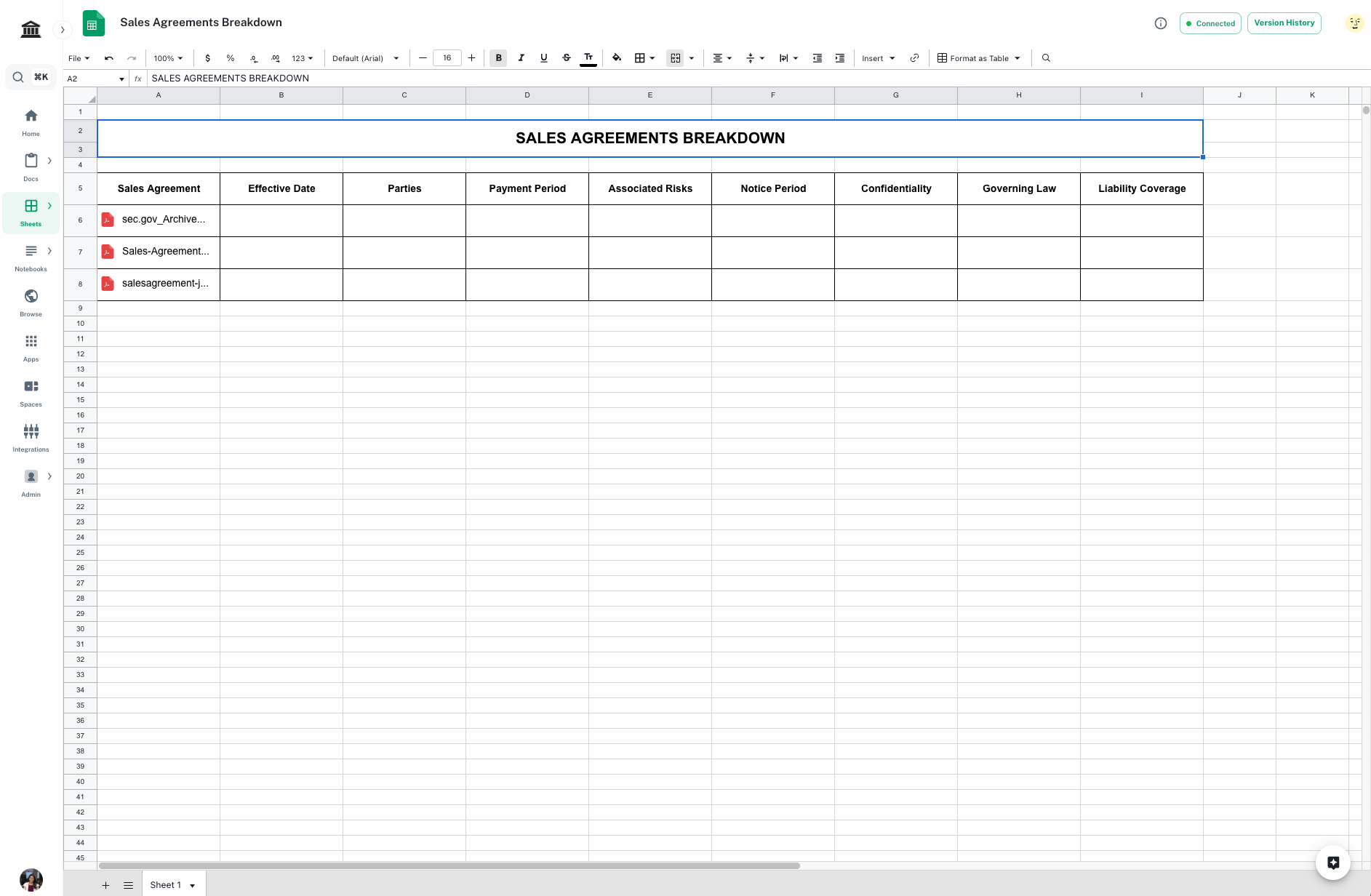
  <Step title="Open the template">
    Open the [*Sales Agreements Breakdown Template*](https://app.athenaintel.com/dashboard/sheets/asset_246c2818-f6f8-4c37-a3a9-8b6fd6b90bfc/). Drag and drop the documents you wish to analyze in the corresponding cells.
    <Info>You'll need access to view this document.</Info>

    <Frame>
      <img src="https://mintcdn.com/athenaintelligence-e46bc9d3/XOzR0DdNhB1vkjEH/images/sales-step1.png?fit=max&auto=format&n=XOzR0DdNhB1vkjEH&q=85&s=8095f5278bd1a910a32fbdb1677987da" width="1885" height="1232" data-path="images/sales-step1.png" />
    </Frame>
  </Step>

  <Step title="Open Spaces">
    Navigate to ***[Spaces](https://app.athenaintel.com/dashboard/workspaces/)***. Drag and drop the uploaded sales agreements and the template in a new space.

    <Frame>
      <img src="https://mintcdn.com/athenaintelligence-e46bc9d3/XOzR0DdNhB1vkjEH/images/sales-step2.png?fit=max&auto=format&n=XOzR0DdNhB1vkjEH&q=85&s=0730d0c95719ad1db9a80fdf0b33ccb0" width="1883" height="1234" data-path="images/sales-step2.png" />
    </Frame>
  </Step>

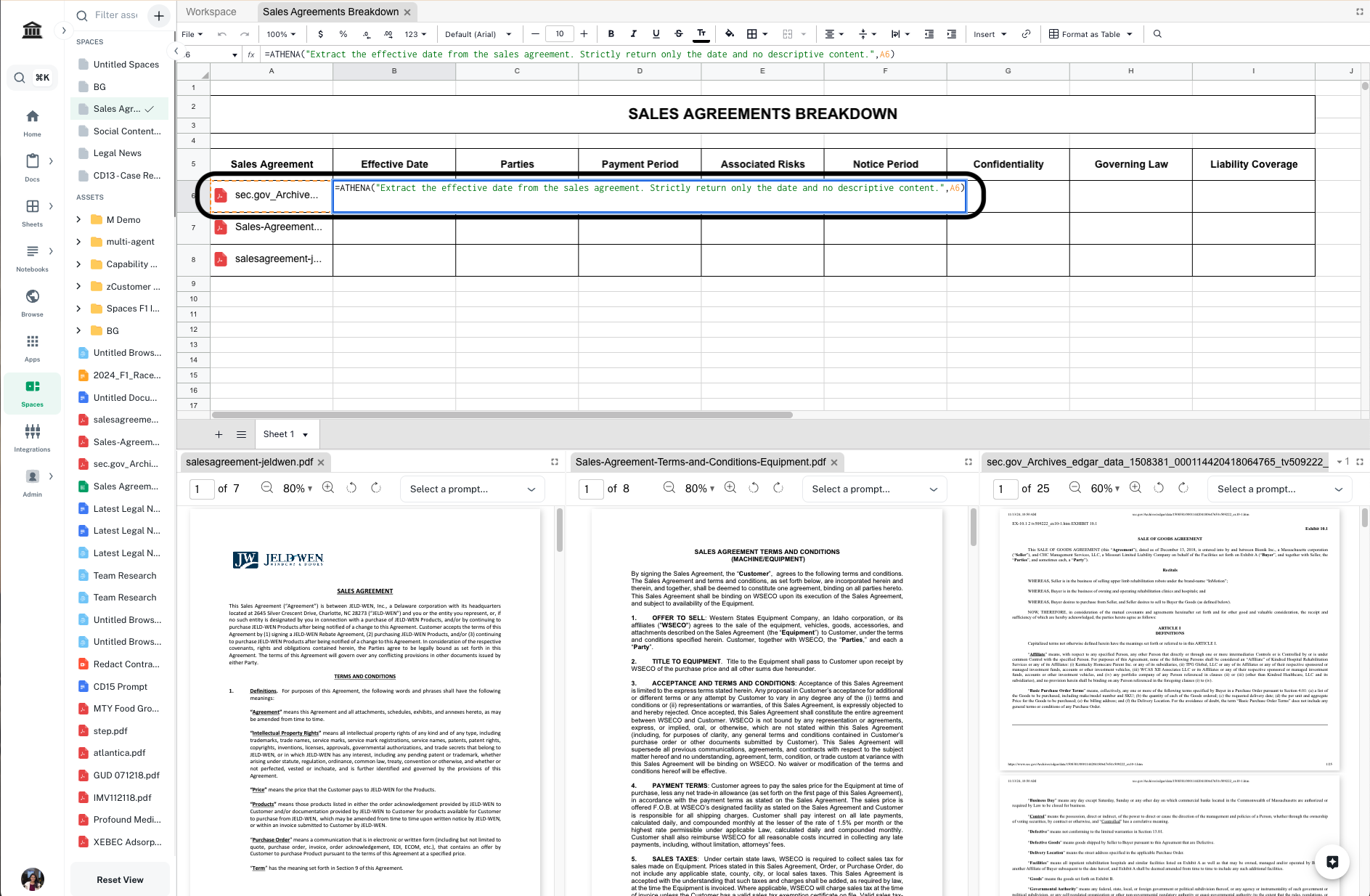
  <Step title="Enter formula to find effective date">
    In `Cell B6`, enter the following formula and press **Enter**.

    <CodeBlock filename="Formula">
      \=ATHENA("Extract the effective date from the sales agreement. Strictly return only the date and no descriptive content.", *cell-containing-document*)
    </CodeBlock>

    <Info>Replace `cell-containing-document` with the cell that contains your document.</Info>

    <Frame>
      <img src="https://mintcdn.com/athenaintelligence-e46bc9d3/XOzR0DdNhB1vkjEH/images/sales-step3.png?fit=max&auto=format&n=XOzR0DdNhB1vkjEH&q=85&s=9b33391ed30daadd13c6b53940e39742" width="1887" height="1234" data-path="images/sales-step3.png" />
    </Frame>
  </Step>

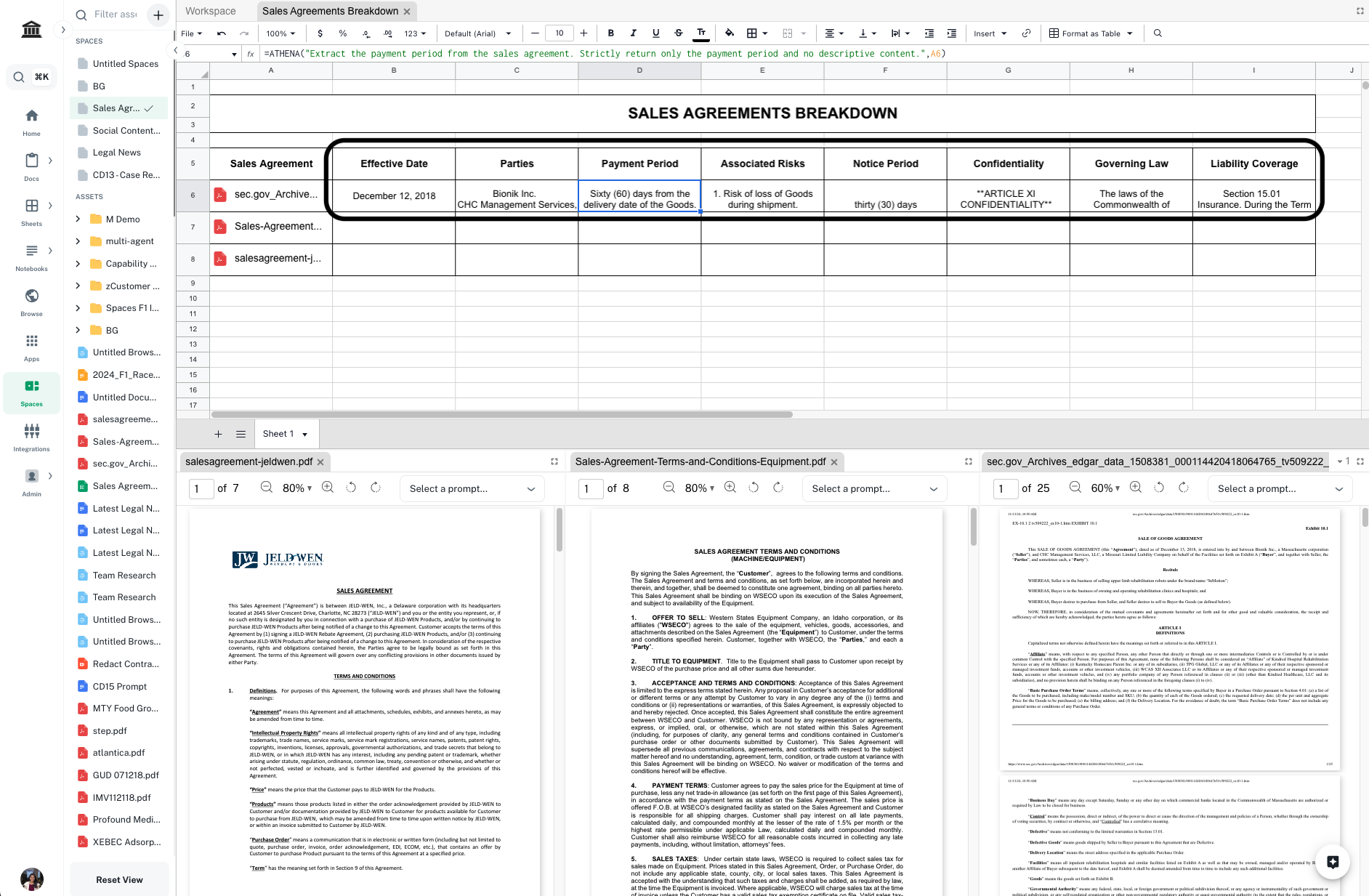
  <Step title="Enter formulae for other fields">
    Follow Step 2 and enter formulae for all other information you wish to extract from the sales agreement. Press **Enter** to execute cells after adding the formulae. In the template, we have included **Parties**, **Associated Risks**, **Notice Period**, **Confidentiality**, **Governing Law** and **Liability Coverage**, you can add/delete columns as per need.

    <Frame>
      <img src="https://mintcdn.com/athenaintelligence-e46bc9d3/XOzR0DdNhB1vkjEH/images/sales-step4.png?fit=max&auto=format&n=XOzR0DdNhB1vkjEH&q=85&s=923e9410a5315302aa557519fd229d1d" width="1884" height="1233" data-path="images/sales-step4.png" />
    </Frame>
  </Step>

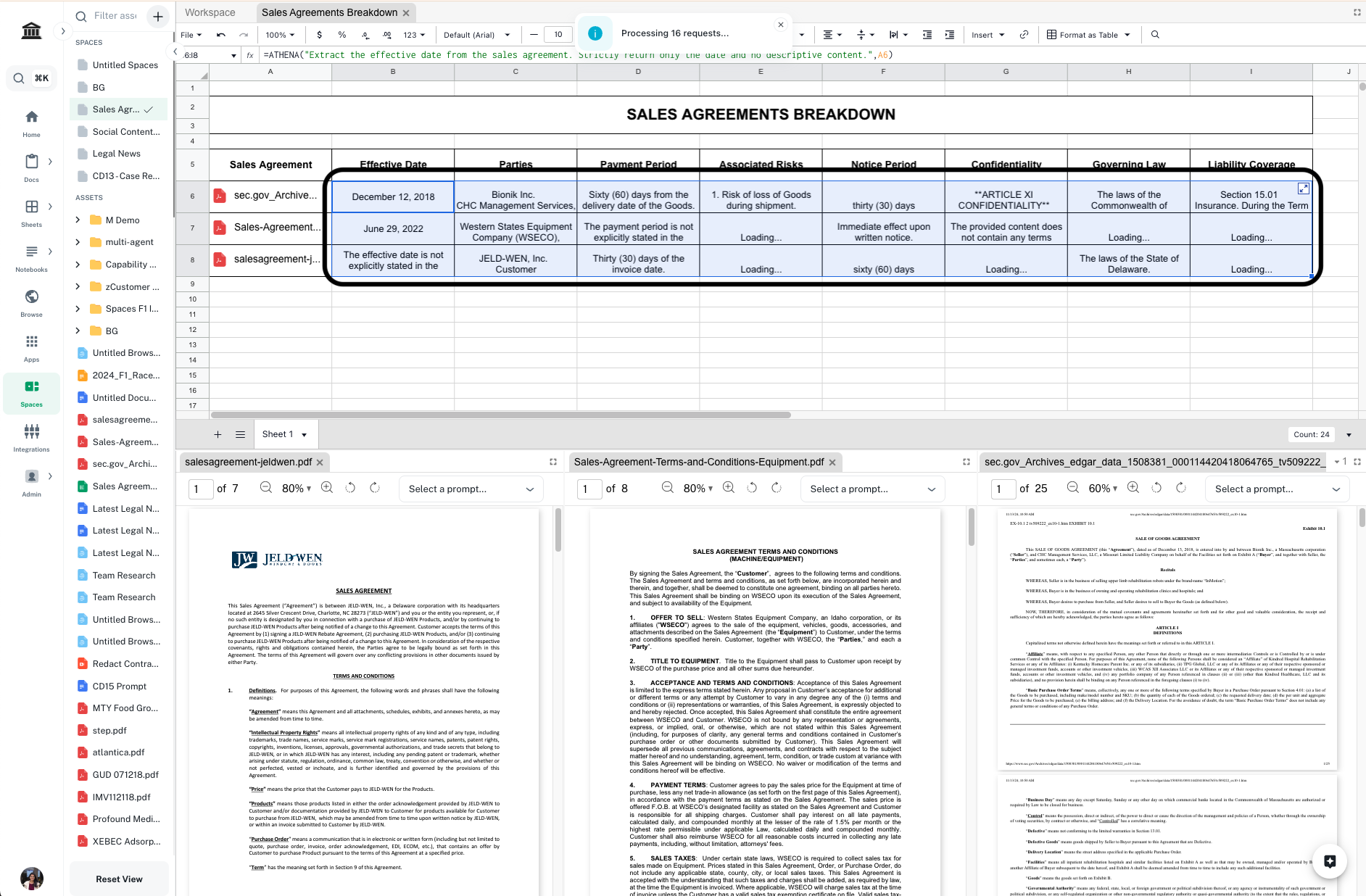
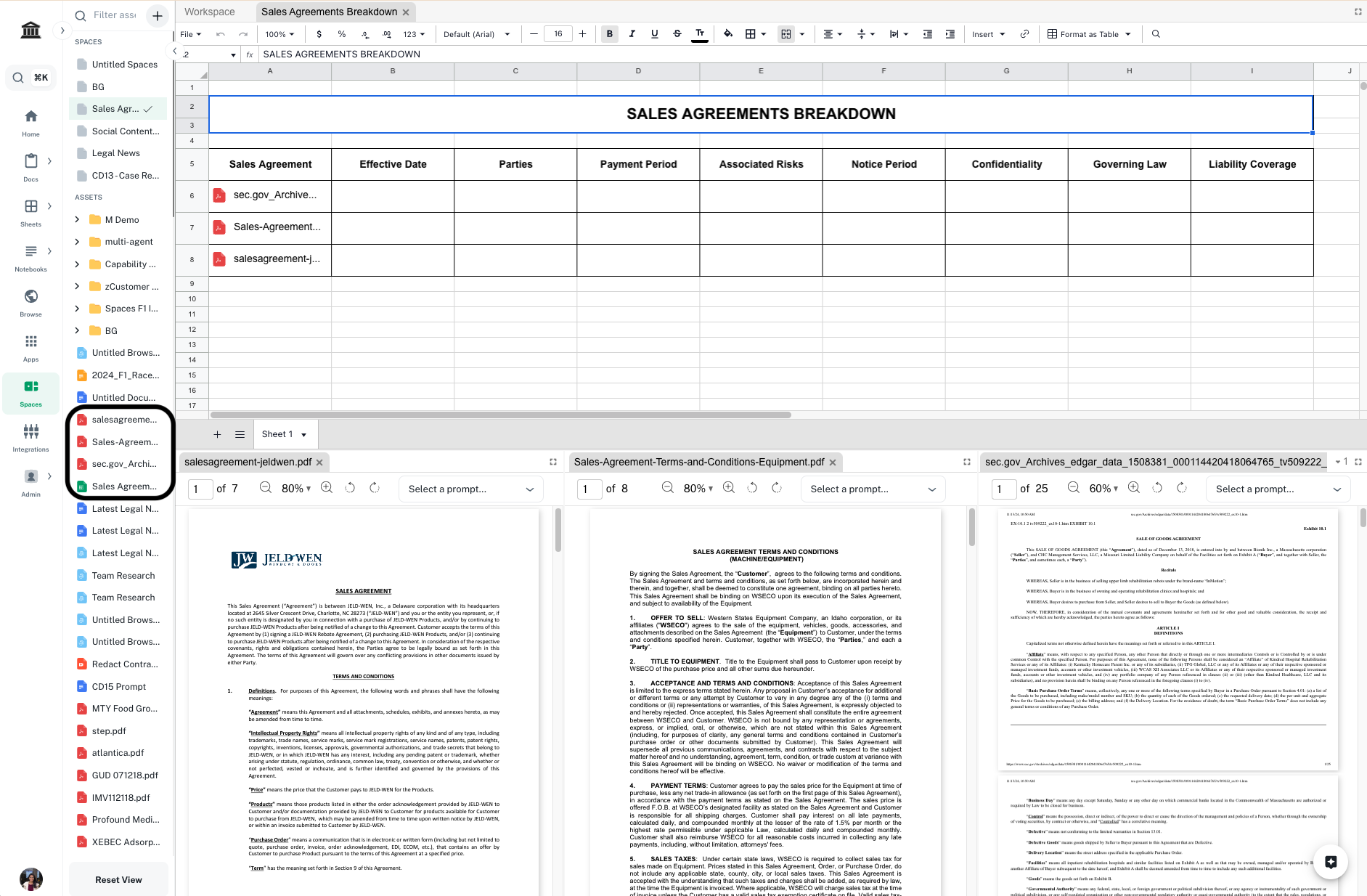
  <Step title="Complete the analysis">
    Select all the cells you just entered formulae in. Drag and extend them till all the documents are covered.
    <Frame>
      <img src="https://mintcdn.com/athenaintelligence-e46bc9d3/XOzR0DdNhB1vkjEH/images/sales-step5.png?fit=max&auto=format&n=XOzR0DdNhB1vkjEH&q=85&s=36e589c49c3b2e82aecbb96d6154b3a1" width="1884" height="1236" data-path="images/sales-step5.png" />
    </Frame>
  </Step>
</Steps>