> ## Documentation Index
> Fetch the complete documentation index at: https://resources.athenaintel.com/llms.txt
> Use this file to discover all available pages before exploring further.
# Automate Meeting Agenda Drafts with Athena
> Meeting agenda preparation builds a Flow to check calendars, research attendees and topics, email agendas, test a preview, and configure scheduled runs.
Athena streamlines meeting preparation by automating the creation of detailed, context-driven agendas. By leveraging its ability to search workspace assets, analyze email threads, and integrate with calendar events, Athena ensures every meeting is equipped with a clear, actionable agenda tailored to its objectives.
## Step-by-step Instructions
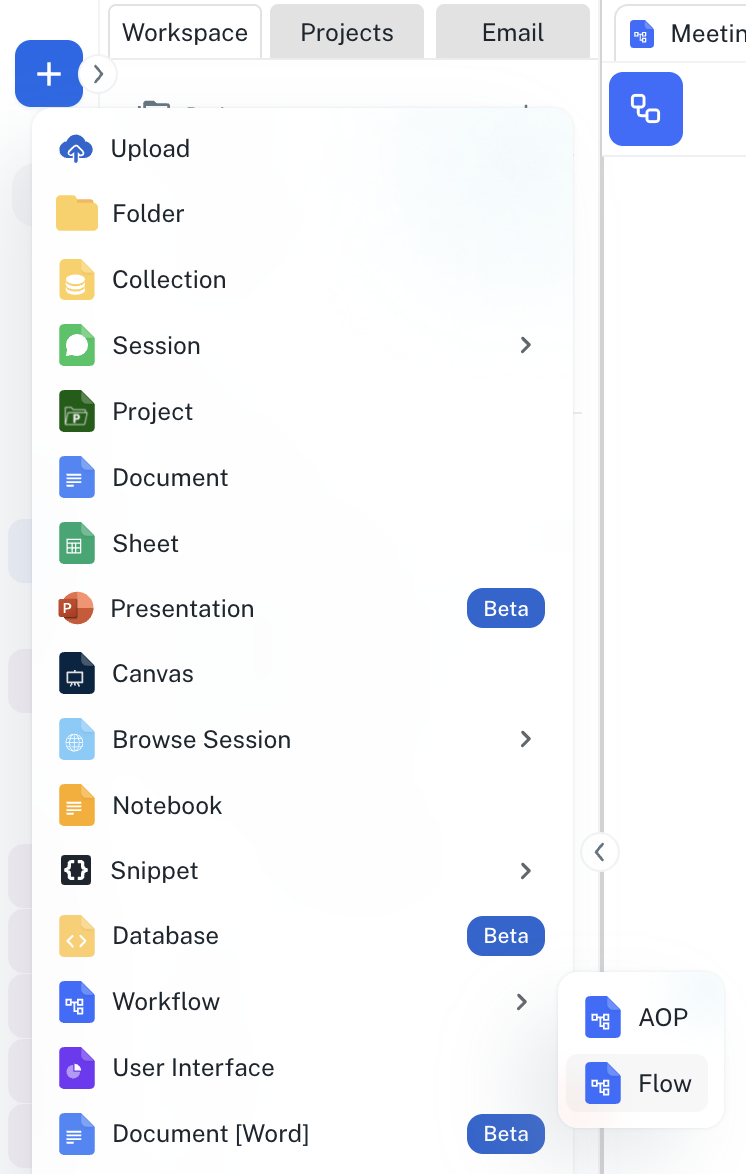
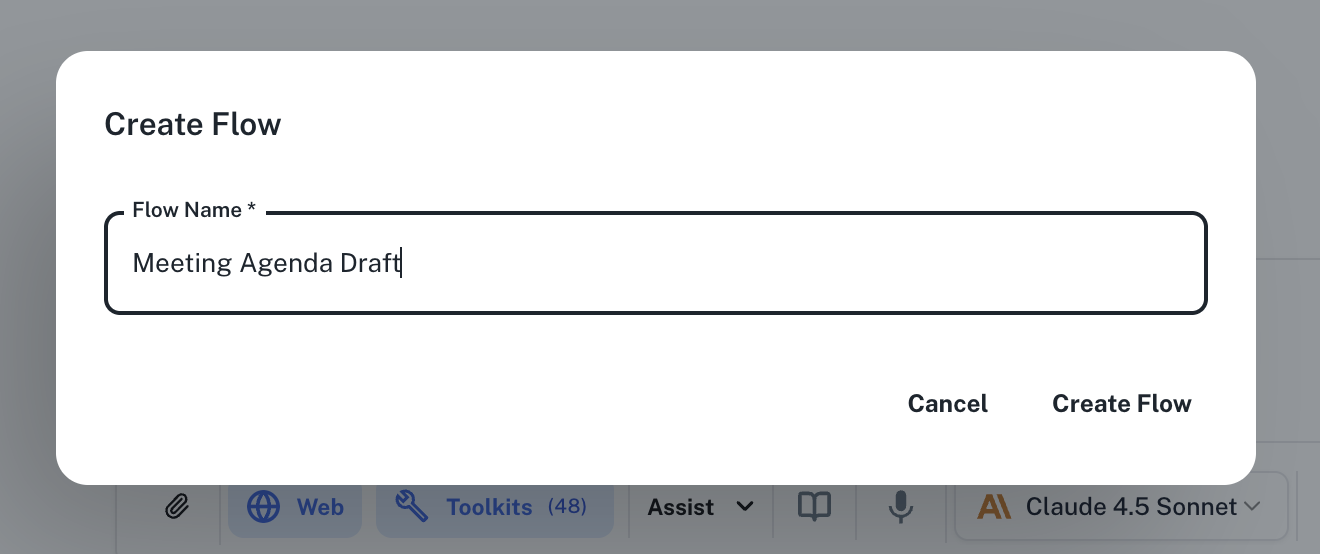
Go to **[Spaces](https://app.athenaintel.com/dashboard/spaces/)**. Click on the **+ -> Workflow -> Flow** button on the top left and name your flow "Meeting Agenda Draft".
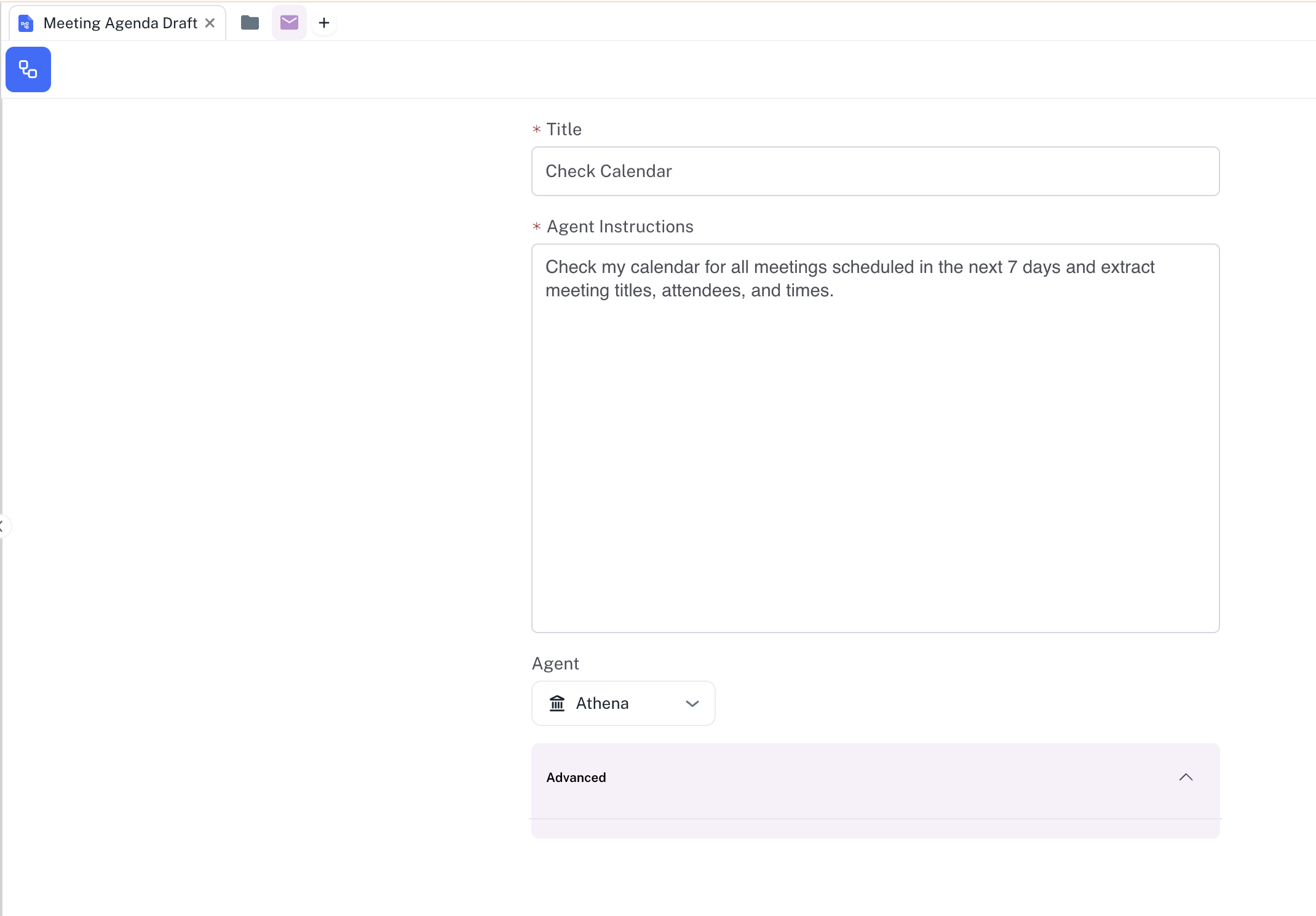
 In the **Title** field, enter "Check Calendar" and in the **Agent Instructions** field, enter your prompt, for example the one given below:
Check my calendar for all meetings scheduled in the next 7 days and extract meeting titles, attendees, and times.
In the **Title** field, enter "Check Calendar" and in the **Agent Instructions** field, enter your prompt, for example the one given below:
Check my calendar for all meetings scheduled in the next 7 days and extract meeting titles, attendees, and times.
 Click on the flow icon on the top left of the flow. Drag and drop a **Step** component from the **Flow Builder** onto the Flow. Define Step 2 by entering "Research Context" in the **Step Title** field and the following in the **Agent Instructions**.
Make sure to connect the second step to the first and then to the next node.
For each meeting, research the attendees' backgrounds, recent company news, and relevant topics. Draft a meeting agenda with suggested discussion points based on the meeting title and attendee information.
Click on the flow icon on the top left of the flow. Drag and drop a **Step** component from the **Flow Builder** onto the Flow. Define Step 2 by entering "Research Context" in the **Step Title** field and the following in the **Agent Instructions**.
Make sure to connect the second step to the first and then to the next node.
For each meeting, research the attendees' backgrounds, recent company news, and relevant topics. Draft a meeting agenda with suggested discussion points based on the meeting title and attendee information.
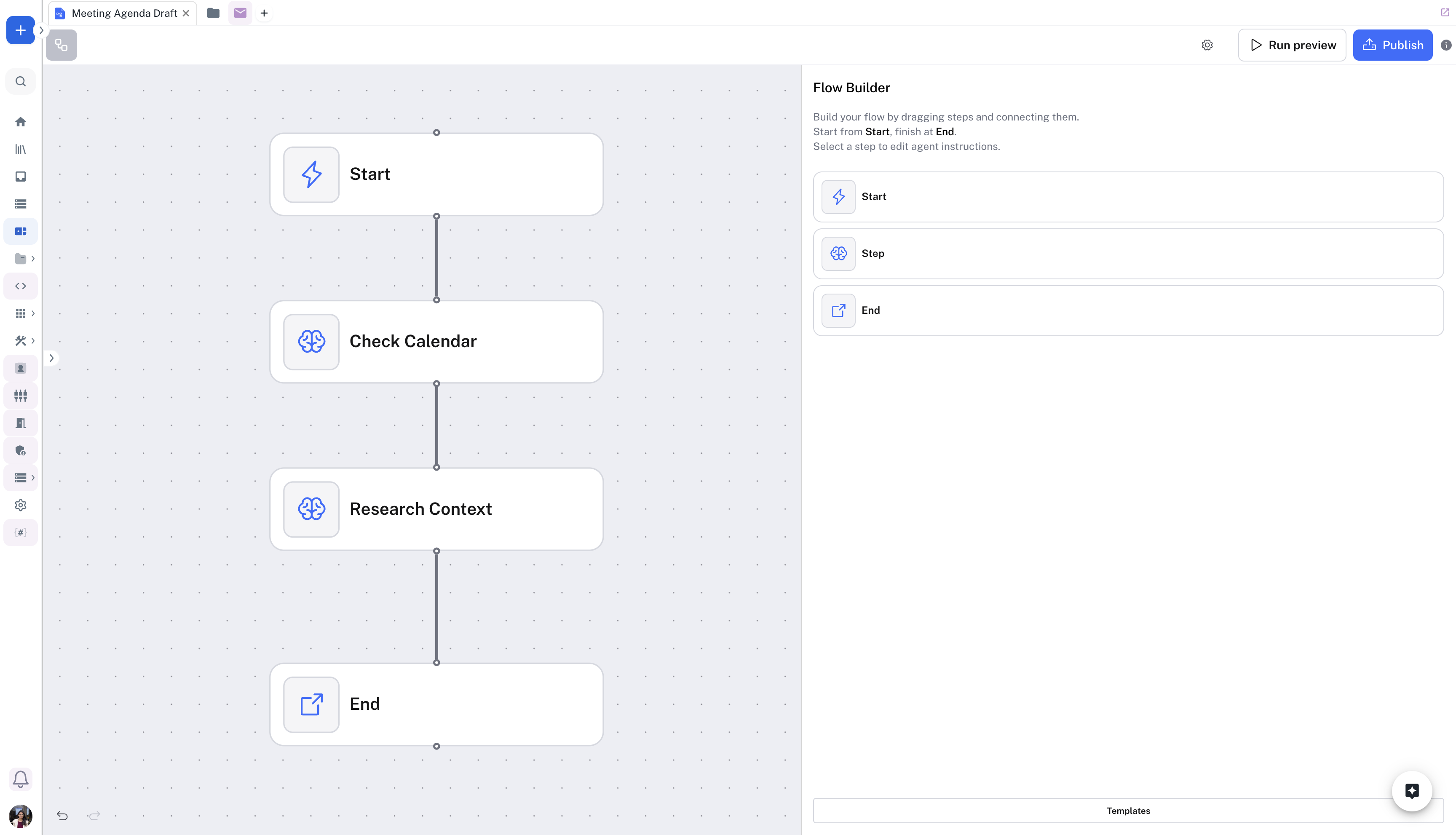 Similarly, add Step 3 "Send Email" to the Flow. You can add the following Agent Instructions: "Compile all meeting agendas into a single email and send it to me with the subject "Meeting Prep: \[Date Range]" including attendee insights and suggested agenda items for each meeting."
You can run your flow by clicking on the **Run Preview** button on the top-right of the flow to test the flow.
Note that it is important for a flow to have a **Start** and an **End** node to run and save.
Similarly, add Step 3 "Send Email" to the Flow. You can add the following Agent Instructions: "Compile all meeting agendas into a single email and send it to me with the subject "Meeting Prep: \[Date Range]" including attendee insights and suggested agenda items for each meeting."
You can run your flow by clicking on the **Run Preview** button on the top-right of the flow to test the flow.
Note that it is important for a flow to have a **Start** and an **End** node to run and save.
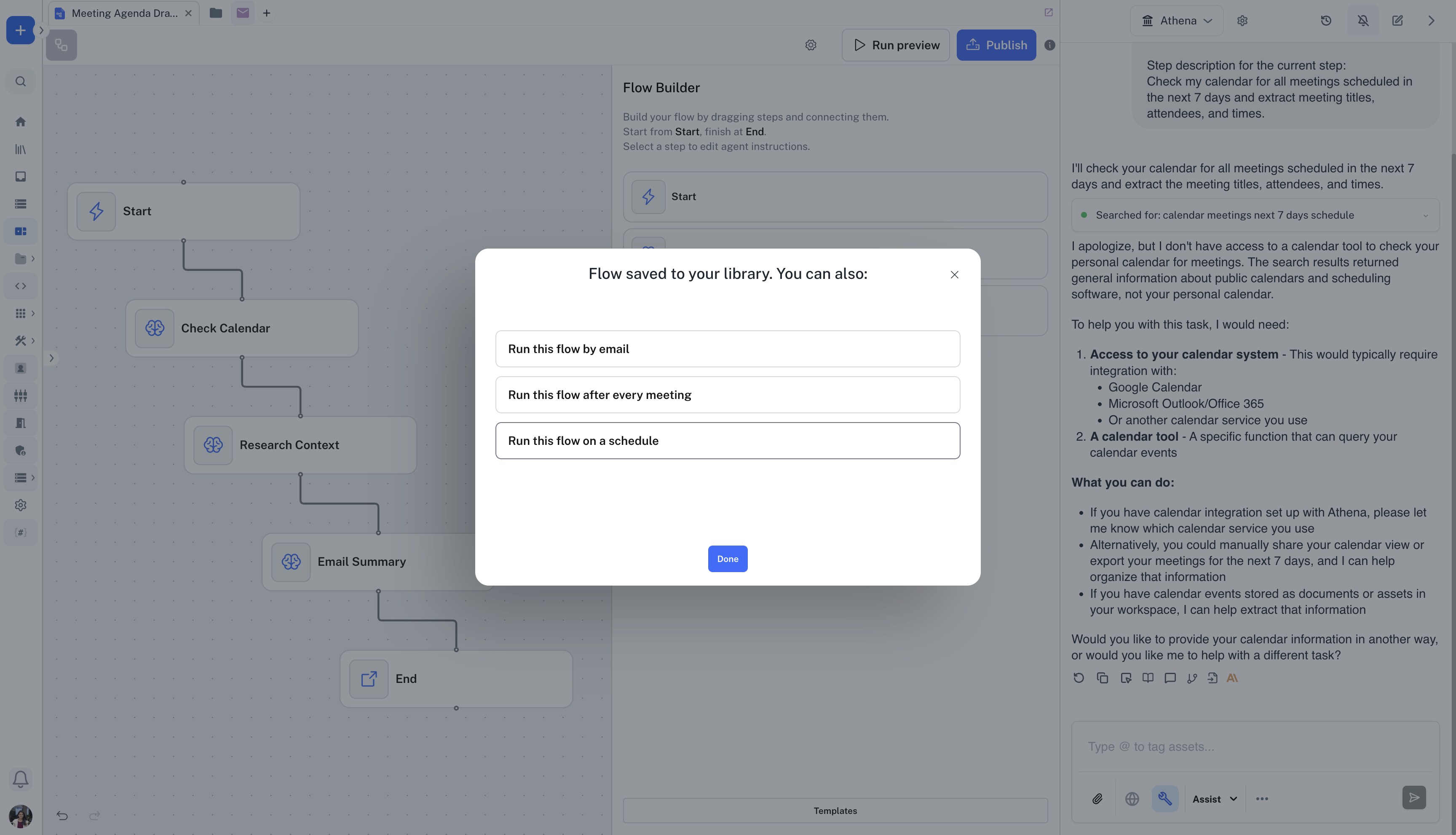
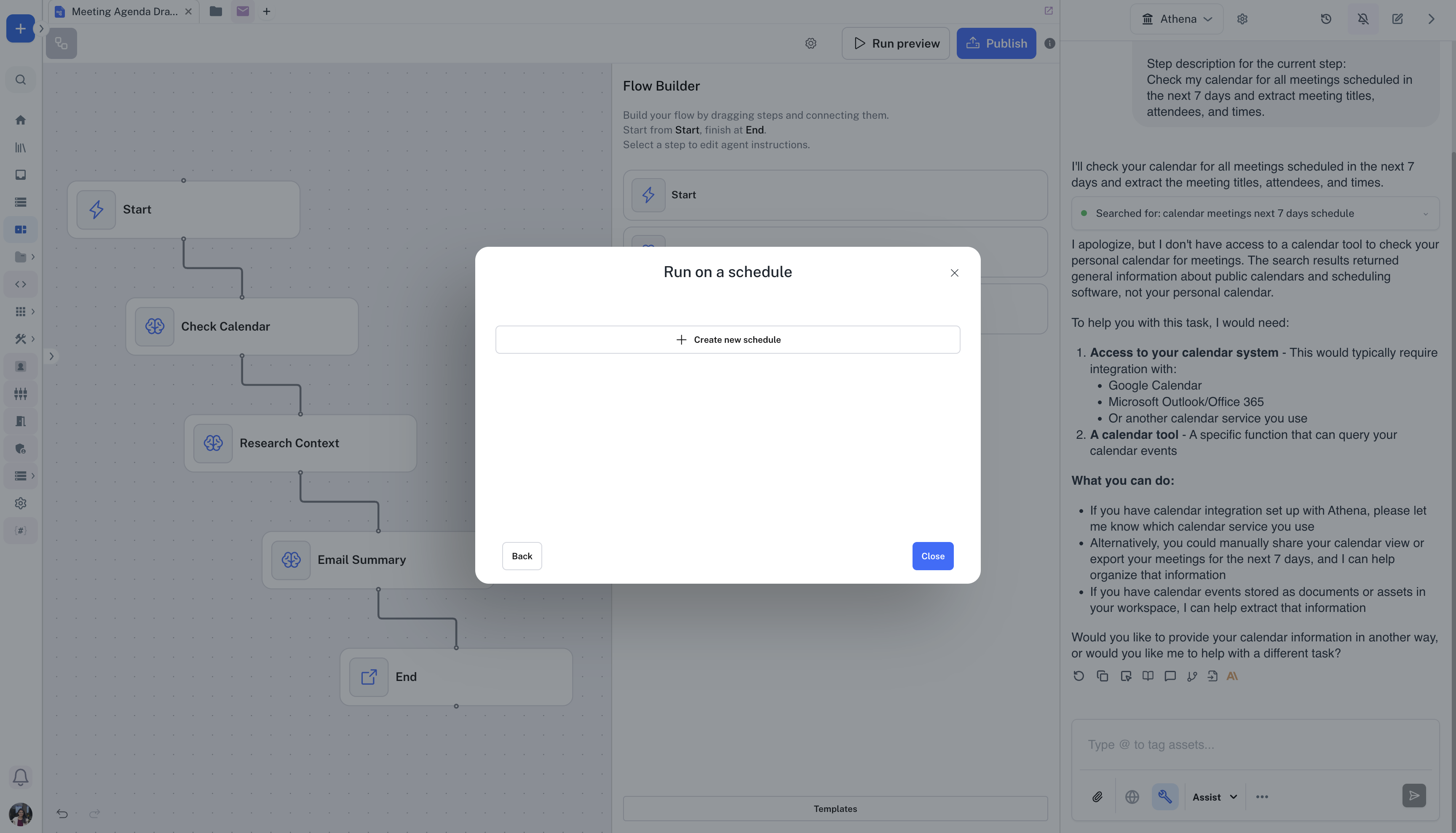
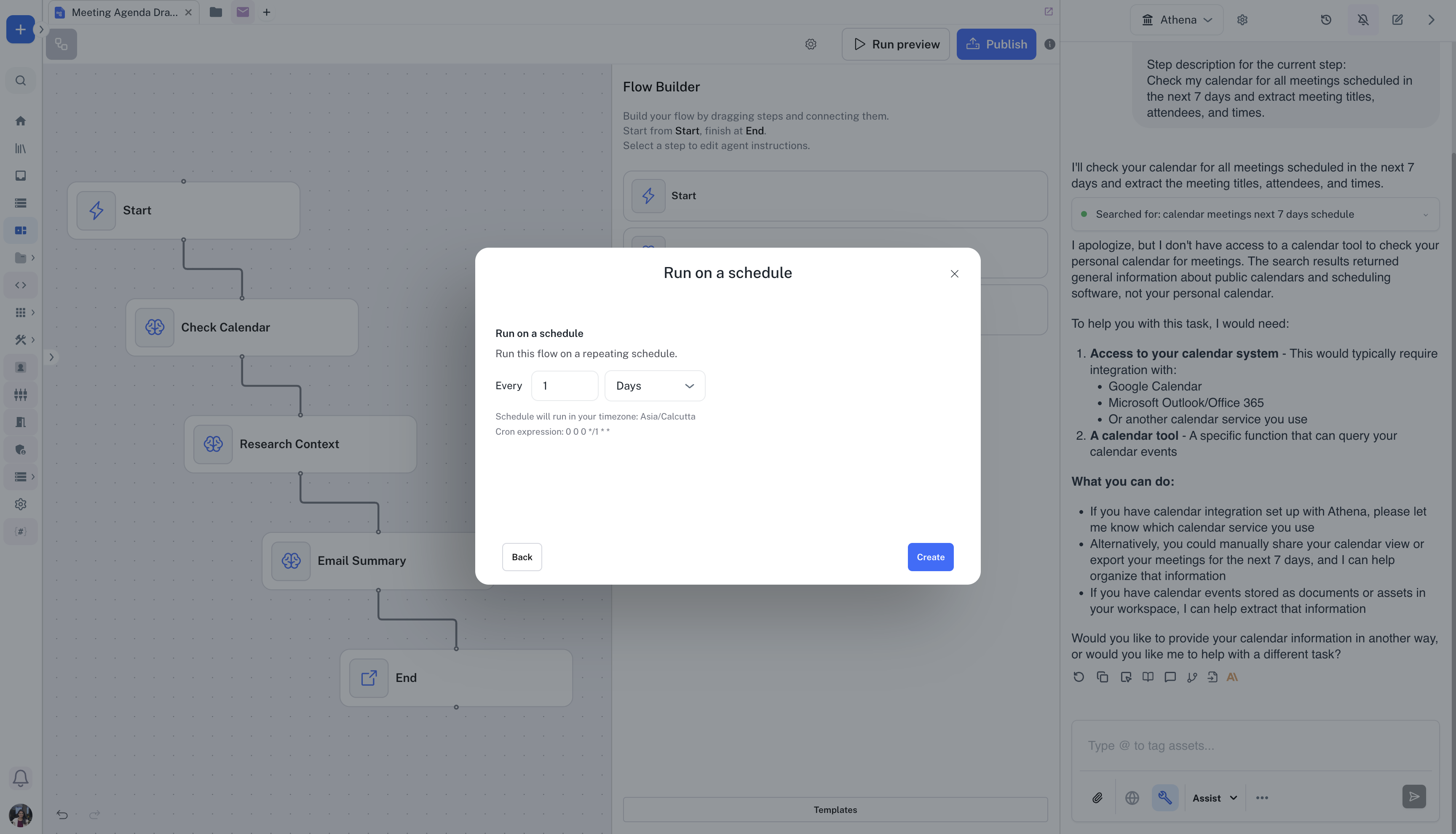
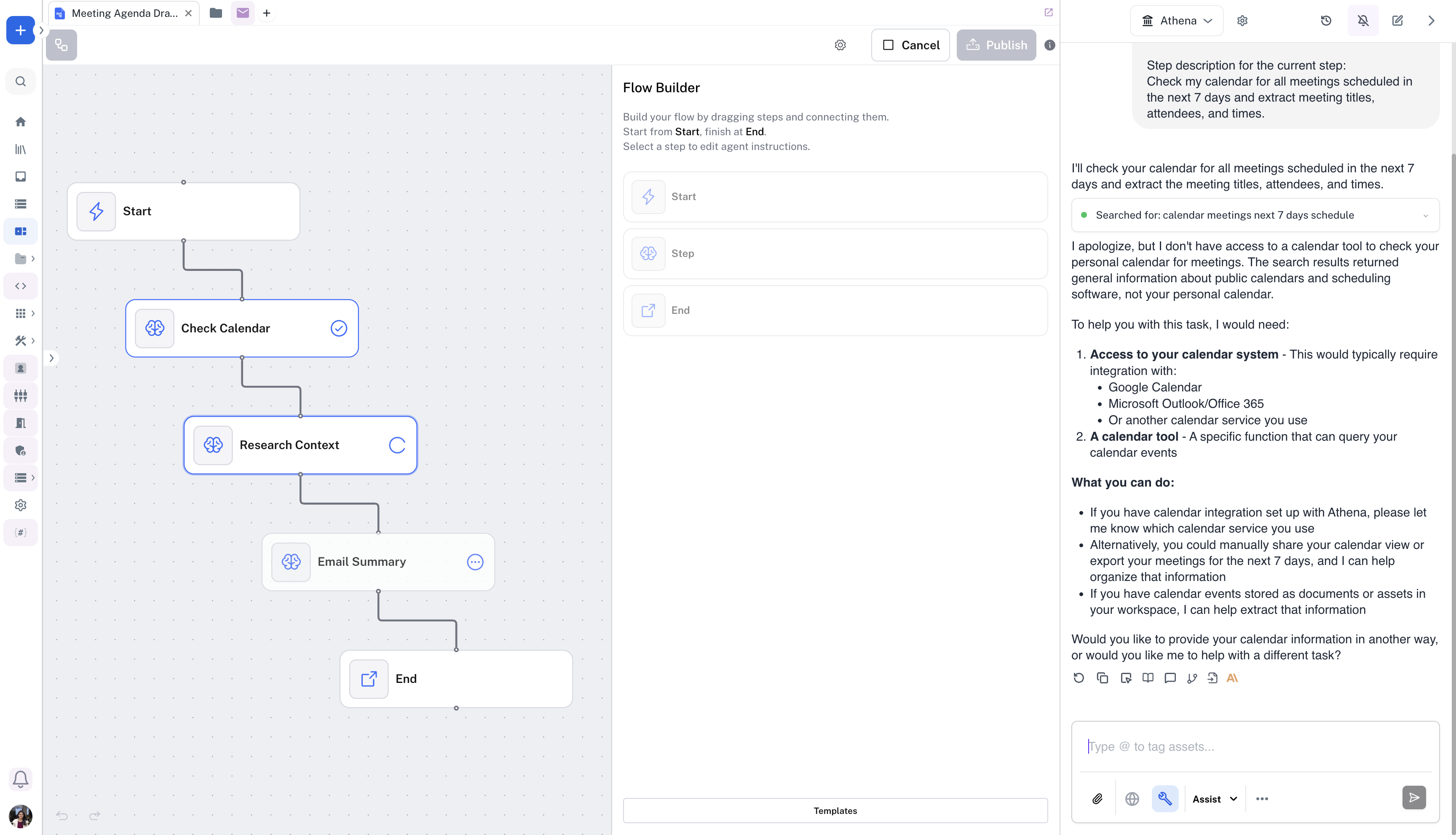 You can click on **Publish** on the top-right of the flow to trigger the flow on an event. Click on **Run this flow on a schedule -> Create new schedule**. Set a schedule for your flow and click on **Create**.\
You can run the flow on a schedule, when an email is sent to a custom email address assigned to the flow or after a meeting ends.
You can click on **Publish** on the top-right of the flow to trigger the flow on an event. Click on **Run this flow on a schedule -> Create new schedule**. Set a schedule for your flow and click on **Create**.\
You can run the flow on a schedule, when an email is sent to a custom email address assigned to the flow or after a meeting ends.
 This documentation is built and hosted on [Mintlify](https://mintlify.com), a developer documentation platform.