> ## Documentation Index
> Fetch the complete documentation index at: https://resources.athenaintel.com/llms.txt
> Use this file to discover all available pages before exploring further.

# User Interfaces

<Tip>Build powerful, intelligent applications with enterprise-grade components!</Tip>

<Frame>
  <iframe title="vimeo-player" src="https://player.vimeo.com/video/1136095049?h=290f750f10" width="640" height="360" frameborder="0" referrerpolicy="strict-origin-when-cross-origin" allow="autoplay; fullscreen; picture-in-picture; clipboard-write; encrypted-media; web-share" allowfullscreen />
</Frame>

<Tabs>
  <Tab title="Overview">
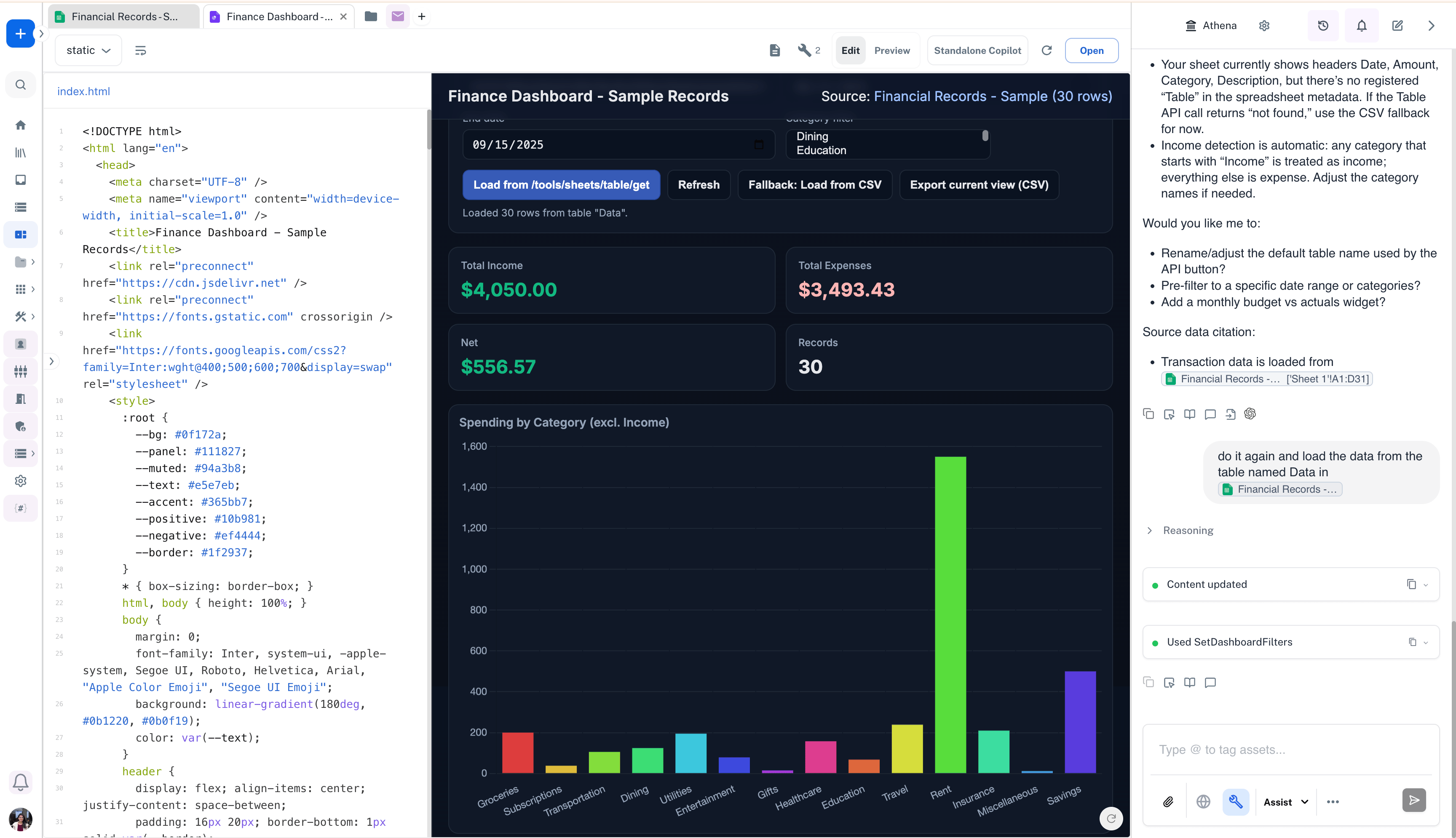
    Athena User Interfaces enable you to create interactive, data-driven applications and dashboards directly from your spreadsheet data. Transform static data into dynamic, professional interfaces that your team can interact with in real-time.

    Using User Interfaces, you can build custom dashboards, forms, and applications that automatically sync with your underlying data sources, providing a seamless experience for data visualization and user interaction.

    <Frame>
      <img src="https://mintcdn.com/athenaintelligence-e46bc9d3/V53OSPi_kGPQxNg3/images/ui-dashboard-created.png?fit=max&auto=format&n=V53OSPi_kGPQxNg3&q=85&s=c992551f5bd57204bc3c1987cc9dd6ab" width="3456" height="1990" data-path="images/ui-dashboard-created.png" />
    </Frame>

    ## Key Features

    ### Custom App Builder

    Create sophisticated applications and dashboards using Athena's intuitive Custom App Builder. Transform your data into interactive interfaces with professional design components.

    ### Data Integration

    Seamlessly connect spreadsheet data, databases, and other data sources to power your user interfaces. Support for various formats including CSV, XLSX, and live data connections.

    ### Real-Time Synchronization

    Enable bidirectional data flow between your user interfaces and underlying data sources. Form submissions automatically update both the interface display and source spreadsheets.

    ### Enterprise-Grade Components

    Build with modern, responsive design components that scale with your business requirements. Includes customizable themes, security features, and compliance standards.

    ### Interactive Dashboards

    Create dynamic dashboards with filtering, sorting, and real-time data visualization capabilities. Perfect for monitoring, reporting, and data analysis workflows.

    ### Agent Operating Procedures (AOPs) Integration

    Trigger pre-configured AI workflows directly from your user interfaces. Add buttons or automated triggers that execute AOPs, enabling users to run complex analysis, generate reports, or perform multi-step operations without leaving your custom application.

    ### Athena Sheets Data Connectivity

    Connect your user interfaces directly to Athena Sheets for seamless data integration. Use the Get Table API to display spreadsheet data in your interfaces and the Insert Table Row API to enable form submissions that automatically update your sheets, creating a complete data management solution.

    ### Version Control and History

    Track changes to your user interfaces over time. Access previous versions, review modifications, and restore earlier configurations if needed. Version control ensures you can experiment with interface designs while maintaining the ability to revert to stable versions.
  </Tab>

  <Tab title="Step-by-Step Guide">
    Learn how to create user interfaces from your spreadsheet data and enable form submissions that update both the dashboard and underlying sheets.

    <Tabs>
      <Tab title="Create User Interface">
        <p>
          Build an interactive dashboard or application from your spreadsheet data using Athena's Custom App Builder.
        </p>

        <Steps>
          <Step title="Start with Athena Assist">
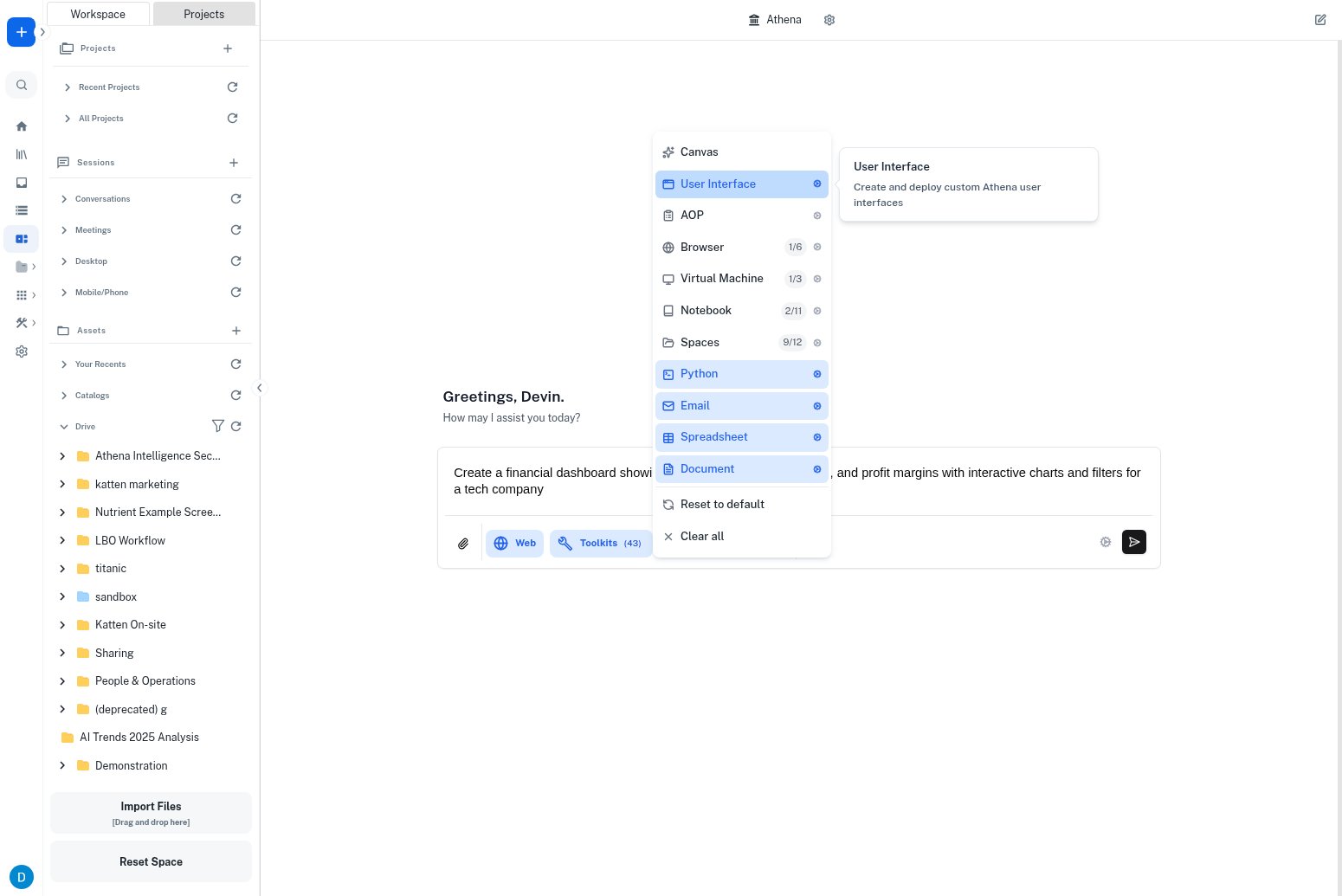
            In the chat UI, select **Athena Assist** and make sure the **User Interface Toolkit** is selected from the available tools.

            <Frame>
              <img src="https://mintcdn.com/athenaintelligence-e46bc9d3/V53OSPi_kGPQxNg3/images/ui-step1-athena-assist.png?fit=max&auto=format&n=V53OSPi_kGPQxNg3&q=85&s=82968b53a127e07cc44562368cfd7f61" width="1550" height="1035" data-path="images/ui-step1-athena-assist.png" />
            </Frame>
          </Step>

          <Step title="Describe Your Interface">
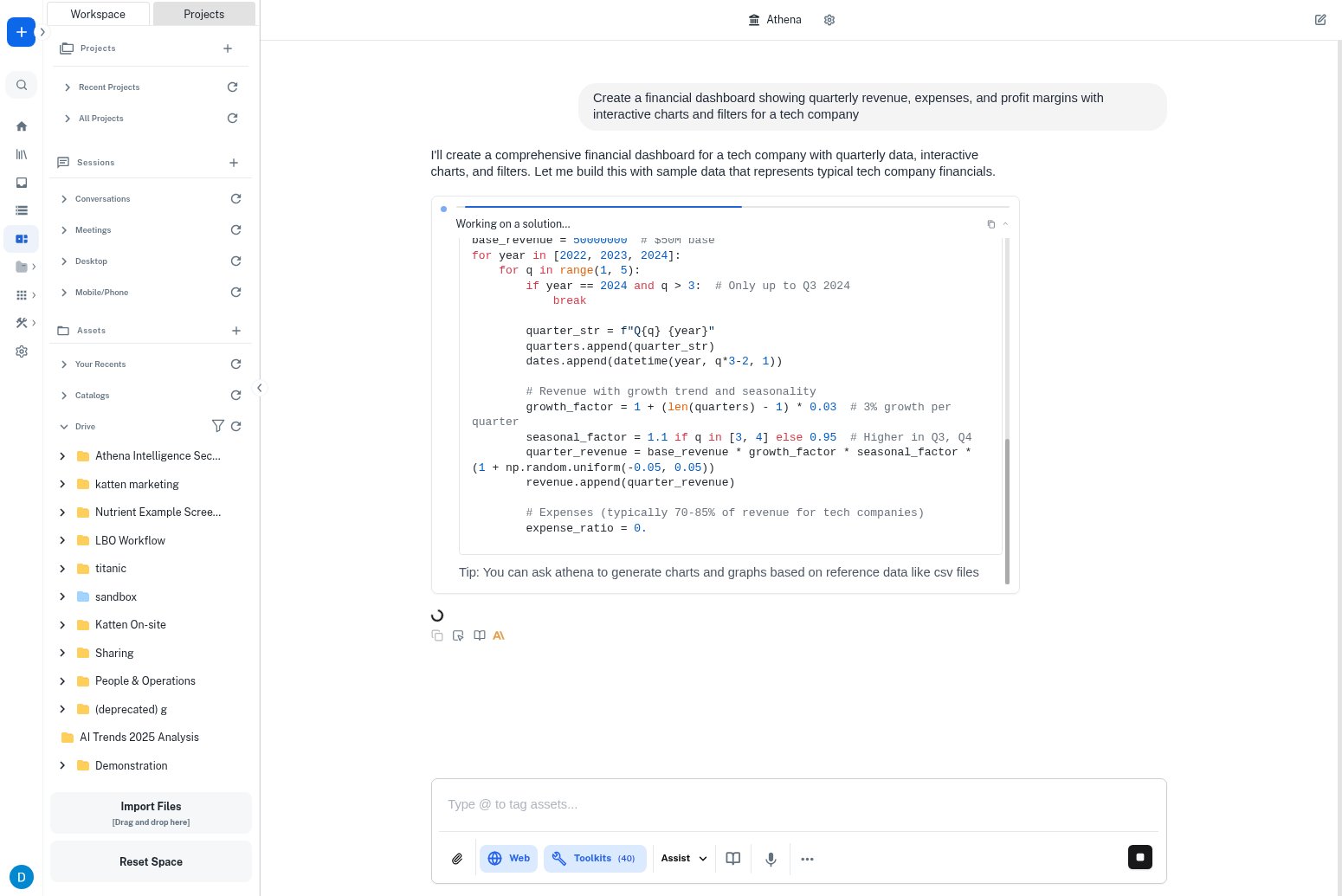
            Describe your desired interface in natural language in the chat. For example: "Create a financial dashboard showing quarterly revenue, expenses, and profit margins with interactive charts and filters."

            <Frame>
              <img src="https://mintcdn.com/athenaintelligence-e46bc9d3/V53OSPi_kGPQxNg3/images/ui-step2-describe-interface.png?fit=max&auto=format&n=V53OSPi_kGPQxNg3&q=85&s=4e129811ccd373ce970f9d5d785c6f99" width="1550" height="1035" data-path="images/ui-step2-describe-interface.png" />
            </Frame>
          </Step>

          <Step title="Submit Your Request">
            Hit enter to submit your natural language description. Athena will process your request and begin generating the user interface based on your specifications.

            <Frame>
              <img src="https://mintcdn.com/athenaintelligence-e46bc9d3/V53OSPi_kGPQxNg3/images/ui-step3-submit-request.png?fit=max&auto=format&n=V53OSPi_kGPQxNg3&q=85&s=c764bfb2a98b0f129f7e9a24f0df6405" width="1550" height="1035" data-path="images/ui-step3-submit-request.png" />
            </Frame>
          </Step>

          <Step title="Review Generated Interface">
            Athena will create your interface and display it for review. You can see the generated components, layout, and functionality based on your description.

            <Frame>
              <img src="https://mintcdn.com/athenaintelligence-e46bc9d3/V53OSPi_kGPQxNg3/images/ui-dashboard-created.png?fit=max&auto=format&n=V53OSPi_kGPQxNg3&q=85&s=c992551f5bd57204bc3c1987cc9dd6ab" width="3456" height="1990" data-path="images/ui-dashboard-created.png" />
            </Frame>
          </Step>

          <Step title="Test and Refine">
            Test the generated interface and provide additional instructions if you need modifications. You can ask Athena to adjust layouts, add features, or modify styling.

            <Frame>
              <img src="https://mintcdn.com/athenaintelligence-e46bc9d3/V53OSPi_kGPQxNg3/images/ui-dashboard-created.png?fit=max&auto=format&n=V53OSPi_kGPQxNg3&q=85&s=c992551f5bd57204bc3c1987cc9dd6ab" width="3456" height="1990" data-path="images/ui-dashboard-created.png" />
            </Frame>
          </Step>
        </Steps>
      </Tab>

      <Tab title="Connect Sheets Data">
        <p>
          Learn how to properly connect and structure your spreadsheet data for optimal user interface creation.
        </p>

        <Steps>
          <Step title="Add Data to Athena Sheet">
            First, add your data to an Athena Sheet. Ensure your data is properly formatted in tabular structure with clear column headers and consistent data types.

            <CodeBlock filename="Data Requirements">
              • Clear column headers in first row
              • Consistent data types per column
              • No merged cells or complex formatting
              • Complete data without gaps
            </CodeBlock>

            <Frame>
              <img src="https://mintcdn.com/athenaintelligence-e46bc9d3/V53OSPi_kGPQxNg3/images/ui-data-athena-sheet.png?fit=max&auto=format&n=V53OSPi_kGPQxNg3&q=85&s=aaee0c631194b634b47c184309c24cbf" width="3456" height="1982" data-path="images/ui-data-athena-sheet.png" />
            </Frame>
          </Step>

          <Step title="Use Get Table API">
            **Prompt:** Use the data from the given sheet and build a dashboard using the data. Use the API given below.

            Use the [Get Table API](https://docs.athenaintel.com/api-reference/tools/sheets/get-table) to retrieve data from your Athena Sheet for use in your user interface.

            **POST** `/api/v0/tools/sheets/table/get`

            ```bash theme={null}
            curl -X POST https://api.athenaintel.com/api/v0/tools/sheets/table/get \
              -H "X-API-KEY: <apiKey>" \
              -H "Content-Type: application/json" \
              -d '{
                "asset_id": "string",
                "table_name": "string"
              }'
            ```

            ```json theme={null}
            {
              "asset_id": "string",
              "columns": [
                {}
              ],
              "message": "string",
              "rows": [
                {}
              ],
              "success": true
            }
            ```

            [Try it](https://docs.athenaintel.com/api-reference/tools/sheets/get-table?explorer=true)
          </Step>

          <Step title="Connect Data to Interface">
            Reference the sheet data in your user interface description when talking to Athena Assist. Specify which columns should be displayed and how they should be formatted.

            <Frame>
              <img src="https://mintcdn.com/athenaintelligence-e46bc9d3/V53OSPi_kGPQxNg3/images/ui-dashboard-created.png?fit=max&auto=format&n=V53OSPi_kGPQxNg3&q=85&s=c992551f5bd57204bc3c1987cc9dd6ab" width="3456" height="1990" data-path="images/ui-dashboard-created.png" />
            </Frame>
          </Step>

          <Step title="Configure Data Display">
            Athena will automatically map your sheet data to appropriate interface components like tables, charts, and filters based on your natural language instructions.

            <Frame>
              <img src="https://mintcdn.com/athenaintelligence-e46bc9d3/V53OSPi_kGPQxNg3/images/ui-dashboard-created.png?fit=max&auto=format&n=V53OSPi_kGPQxNg3&q=85&s=c992551f5bd57204bc3c1987cc9dd6ab" width="3456" height="1990" data-path="images/ui-dashboard-created.png" />
            </Frame>
          </Step>
        </Steps>
      </Tab>

      <Tab title="Form Submissions">
        <p>
          Enable users to submit data through your interface that automatically updates both the dashboard display and underlying spreadsheet.
        </p>

        <Steps>
          <Step title="Provide Natural Language Instructions">
            In the chat UI with Athena Assist, provide natural language instructions for form functionality. For example: "Add a form that allows users to submit new financial records with fields for date, amount, category, and description."

            <Frame>
              <img src="https://mintcdn.com/athenaintelligence-e46bc9d3/V53OSPi_kGPQxNg3/images/ui-form-instructions.png?fit=max&auto=format&n=V53OSPi_kGPQxNg3&q=85&s=0957b211cb0a9e3015c3159498743a0a" width="1550" height="1035" data-path="images/ui-form-instructions.png" />
            </Frame>
          </Step>

          <Step title="Use Insert Table Row API">
            **Prompt:** Create a new intake form and connect it to the sheet, data upon form submission should be added to the sheet, use the API given below.

            Configure your interface to use the [Insert Table Row API](https://docs.athenaintel.com/api-reference/tools/sheets/insert-table-row) to import submitted data into your Athena Sheet.

            **POST** `/api/v0/tools/sheets/table/insert-row`

            ```bash theme={null}
            curl -X POST https://api.athenaintel.com/api/v0/tools/sheets/table/insert-row \
              -H "X-API-KEY: <apiKey>" \
              -H "Content-Type: application/json" \
              -d '{
                "asset_id": "string",
                "row_data": [
                  {}
                ],
                "table_name": "string"
              }'
            ```

            ```json theme={null}
            {
              "asset_id": "string",
              "message": "string",
              "success": true
            }
            ```

            [Try it](https://docs.athenaintel.com/api-reference/tools/sheets/insert-table-row?explorer=true)
          </Step>

          <Step title="Configure Form Fields">
            Athena will generate appropriate form fields based on your natural language description and the structure of your target Athena Sheet.

            <Frame>
              <img src="https://mintcdn.com/athenaintelligence-e46bc9d3/V53OSPi_kGPQxNg3/images/ui-form-dashboard.png?fit=max&auto=format&n=V53OSPi_kGPQxNg3&q=85&s=ced1f1c15ffc1b81493f344c3cb8224e" width="3456" height="1984" data-path="images/ui-form-dashboard.png" />
            </Frame>
          </Step>

          <Step title="Test Form Submission">
            Test the form submission workflow by entering sample data and verifying it appears correctly in both the interface and the connected Athena Sheet.

            <Frame>
              <img src="https://mintcdn.com/athenaintelligence-e46bc9d3/V53OSPi_kGPQxNg3/images/ui-form-dashboard.png?fit=max&auto=format&n=V53OSPi_kGPQxNg3&q=85&s=ced1f1c15ffc1b81493f344c3cb8224e" width="3456" height="1984" data-path="images/ui-form-dashboard.png" />
            </Frame>
          </Step>
        </Steps>
      </Tab>
    </Tabs>
  </Tab>

  <Tab title="Developer Resources">
    For developers building custom applications that integrate with Athena User Interfaces, Sheets, and AOPs, comprehensive API documentation and guides are available.

    ## Integration Guides

    <CardGroup cols={2}>
      <Card title="Sheets API (TypeScript)" icon="table" href="https://docs.athenaintel.com/type-script-guides/sheets-api">
        Complete guide for reading and writing Sheets data programmatically in your applications
      </Card>

      <Card title="Execute AOPs (TypeScript)" icon="brackets-curly" href="https://docs.athenaintel.com/type-script-guides/execute-aops">
        TypeScript guide for triggering and executing AOPs from your custom interfaces
      </Card>

      <Card title="AOP API Reference" icon="code" href="https://docs.athenaintel.com/api-reference/aop">
        Complete API documentation for AOP execution and management
      </Card>
    </CardGroup>

    ## Common Integration Patterns

    **Sheets Data Display**: Use the Sheets API to retrieve data from Athena Sheets and display it in your custom user interfaces. The Get Table API provides structured access to spreadsheet data for rendering in tables, charts, and other visualizations.

    **Form Submissions to Sheets**: Implement form submission workflows that write data back to Athena Sheets using the Insert Table Row API. This enables bidirectional data flow between your interfaces and underlying data sources.

    **AOP Execution from UI**: Trigger AOPs directly from user interface buttons or automated workflows. Pass user input or form data as variables to AOPs for dynamic processing and analysis.

    **Real-Time Data Sync**: Build applications that maintain real-time synchronization between user interfaces and Athena Sheets, ensuring data consistency across all views and interactions.
  </Tab>
</Tabs>