> ## Documentation Index
> Fetch the complete documentation index at: https://resources.athenaintel.com/llms.txt
> Use this file to discover all available pages before exploring further.
# Run SQL queries in an Athena notebook
> Create and save SQL queries in Olympus, retrieve asset IDs, and run query snippets from an Athena notebook to analyze the results.
export const AskAthena = ({prompt, send = false}) => {
const href = `https://app.athenaintel.com/dashboard/spaces?copilotInput=${encodeURIComponent(prompt)}${send ? '&autoSubmit=true' : ''}`;
return
Ask in Athena
→
;
};
Run saved SQL queries from a notebook to use their results in your analysis.
## Step-by-step Instructions
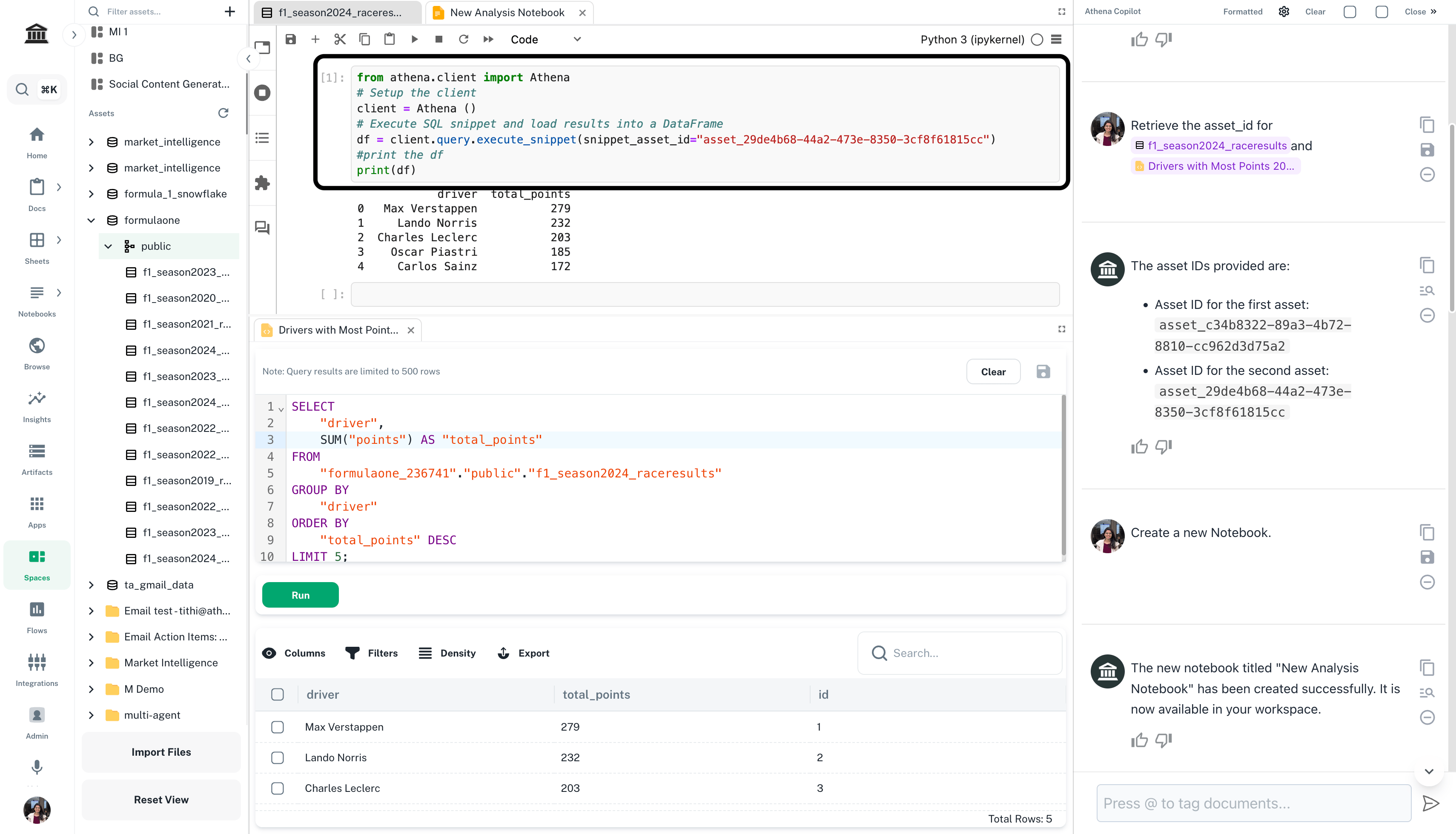
Navigate to ***[Spaces](https://app.athenaintel.com/dashboard/spaces/)***. Drag and drop the database you wish to query onto your Space. In the **Chat** sidebar, enter the following prompt and press **Enter**.
Use query to answer: Which drivers have scored the most points so far in the 2024 season?
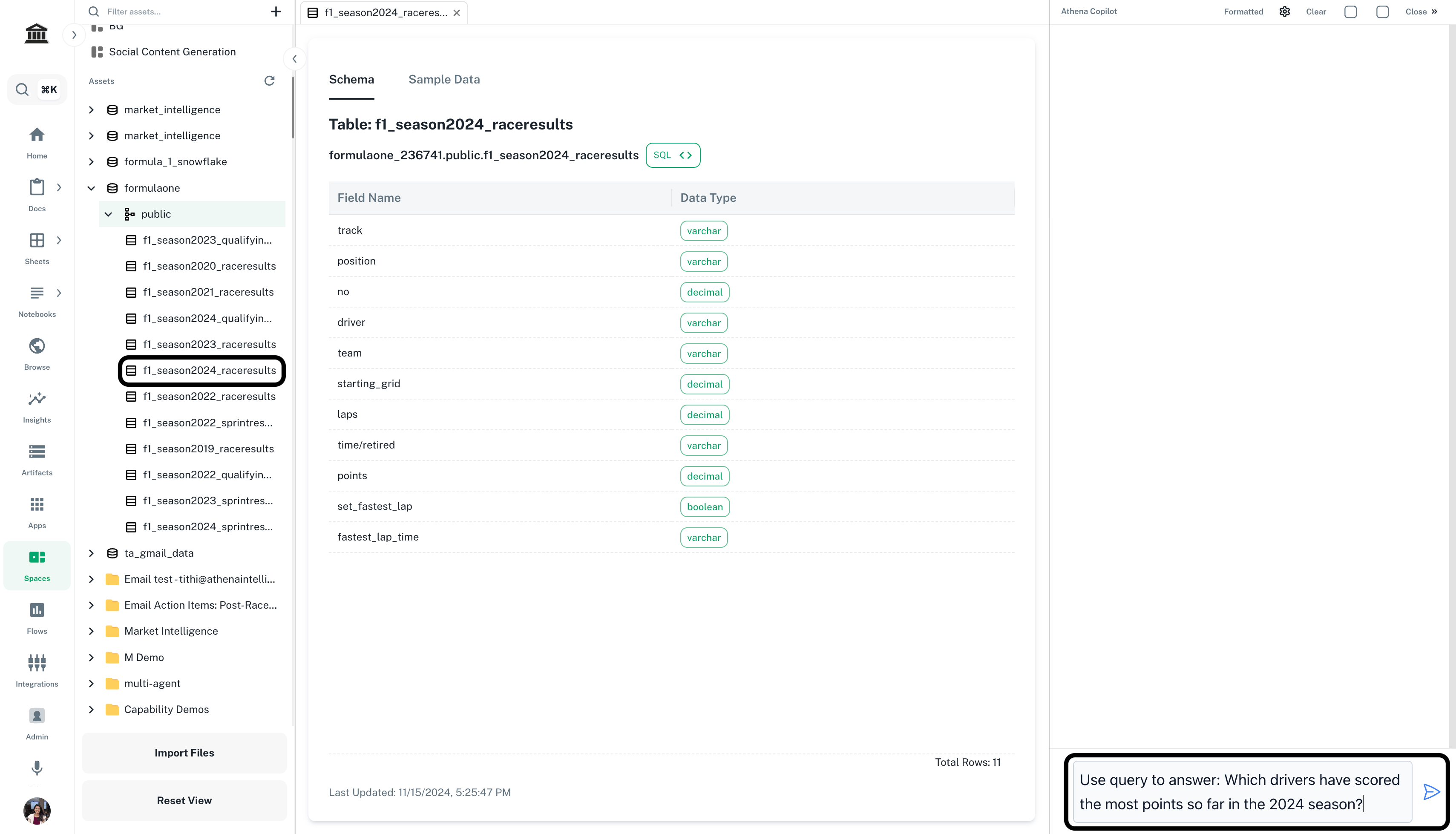 Save your query snippet by clicking on the save icon present on top-right of the query snippet.
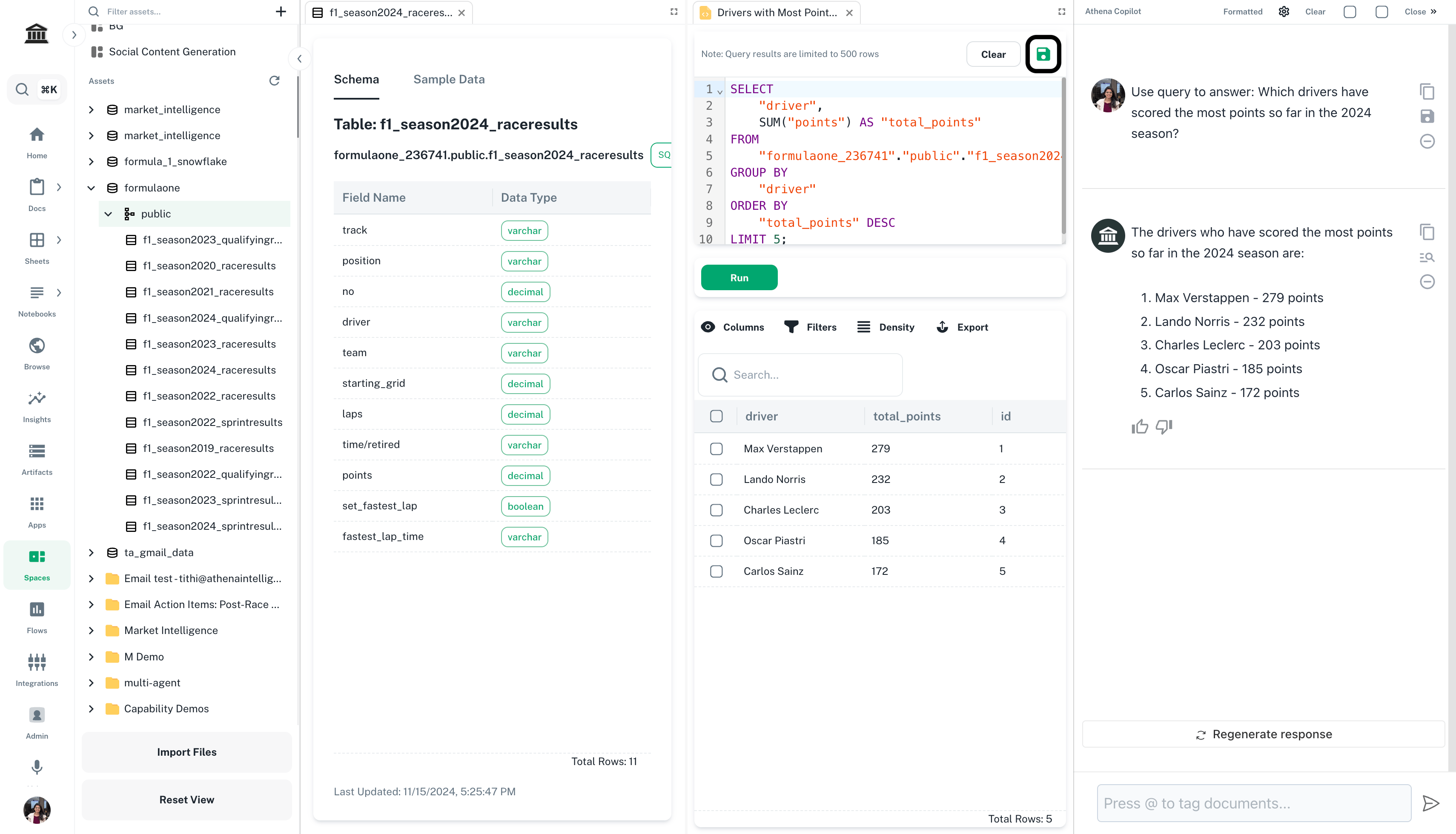 In the right **Chat** sidebar, enter the following prompt and press **Enter**.
Retrieve the asset\_id for *@your-query-name* and *@your-database-name*.
Replace `your-query-name` and `your-database-name` with the names of your query and database on which the query is executed.
In the right **Chat** sidebar, enter the following prompt and press **Enter**.
Retrieve the asset\_id for *@your-query-name* and *@your-database-name*.
Replace `your-query-name` and `your-database-name` with the names of your query and database on which the query is executed.
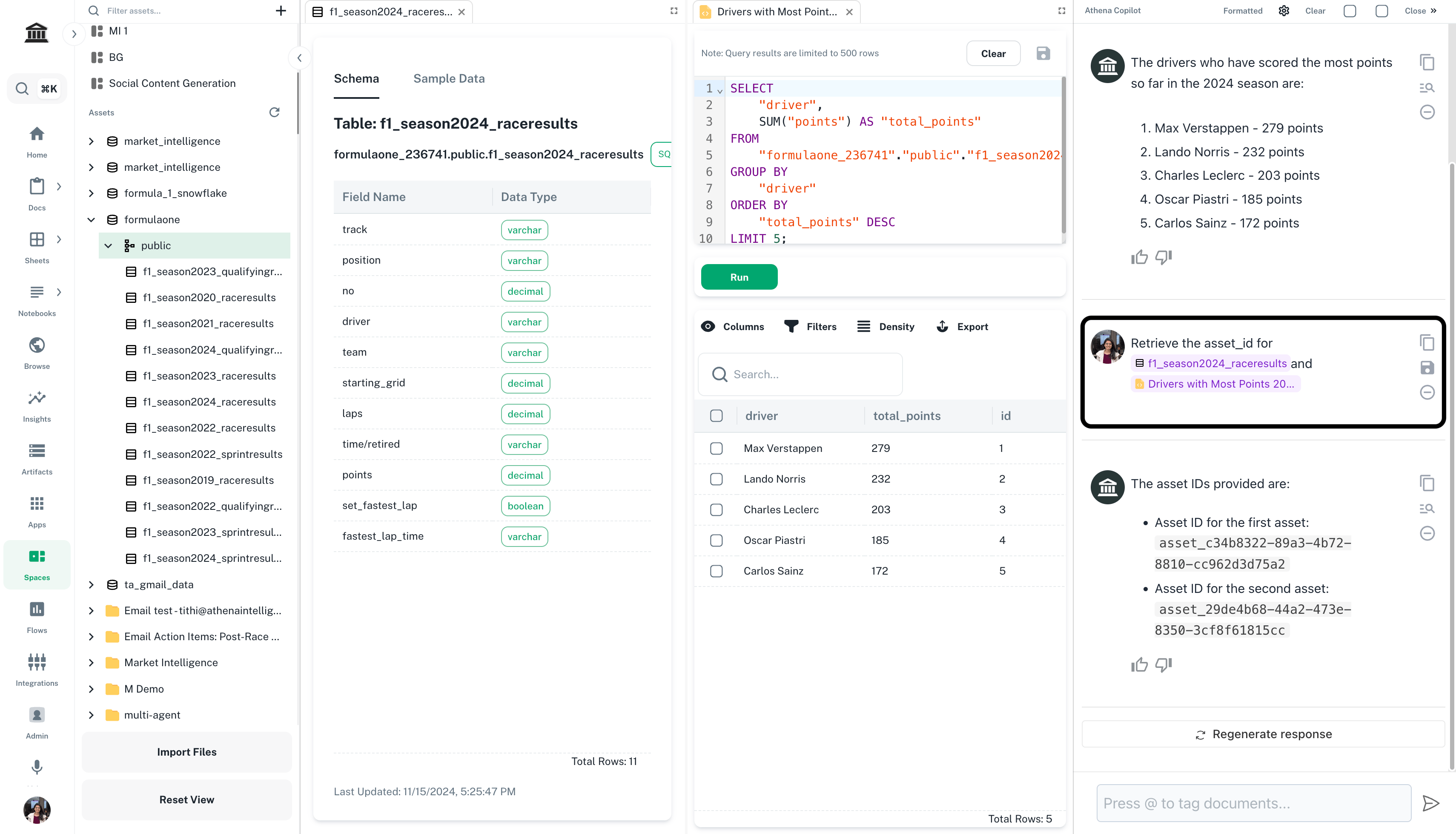 Queries in notebooks can be executed either by referencing a saved SQL snippet or by directly running SQL statements against your connected databases.
In the right **Chat** sidebar, enter the following prompt and press **Enter**.
Create a new Notebook.
Queries in notebooks can be executed either by referencing a saved SQL snippet or by directly running SQL statements against your connected databases.
In the right **Chat** sidebar, enter the following prompt and press **Enter**.
Create a new Notebook.
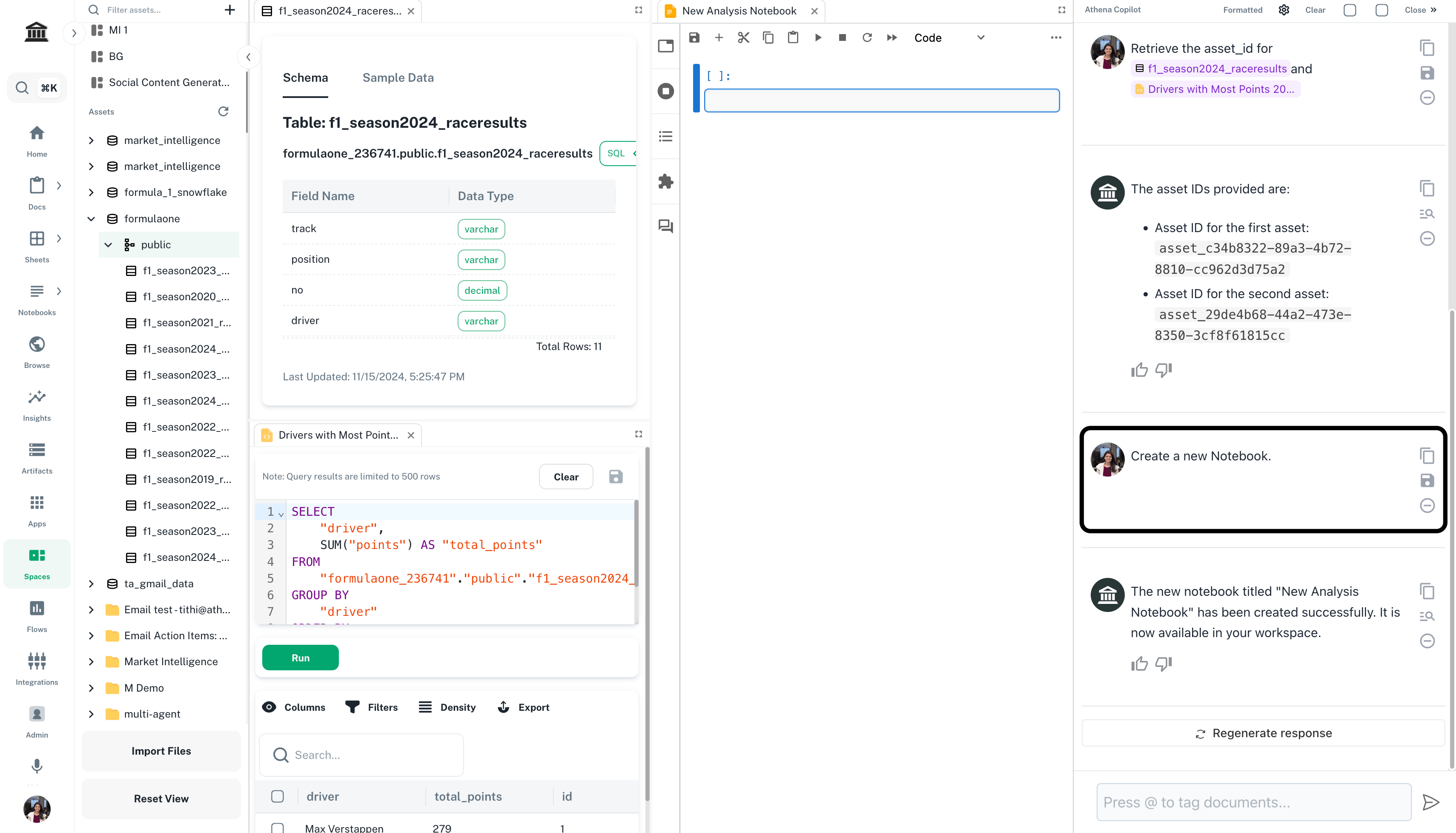 Copy and paste the following python snippet in a new cell of the Notebook that just got created. Run the cell.
```
from athena.client import Athena
# Setup the client
client = Athena ()
# Execute SQL snippet and load results into a DataFrame
df = client.query.execute_snippet(snippet_asset_id="query-asset-id")
#print the df
print(df)
```
Replace `"query-asset-id"` with the saved query's asset ID.
Copy and paste the following python snippet in a new cell of the Notebook that just got created. Run the cell.
```
from athena.client import Athena
# Setup the client
client = Athena ()
# Execute SQL snippet and load results into a DataFrame
df = client.query.execute_snippet(snippet_asset_id="query-asset-id")
#print the df
print(df)
```
Replace `"query-asset-id"` with the saved query's asset ID.
 In the right **Chat** sidebar, enter the following prompt and press **Enter**.
Create a new Notebook.
Use the database SQL execution endpoint to run SQL directly against your connected database. Refer to the [Database SQL API documentation](https://docs.athenaintel.com/api-reference/databases/execute-sql) for details.
This documentation is built and hosted on [Mintlify](https://mintlify.com), a developer documentation platform.
In the right **Chat** sidebar, enter the following prompt and press **Enter**.
Create a new Notebook.
Use the database SQL execution endpoint to run SQL directly against your connected database. Refer to the [Database SQL API documentation](https://docs.athenaintel.com/api-reference/databases/execute-sql) for details.
This documentation is built and hosted on [Mintlify](https://mintlify.com), a developer documentation platform.