> ## Documentation Index
> Fetch the complete documentation index at: https://resources.athenaintel.com/llms.txt
> Use this file to discover all available pages before exploring further.
# Meetings & Calendar
Athena's Meetings & Calendar integration provides a comprehensive solution for managing your schedule and capturing meeting insights. This powerful combination enables you to schedule events through natural language, automatically record and analyze meetings, and transform meeting data into actionable intelligence.
The integration operates across popular conferencing platforms including Zoom, Microsoft Teams, and Google Meet, while seamlessly syncing with your calendar to automate meeting attendance and event management. This eliminates tedious administrative tasks and allows you to focus on strategic work.
### Calendar Integration and Event Management
Athena seamlessly integrates with your calendar to transform how you manage your schedule. Through natural language commands, you can create new calendar events and get quick, summarized access to your upcoming schedule. The integration ensures real-time synchronization while maintaining the security and privacy of your calendar data.
### Automated Meeting Recording and Transcription
Athena captures your meetings across Zoom, Microsoft Teams, and Google Meet, generating automatic transcriptions with speaker identification, summaries, and action items. Calendar integration enables automated meeting attendance, while comprehensive preservation includes video, audio recordings, and AI-generated notes.
### AI-Powered Search and Analysis
Review hour-long meetings in just 5 minutes with intelligent scanning capabilities. Meetings become native Athena assets that you can reference in Chat and use as foundation for new documents and spreadsheets. Access instant analytics that surface action items, tasks, questions, and key metrics with a single click.
### Meeting Intelligence and Insights
Access instant analytics from your meetings including sentiment analysis, topic extraction, decision tracking, and question identification. Athena identifies key moments, highlights important discussions, and surfaces patterns across multiple meetings to provide organizational insights. Track your meeting patterns, time allocation, and scheduling trends to optimize your calendar management and productivity.
### Automated Meeting Preparation
Athena can automatically prepare you for upcoming meetings by gathering relevant documents, summarizing previous discussions, and identifying key topics to address. Get briefed on meeting context without manually searching through emails and files. Configure workflows to execute specific actions before, during, or after scheduled meetings, such as sending reminders, gathering materials, or generating follow-up tasks.
Follow these steps to set up and use Athena's Meetings & Calendar features. We recommend completing the setup steps in order before exploring the different ways to use meetings and calendar events.
First, integrate your calendar with Athena to enable automatic meeting attendance and event management.
Navigate to ***[Settings](https://app.athenaintel.com/dashboard/settings/)***. Click on the **Meetings & Calendar** button. Choose your calendar provider.
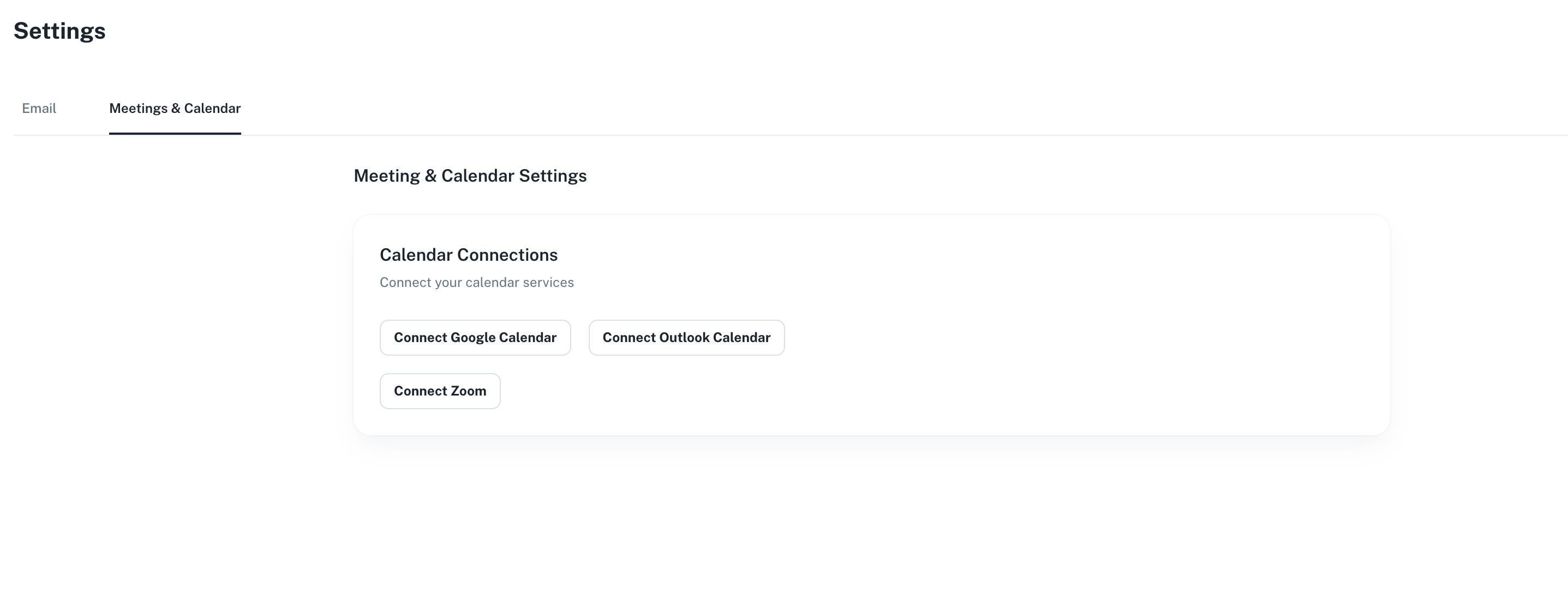 Select the account whose calendar you wish to sync and provide all permissions for Athena to access your calendar.
Once your setup is complete, you'll be able to see your upcoming events in Athena. Your calendar is now connected and ready for automated meeting attendance.
For automated Zoom meeting recording without requiring host permissions each time, integrate the Zoom App with Athena. This step is optional but recommended for frequent Zoom users.
Reach out to us at [team@athenaintel.com](mailto:team@athenaintel.com) for any troubleshooting issues related to the Zoom integration, including connecting, using, or disconnecting Zoom.
On the **Meetings & Calendar** settings tab, click on **Connect Zoom**.
Select the account whose calendar you wish to sync and provide all permissions for Athena to access your calendar.
Once your setup is complete, you'll be able to see your upcoming events in Athena. Your calendar is now connected and ready for automated meeting attendance.
For automated Zoom meeting recording without requiring host permissions each time, integrate the Zoom App with Athena. This step is optional but recommended for frequent Zoom users.
Reach out to us at [team@athenaintel.com](mailto:team@athenaintel.com) for any troubleshooting issues related to the Zoom integration, including connecting, using, or disconnecting Zoom.
On the **Meetings & Calendar** settings tab, click on **Connect Zoom**.
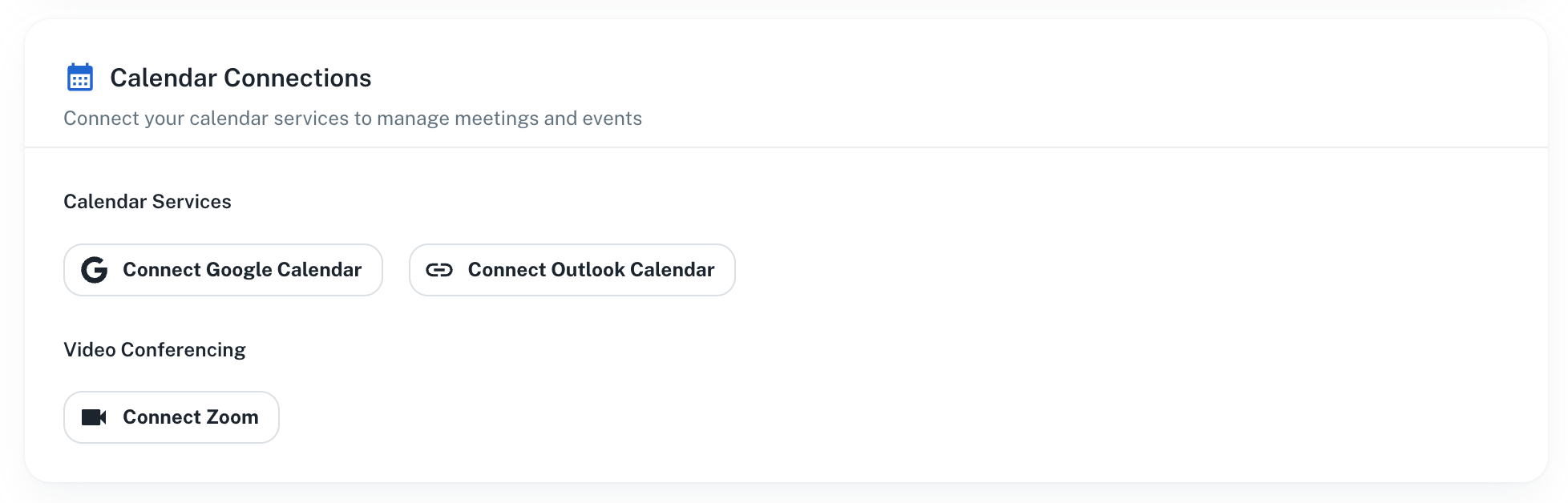 Sign in to Zoom with your associated account and permission Athena to join and record your meetings.
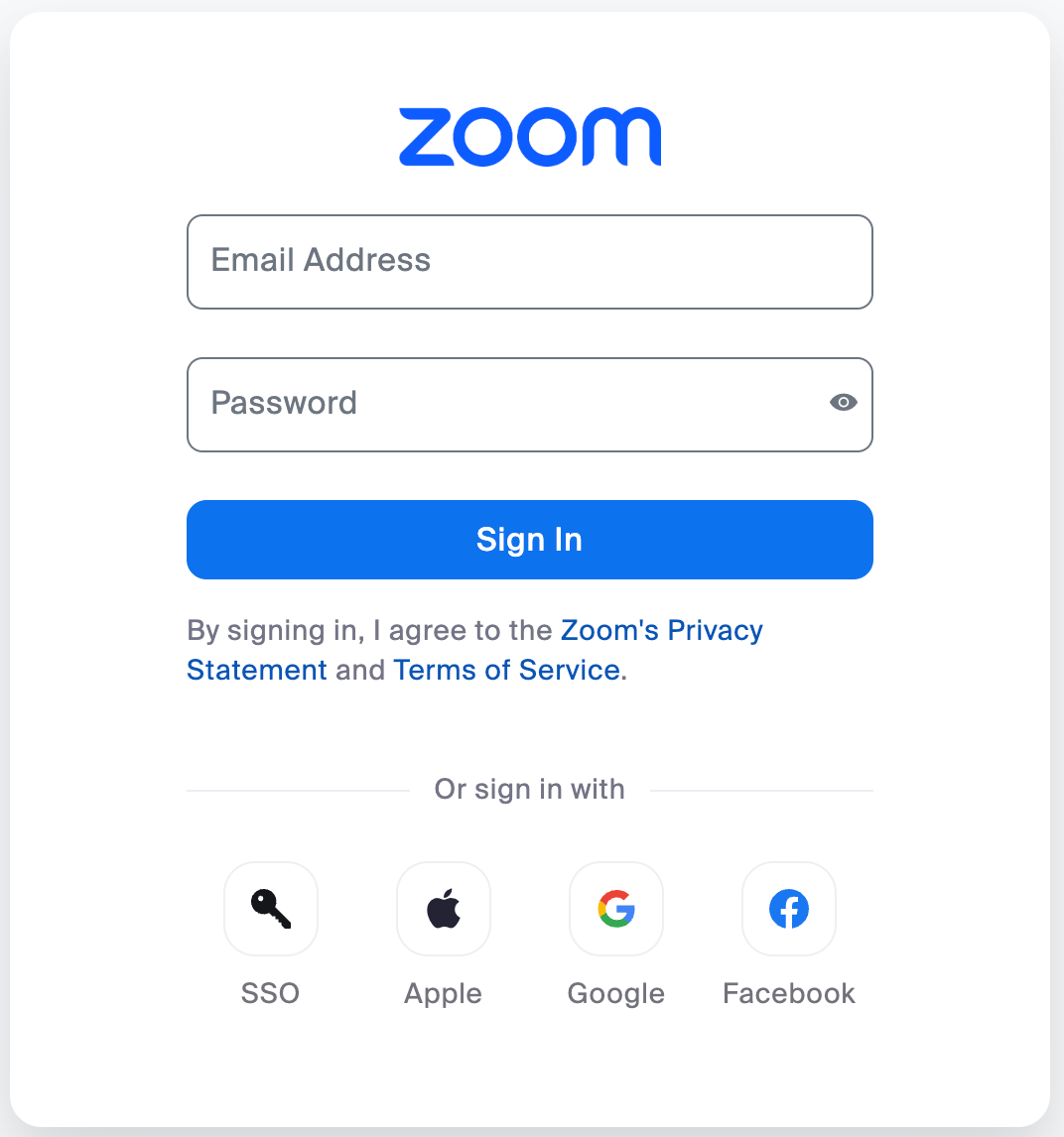
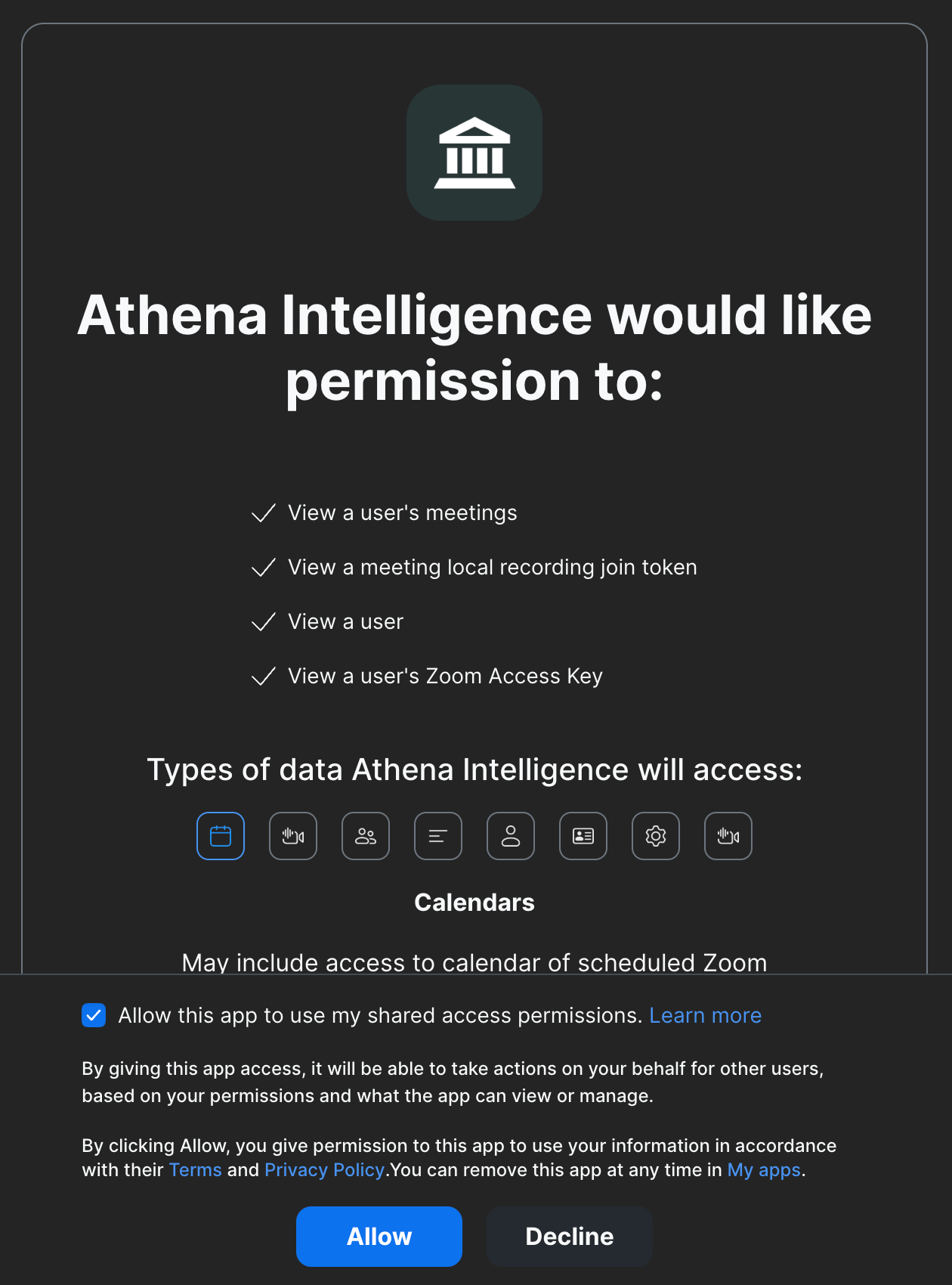 Upon completion of the above steps, Athena will be able to automatically join your future Zoom meetings and record them without having the host to permission each time.
To disable the Zoom App integration with Athena, click on the **Disconnect Zoom** button in the **Meetings & Calendar** settings tab.
Upon completion of the above steps, Athena will be able to automatically join your future Zoom meetings and record them without having the host to permission each time.
To disable the Zoom App integration with Athena, click on the **Disconnect Zoom** button in the **Meetings & Calendar** settings tab.
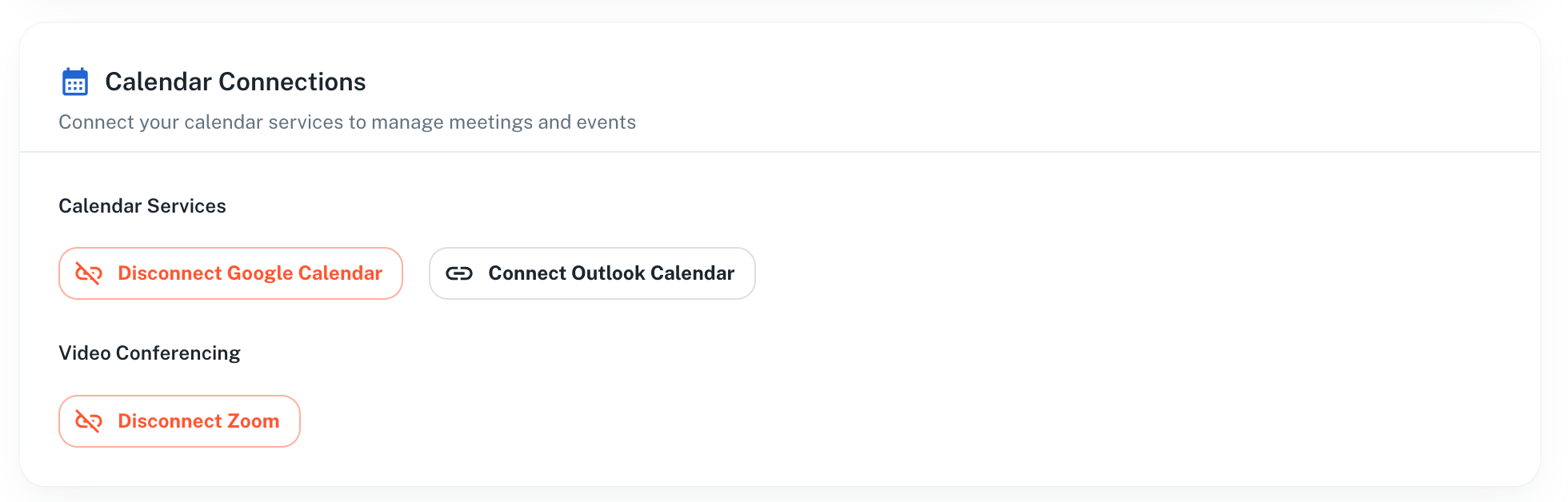 Once your calendar is integrated, Athena can join meetings automatically or you can manually invite Athena to specific meetings.
### Automatic Meeting Attendance
With calendar integration complete, Athena automatically joins your scheduled meetings that appear on your calendar. No additional action is required for meetings that are already on your schedule.
### Manual Meeting Invitation
For ad-hoc meetings or when you need more control, you can manually invite Athena to join existing meetings or create new ones.
Navigate to ***[Spaces](https://app.athenaintel.com/dashboard/spaces/)***. Click on the **'+'** icon -> **Session** -> **Meeting** on top of the left sidebar.
Once your calendar is integrated, Athena can join meetings automatically or you can manually invite Athena to specific meetings.
### Automatic Meeting Attendance
With calendar integration complete, Athena automatically joins your scheduled meetings that appear on your calendar. No additional action is required for meetings that are already on your schedule.
### Manual Meeting Invitation
For ad-hoc meetings or when you need more control, you can manually invite Athena to join existing meetings or create new ones.
Navigate to ***[Spaces](https://app.athenaintel.com/dashboard/spaces/)***. Click on the **'+'** icon -> **Session** -> **Meeting** on top of the left sidebar.
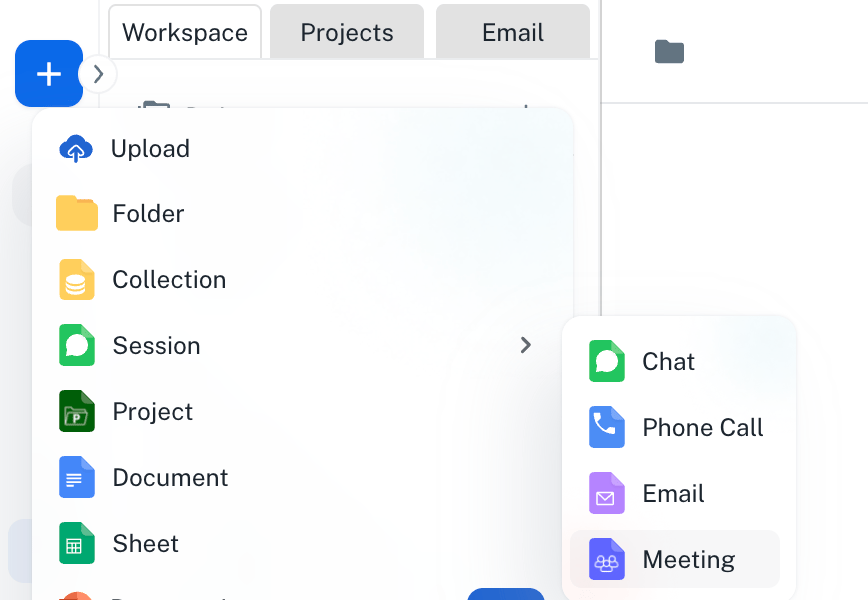 Select **Create Meeting**. Athena will generate a fresh Google Meet link. Copy the generated link to share with participants.
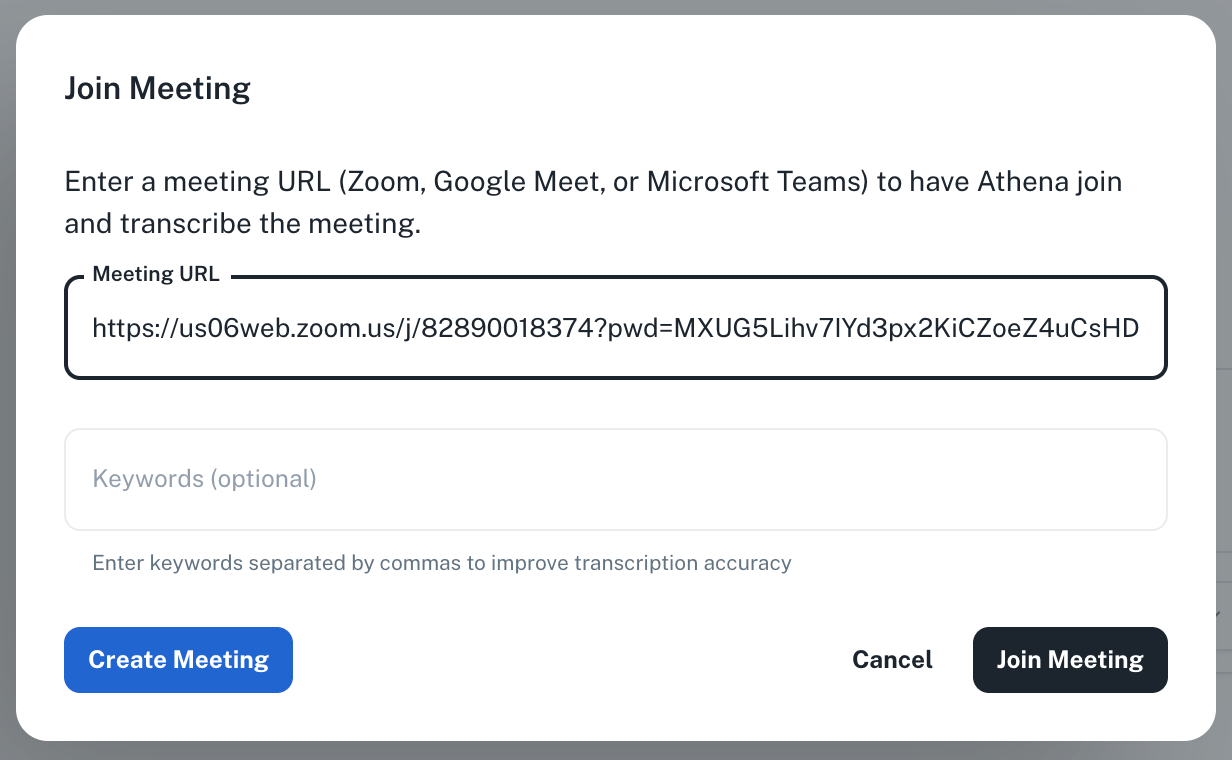
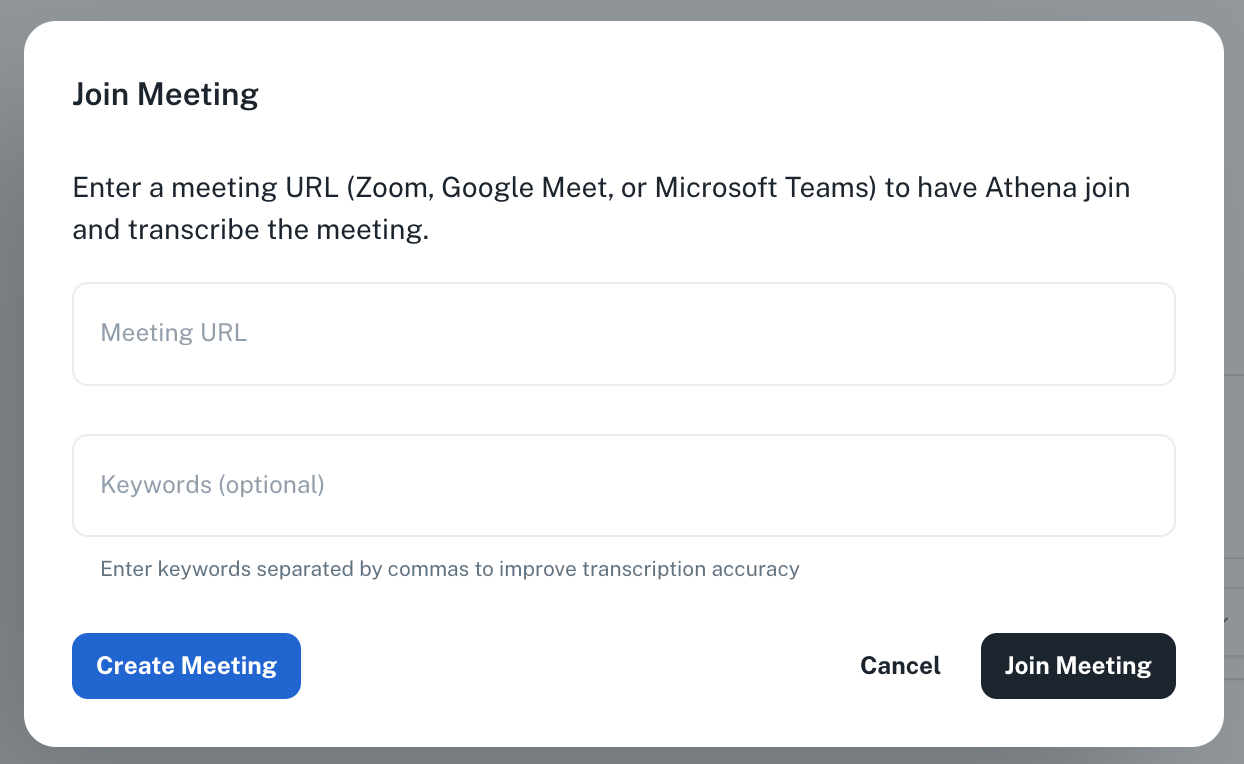 Enter your Zoom, Microsoft Teams, or Google Meet link and select **Join Meeting**.
You can add specific keywords that you wish the agent to focus on during the meeting.
Enter your Zoom, Microsoft Teams, or Google Meet link and select **Join Meeting**.
You can add specific keywords that you wish the agent to focus on during the meeting.
 After your meetings conclude, the recordings and transcripts become Athena assets that you can analyze and extract insights from.
Once your meeting terminates, the meeting transcript and recording are saved as Athena assets in your workspace. These assets include speaker identification, timestamps, and full audio/video recordings.
Drag and drop your meeting assets onto your **Space**. Enter prompts in **Chat** to extract insights and press **Enter**.
Extract action items for each person from *@your-meeting-name*
Replace `your-meeting-name` with the name of your meeting.
After your meetings conclude, the recordings and transcripts become Athena assets that you can analyze and extract insights from.
Once your meeting terminates, the meeting transcript and recording are saved as Athena assets in your workspace. These assets include speaker identification, timestamps, and full audio/video recordings.
Drag and drop your meeting assets onto your **Space**. Enter prompts in **Chat** to extract insights and press **Enter**.
Extract action items for each person from *@your-meeting-name*
Replace `your-meeting-name` with the name of your meeting.
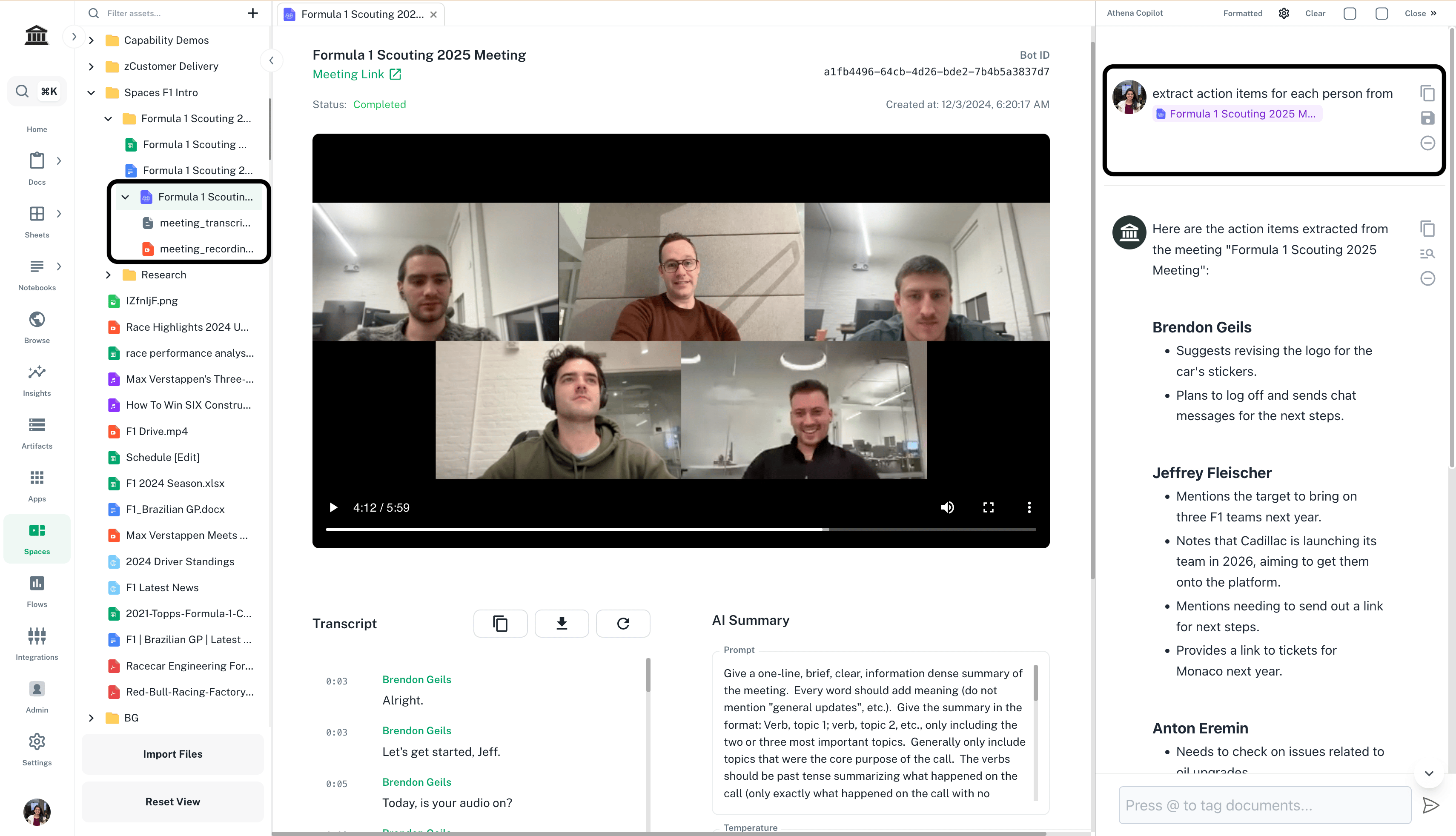 Use meeting transcripts as foundation for new documents, spreadsheets, or presentations. Ask Athena to create summaries, identify decisions, track questions, or generate follow-up materials based on meeting content.