> ## Documentation Index
> Fetch the complete documentation index at: https://resources.athenaintel.com/llms.txt
> Use this file to discover all available pages before exploring further.
# Athena Sentry
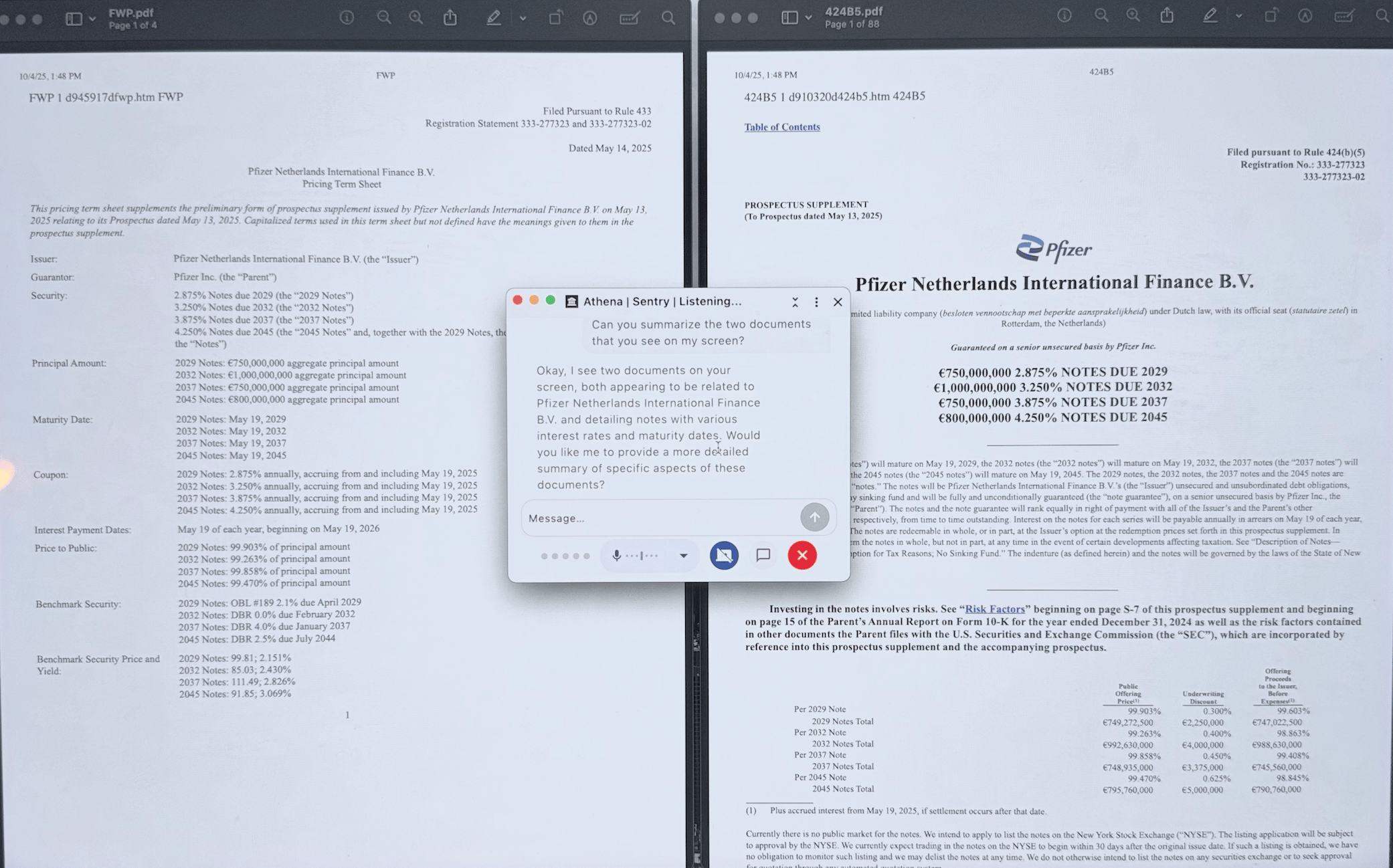
Athena Sentry is a desktop productivity assistant that captures your entire screen and workspace activity while providing AI-native voice assistance. Running quietly in the background on Windows and macOS, Desktop Sentry records your desktop sessions with real-time transcription, intelligent meeting detection as a convenience feature, and hands-free voice assistant capabilities.
## Key Features
### Full Desktop Screen Recording
Athena Sentry captures your entire desktop workspace, not limited to just meeting windows. Record your complete screen activity including application usage, browser sessions, and work flows. You maintain full control with manual start/stop functionality, ensuring complete privacy and user control over when recording occurs.
### Real-Time Transcription
Experience live transcription with speaker identification as your session unfolds. Powered by Deepgram, the transcript updates continuously with automatic scrolling, word count tracking, and clear speaker separation for easy reference during and after recording sessions.
### Background Operation
Athena Sentry runs unobtrusively in your system tray, consuming minimal resources while ready to record. It continues operating even when other applications are in focus, ensuring seamless productivity tracking and knowledge capture throughout your workday.
### Seamless Olympus Integration
All recordings are automatically saved as assets in your Athena workspace. Access full transcripts, search session content, and reference your work directly in Chat for follow-up tasks, summaries, and comprehensive session analysis.
Follow the given guides to install the Athena Sentry app on your Windows or macOS system.
Contact [team@athenaintel.com](mailto:team@athenaintel.com) to get the installation setup.
Unzip the file once you download it.
Open the unzipped app on your computer.
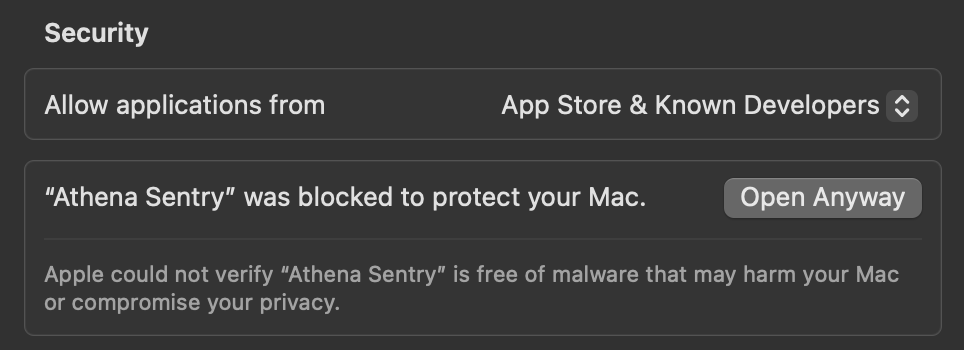
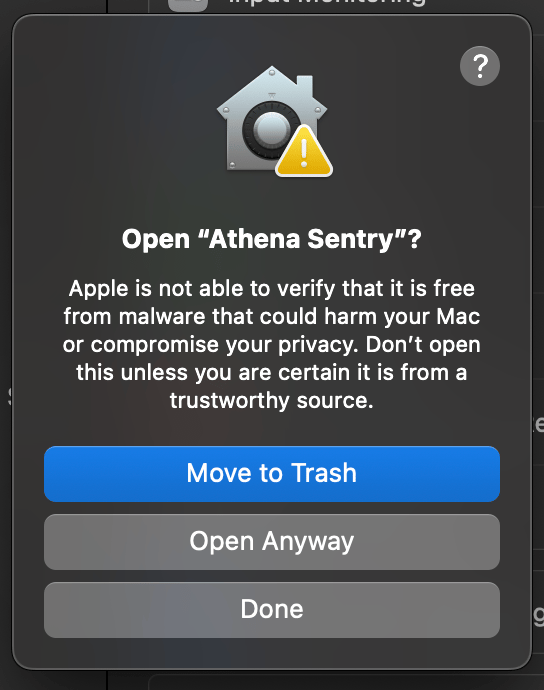
Go to System Settings -> Privacy & Security. Click on Open Anyway for the Athena Sentry app. Click on the Open Anyway button on the pop-up that shows up again.
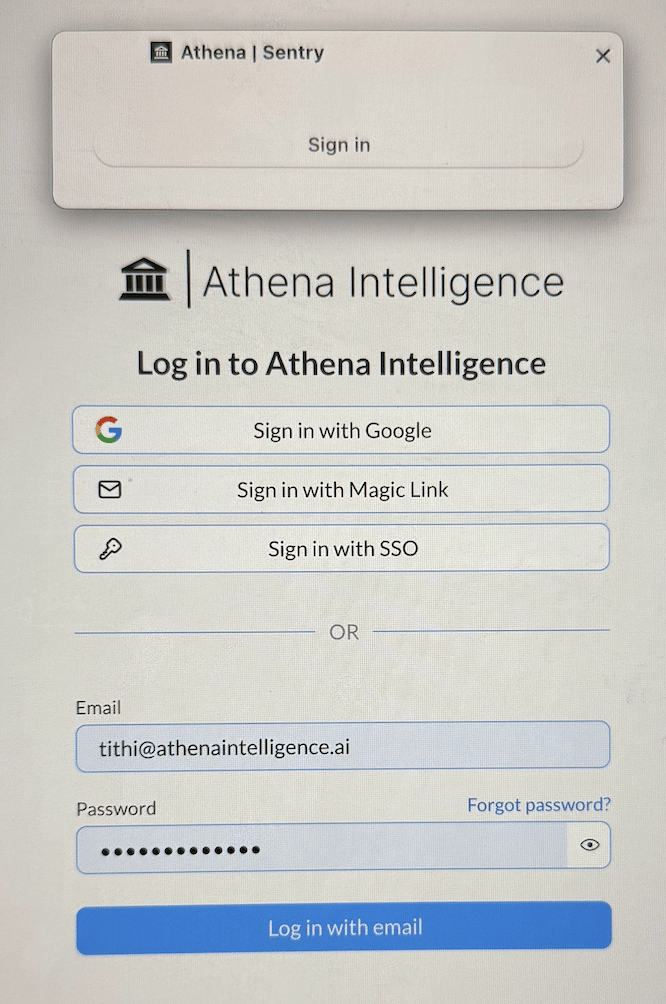
 Sign in using your credentials. Permission the Athena app to use your account to sign into Athena.
 Click on the Start button to start a session with Athena. You can start talking to Athena directly.
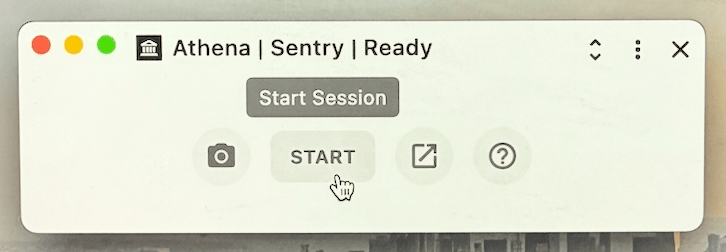
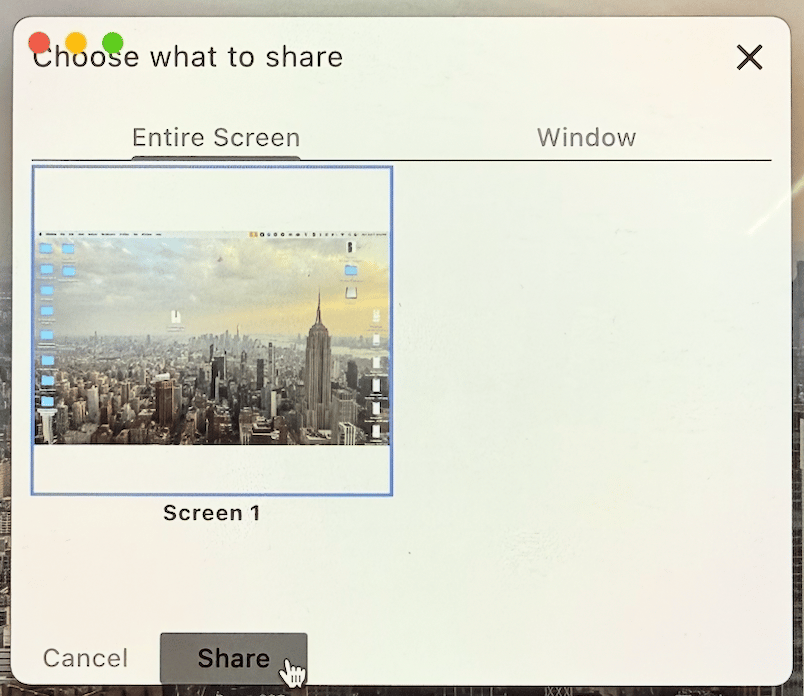
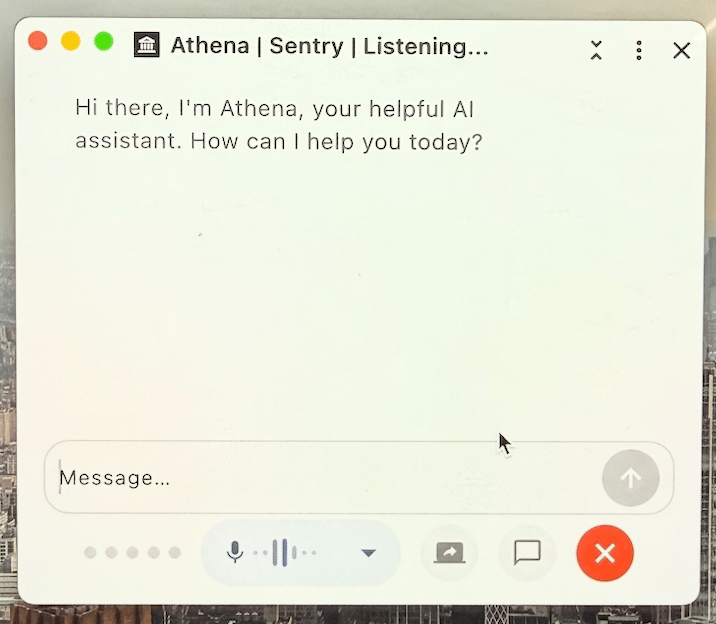 Click on the Screen Share icon, select your entire screen and click on the Share button. Athena will start viewing your screen as is.
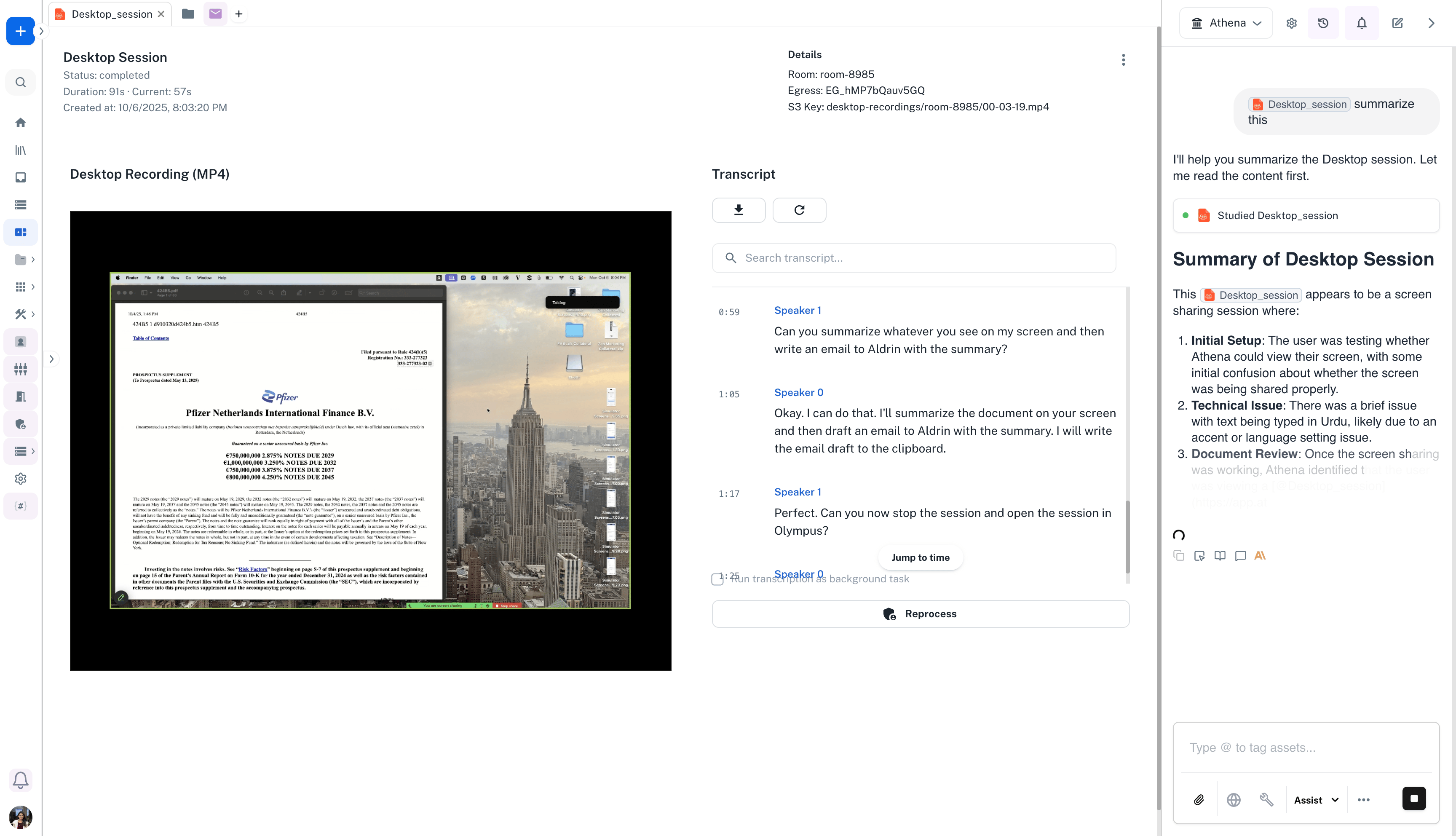
 Once your session is complete, you can ask Athena to open the session in Olympus and interact with Athena over the desktop session just recorded.
 Contact [team@athenaintel.com](mailto:team@athenaintel.com) to get the installation setup.
Unzip the file once you download it.
Open the unzipped app on your computer. Follow the path to the .exe file and click on it to install the same.
Click on the "I Agree" button to accept the Terms of Service for the app. Click on Install. Once installed, open the app.
Sign in using your credentials. Permission the Athena app to use your account to sign into Athena.
Click on the Start button to start a session with Athena. You can start talking to Athena directly.
Click on the Screen Share icon, select your entire screen and click on the Share button. Athena will start viewing your screen as is.
Once your session is complete, you can ask Athena to open the session in Olympus and interact with Athena over the desktop session just recorded.
Athena Sentry is designed to capture and enhance productivity across diverse work scenarios:
### Daily Work Session Documentation
Record your complete work sessions to maintain detailed logs of project progress, decision-making processes, and work patterns. Perfect for knowledge workers who need comprehensive documentation of their daily activities.
### Design and Creative Work
Capture design workflows, creative processes, and brainstorming sessions. Share your creative thinking process with stakeholders or teammates, complete with screen context and voice narration.
### Compliance and Quality Assurance
Maintain comprehensive audit trails of work processes for compliance requirements. Record quality assurance testing sessions and verification procedures with full documentation.
### Training and Onboarding
Create training materials by recording walkthroughs, demonstrations, and onboarding sessions. New team members can review recorded sessions to understand workflows, tools, and processes at their own pace.
### Research and Analysis Sessions
Document your research process including web browsing, document analysis, and data exploration. The voice assistant helps you take notes hands-free while maintaining focus on your research.
Athena Sentry delivers unique value through the combination of screen recording and AI-native voice assistance:
**AI-Native Productivity Tool**\
Unlike traditional screen recorders that create passive video files, Athena Sentry actively understands your work through real-time transcription and AI analysis. Every recording becomes a searchable, actionable asset in your Athena workspace.
**Seamless Voice Assistant Integration**\
Work hands-free with an AI assistant that understands both what you're saying and what's on your screen. Draft content, search information, and execute tasks without interrupting your workflow or taking your hands off the keyboard.
**From Recording to Action**\
Screen recordings automatically transform into structured assets with transcripts, searchable content, and AI-generated insights. Query your work sessions in Chat, extract action items, and build on previous work seamlessly.
**Privacy-First with Manual Control**\
You decide when to record with simple start/stop controls. All recordings stay within your secure workspace, and you maintain complete control over what gets captured and shared.
**Enterprise-Grade Integration**\
Athena Sentry isn't a standalone tool—it's part of your complete Athena workspace. Recordings integrate with other applications, workflows, and AI agents for comprehensive knowledge management and automation.
Athena Sentry's integrated voice assistant provides comprehensive hands-free productivity features:
### Content Creation
* **Drafting to Clipboard**: Dictate documents, emails, or notes that are instantly available in your clipboard
* **Email Composition**: Draft and refine emails with natural voice commands
* **Text Manipulation**: Replace selected text or insert content with voice control
### Information Retrieval
* **Web Search**: Ask questions and receive instant answers from web searches
* **Workspace Memory**: Query your Athena workspace memories and previous conversations
* **Context-Aware Assistance**: The assistant understands your workspace context for relevant responses
### Olympus Integration
* **Cross-Platform Workflow**: Seamlessly move between desktop recording and Olympus features
* **AI-Powered Analysis**: Leverage your recorded sessions for follow-up tasks in Chat
### Visual Context
* **Screen Sharing**: Share your screen with the voice assistant for visual understanding
* **Camera Support**: Enable camera for video context when needed
Contact [team@athenaintel.com](mailto:team@athenaintel.com) to get the installation setup.
Unzip the file once you download it.
Open the unzipped app on your computer. Follow the path to the .exe file and click on it to install the same.
Click on the "I Agree" button to accept the Terms of Service for the app. Click on Install. Once installed, open the app.
Sign in using your credentials. Permission the Athena app to use your account to sign into Athena.
Click on the Start button to start a session with Athena. You can start talking to Athena directly.
Click on the Screen Share icon, select your entire screen and click on the Share button. Athena will start viewing your screen as is.
Once your session is complete, you can ask Athena to open the session in Olympus and interact with Athena over the desktop session just recorded.
Athena Sentry is designed to capture and enhance productivity across diverse work scenarios:
### Daily Work Session Documentation
Record your complete work sessions to maintain detailed logs of project progress, decision-making processes, and work patterns. Perfect for knowledge workers who need comprehensive documentation of their daily activities.
### Design and Creative Work
Capture design workflows, creative processes, and brainstorming sessions. Share your creative thinking process with stakeholders or teammates, complete with screen context and voice narration.
### Compliance and Quality Assurance
Maintain comprehensive audit trails of work processes for compliance requirements. Record quality assurance testing sessions and verification procedures with full documentation.
### Training and Onboarding
Create training materials by recording walkthroughs, demonstrations, and onboarding sessions. New team members can review recorded sessions to understand workflows, tools, and processes at their own pace.
### Research and Analysis Sessions
Document your research process including web browsing, document analysis, and data exploration. The voice assistant helps you take notes hands-free while maintaining focus on your research.
Athena Sentry delivers unique value through the combination of screen recording and AI-native voice assistance:
**AI-Native Productivity Tool**\
Unlike traditional screen recorders that create passive video files, Athena Sentry actively understands your work through real-time transcription and AI analysis. Every recording becomes a searchable, actionable asset in your Athena workspace.
**Seamless Voice Assistant Integration**\
Work hands-free with an AI assistant that understands both what you're saying and what's on your screen. Draft content, search information, and execute tasks without interrupting your workflow or taking your hands off the keyboard.
**From Recording to Action**\
Screen recordings automatically transform into structured assets with transcripts, searchable content, and AI-generated insights. Query your work sessions in Chat, extract action items, and build on previous work seamlessly.
**Privacy-First with Manual Control**\
You decide when to record with simple start/stop controls. All recordings stay within your secure workspace, and you maintain complete control over what gets captured and shared.
**Enterprise-Grade Integration**\
Athena Sentry isn't a standalone tool—it's part of your complete Athena workspace. Recordings integrate with other applications, workflows, and AI agents for comprehensive knowledge management and automation.
Athena Sentry's integrated voice assistant provides comprehensive hands-free productivity features:
### Content Creation
* **Drafting to Clipboard**: Dictate documents, emails, or notes that are instantly available in your clipboard
* **Email Composition**: Draft and refine emails with natural voice commands
* **Text Manipulation**: Replace selected text or insert content with voice control
### Information Retrieval
* **Web Search**: Ask questions and receive instant answers from web searches
* **Workspace Memory**: Query your Athena workspace memories and previous conversations
* **Context-Aware Assistance**: The assistant understands your workspace context for relevant responses
### Olympus Integration
* **Cross-Platform Workflow**: Seamlessly move between desktop recording and Olympus features
* **AI-Powered Analysis**: Leverage your recorded sessions for follow-up tasks in Chat
### Visual Context
* **Screen Sharing**: Share your screen with the voice assistant for visual understanding
* **Camera Support**: Enable camera for video context when needed