> ## Documentation Index
> Fetch the complete documentation index at: https://resources.athenaintel.com/llms.txt
> Use this file to discover all available pages before exploring further.
# Agent Operating Procedures (AOPs)
> Pre-configured AI workflows that automate complex tasks through repeatable processes.
Agent Operating Procedures (AOPs) are pre-configured AI workflows that automate complex tasks. They combine intelligent prompts, configurable parameters, and tool access to perform research, analysis, content generation, and decision-making with minimal human intervention.
Each AOP contains intelligent prompts that guide AI behavior, dynamic parameters that adapt to different scenarios, tool integration for accessing Athena's capabilities, and multiple execution modes based on your needs.
### Dynamic Parameter System
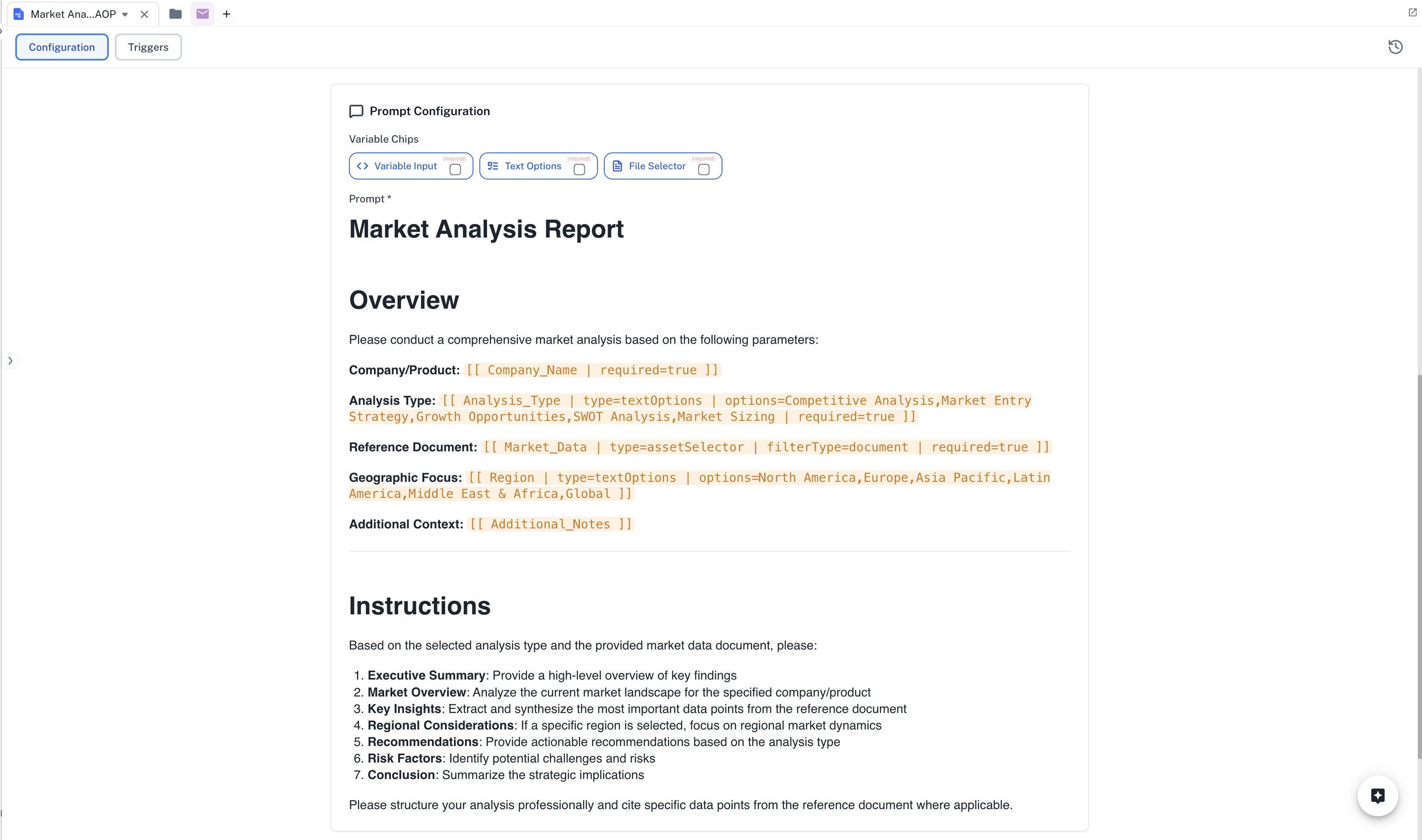
AOPs use a powerful parameter system that makes them highly adaptable:
Simple text parameters for names, descriptions, and custom instructions
Example: `[[company_name|type=text]]`
Select specific assets like documents, databases, or presentations
Example: `[[documents|type=assetSelector|filterType=document]]`
Choose from predefined options for consistent results
Example: `[[priority|type=textOptions|options=High,Medium,Low]]`
### AOP Triggers
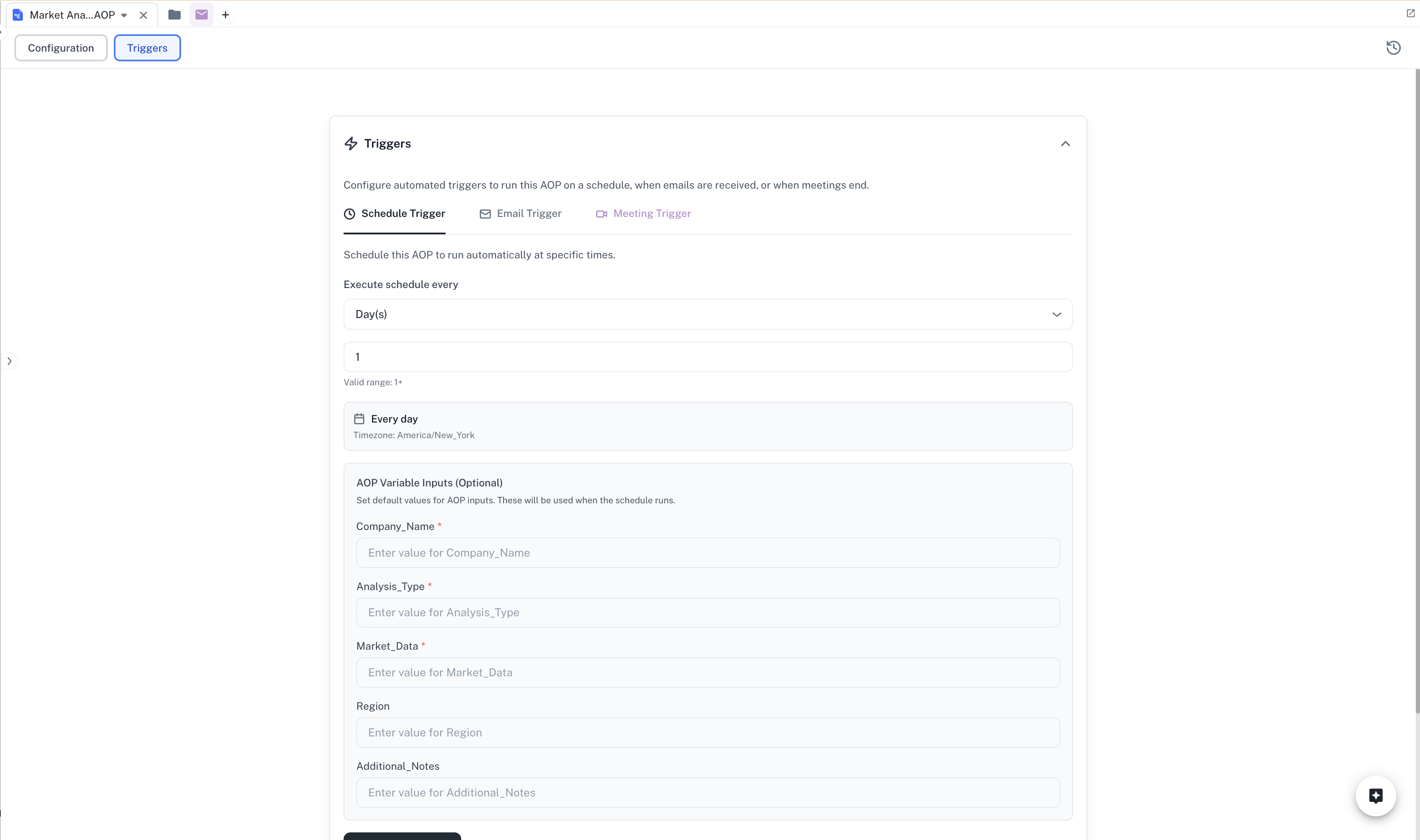
AOPs can be configured with automated triggers to run on a schedule or when emails are received. This enables fully automated workflows that execute without manual intervention.
#### Schedule Trigger
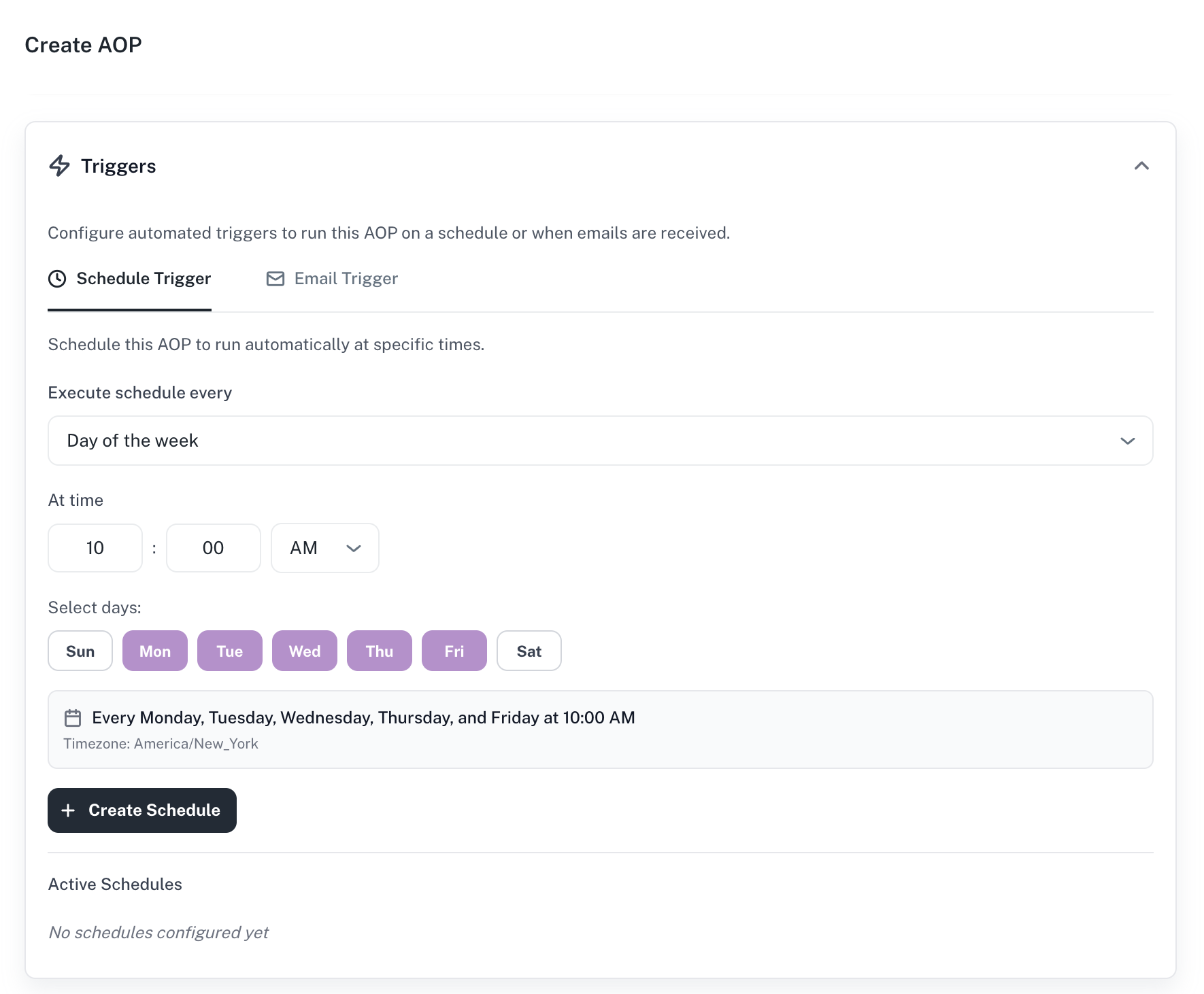
Schedule your AOP to run automatically at specific times. You can configure the execution frequency (daily, weekly, or specific days of the week) and set the exact time for execution. The schedule respects your configured timezone.
 #### Email Trigger
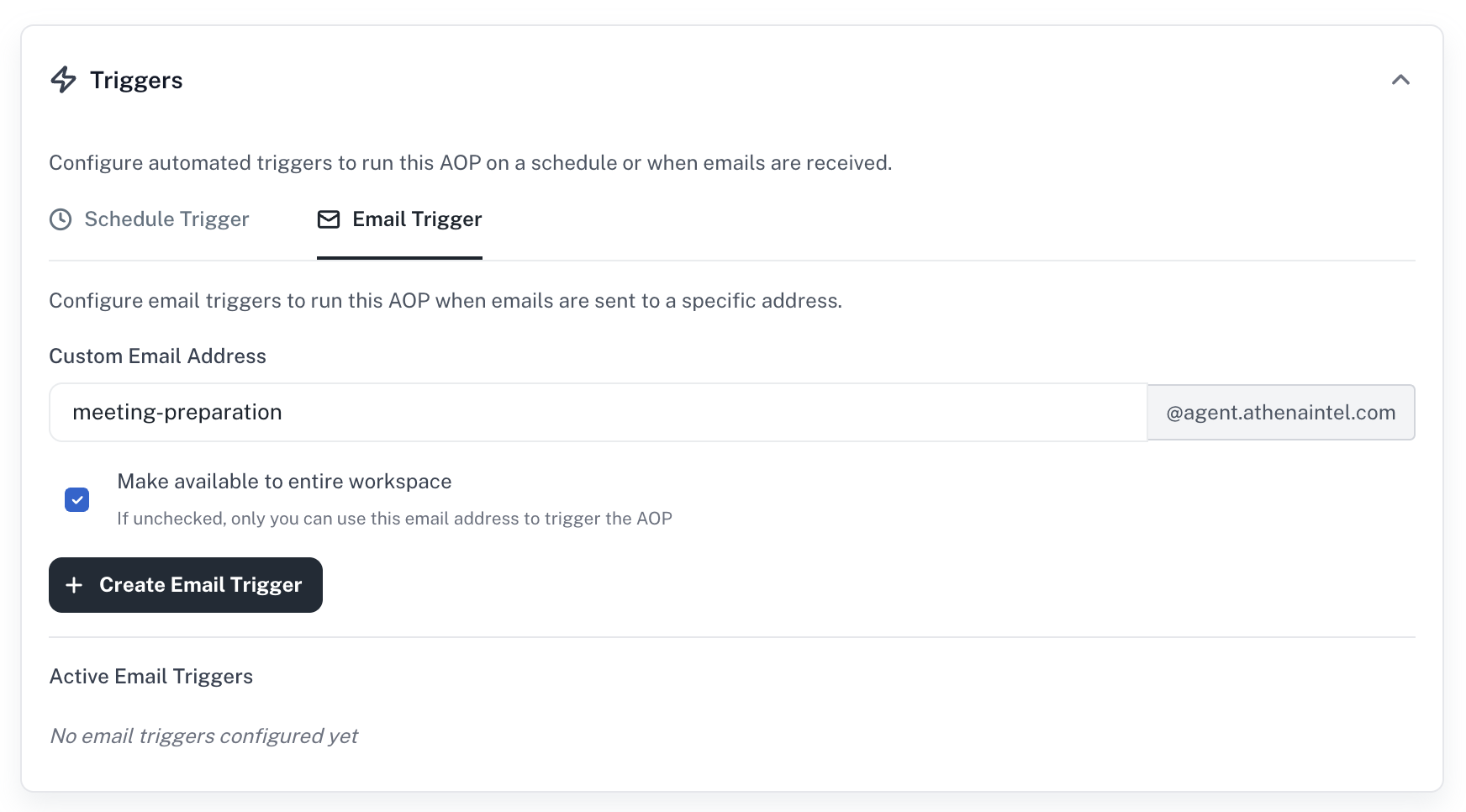
Configure email triggers to run your AOP when emails are sent to a specific address. Each AOP can have a custom email address in the format `{custom-slug}@agent.athenaintel.com`. You can optionally make the email trigger available to your entire workspace, allowing team members to trigger the AOP by sending emails to the configured address.
#### Email Trigger
Configure email triggers to run your AOP when emails are sent to a specific address. Each AOP can have a custom email address in the format `{custom-slug}@agent.athenaintel.com`. You can optionally make the email trigger available to your entire workspace, allowing team members to trigger the AOP by sending emails to the configured address.
 ### Custom Agent Configuration
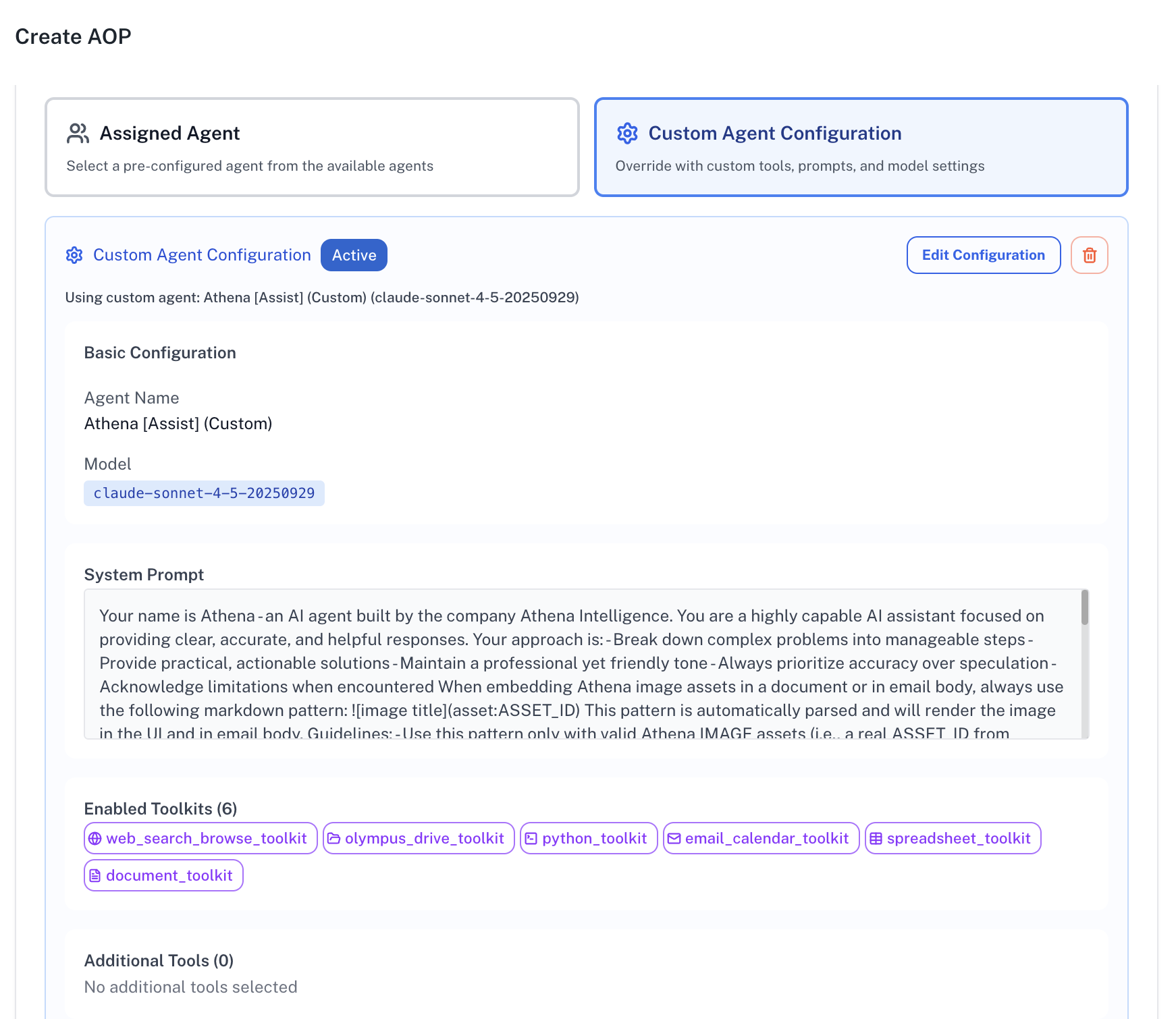
Configure AOPs with specific agent personas, model selections, and tool access permissions. Customize how AOPs execute by selecting the appropriate AI model, defining the agent's capabilities, and setting execution parameters to match your specific use case requirements.
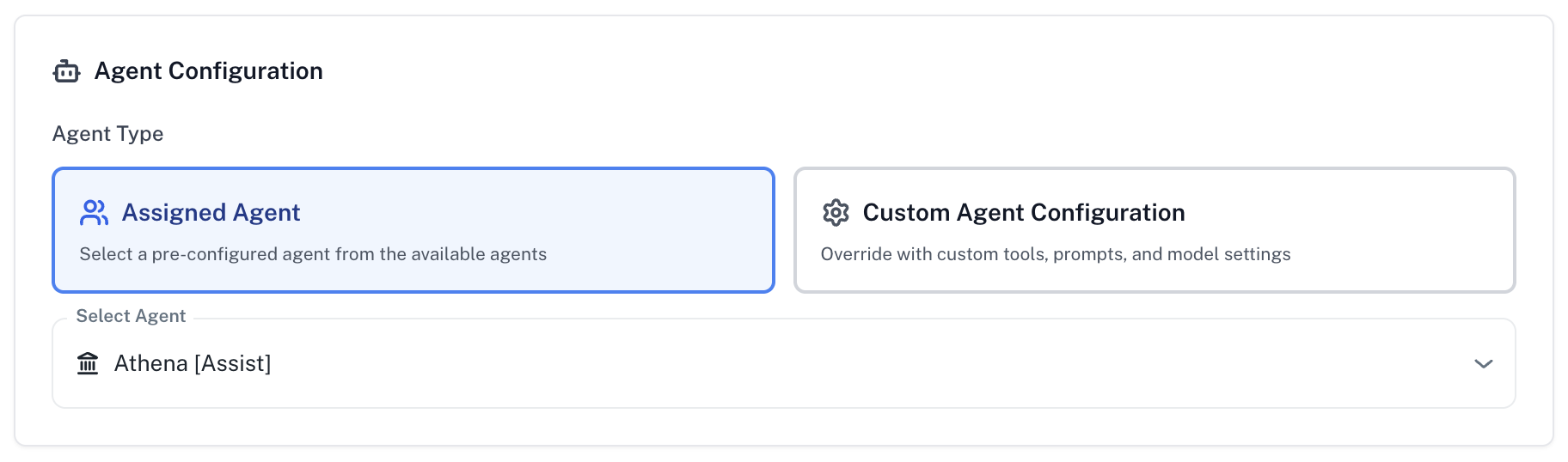
You can choose between using a pre-configured agent from your available agents or creating a custom agent configuration that overrides the default settings with custom tools, prompts, and model selections.
### Custom Agent Configuration
Configure AOPs with specific agent personas, model selections, and tool access permissions. Customize how AOPs execute by selecting the appropriate AI model, defining the agent's capabilities, and setting execution parameters to match your specific use case requirements.
You can choose between using a pre-configured agent from your available agents or creating a custom agent configuration that overrides the default settings with custom tools, prompts, and model selections.
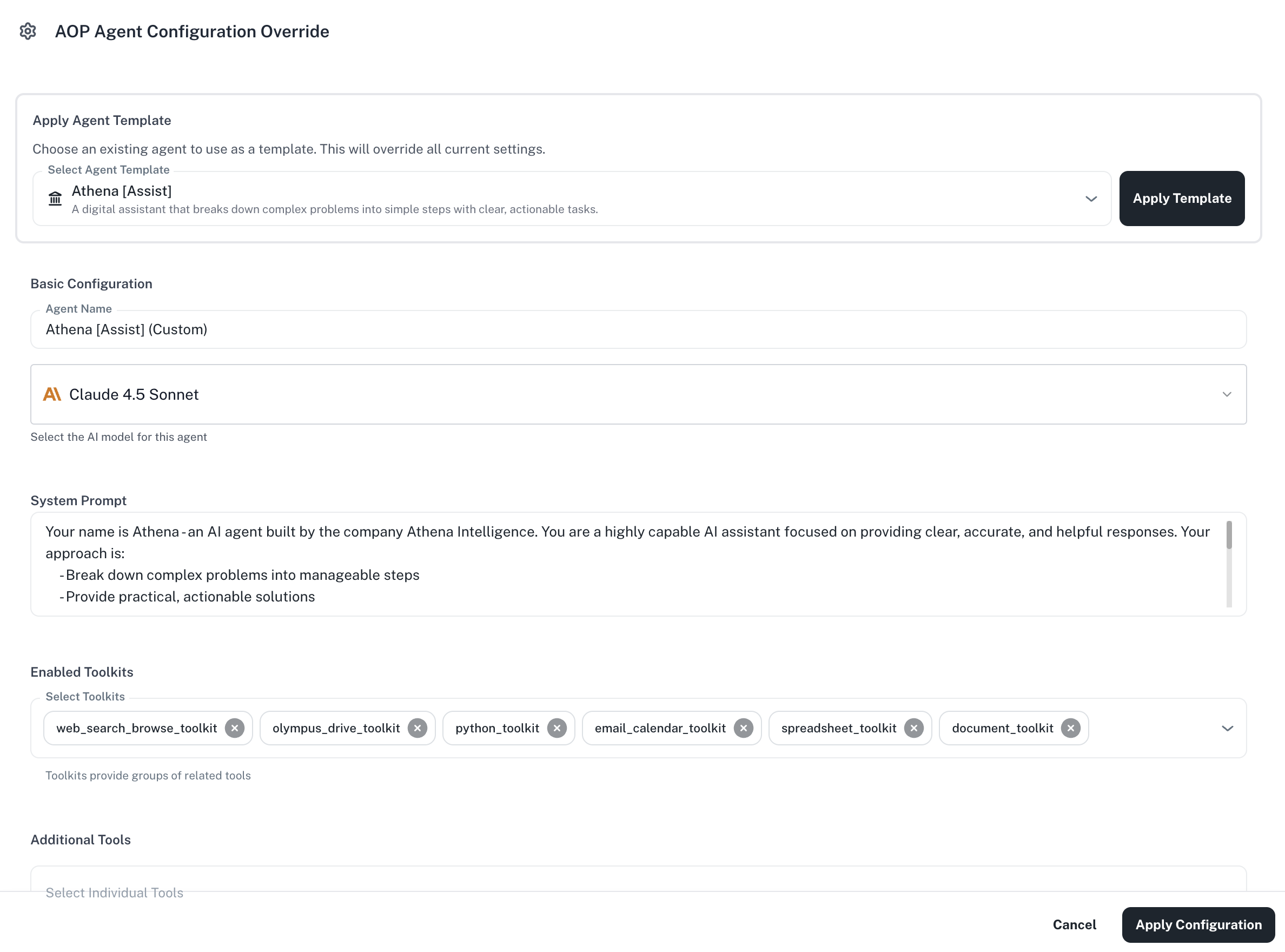
 The configuration panel allows you to set the agent name, select the AI model (such as Claude 4.5 Sonnet), customize the system prompt, enable specific toolkits, and add additional tools as needed.
 ### Spreadsheet Integration
AOPs can be executed directly on spreadsheet data, enabling automated data processing workflows. Use AOPs to analyze datasets, generate insights, create reports, or perform complex calculations on your Athena Sheets without manual intervention.
Learn how to use AOPs inside Athena Sheets [here](https://resources.athenaintel.com/docs/pillars/applications/sheets#aops-in-sheets)
### User Interface Integration
Integrate AOPs into custom User Interfaces to create powerful business applications. Users can trigger AOPs through buttons, forms, or automated workflows within your custom dashboards, enabling self-service analytics and automated business processes.
Check out how to execute AOPs inside User Interfaces [here](https://resources.athenaintel.com/docs/use-cases/contract-review)
### Version Control
AOPs include built-in version control that automatically saves your changes and allows you to run specific versions of your AOP.
#### Automatic Versioning
Every change you make to an AOP is automatically saved, creating a version history. You can view past versions and restore any previous configuration if needed. This ensures you never lose work and can always revert to a known-good state.
#### Running Specific Versions
You can execute a specific version of an AOP by using the versioned asset ID format. This is particularly useful when you want to ensure consistent execution or test changes before updating the main AOP.
**Versioned Asset ID Format**: `asset_@`
For example, if your AOP has the ID `asset_abc123-def456-ghi789` and you want to run version `btd48n`, you would use:
```
asset_abc123-def456-ghi789@btd48n
```
**Use Cases for Running Specific Versions**:
* **Consistent Execution**: Pin your automated workflows to a specific version to ensure consistent behavior even as you continue developing the AOP
* **Testing Changes**: Test modifications to an AOP before updating the version used in production workflows
* **Rollback**: Quickly revert to a previous version if a recent change causes issues
* **Audit Trail**: Run the exact version of an AOP that was used at a specific point in time for compliance or debugging purposes
### Multiple Execution Modes
AOPs offer flexibility in how they're executed:
* **API Mode**: Direct execution with immediate results
* **Async API Mode**: Background processing for long-running tasks
* **Chat Integration**: Interactive execution with conversational feedback
* **SDK Integration**: Programmatic execution via Python SDK
Learn how to create and run AOPs in Athena.
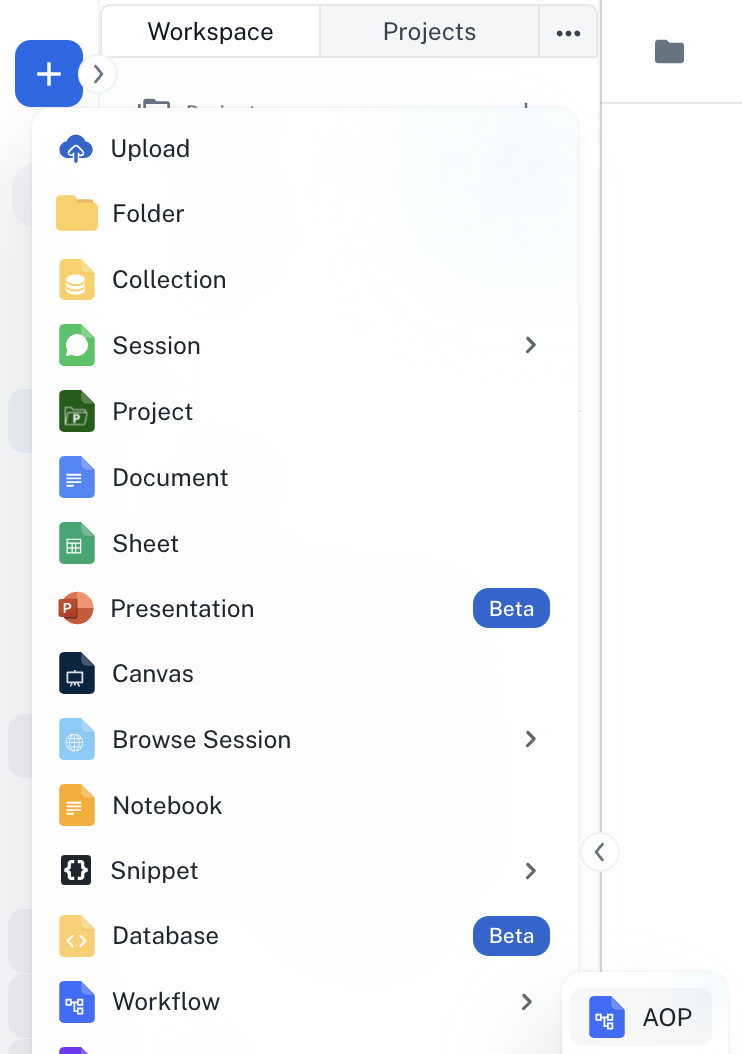
Go to **[Spaces](https://app.athenaintel.com/dashboard/spaces/)**. Click on the **+ -> Workflow -> AOP** button on the top left and create a new AOP.
### Spreadsheet Integration
AOPs can be executed directly on spreadsheet data, enabling automated data processing workflows. Use AOPs to analyze datasets, generate insights, create reports, or perform complex calculations on your Athena Sheets without manual intervention.
Learn how to use AOPs inside Athena Sheets [here](https://resources.athenaintel.com/docs/pillars/applications/sheets#aops-in-sheets)
### User Interface Integration
Integrate AOPs into custom User Interfaces to create powerful business applications. Users can trigger AOPs through buttons, forms, or automated workflows within your custom dashboards, enabling self-service analytics and automated business processes.
Check out how to execute AOPs inside User Interfaces [here](https://resources.athenaintel.com/docs/use-cases/contract-review)
### Version Control
AOPs include built-in version control that automatically saves your changes and allows you to run specific versions of your AOP.
#### Automatic Versioning
Every change you make to an AOP is automatically saved, creating a version history. You can view past versions and restore any previous configuration if needed. This ensures you never lose work and can always revert to a known-good state.
#### Running Specific Versions
You can execute a specific version of an AOP by using the versioned asset ID format. This is particularly useful when you want to ensure consistent execution or test changes before updating the main AOP.
**Versioned Asset ID Format**: `asset_@`
For example, if your AOP has the ID `asset_abc123-def456-ghi789` and you want to run version `btd48n`, you would use:
```
asset_abc123-def456-ghi789@btd48n
```
**Use Cases for Running Specific Versions**:
* **Consistent Execution**: Pin your automated workflows to a specific version to ensure consistent behavior even as you continue developing the AOP
* **Testing Changes**: Test modifications to an AOP before updating the version used in production workflows
* **Rollback**: Quickly revert to a previous version if a recent change causes issues
* **Audit Trail**: Run the exact version of an AOP that was used at a specific point in time for compliance or debugging purposes
### Multiple Execution Modes
AOPs offer flexibility in how they're executed:
* **API Mode**: Direct execution with immediate results
* **Async API Mode**: Background processing for long-running tasks
* **Chat Integration**: Interactive execution with conversational feedback
* **SDK Integration**: Programmatic execution via Python SDK
Learn how to create and run AOPs in Athena.
Go to **[Spaces](https://app.athenaintel.com/dashboard/spaces/)**. Click on the **+ -> Workflow -> AOP** button on the top left and create a new AOP.
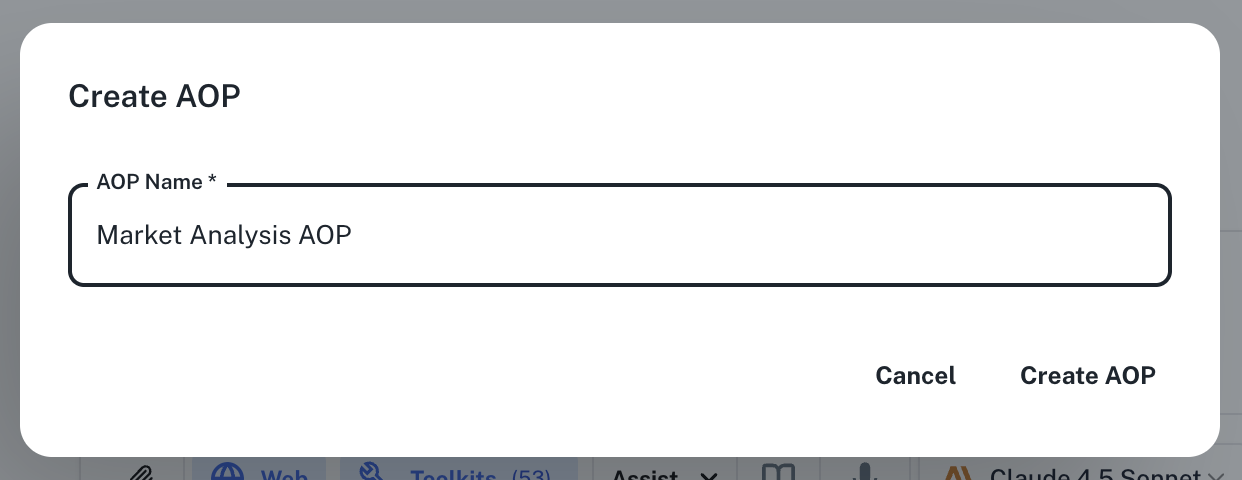
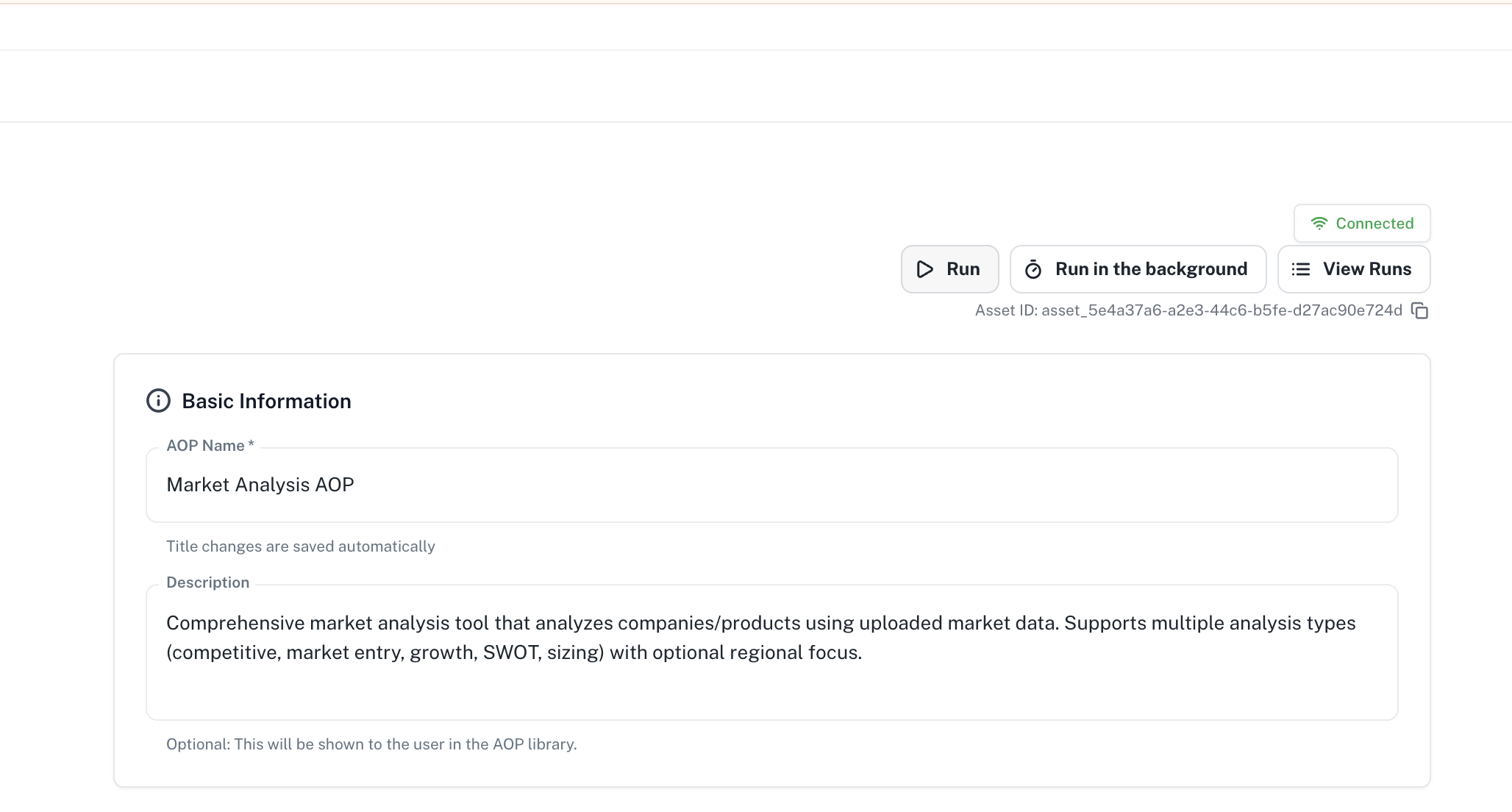
 Enter the name of your AOP and click on **Create AOP**. Add an optional description for your AOP after creation.
 You can configure the agent you would want to use for your AOP. You have an option of choosing from any of our existing agents or customize an agent from scratch or from one of the templates for our agents.
 Describe the task you want the AOP to execute in detail including the workflow, inputs and expected outputs. You can choose from various [input parameters](https://resources.athenaintel.com/docs/pillars/applications/aops#dynamic-parameter-system) for your AOPs.
 You can optionally add any triggers to run your AOP. You can run on AOP on a schedule, via an email trigger or when any of your meetings end. Learn more about triggers [here](https://resources.athenaintel.com/docs/pillars/applications/aops#aop-triggers).
 Your AOP gets auto-saved as and when you make any changes. You can go back to any past version of your AOP too. Click on the "Run" button on the top-right corner to run your AOP. Once you do so, you'll be asked to fill the input form and submit them.
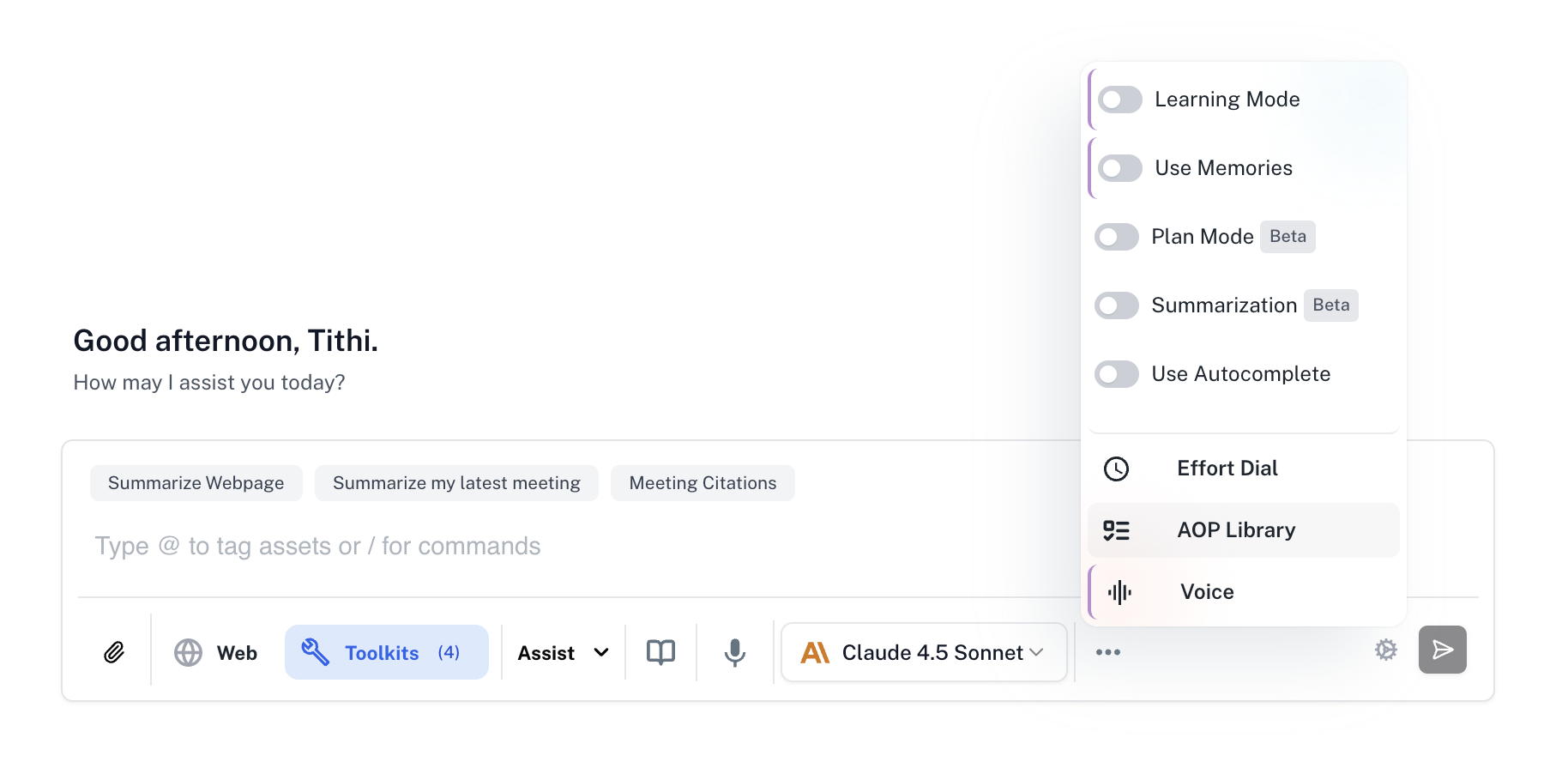
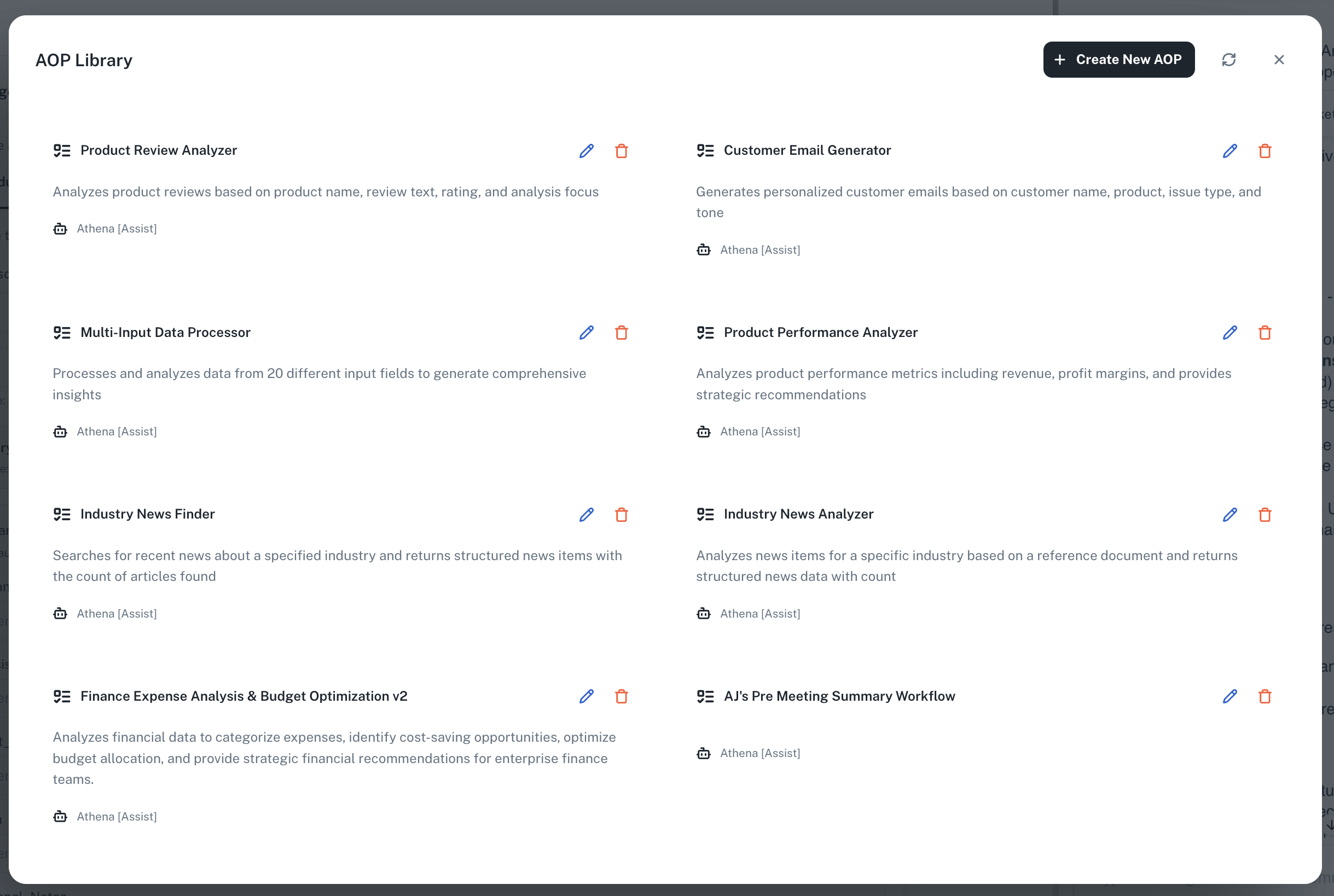
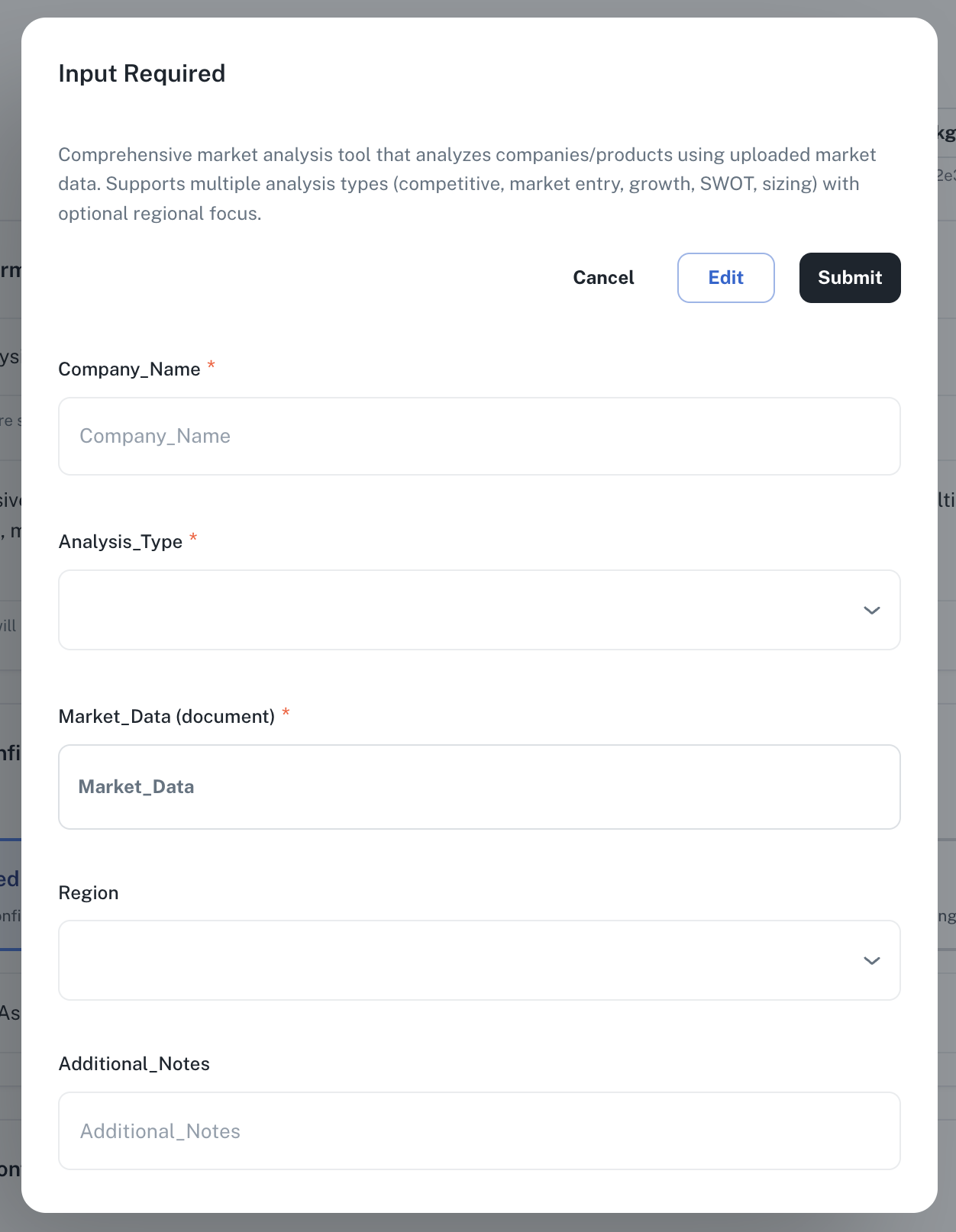 You can also run your AOP from the AOP Library option in the Chat UI. This is the place where you'll see all your other AOPs too.