> ## Documentation Index
> Fetch the complete documentation index at: https://resources.athenaintel.com/llms.txt
> Use this file to discover all available pages before exploring further.
# BigQuery
Connect BigQuery to Athena to query your projects' tables from notebooks, sessions, computers and semantic models.
BigQuery connects in two ways. With **Google sign-in**, a workspace owner or administrator registers a Google OAuth client once, and then every member connects their own Google account: each query runs as that member, under their own Google Cloud permissions, and bills to the project it runs in. With a **service account**, you upload a service-account key and queries run as that service account — the right choice for automations and shared pipelines that must not depend on one person.
Catalogs from Google sign-in are personal: only the member who connected can query them. Teammates connect their own Google account to get their own catalogs. Google Cloud IAM, dataset permissions, and row-level and column-level security apply unchanged — Athena adds no access of its own.
## What you get
* A **BigQuery catalog** for each BigQuery project your Google account can see, up to 50, or exactly the projects your administrator chose. Each catalog is titled after its project, for example `BigQuery (Acme Analytics · acme-analytics)`.
* **SQL** against any of those catalogs from a notebook or a session, with the project's datasets, tables and columns in the notebook schema browser.
* Optionally, a semantic model built on a catalog, where every viewer queries with their own Google connection.
## Prerequisites
* **Google Cloud**: permission to create an OAuth client and enable the BigQuery API in a Google Cloud project.
* **Athena**: the workspace owner or administrator role to register the client.
* **Members**: a Google account with BigQuery roles on the projects they will query (see [Google Cloud roles](#google-cloud-roles)).
## Administrator: create the Google OAuth client
In the Google Cloud console, open the project that will own the client and enable the **BigQuery API**.
Choose **Internal** if your company uses Google Workspace: only accounts in your organization can connect and no Google review is needed. **External** lets any Google account connect, but the BigQuery permission is a sensitive scope, so Google must verify the app before you publish it; while it is in testing, only listed test users can connect and they must reconnect every seven days.
Add the scope `https://www.googleapis.com/auth/bigquery`. It is the narrowest single scope that lets Athena list projects, run queries and cancel a query that runs too long; each member's own permissions still decide what a query can read or change.
Create an OAuth client ID of type **Web application** and add this authorized redirect URI (replace the host with your deployment's API host if you run Athena in your own cloud; the setup card in Athena shows the exact value):
```text theme={null}
https://api.athenaintel.com/api/direct-connectors/bigquery_oauth_direct/oauth/callback
```
Copy the **Client ID** and **Client secret**.
Use a dedicated OAuth client for BigQuery rather than one registered for another Google connection. Google withdraws a person's consent for a whole client at once, so a shared client ties the two connections together.
## Administrator: register the client in Athena
Open **Workspace Settings › Integrations** and find **BigQuery (Google sign-in)**.
| Field | Value |
| - | - |
| Name | A label for this client |
| Client ID | The client ID from Google Cloud |
| Client secret | The client secret; it is encrypted and never shown again |
| Limit to projects (optional) | Project IDs, separated by commas or new lines. Members get a catalog for each listed project they can see. Leave empty to give each member one per project they can see, up to 50 |
| Members can connect with this client | Turn on to let members connect |
## Everyone: connect your Google account
Navigate to ***[Integrations](https://app.athenaintel.com/dashboard/integrations/)***, find **BigQuery** under **Data Warehousing & BI**, and choose **Google account**.
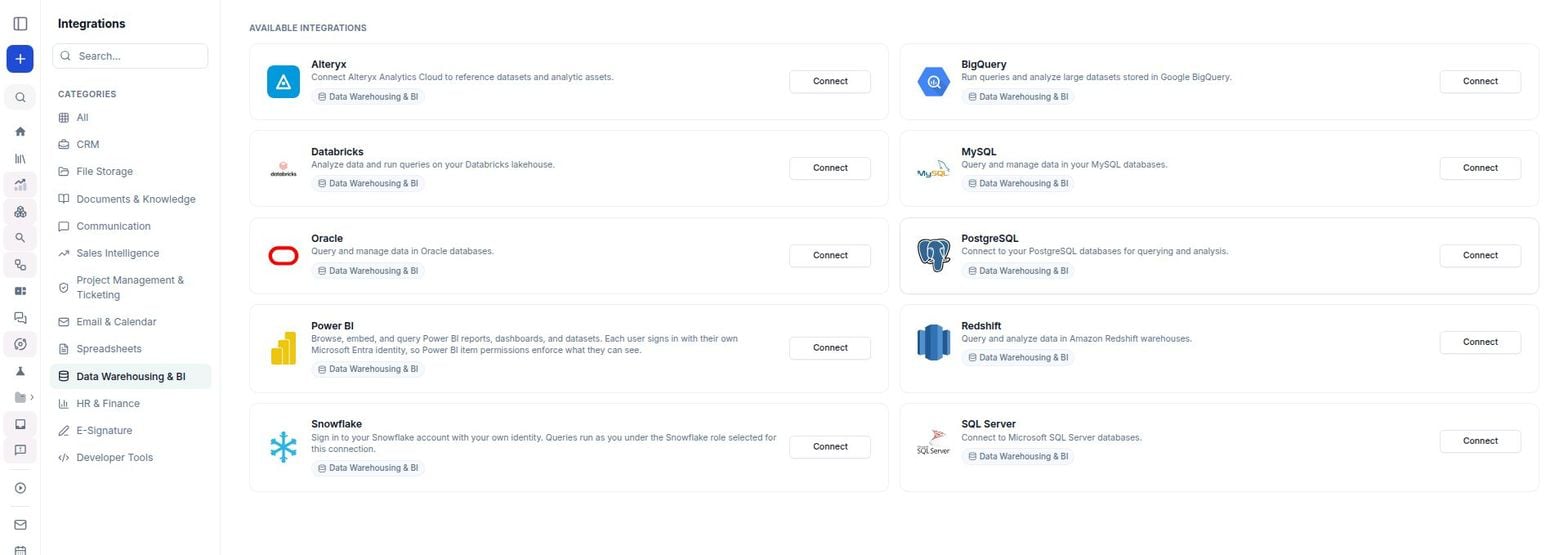 Click **Connect** and sign in with Google in the popup.
Keep **View and manage your data in Google BigQuery** ticked and approve. Athena creates one BigQuery catalog per project you can see.
Connect again at any time to pick up projects you have gained access to; catalogs for projects you have lost access to are removed then. If you can see more than 50 projects, Athena cannot tell a lost project from one beyond the limit, so it keeps your existing catalogs.
## Google Cloud roles
Grant each member, in each project they should query:
* **BigQuery Job User** (`roles/bigquery.jobUser`) on the project the catalog runs in. Queries run as jobs in that project and bill to it.
* **BigQuery Data Viewer** (`roles/bigquery.dataViewer`) on the datasets to read, or on the project.
* **BigQuery Data Editor** (`roles/bigquery.dataEditor`) only where the member may change data.
Athena lists the projects where your account holds a project-level role. If you can read a dataset in another project without a role on that project, you get no catalog for it, but you can still query its tables with the fully-qualified name `` `project.dataset.table` `` from one of your catalogs.
## Using the connection
* **Notebooks:** choose one of your BigQuery catalogs as a SQL cell's connection. The schema browser lists the project's datasets, tables and columns.
* **Sessions:** mention a BigQuery catalog with `@` and ask a question. Athena writes GoogleSQL, runs it in the catalog's project and shows the first 100 rows. Statements that change data are refused unless the session is allowed to write, and BigQuery refuses them unless your Google account may make the change.
* **Semantic models:** choose **Create › Semantic Model** and pick one of your BigQuery catalogs under **Data Source**. Everyone who opens the model queries it with their own Google connection, through their own BigQuery catalog for the same project, so their own Google Cloud permissions apply. A teammate who hasn't connected BigQuery is asked to connect first. Your connection is never used for anyone else's queries.
* **Computers:** on a computer with one of your BigQuery catalogs attached, the catalog's project is in `GOOGLE_CLOUD_PROJECT` and `athena-catalog-token` prints a short-lived Google access token for your connection. The computer acts as you, so anyone you share it with can use your BigQuery access from it: attach a Google sign-in catalog only to a computer you don't share, and use a service-account catalog on a shared one. Pass the token to the client explicitly:
```python theme={null}
import os
import subprocess
from google.cloud import bigquery
from google.oauth2.credentials import Credentials
token = subprocess.check_output(
["athena-catalog-token", "bigquery_oauth_direct"], text=True
).strip()
client = bigquery.Client(
project=os.environ["GOOGLE_CLOUD_PROJECT"],
credentials=Credentials(token),
)
```
`athena-catalog-token` returns the current token while it is fresh and gets a new one otherwise. With more than one BigQuery catalog attached, pass the catalog's asset ID instead of `bigquery_oauth_direct` and set `project=` to that catalog's own project ID.
## Automation: connecting with a service account
A service account keeps working when a person leaves or loses access, so use it for scheduled work and shared pipelines. Queries run as the service account, not as the person asking.
In the Google Cloud project that holds your datasets, create a service account. Grant it **BigQuery Job User** (`roles/bigquery.jobUser`) on the project and **BigQuery Data Viewer** (`roles/bigquery.dataViewer`) on the datasets to expose, then create a JSON key.
With the `gcloud` and `bq` CLIs, granting read access to one dataset:
```bash theme={null}
gcloud iam service-accounts create athena-bigquery --project=PROJECT_ID
gcloud projects add-iam-policy-binding PROJECT_ID \
--member="serviceAccount:athena-bigquery@PROJECT_ID.iam.gserviceaccount.com" \
--role="roles/bigquery.jobUser"
bq query --use_legacy_sql=false --project_id=PROJECT_ID \
'GRANT `roles/bigquery.dataViewer` ON SCHEMA `PROJECT_ID.DATASET`
TO "serviceAccount:athena-bigquery@PROJECT_ID.iam.gserviceaccount.com"'
gcloud iam service-accounts keys create athena-bigquery.json \
--iam-account=athena-bigquery@PROJECT_ID.iam.gserviceaccount.com
```
Repeat the `GRANT` for each dataset Athena should see.
On the **[Integrations](https://app.athenaintel.com/dashboard/integrations/)** page, find **BigQuery**, choose **Service account**, and upload the key file. Athena confirms the project ID and service-account email it read from the file. To bind the catalog to a different project than the key's own, enter a **Project ID (optional override)**.
The key is encrypted at rest and never returned to the browser; uploading a key for the same project again replaces it. A service-account catalog is also personal: only the person who uploaded the key can query it. On a computer, use `athena-catalog-token bigquery_direct_v2` in the example above.
## Known limits
* Google sign-in creates at most 50 catalogs per member unless your administrator limits the workspace to specific projects. Other projects stay reachable with fully-qualified table names.
* Each catalog runs its queries in one project.
* Catalogs cannot be shared. Teammates connect their own Google account, or you use a service account for shared work.
* A query that has not finished after about a minute is cancelled and reported as timed out. Filter on a partition column or select fewer columns, or run very long jobs in the BigQuery console.
* Other query limits and quotas are BigQuery's.
## Troubleshooting
| Symptom | Fix |
| - | - |
| The card says BigQuery sign-in isn't set up | A workspace owner or administrator registers the Google OAuth client in **Workspace Settings › Integrations**. |
| `redirect_uri_mismatch` on Google's page | Add the exact redirect URI from the setup card to the OAuth client. |
| "Access blocked" on Google's page | Your Google Workspace administrator restricts third-party apps; they allow the OAuth client under **Security › API controls › App access control** in the Google Admin console. |
| "Google connected … but without BigQuery access" | Connect again and leave **View and manage your data in Google BigQuery** ticked. |
| "… cannot see any BigQuery projects" | Ask a Google Cloud administrator for **BigQuery Job User** and **BigQuery Data Viewer** on a project (one of the listed projects, if your workspace is limited to some), then connect again. |
| `Access Denied: ... bigquery.jobs.create` | Grant **BigQuery Job User** on the catalog's project. |
| `Access Denied: Table ...` or `Not found: Dataset ...` | Grant **BigQuery Data Viewer** on that dataset, or query it by its fully-qualified name. |
| "BigQuery sign-in has expired or was revoked" | Connect BigQuery again from **Integrations**. |
| You must reconnect every seven days | The OAuth consent screen is External and still in testing. Publish it, or switch it to Internal. |
| A teammate cannot query your catalog | Expected: they connect their own Google account. |
| `Google rejected the stored service-account key` | Create a new key and upload it again. |
## Disconnecting
To disconnect Google sign-in, open the menu on your BigQuery connection catalog (titled with your Google email), choose **Remove Connection**, and confirm with **Remove**; this also retires every BigQuery project catalog under it. Athena then withdraws its access at Google, unless another of your connections still relies on the same OAuth client. You can also remove Athena's access yourself under **Security › Your connections to third-party apps & services** in your Google Account.
To remove a service-account catalog, delete it in Athena, along with any semantic models built on it. To cut off access for good, delete the key (or disable the service account) in Google Cloud.
Now that you have connected your data, [explore how to query the same](https://resources.athenaintel.com/docs/pillars/applications/query)!
Click **Connect** and sign in with Google in the popup.
Keep **View and manage your data in Google BigQuery** ticked and approve. Athena creates one BigQuery catalog per project you can see.
Connect again at any time to pick up projects you have gained access to; catalogs for projects you have lost access to are removed then. If you can see more than 50 projects, Athena cannot tell a lost project from one beyond the limit, so it keeps your existing catalogs.
## Google Cloud roles
Grant each member, in each project they should query:
* **BigQuery Job User** (`roles/bigquery.jobUser`) on the project the catalog runs in. Queries run as jobs in that project and bill to it.
* **BigQuery Data Viewer** (`roles/bigquery.dataViewer`) on the datasets to read, or on the project.
* **BigQuery Data Editor** (`roles/bigquery.dataEditor`) only where the member may change data.
Athena lists the projects where your account holds a project-level role. If you can read a dataset in another project without a role on that project, you get no catalog for it, but you can still query its tables with the fully-qualified name `` `project.dataset.table` `` from one of your catalogs.
## Using the connection
* **Notebooks:** choose one of your BigQuery catalogs as a SQL cell's connection. The schema browser lists the project's datasets, tables and columns.
* **Sessions:** mention a BigQuery catalog with `@` and ask a question. Athena writes GoogleSQL, runs it in the catalog's project and shows the first 100 rows. Statements that change data are refused unless the session is allowed to write, and BigQuery refuses them unless your Google account may make the change.
* **Semantic models:** choose **Create › Semantic Model** and pick one of your BigQuery catalogs under **Data Source**. Everyone who opens the model queries it with their own Google connection, through their own BigQuery catalog for the same project, so their own Google Cloud permissions apply. A teammate who hasn't connected BigQuery is asked to connect first. Your connection is never used for anyone else's queries.
* **Computers:** on a computer with one of your BigQuery catalogs attached, the catalog's project is in `GOOGLE_CLOUD_PROJECT` and `athena-catalog-token` prints a short-lived Google access token for your connection. The computer acts as you, so anyone you share it with can use your BigQuery access from it: attach a Google sign-in catalog only to a computer you don't share, and use a service-account catalog on a shared one. Pass the token to the client explicitly:
```python theme={null}
import os
import subprocess
from google.cloud import bigquery
from google.oauth2.credentials import Credentials
token = subprocess.check_output(
["athena-catalog-token", "bigquery_oauth_direct"], text=True
).strip()
client = bigquery.Client(
project=os.environ["GOOGLE_CLOUD_PROJECT"],
credentials=Credentials(token),
)
```
`athena-catalog-token` returns the current token while it is fresh and gets a new one otherwise. With more than one BigQuery catalog attached, pass the catalog's asset ID instead of `bigquery_oauth_direct` and set `project=` to that catalog's own project ID.
## Automation: connecting with a service account
A service account keeps working when a person leaves or loses access, so use it for scheduled work and shared pipelines. Queries run as the service account, not as the person asking.
In the Google Cloud project that holds your datasets, create a service account. Grant it **BigQuery Job User** (`roles/bigquery.jobUser`) on the project and **BigQuery Data Viewer** (`roles/bigquery.dataViewer`) on the datasets to expose, then create a JSON key.
With the `gcloud` and `bq` CLIs, granting read access to one dataset:
```bash theme={null}
gcloud iam service-accounts create athena-bigquery --project=PROJECT_ID
gcloud projects add-iam-policy-binding PROJECT_ID \
--member="serviceAccount:athena-bigquery@PROJECT_ID.iam.gserviceaccount.com" \
--role="roles/bigquery.jobUser"
bq query --use_legacy_sql=false --project_id=PROJECT_ID \
'GRANT `roles/bigquery.dataViewer` ON SCHEMA `PROJECT_ID.DATASET`
TO "serviceAccount:athena-bigquery@PROJECT_ID.iam.gserviceaccount.com"'
gcloud iam service-accounts keys create athena-bigquery.json \
--iam-account=athena-bigquery@PROJECT_ID.iam.gserviceaccount.com
```
Repeat the `GRANT` for each dataset Athena should see.
On the **[Integrations](https://app.athenaintel.com/dashboard/integrations/)** page, find **BigQuery**, choose **Service account**, and upload the key file. Athena confirms the project ID and service-account email it read from the file. To bind the catalog to a different project than the key's own, enter a **Project ID (optional override)**.
The key is encrypted at rest and never returned to the browser; uploading a key for the same project again replaces it. A service-account catalog is also personal: only the person who uploaded the key can query it. On a computer, use `athena-catalog-token bigquery_direct_v2` in the example above.
## Known limits
* Google sign-in creates at most 50 catalogs per member unless your administrator limits the workspace to specific projects. Other projects stay reachable with fully-qualified table names.
* Each catalog runs its queries in one project.
* Catalogs cannot be shared. Teammates connect their own Google account, or you use a service account for shared work.
* A query that has not finished after about a minute is cancelled and reported as timed out. Filter on a partition column or select fewer columns, or run very long jobs in the BigQuery console.
* Other query limits and quotas are BigQuery's.
## Troubleshooting
| Symptom | Fix |
| - | - |
| The card says BigQuery sign-in isn't set up | A workspace owner or administrator registers the Google OAuth client in **Workspace Settings › Integrations**. |
| `redirect_uri_mismatch` on Google's page | Add the exact redirect URI from the setup card to the OAuth client. |
| "Access blocked" on Google's page | Your Google Workspace administrator restricts third-party apps; they allow the OAuth client under **Security › API controls › App access control** in the Google Admin console. |
| "Google connected … but without BigQuery access" | Connect again and leave **View and manage your data in Google BigQuery** ticked. |
| "… cannot see any BigQuery projects" | Ask a Google Cloud administrator for **BigQuery Job User** and **BigQuery Data Viewer** on a project (one of the listed projects, if your workspace is limited to some), then connect again. |
| `Access Denied: ... bigquery.jobs.create` | Grant **BigQuery Job User** on the catalog's project. |
| `Access Denied: Table ...` or `Not found: Dataset ...` | Grant **BigQuery Data Viewer** on that dataset, or query it by its fully-qualified name. |
| "BigQuery sign-in has expired or was revoked" | Connect BigQuery again from **Integrations**. |
| You must reconnect every seven days | The OAuth consent screen is External and still in testing. Publish it, or switch it to Internal. |
| A teammate cannot query your catalog | Expected: they connect their own Google account. |
| `Google rejected the stored service-account key` | Create a new key and upload it again. |
## Disconnecting
To disconnect Google sign-in, open the menu on your BigQuery connection catalog (titled with your Google email), choose **Remove Connection**, and confirm with **Remove**; this also retires every BigQuery project catalog under it. Athena then withdraws its access at Google, unless another of your connections still relies on the same OAuth client. You can also remove Athena's access yourself under **Security › Your connections to third-party apps & services** in your Google Account.
To remove a service-account catalog, delete it in Athena, along with any semantic models built on it. To cut off access for good, delete the key (or disable the service account) in Google Cloud.
Now that you have connected your data, [explore how to query the same](https://resources.athenaintel.com/docs/pillars/applications/query)!