> ## Documentation Index
> Fetch the complete documentation index at: https://resources.athenaintel.com/llms.txt
> Use this file to discover all available pages before exploring further.
# Your First Chat
You can start a new chat by clicking on **Start a new chat** on the [homepage](https://app.athenaintel.com/dashboard/) or by clicking on the pencil icon (top-right) on the [Spaces](https://app.athenaintel.com/dashboard/spaces/) page.
In the **Chat** window, type the following prompt and press **Enter**.
Search the web for latest news in the AI industry.
 Type the following prompt and press **Enter**.
Create a new document with a summary of your results.
Type the following prompt and press **Enter**.
Create a new document with a summary of your results.
 ### Analyzing Documents
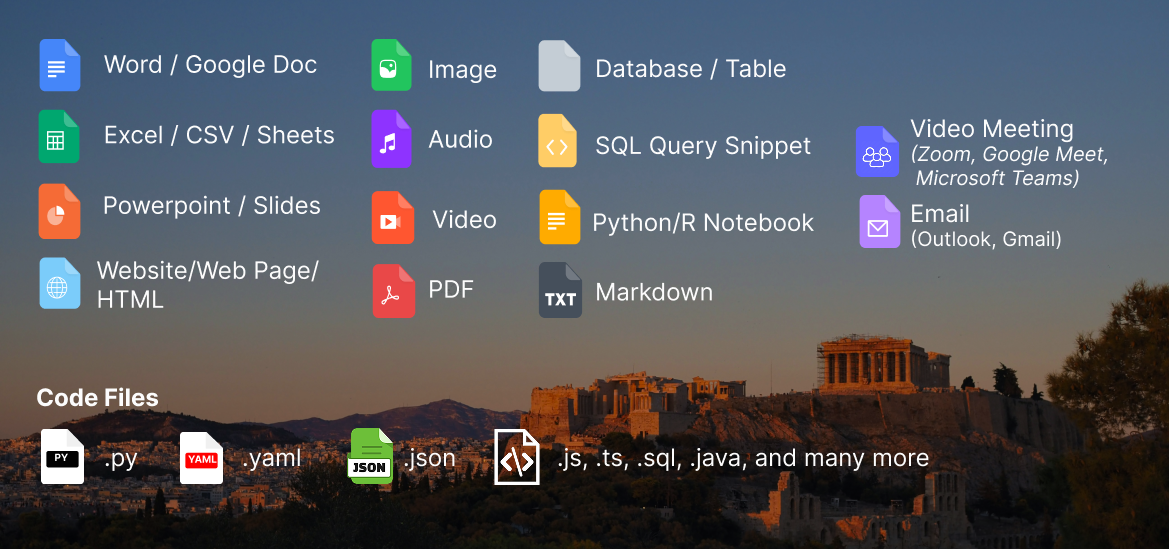
Files in Athena are called **Assets**. You can easily upload the supported file types and interact with them using **Athena Chat**. Athena supports the following asset types:
### Analyzing Documents
Files in Athena are called **Assets**. You can easily upload the supported file types and interact with them using **Athena Chat**. Athena supports the following asset types:
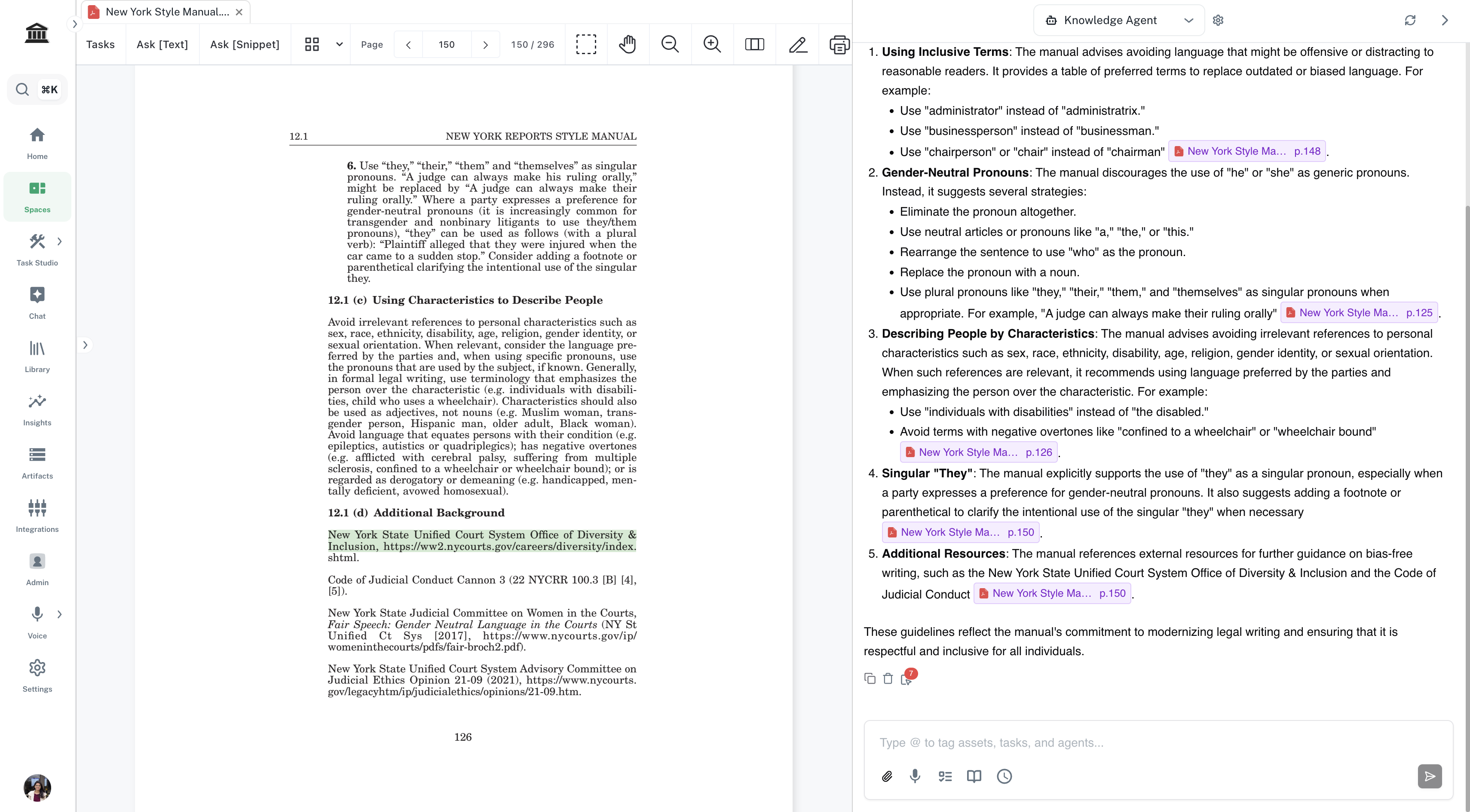
Athena enhances document analysis with its capability to support page-level citations in PDFs. This allows you to pinpoint specific pages within a document that are referenced during analysis, ensuring transparency and accuracy in the information retrieval process.
Whether you're summarizing, extracting data, or generating reports, Athena's page-level citations provide granular details that make your outputs more reliable and trustworthy. You can click on the citation to scroll to the highlighted source behind Athena's response.
 There are multiple ways to [upload assets in Athena](/docs/getting-started/connecting-data). The simplest way is to drag and drop assets from your computer onto the file tree view on the left.
Enter the following prompt in the **Chat** window on the right. Press **Enter**.
What role does the Operations Room play in supporting Red Bull Racing's trackside performance during races?
This section provides an overview of all the different capabilities offered by Athena Chat.
### Attach Files
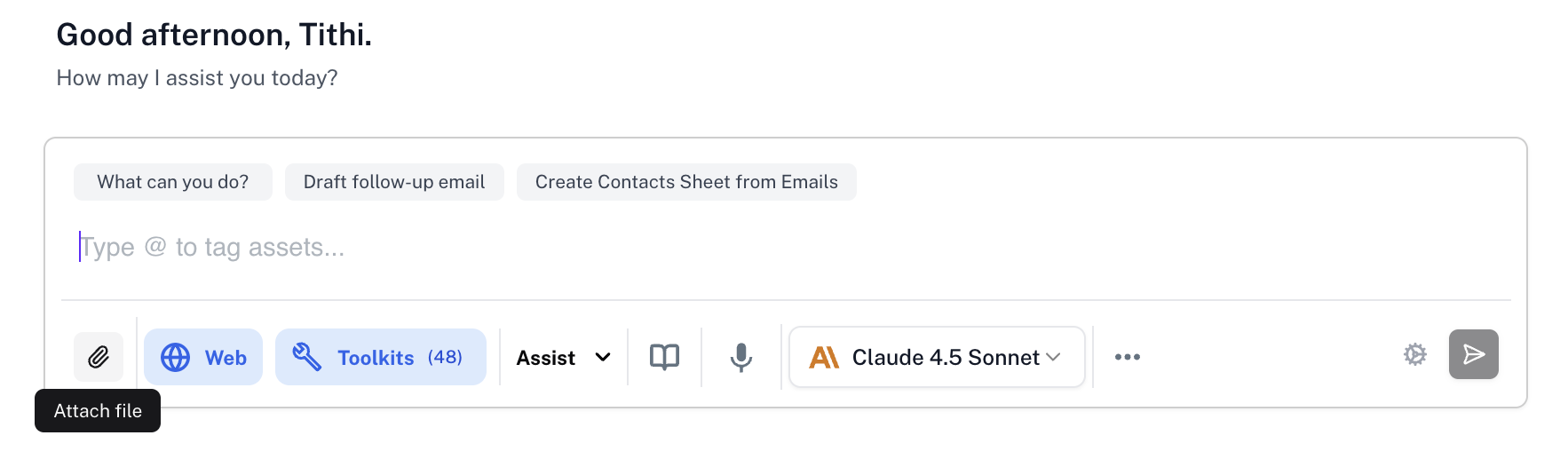
Attach files from your computer directly either by dragging and dropping them onto the Chat bar or clicking on the **Attach File** button.
There are multiple ways to [upload assets in Athena](/docs/getting-started/connecting-data). The simplest way is to drag and drop assets from your computer onto the file tree view on the left.
Enter the following prompt in the **Chat** window on the right. Press **Enter**.
What role does the Operations Room play in supporting Red Bull Racing's trackside performance during races?
This section provides an overview of all the different capabilities offered by Athena Chat.
### Attach Files
Attach files from your computer directly either by dragging and dropping them onto the Chat bar or clicking on the **Attach File** button.
 ### Web Search
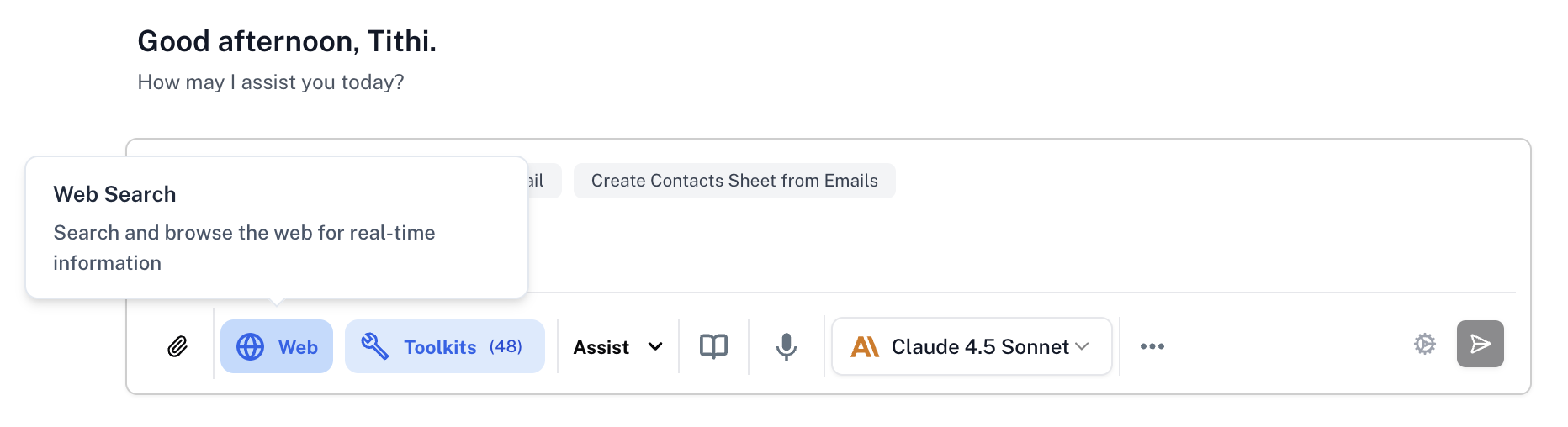
Toggle Athena's capability to perform real-time web browsing by clicking on the **Web** button.
### Web Search
Toggle Athena's capability to perform real-time web browsing by clicking on the **Web** button.
 ### Versatile Toolkits
Choose from a number of toolkits designed to optimize and automate workflows. Toolkits are specialized suites designed to handle discrete tasks efficiently within larger workflows. They are the building blocks of complex processes, each performing a specific function such as document analysis, email management or coding tasks.
### Versatile Toolkits
Choose from a number of toolkits designed to optimize and automate workflows. Toolkits are specialized suites designed to handle discrete tasks efficiently within larger workflows. They are the building blocks of complex processes, each performing a specific function such as document analysis, email management or coding tasks.
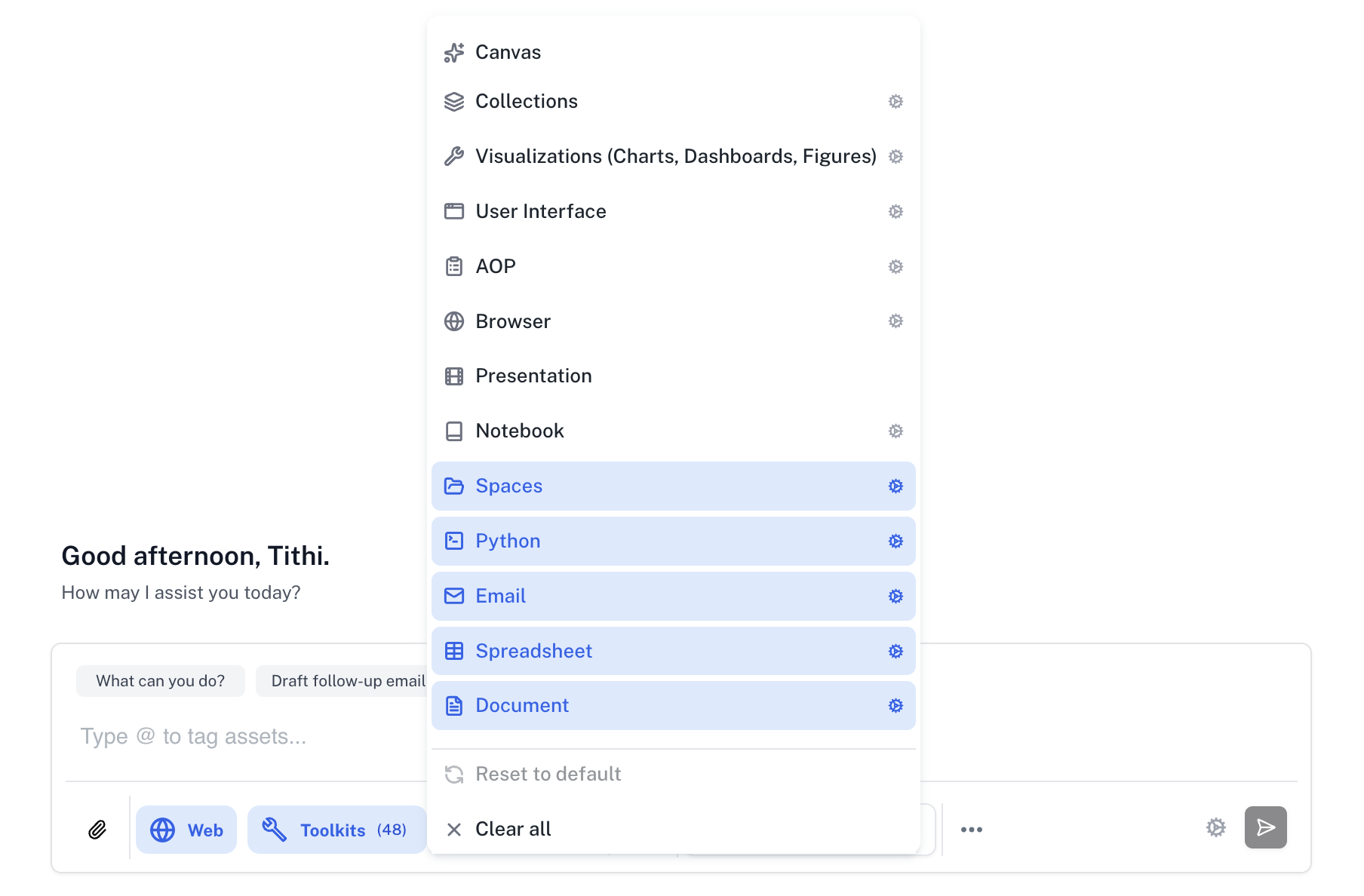 **Toolkit Suggestions** - Athena will automatically suggest relevant toolkits based on the assets you have open and the content of your chat messages. For example, if you have a document open, Athena may suggest enabling the Document Toolkit. Similarly, if your message mentions creating a spreadsheet, Athena will suggest the Spreadsheet Toolkit. Simply click **Enable** to activate the suggested toolkit.

 | Toolkits | Description |
| -------------- | --------------------------------------------------------------------------------------------------------------------------------------------------------------------------------- |
| Canvas | Collaborate and visualize ideas interactively on a creative platform designed to bring strategies, designs, and brainstorming sessions to life. |
| Collection | Create and manage collections of assets for organizing and grouping related content |
| Visualizations | Create and manage interactive visualizations, charts, dashboards and figures |
| User Interface | Create and deploy interactive Athena user interfaces with tool registration and Athena SDK integration. |
| AOP | Create, update, and execute Agent Operating Procedures (AOPs) with template variables and structured output schemas. |
| Browser | Have Athena control a Chrome browser for web navigation, interaction, downloads, screenshots, and automated web tasks. |
| Presentation | Create professional presentations with support for slides, layouts, and visual content. |
| Notebook | Execute code-based workflows, analyze data, and run simulations in an AI-enabled environment for technical and analytical tasks. |
| Spaces | Manage your files and folders effortlessly with a centralized toolkit that supports organization, sharing permissions, and collaboration. |
| Python | Run Python scripts and automate complex computational tasks, making it a go-to tool for developers and data scientists. |
| Email | Manage email workflows by drafting, responding, and organizing communications with AI-powered insights and automation. |
| Spreadsheet | Optimize data manipulation and analysis with tools for tabular data processing, including formulas, summaries, and visualizations. |
| Document | Seamlessly create, edit, and analyze text-based files with Athena's Document toolkit, which supports workflows like summarization, information extraction, and report generation. |
### Choose the Right Agent Persona
Agent Personas allow you to optimize Athena's behavior for different types of tasks. Each persona is designed for specific use cases to help you get the best results.
| Toolkits | Description |
| -------------- | --------------------------------------------------------------------------------------------------------------------------------------------------------------------------------- |
| Canvas | Collaborate and visualize ideas interactively on a creative platform designed to bring strategies, designs, and brainstorming sessions to life. |
| Collection | Create and manage collections of assets for organizing and grouping related content |
| Visualizations | Create and manage interactive visualizations, charts, dashboards and figures |
| User Interface | Create and deploy interactive Athena user interfaces with tool registration and Athena SDK integration. |
| AOP | Create, update, and execute Agent Operating Procedures (AOPs) with template variables and structured output schemas. |
| Browser | Have Athena control a Chrome browser for web navigation, interaction, downloads, screenshots, and automated web tasks. |
| Presentation | Create professional presentations with support for slides, layouts, and visual content. |
| Notebook | Execute code-based workflows, analyze data, and run simulations in an AI-enabled environment for technical and analytical tasks. |
| Spaces | Manage your files and folders effortlessly with a centralized toolkit that supports organization, sharing permissions, and collaboration. |
| Python | Run Python scripts and automate complex computational tasks, making it a go-to tool for developers and data scientists. |
| Email | Manage email workflows by drafting, responding, and organizing communications with AI-powered insights and automation. |
| Spreadsheet | Optimize data manipulation and analysis with tools for tabular data processing, including formulas, summaries, and visualizations. |
| Document | Seamlessly create, edit, and analyze text-based files with Athena's Document toolkit, which supports workflows like summarization, information extraction, and report generation. |
### Choose the Right Agent Persona
Agent Personas allow you to optimize Athena's behavior for different types of tasks. Each persona is designed for specific use cases to help you get the best results.
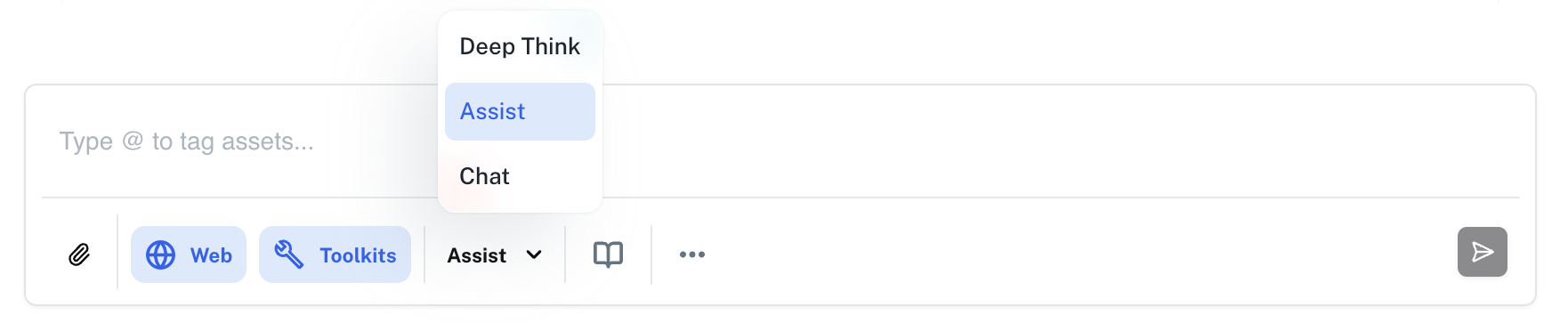 **When to use each persona:**
* **Chat** - Best for brainstorming, Q\&A, summaries, and ideation. Read-only mode for fast responses without modifying your workspace.
* **Example prompts:** "Summarize this PDF," "Give me 5 approaches to solving this problem," "Explain this concept in simple terms"
* **Use when:** You want quick answers or insights without creating or modifying files
* **Assist (Default)** - Best for day-to-day work that requires reading and writing. Uses tools to draft emails, create documents, modify spreadsheets, and execute AOPs. Balanced speed and depth.
* **Example prompts:** "Draft a customer reply and save as a Doc," "Pull these rows into a Sheet and create a chart," "Create an AOP to analyze quarterly reports"
* **Use when:** You need Athena to take action and create or modify assets in your workspace
* **Deep Think** - Best for multi-step, complex reasoning across multiple assets. Slower by design and may use multiple agents working together for comprehensive analysis.
* **Example prompts:** "Compare these 5 contracts and produce a redline memo with citations," "Analyze this dataset and identify trends, anomalies, and recommendations"
* **Use when:** You have complex problems requiring thorough analysis across multiple documents or data sources
* **Tip:** Pair with the [Effort Dial](/docs/agents/athena-agents) for even more rigorous analysis
Not sure which to pick? Start with **Assist** for most tasks. You can switch personas as your needs evolve during the conversation.
### Agent Context
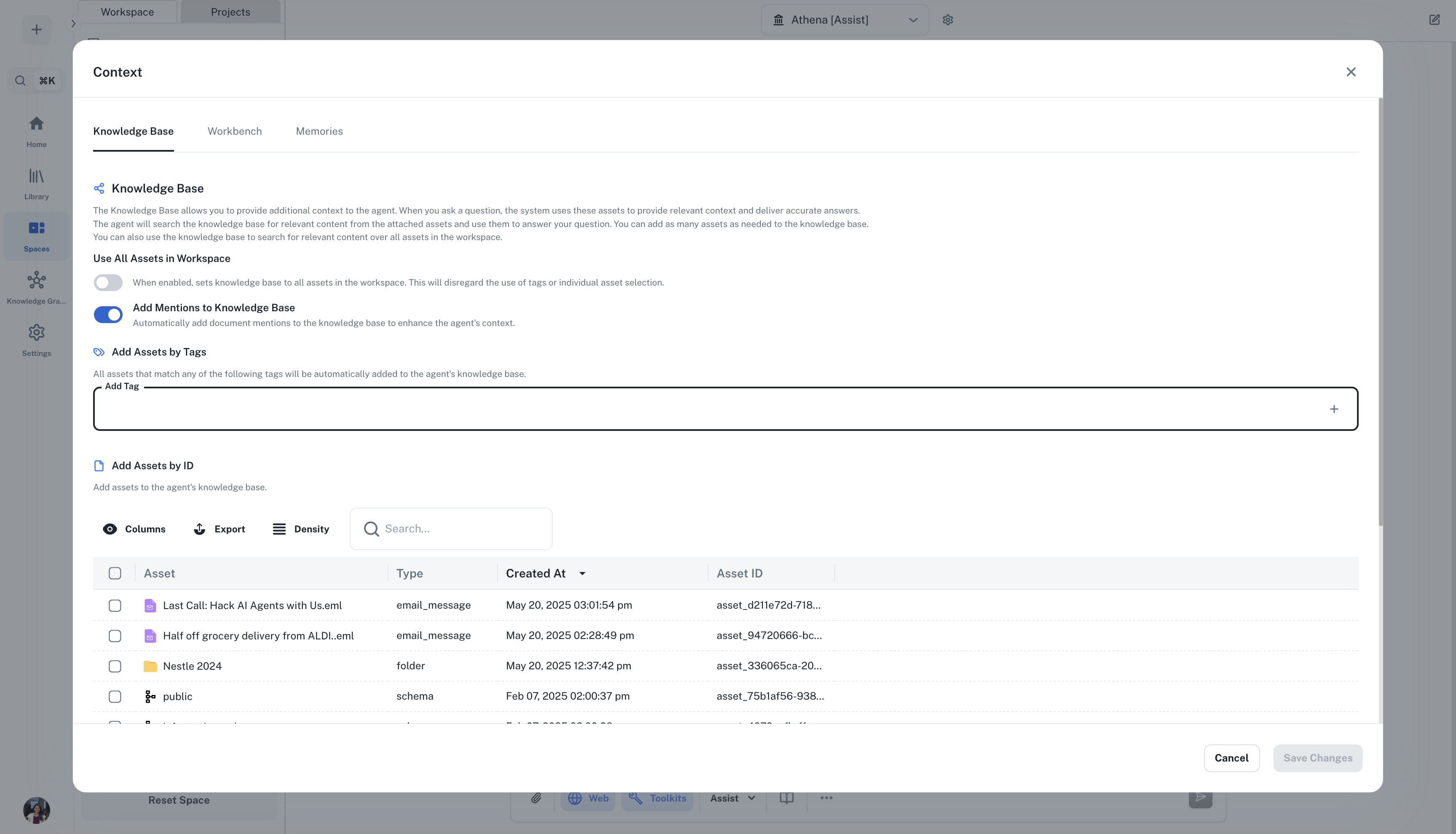
The Agent Context menu lets you configure contextual knowledge that Athena has access to, for example, [knowledge base](/docs/pillars/contextual-knowledge/knowledge-base), [memories](/docs/pillars/contextual-knowledge/memories) and [workbench](/docs/pillars/contextual-knowledge/workbench). Learn more about these in our guides on contextual knowledge.
**When to use each persona:**
* **Chat** - Best for brainstorming, Q\&A, summaries, and ideation. Read-only mode for fast responses without modifying your workspace.
* **Example prompts:** "Summarize this PDF," "Give me 5 approaches to solving this problem," "Explain this concept in simple terms"
* **Use when:** You want quick answers or insights without creating or modifying files
* **Assist (Default)** - Best for day-to-day work that requires reading and writing. Uses tools to draft emails, create documents, modify spreadsheets, and execute AOPs. Balanced speed and depth.
* **Example prompts:** "Draft a customer reply and save as a Doc," "Pull these rows into a Sheet and create a chart," "Create an AOP to analyze quarterly reports"
* **Use when:** You need Athena to take action and create or modify assets in your workspace
* **Deep Think** - Best for multi-step, complex reasoning across multiple assets. Slower by design and may use multiple agents working together for comprehensive analysis.
* **Example prompts:** "Compare these 5 contracts and produce a redline memo with citations," "Analyze this dataset and identify trends, anomalies, and recommendations"
* **Use when:** You have complex problems requiring thorough analysis across multiple documents or data sources
* **Tip:** Pair with the [Effort Dial](/docs/agents/athena-agents) for even more rigorous analysis
Not sure which to pick? Start with **Assist** for most tasks. You can switch personas as your needs evolve during the conversation.
### Agent Context
The Agent Context menu lets you configure contextual knowledge that Athena has access to, for example, [knowledge base](/docs/pillars/contextual-knowledge/knowledge-base), [memories](/docs/pillars/contextual-knowledge/memories) and [workbench](/docs/pillars/contextual-knowledge/workbench). Learn more about these in our guides on contextual knowledge.
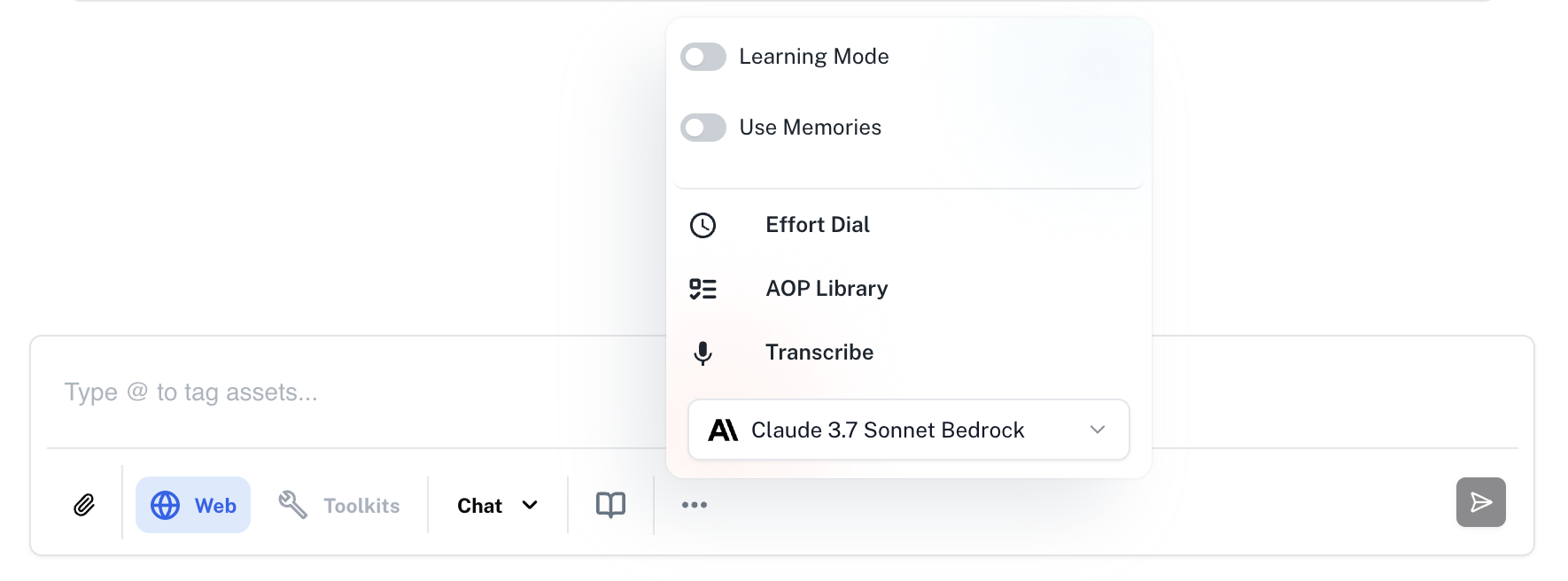
 ### Additional Options
1. **Learn Preferences** - Toggle this on for Athena to learn your preferences from your conversations, such as formatting styles, tone, and workflow patterns.
2. **Use Preferences** - Toggle this on for Athena to apply your learned preferences to personalize her responses and outputs.
3. **Effort Dial** - Have Athena execute a request for a dedicated period, making her spend a minimum amount of time thinking & processing before responding.
4. **AOP Library** - Use this button to view or create Agent Operating Procedures (AOPs) which enable Athena to dynamically execute multi-step workflows.
5. **Transcribe** - Use Athena Voice to give speech commands to Athena for her to transcribe and execute your requests.
6. **LLM Selector** - Choose from a wide range of LLMs based on the complexity of your task.
### Additional Options
1. **Learn Preferences** - Toggle this on for Athena to learn your preferences from your conversations, such as formatting styles, tone, and workflow patterns.
2. **Use Preferences** - Toggle this on for Athena to apply your learned preferences to personalize her responses and outputs.
3. **Effort Dial** - Have Athena execute a request for a dedicated period, making her spend a minimum amount of time thinking & processing before responding.
4. **AOP Library** - Use this button to view or create Agent Operating Procedures (AOPs) which enable Athena to dynamically execute multi-step workflows.
5. **Transcribe** - Use Athena Voice to give speech commands to Athena for her to transcribe and execute your requests.
6. **LLM Selector** - Choose from a wide range of LLMs based on the complexity of your task.