> ## Documentation Index
> Fetch the complete documentation index at: https://resources.athenaintel.com/llms.txt
> Use this file to discover all available pages before exploring further.
# Connecting Data
You can directly integrate your data into Athena by uploading files and folders from your computer.
You can also integrate various traditional data sources into Athena. Learn more on our [Integrations](/docs/connect-your-data/all-integrations) page.
Easily add your data to Athena by importing various assets including PDFs, documents, spreadsheets (Excel/CSV), and media files (video/audio), etc. through our simple upload interface.
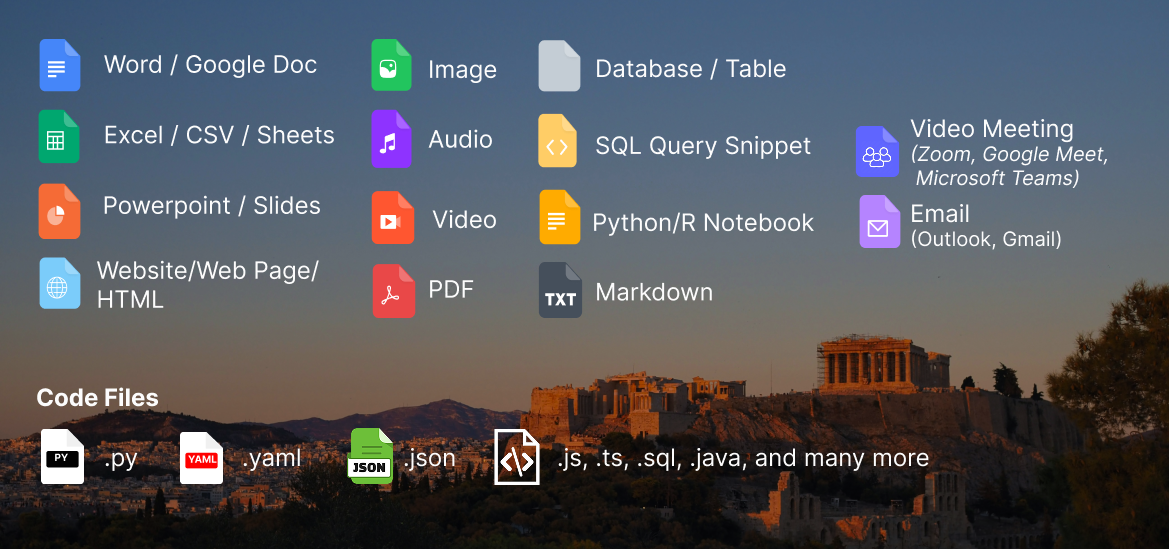
Athena supports the following assets:
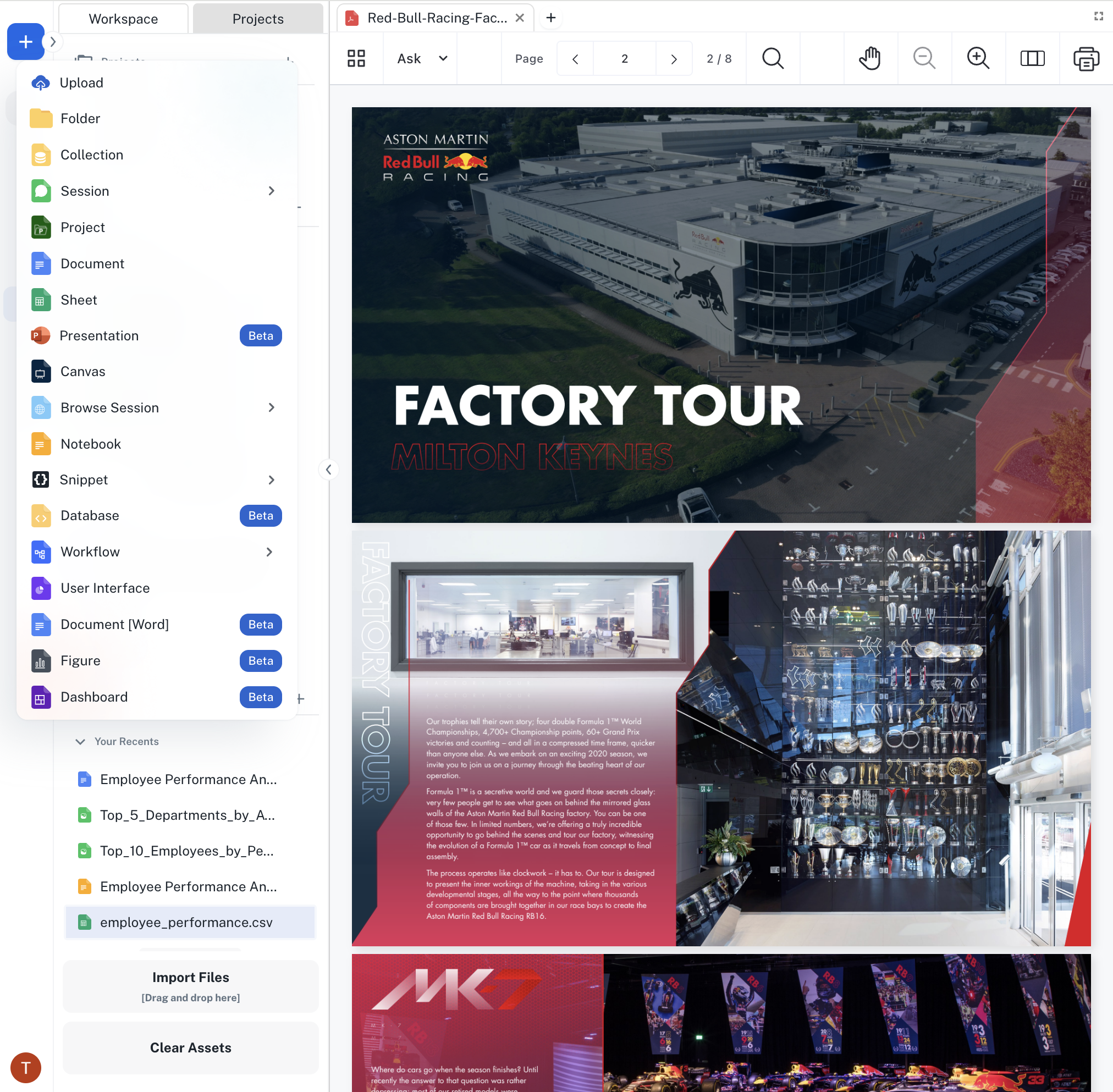
 Navigate to ***[Spaces](https://app.athenaintel.com/dashboard/workspaces/)***. Click on **Import Files** or **+ -> Upload**.
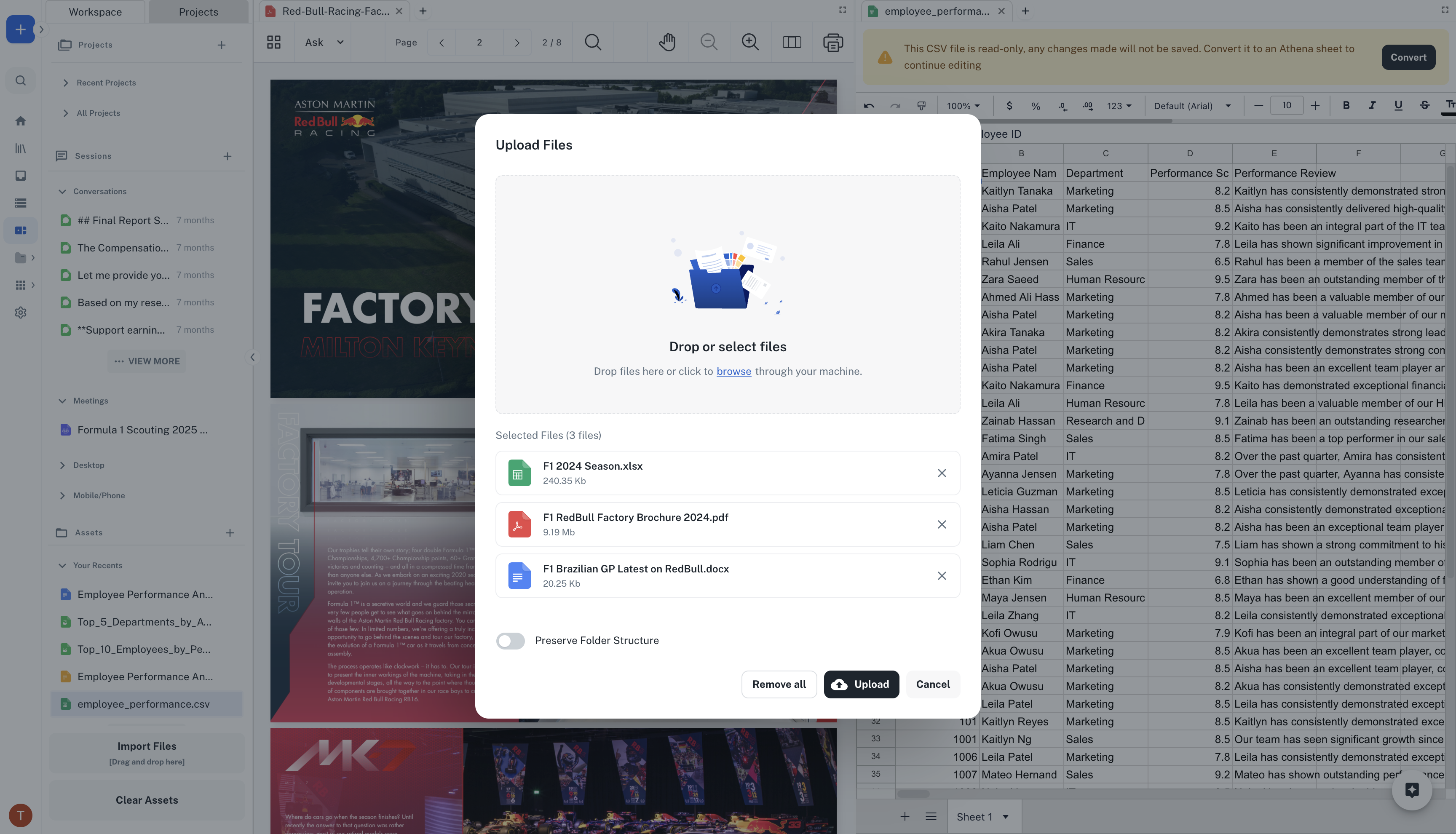
 Select files you wish to upload and click on **Upload**.
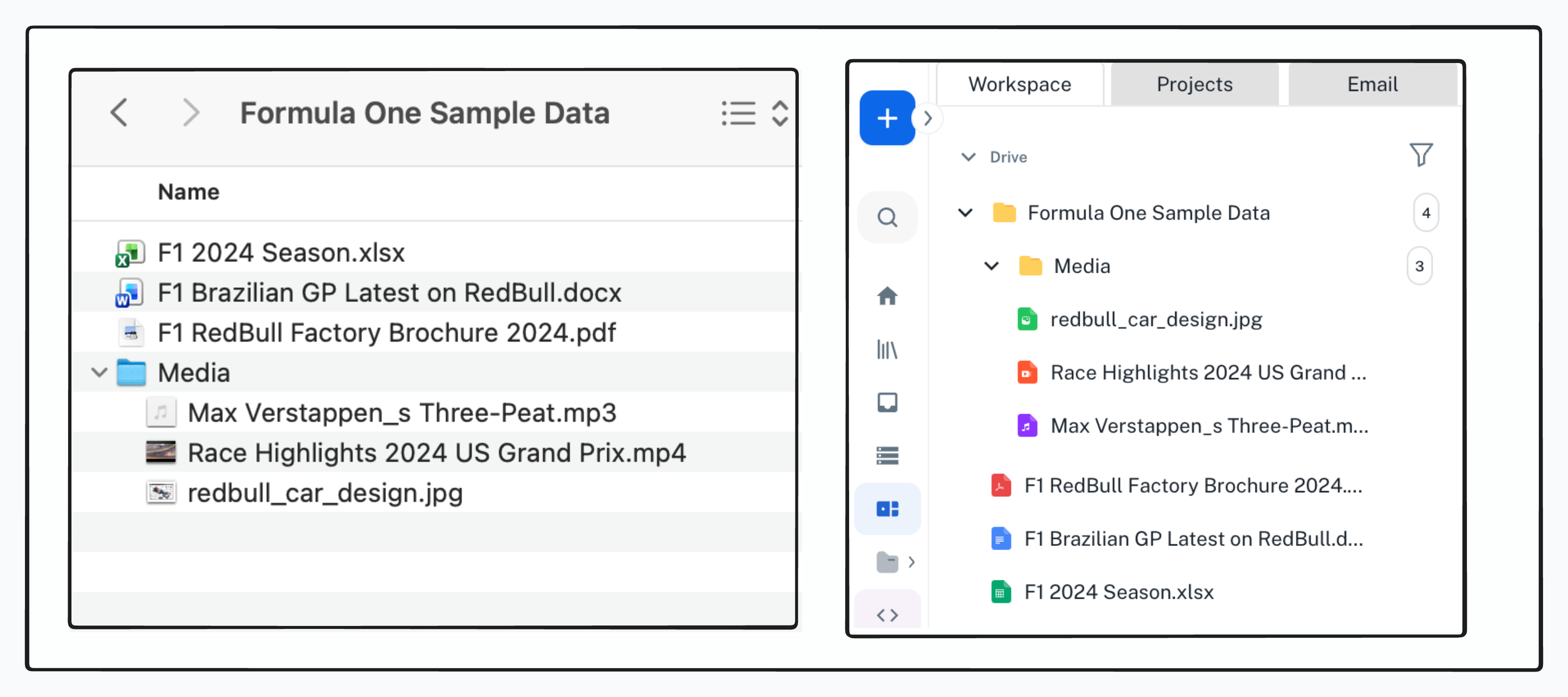
 Import a folder to Athena while preserving the complete directory structure.
 Navigate to ***[Spaces](https://app.athenaintel.com/dashboard/workspaces/)***. Click on **Import Files** or **+ -> Upload**. Toggle the **Preserve Folder Structure** button.
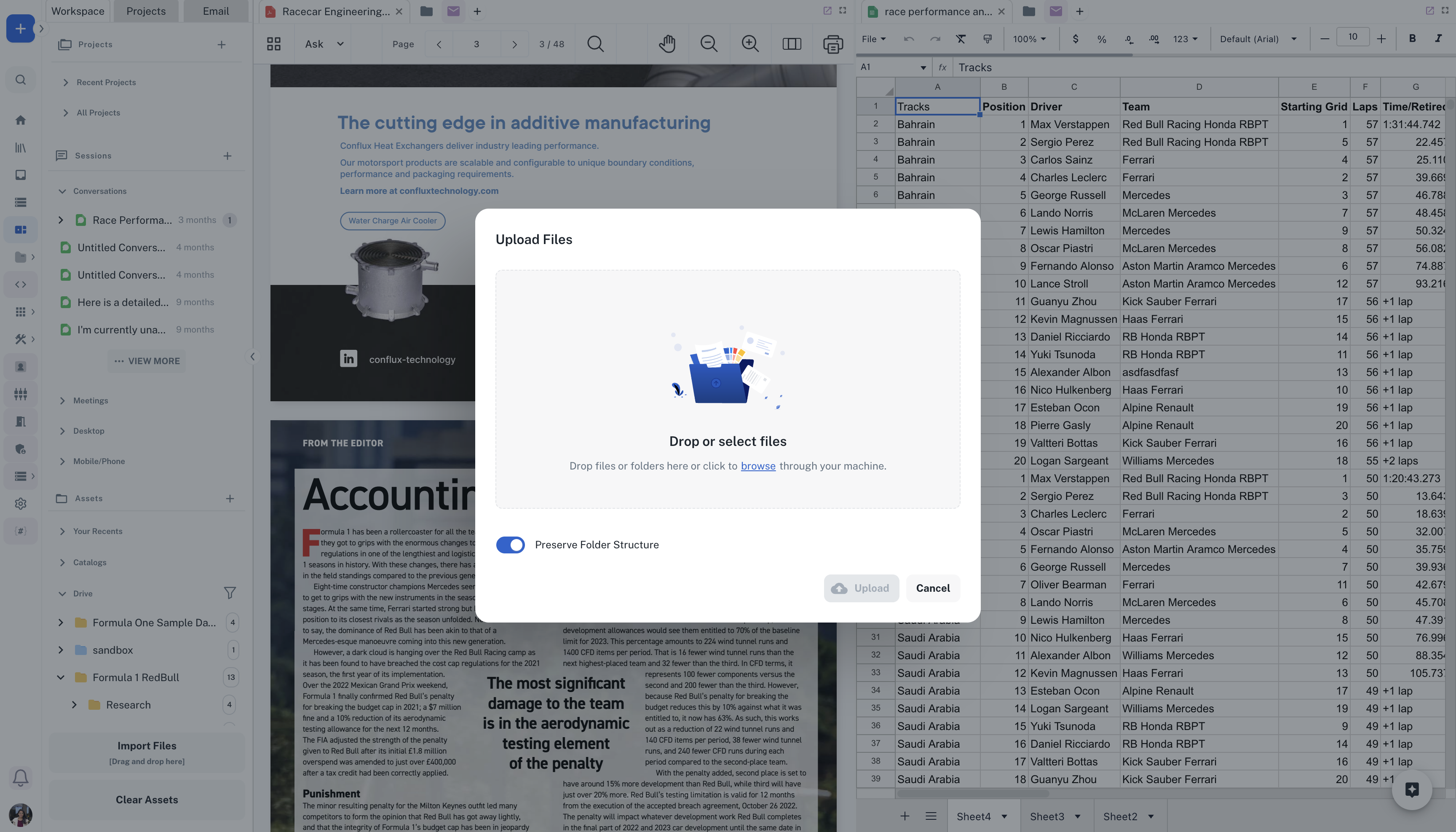 Select the folder you wish to upload and click on **Upload**.
The folder structure is preserved when you upload folders to Athena.
Learn how to [interact with your folders and files inside Spaces](/docs/pillars/concepts/spaces-and-assets)!
Select the folder you wish to upload and click on **Upload**.
The folder structure is preserved when you upload folders to Athena.
Learn how to [interact with your folders and files inside Spaces](/docs/pillars/concepts/spaces-and-assets)!