> ## Documentation Index
> Fetch the complete documentation index at: https://resources.athenaintel.com/llms.txt
> Use this file to discover all available pages before exploring further.
# SharePoint
Integrating Microsoft SharePoint with Athena allows enterprises to efficiently manage and access a wide range of documents and data stored within their SharePoint sites directly within Athena. This powerful integration enables Athena to interact with your organization's SharePoint content, providing seamless access to important files such as Word documents, Excel spreadsheets, PDFs, PowerPoint presentations, and plaintext files.
## What You Can Do with Sharepoint Integration
Once connected, Athena can:
* Search and retrieve documents from your SharePoint sites
* Access and analyze files stored in SharePoint libraries
* Answer questions based on SharePoint document content
* Provide insights from your organization's SharePoint data
* Collaborate on SharePoint files within the Athena workspace
Note that the same permissions defined on your SharePoint site apply to the Athena SharePoint integration.
## Security & Privacy
The SharePoint integration is built with enterprise security and per-user data isolation in mind:
* **Per-user authorization**: Each user connects their own Microsoft account individually via OAuth 2.0. Athena does **not** gain access to any user's SharePoint data unless that specific user has explicitly authorized the connection.
* **User-scoped access**: Files and documents retrieved through the integration respect your existing SharePoint permissions. Users can only access content they are already authorized to view in SharePoint.
* **No bulk data extraction**: Athena does not copy or permanently store the contents of your SharePoint libraries. Documents are accessed on demand when you interact with Athena.
* **OAuth 2.0 authentication**: The connection uses industry-standard OAuth 2.0 flows through Microsoft, meaning Athena never sees or stores your Microsoft password.
* **Revocable at any time**: Users can disconnect their SharePoint account from Athena at any time, immediately revoking access.
### Workspace Owner Controls
Workspace owners and administrators can manage SharePoint connectivity across their organization:
* **Restrict SharePoint integration**: Workspace owners can disable the SharePoint integration for the entire workspace, preventing any member from connecting their SharePoint account.
* **Enforce organizational policies**: Organizations can leverage Azure AD admin consent to control whether users are permitted to authorize Athena's SharePoint access.
* **Monitor connections**: Administrators can view which users have active SharePoint connections within the workspace.
For enterprise deployments requiring admin-managed app registration (rather than per-user OAuth), see the [Enterprise SharePoint Setup](/docs/connect-your-data/o365) guide.
## Step-by-step instructions
Follow the steps below to connect your SharePoint to Athena:
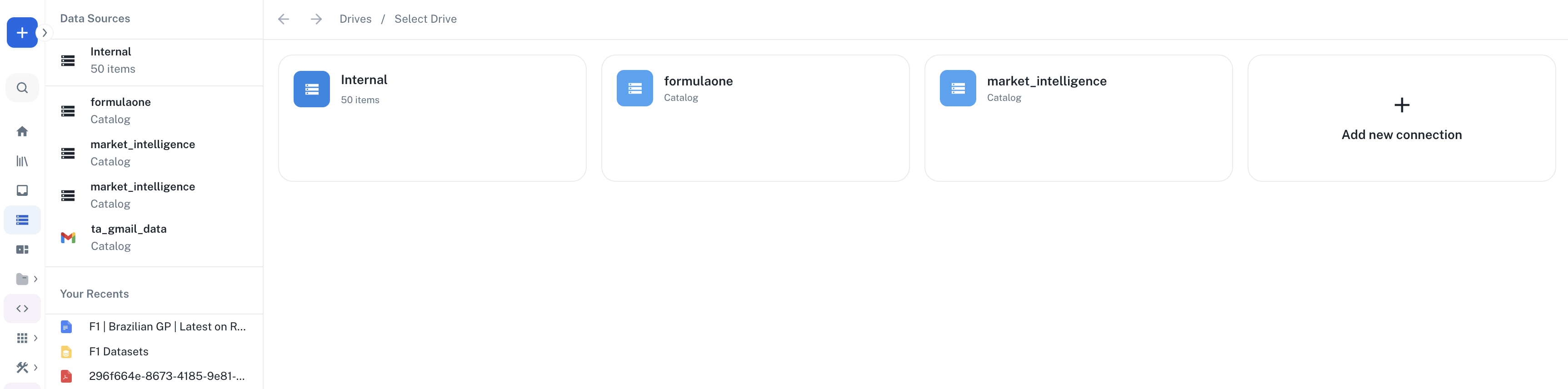
Navigate to [**Drive**](https://app.athenaintel.com/dashboard/drive/) from the applications sidebar on the left.
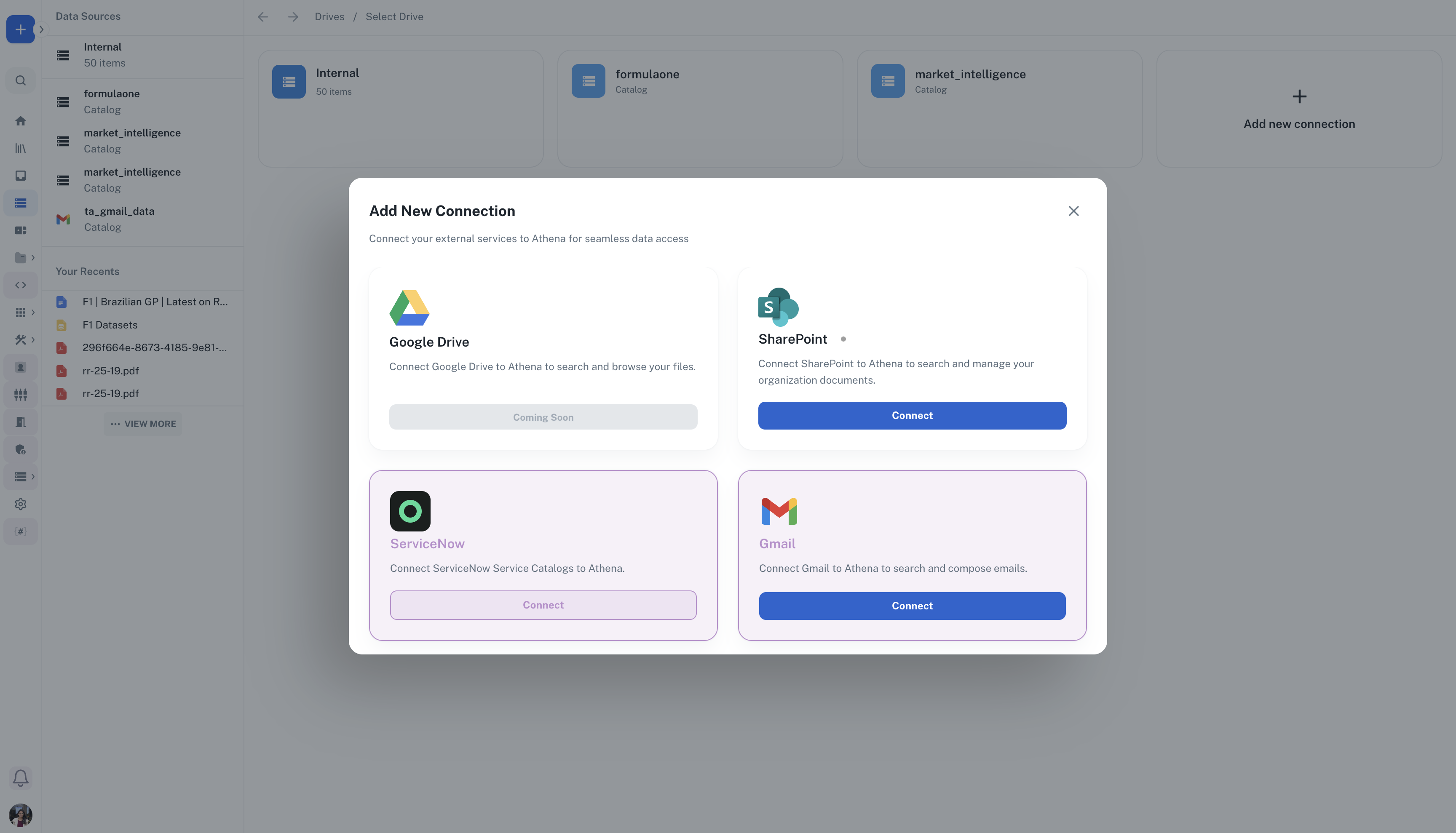
 Click on the **Add New Connection** button. Then click on the **Connect** button under **SharePoint**.
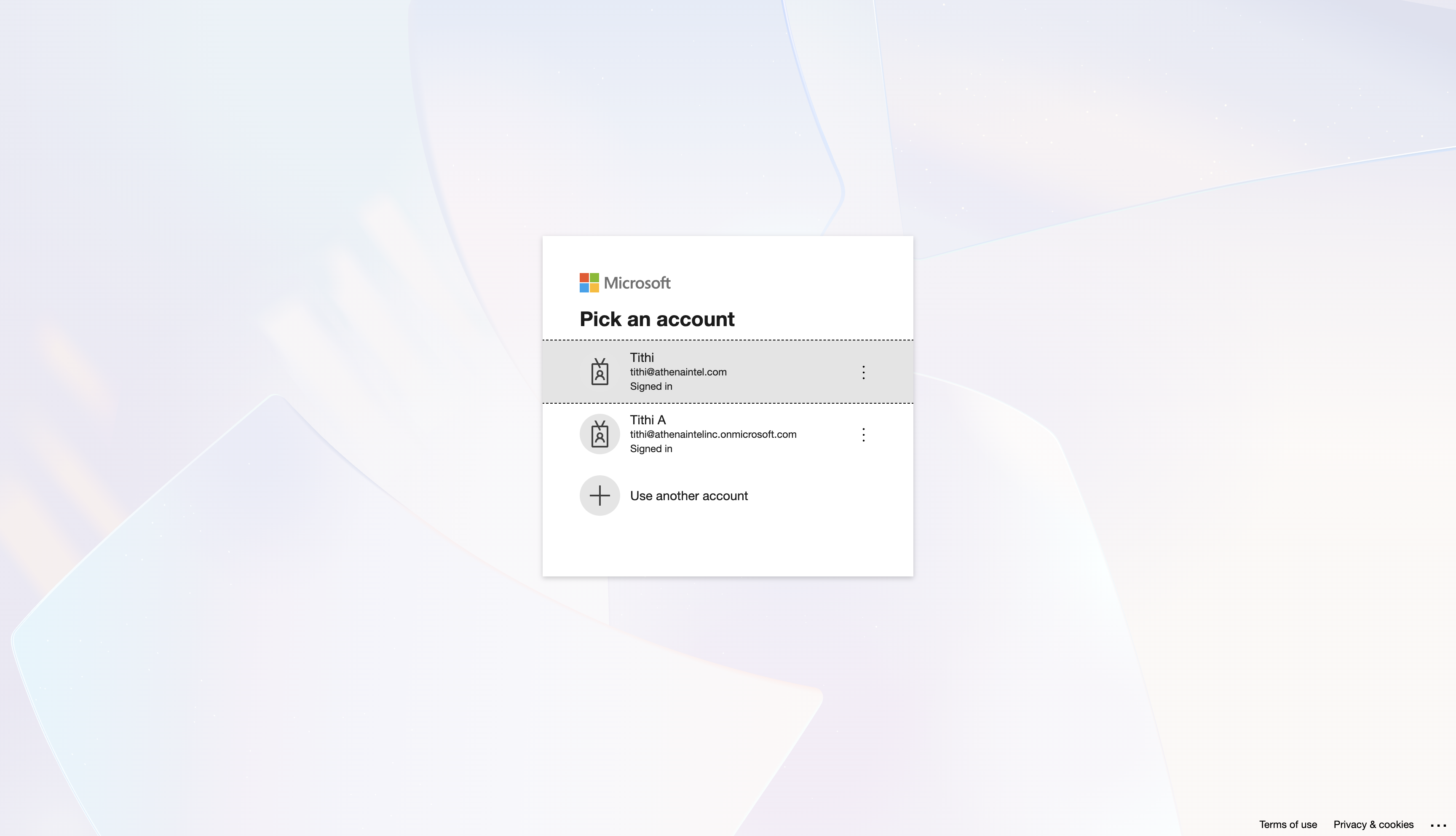
 Select the account for which you want to connect your SharePoint to Athena.
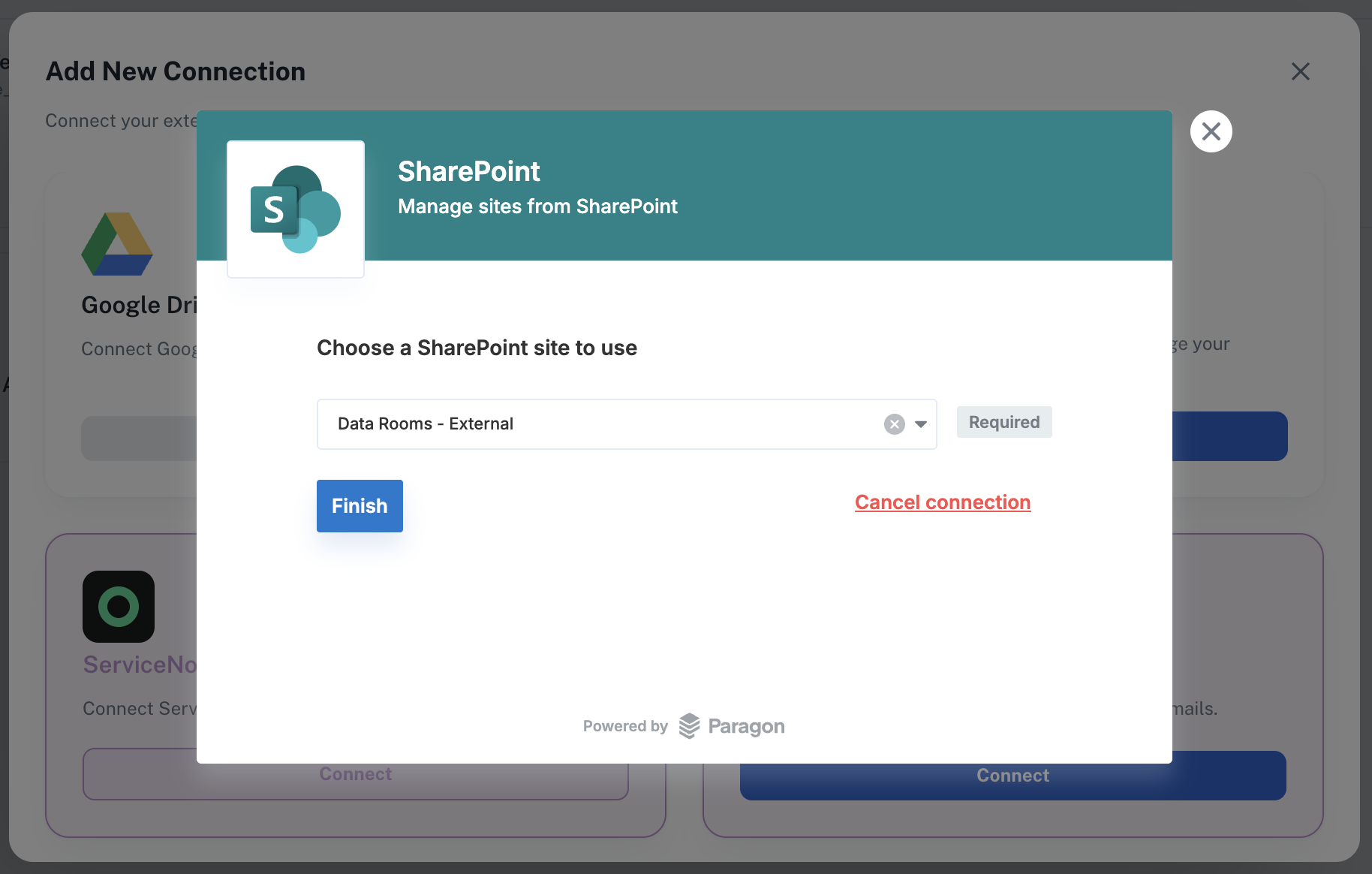
 Once your connection is successful, you'll be able to choose a site to connect from the dropdown as shown. Select the site you would want to connect and click on **Finish**.
Note that you can connect multiple sites to Athena by following the same process and adding another site.
Once your connection is successful, you'll be able to choose a site to connect from the dropdown as shown. Select the site you would want to connect and click on **Finish**.
Note that you can connect multiple sites to Athena by following the same process and adding another site.
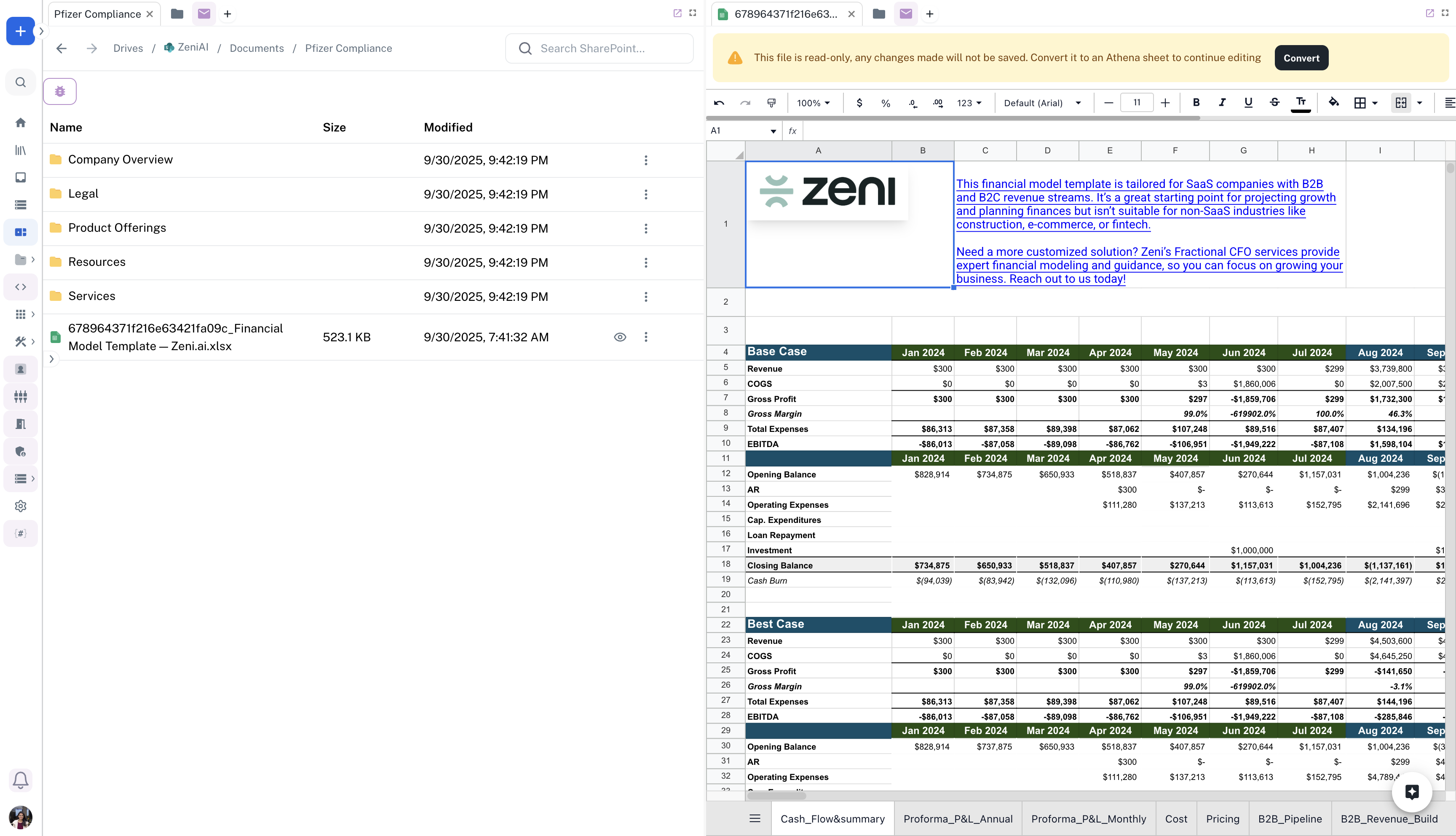
 Your SharePoint site is now ready to use. You can open any asset from your SharePoint asset directly as a Live Asset and interact with using Athena.
Learn more about [Live Assets](https://resources.athenaintel.com/docs/concepts/spaces-and-assets#live-assets).
Your SharePoint site is now ready to use. You can open any asset from your SharePoint asset directly as a Live Asset and interact with using Athena.
Learn more about [Live Assets](https://resources.athenaintel.com/docs/concepts/spaces-and-assets#live-assets).
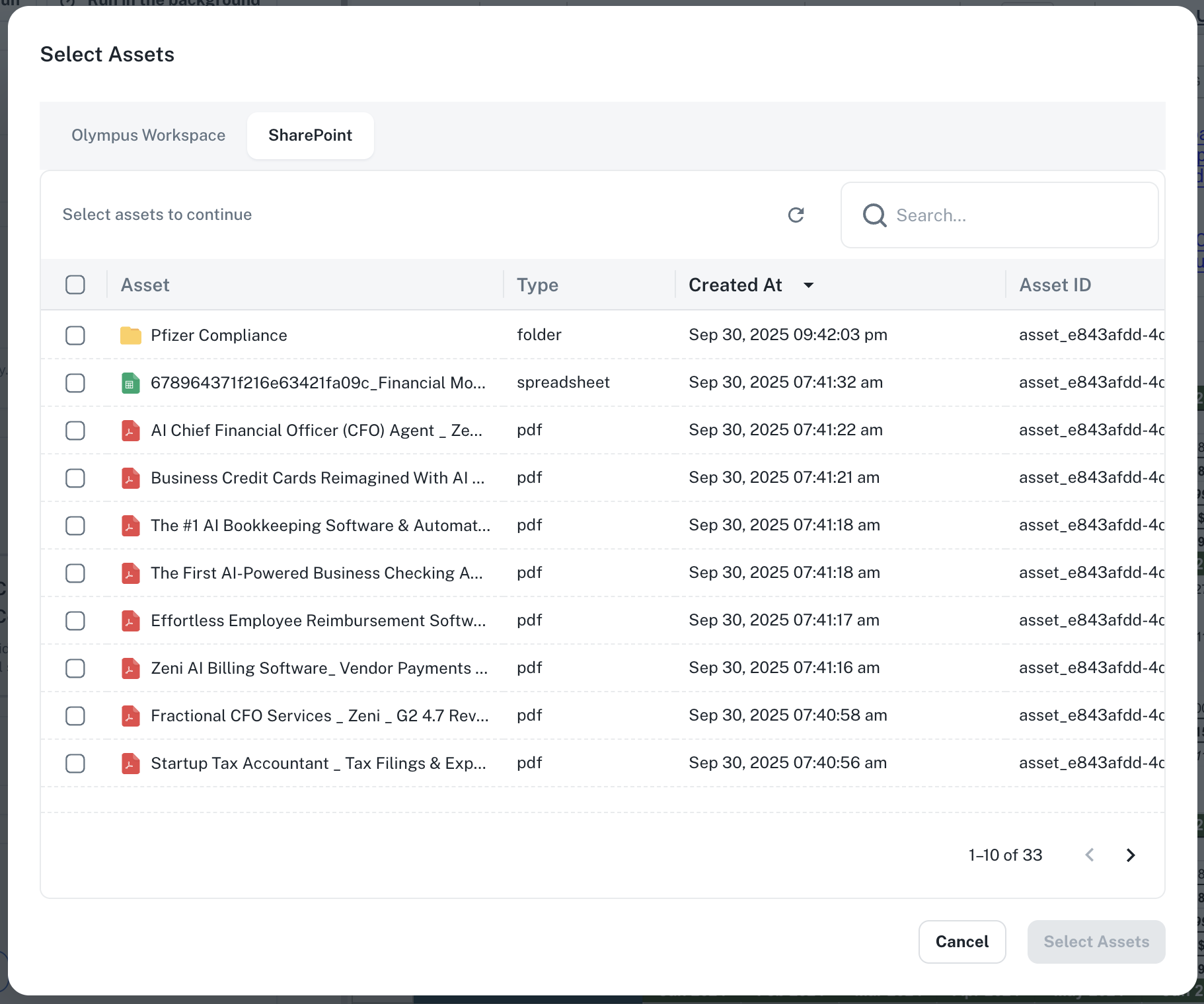
 You can easily search for files in your SharePoint by hitting Cmd+K (iOS) or Ctrl+K (Windows) and switching to the SharePoint tab.
You can also use the @Search SharePoint tool directly in chat to find any files from your SharePoint.
You can easily search for files in your SharePoint by hitting Cmd+K (iOS) or Ctrl+K (Windows) and switching to the SharePoint tab.
You can also use the @Search SharePoint tool directly in chat to find any files from your SharePoint.
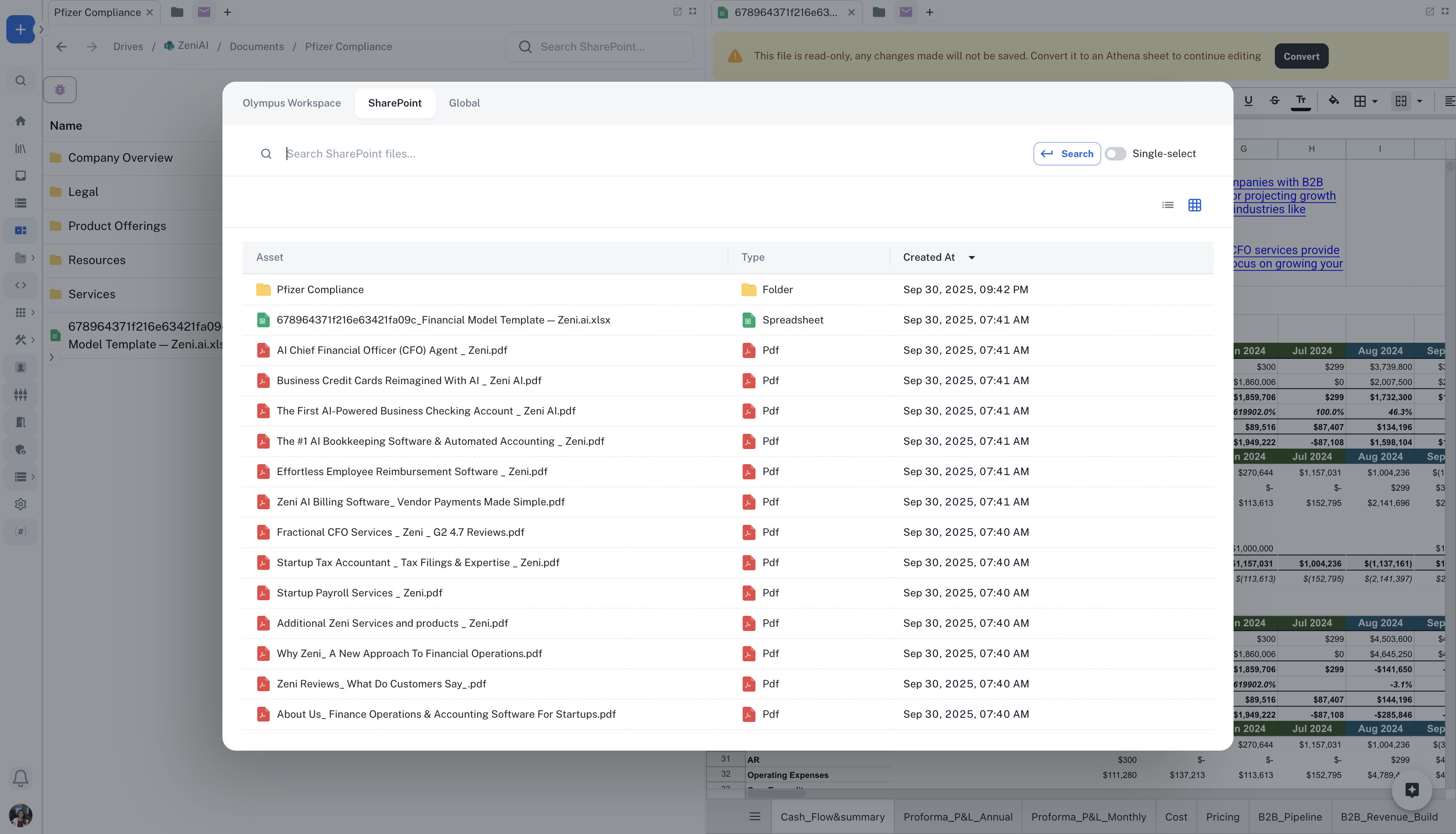 Select any AOP that you want to run and switch to the SharePoint tab to select a file directly from SharePoint to be used as an input for the AOP.