> ## Documentation Index
> Fetch the complete documentation index at: https://resources.athenaintel.com/llms.txt
> Use this file to discover all available pages before exploring further.
# SharePoint
Integrating Microsoft SharePoint with Athena allows enterprises to efficiently manage and access a wide range of documents and data stored within their SharePoint sites directly within Athena. This powerful integration enables your AI assistant to interact with your organization's SharePoint content, providing seamless access to important files such as Word documents, Excel spreadsheets, PDFs, PowerPoint presentations, and plaintext files.
## What You Can Do with SharePoint Integration
Once connected, Athena can:
* Search and retrieve documents from your SharePoint sites
* Access and analyze files stored in SharePoint libraries
* Answer questions based on SharePoint document content
* Provide insights from your organization's SharePoint data
* Collaborate on SharePoint files within the Athena workspace
 ## Overview
The SharePoint integration process involves two main phases:
1. **Authorization**: Setting up an Azure App Registration to grant Athena secure access to your SharePoint sites
2. **Indexing**: Connecting your SharePoint sites to Athena and selecting which sites to sync
## Prerequisites
Before you begin, ensure you have:
* Administrator access to your organization's Azure Portal
* Administrator access to your SharePoint sites
* Permission to create Azure App Registrations
* Access to your Athena workspace
## Part 1: Azure App Registration (Authorization)
To enable Athena to securely access your SharePoint sites, you need to create an Azure App Registration. This process grants Athena the necessary permissions to read your SharePoint content.
Navigate to the [Azure Portal](https://portal.azure.com) and sign in with your organization's administrator account.
* In the Azure Portal, use the search bar at the top to search for **App registrations**
* Click on **App registrations** in the search results
* Click **New Registration** at the top of the page
* Enter a descriptive name for your app (e.g., "Athena SharePoint Integration")
* Leave all other settings as default
* Click **Register** to create the app
After registration, you'll be taken to the app's Overview page. Under the **Essentials** section, you'll find two important values:
* **Application (client) ID**: Copy and save this value
* **Directory (tenant) ID**: Copy and save this value
You'll need these credentials later when connecting SharePoint to Athena.
* In the left sidebar, navigate to **Certificates & secrets**
* Click on the **Client secrets** tab
* Click **New client secret**
* Enter a description (e.g., "Athena Integration Secret")
* Set the expiration period (recommended: 24 months)
* Click **Add**
* **Important**: Immediately copy the secret **Value** from the Value column and save it securely. This value will only be shown once and cannot be retrieved later.
* In the left sidebar, navigate to **API permissions**
* Click **Add a permission**
* Select **Microsoft Graph**
* Choose **Application permissions** (not Delegated permissions)
* Expand the **Sites** permission group
* Select the checkbox for **Sites.Read.All**
**Permission Options:**
* **Sites.Read.All**: Grants access to all SharePoint sites in your organization (recommended for most use cases)
* **Sites.Selected**: Grants access only to specific sites you designate (use this if you want to limit access to specific sites)
If you choose Sites.Selected, you'll need to manually add the app to each SharePoint site you want Athena to access.
* Click **Add permissions** to save
* Click **Grant admin consent for \[Your Organization]** (located next to the "Add a permission" button)
* Click **Yes** to confirm the admin consent
You should see a green checkmark appear in the Status column, indicating that admin consent has been granted.
## Part 2: Connect SharePoint to Athena (Indexing)
Now that you've created the Azure App Registration, you can connect your SharePoint sites to Athena.
* Log in to your Athena workspace at [app.athenaintel.com](https://app.athenaintel.com)
* Navigate to [Integrations](https://app.athenaintel.com/dashboard/integrations/) from the settings menu
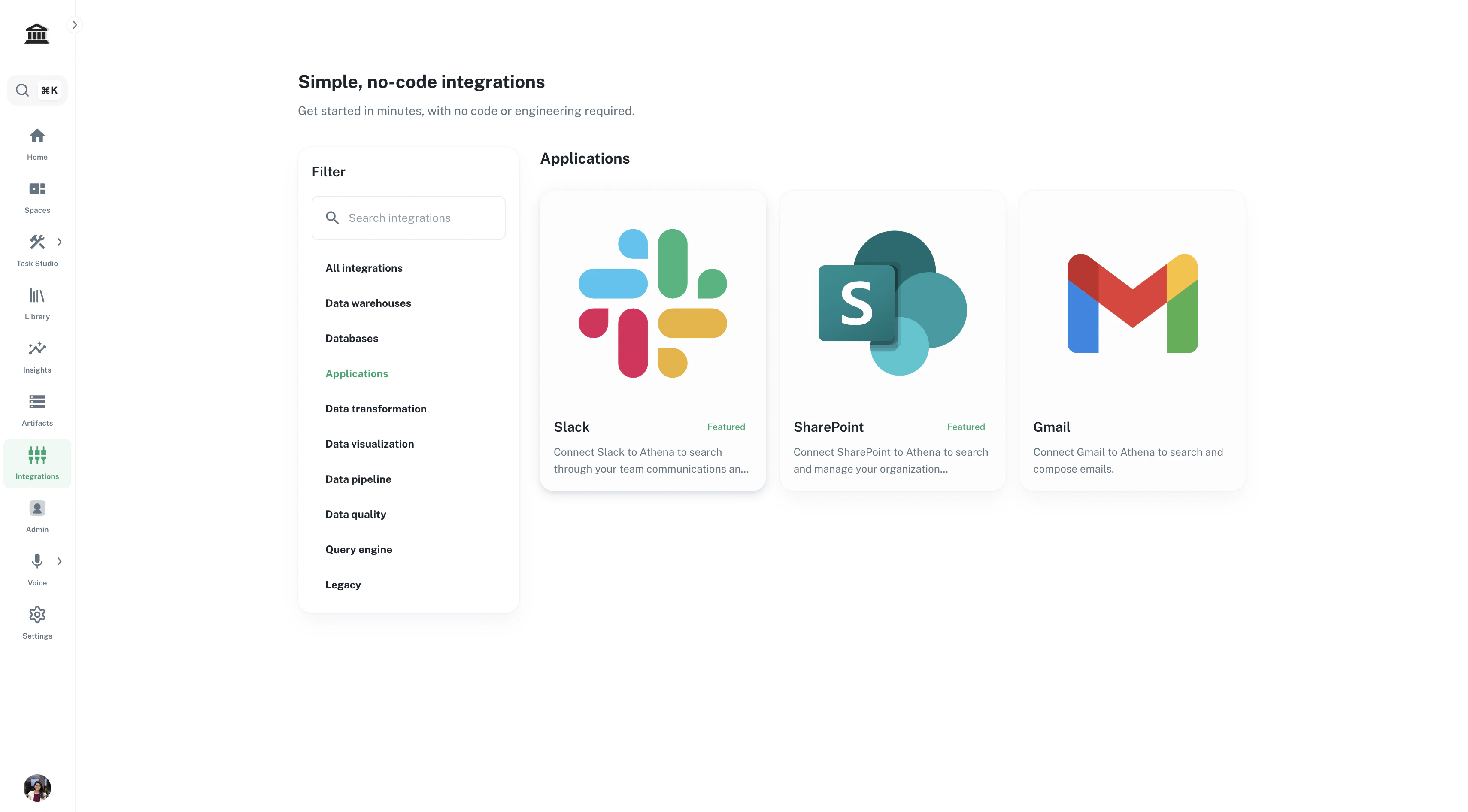
* Scroll down to find **SharePoint** in the Applications section
* Click the **Connect** button on the SharePoint card
## Overview
The SharePoint integration process involves two main phases:
1. **Authorization**: Setting up an Azure App Registration to grant Athena secure access to your SharePoint sites
2. **Indexing**: Connecting your SharePoint sites to Athena and selecting which sites to sync
## Prerequisites
Before you begin, ensure you have:
* Administrator access to your organization's Azure Portal
* Administrator access to your SharePoint sites
* Permission to create Azure App Registrations
* Access to your Athena workspace
## Part 1: Azure App Registration (Authorization)
To enable Athena to securely access your SharePoint sites, you need to create an Azure App Registration. This process grants Athena the necessary permissions to read your SharePoint content.
Navigate to the [Azure Portal](https://portal.azure.com) and sign in with your organization's administrator account.
* In the Azure Portal, use the search bar at the top to search for **App registrations**
* Click on **App registrations** in the search results
* Click **New Registration** at the top of the page
* Enter a descriptive name for your app (e.g., "Athena SharePoint Integration")
* Leave all other settings as default
* Click **Register** to create the app
After registration, you'll be taken to the app's Overview page. Under the **Essentials** section, you'll find two important values:
* **Application (client) ID**: Copy and save this value
* **Directory (tenant) ID**: Copy and save this value
You'll need these credentials later when connecting SharePoint to Athena.
* In the left sidebar, navigate to **Certificates & secrets**
* Click on the **Client secrets** tab
* Click **New client secret**
* Enter a description (e.g., "Athena Integration Secret")
* Set the expiration period (recommended: 24 months)
* Click **Add**
* **Important**: Immediately copy the secret **Value** from the Value column and save it securely. This value will only be shown once and cannot be retrieved later.
* In the left sidebar, navigate to **API permissions**
* Click **Add a permission**
* Select **Microsoft Graph**
* Choose **Application permissions** (not Delegated permissions)
* Expand the **Sites** permission group
* Select the checkbox for **Sites.Read.All**
**Permission Options:**
* **Sites.Read.All**: Grants access to all SharePoint sites in your organization (recommended for most use cases)
* **Sites.Selected**: Grants access only to specific sites you designate (use this if you want to limit access to specific sites)
If you choose Sites.Selected, you'll need to manually add the app to each SharePoint site you want Athena to access.
* Click **Add permissions** to save
* Click **Grant admin consent for \[Your Organization]** (located next to the "Add a permission" button)
* Click **Yes** to confirm the admin consent
You should see a green checkmark appear in the Status column, indicating that admin consent has been granted.
## Part 2: Connect SharePoint to Athena (Indexing)
Now that you've created the Azure App Registration, you can connect your SharePoint sites to Athena.
* Log in to your Athena workspace at [app.athenaintel.com](https://app.athenaintel.com)
* Navigate to [Integrations](https://app.athenaintel.com/dashboard/integrations/) from the settings menu
* Scroll down to find **SharePoint** in the Applications section
* Click the **Connect** button on the SharePoint card
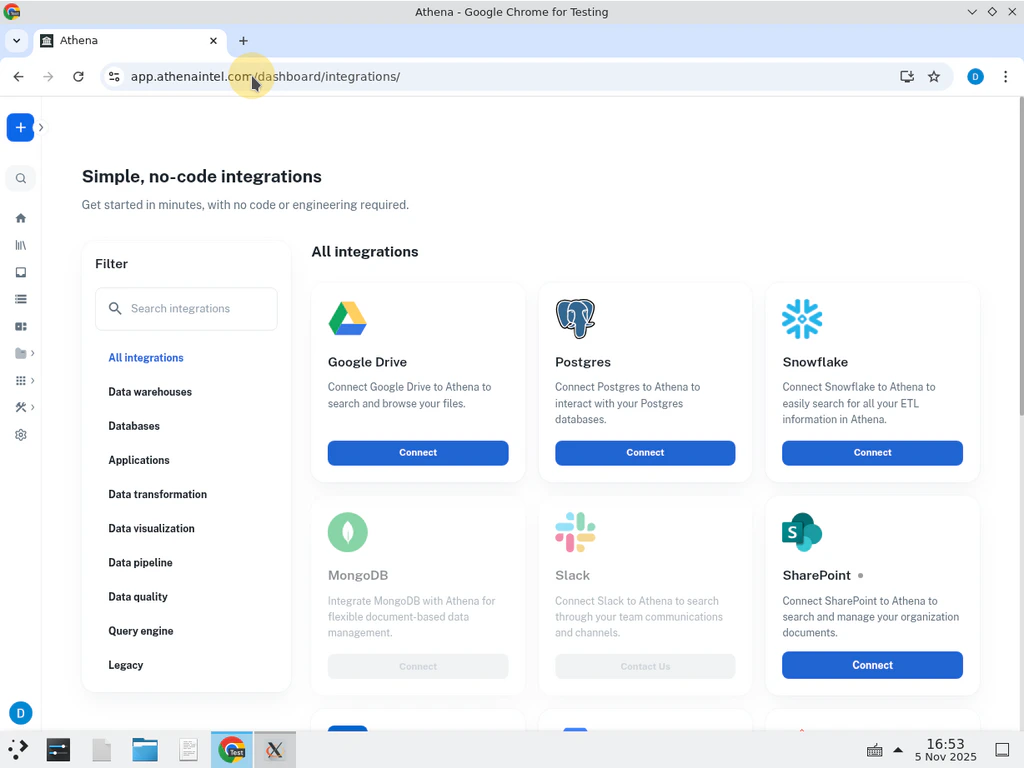 A connection dialog will appear. Enter the three credentials you saved from the Azure App Registration:
* **Application (client) ID**: Paste the Application ID from Azure
* **Directory (tenant) ID**: Paste the Directory ID from Azure
* **Client Secret Value**: Paste the secret value you copied from Azure
A connection dialog will appear. Enter the three credentials you saved from the Azure App Registration:
* **Application (client) ID**: Paste the Application ID from Azure
* **Directory (tenant) ID**: Paste the Directory ID from Azure
* **Client Secret Value**: Paste the secret value you copied from Azure
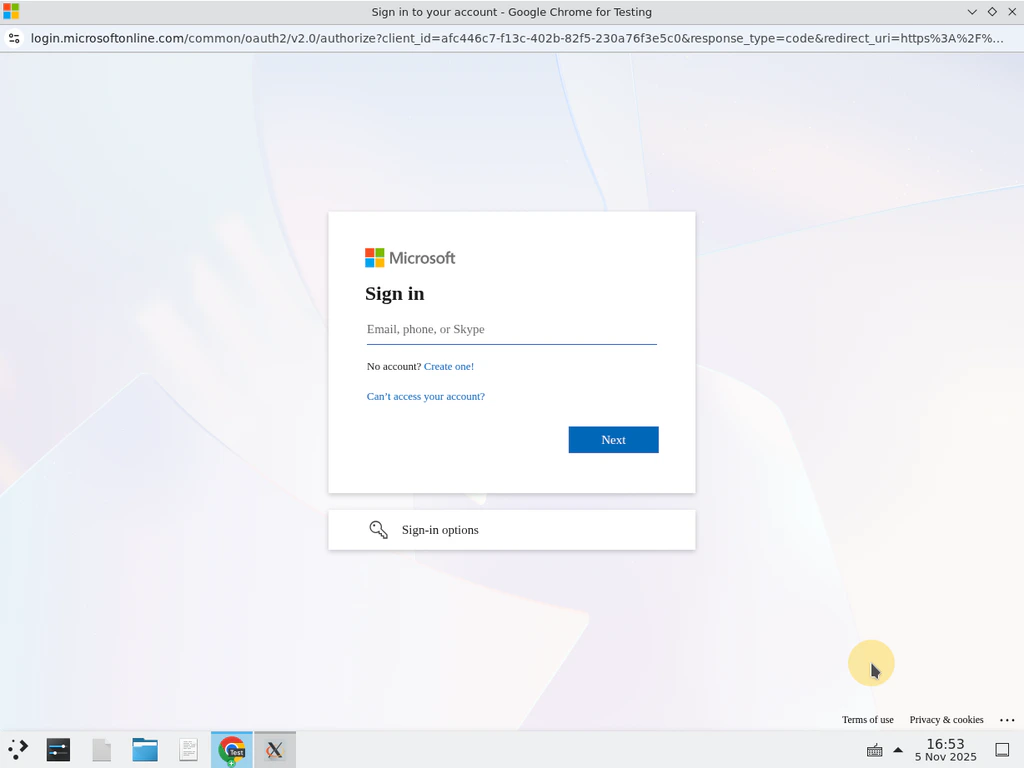 After authentication, you can choose which SharePoint sites to sync with Athena:
* **Sync all sites**: Leave the site list blank to automatically sync all SharePoint sites in your organization
* **Sync specific sites**: Enter a comma-separated list of specific SharePoint site URLs you want to sync
**When to use specific sites:**
* If you selected **Sites.Selected** permission in Azure, you must specify the sites here
* If you want to limit the scope of data accessible to Athena
* If you have a large number of sites and only need specific ones
Click **Connect** to complete the integration.
Once connected, Athena will begin indexing your SharePoint content. This process may take a few minutes depending on the amount of data.
You can verify the connection by:
* Checking the Integrations page for a "Connected" status on SharePoint
* Navigating to your Spaces and looking for the SharePoint catalog in your Drive
* Searching for SharePoint documents in Athena Chat
## Using SharePoint Content in Athena
Once your SharePoint integration is complete, you can access your SharePoint content directly within Athena:
### Accessing SharePoint Files
Your SharePoint sites will appear as a catalog in your Athena workspace:
After authentication, you can choose which SharePoint sites to sync with Athena:
* **Sync all sites**: Leave the site list blank to automatically sync all SharePoint sites in your organization
* **Sync specific sites**: Enter a comma-separated list of specific SharePoint site URLs you want to sync
**When to use specific sites:**
* If you selected **Sites.Selected** permission in Azure, you must specify the sites here
* If you want to limit the scope of data accessible to Athena
* If you have a large number of sites and only need specific ones
Click **Connect** to complete the integration.
Once connected, Athena will begin indexing your SharePoint content. This process may take a few minutes depending on the amount of data.
You can verify the connection by:
* Checking the Integrations page for a "Connected" status on SharePoint
* Navigating to your Spaces and looking for the SharePoint catalog in your Drive
* Searching for SharePoint documents in Athena Chat
## Using SharePoint Content in Athena
Once your SharePoint integration is complete, you can access your SharePoint content directly within Athena:
### Accessing SharePoint Files
Your SharePoint sites will appear as a catalog in your Athena workspace:
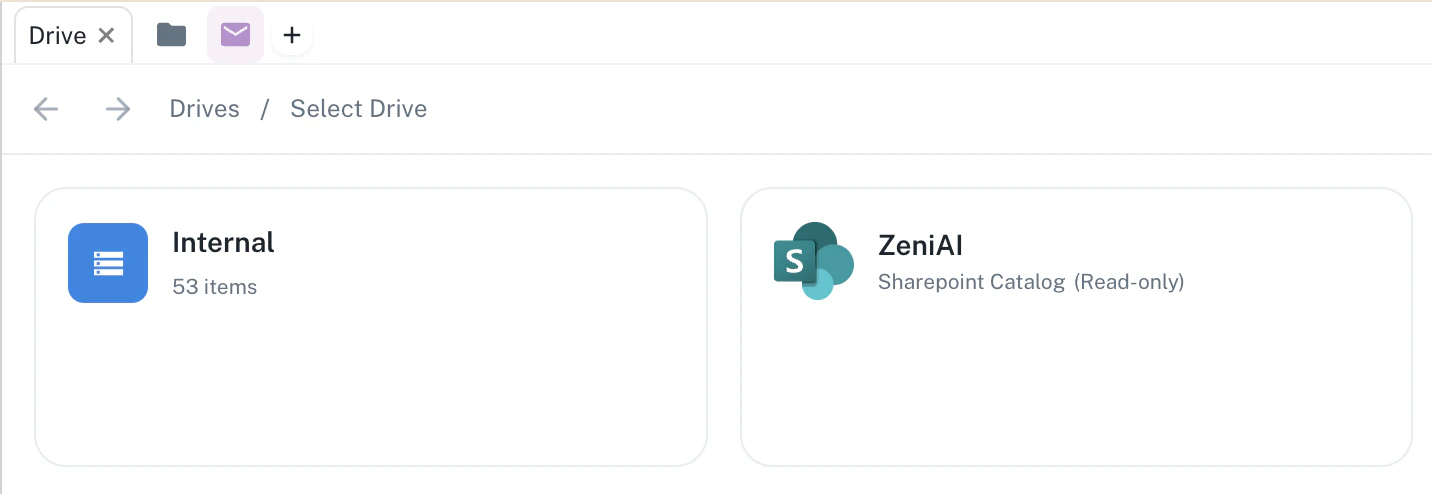 You can browse through your SharePoint sites and access files just like you would in SharePoint, but with the added power of Athena's AI capabilities.
### Searching SharePoint Content
Use Athena's search functionality to find documents across all your connected SharePoint sites:
You can browse through your SharePoint sites and access files just like you would in SharePoint, but with the added power of Athena's AI capabilities.
### Searching SharePoint Content
Use Athena's search functionality to find documents across all your connected SharePoint sites:
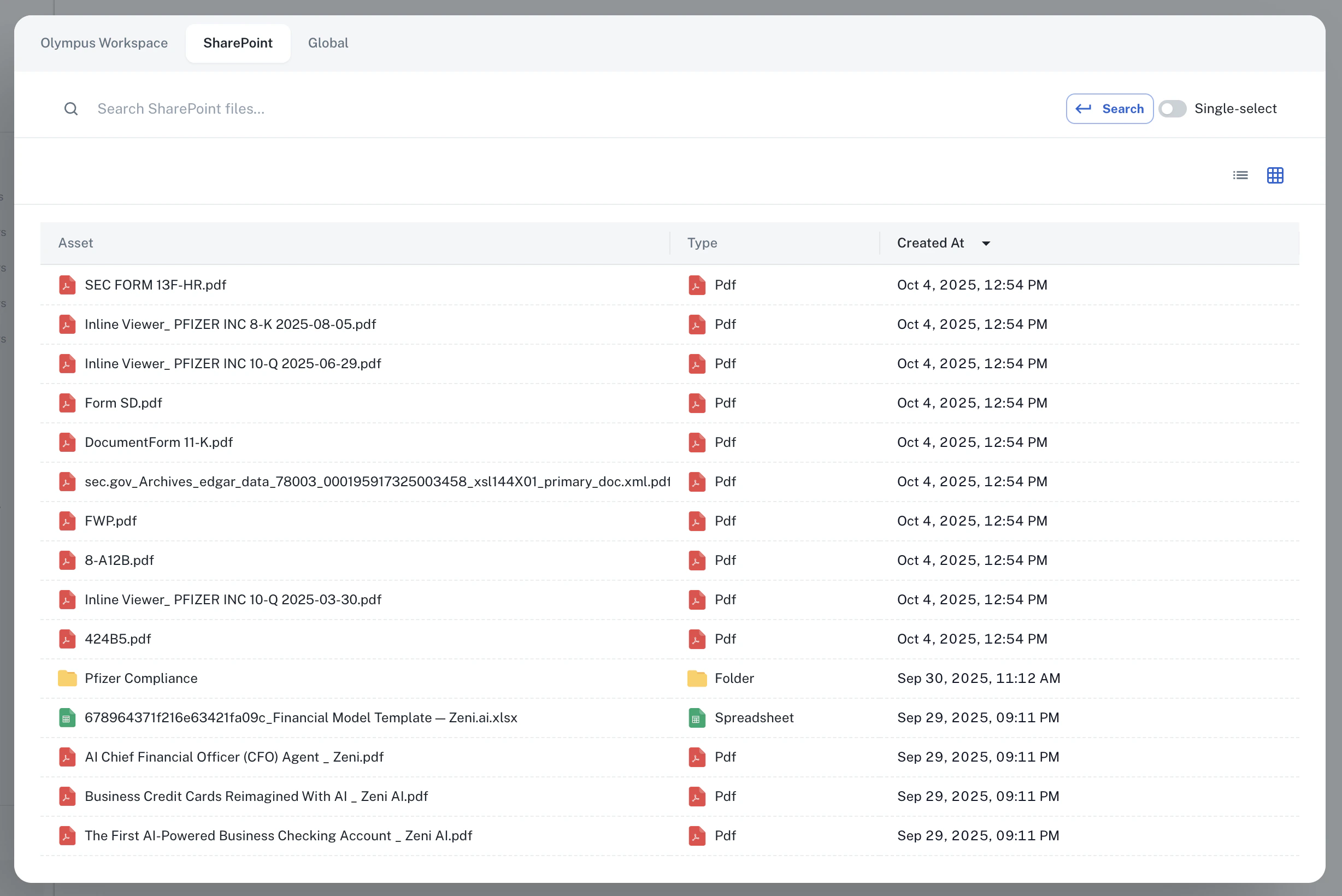 Athena can search through the content of your SharePoint files, making it easy to find information even if you don't remember the exact file name or location.
### Asking Questions About SharePoint Documents
In Athena Chat, you can ask questions about your SharePoint content:
* "Summarize the Q4 financial report from SharePoint"
* "What are the key points in the project proposal document?"
* "Find all documents related to the marketing campaign"
* "Compare the data in these two SharePoint spreadsheets"
Athena will analyze your SharePoint documents and provide intelligent responses based on the content.
## Troubleshooting
### Connection Issues
If you encounter issues connecting SharePoint to Athena:
* **Verify credentials**: Double-check that you copied the Application ID, Directory ID, and Client Secret correctly from Azure
* **Check permissions**: Ensure admin consent was granted for the API permissions in Azure
* **Secret expiration**: If your client secret has expired, create a new one in Azure and update the connection in Athena
* **Network access**: Ensure your organization's firewall allows connections to Athena's services
### Missing Sites or Files
If you don't see expected SharePoint sites or files in Athena:
* **Permission scope**: Verify you selected the correct permission scope (Sites.Read.All vs Sites.Selected) in Azure
* **Site selection**: If using Sites.Selected, ensure you specified the correct site URLs when connecting
* **Indexing time**: Large SharePoint libraries may take time to fully index. Wait a few minutes and refresh
* **File types**: Ensure the files you're looking for are supported types (Word, Excel, PDF, PowerPoint, text files)
### Need Help?
If you continue to experience issues with your SharePoint integration, contact the Athena support team at [team@athenaintel.com](mailto:team@athenaintel.com) for assistance.
## Security and Compliance
The SharePoint integration is designed with enterprise security in mind:
* **Secure authentication**: Uses OAuth 2.0 and Azure App Registration for secure, token-based authentication
* **Read-only access**: Athena only requests read permissions to your SharePoint content
* **Encrypted data**: All data transmitted between SharePoint and Athena is encrypted in transit
* **Compliance**: The integration supports organizations with SOC 2, GDPR, and other compliance requirements
* **Access control**: You maintain full control over which sites and files Athena can access through Azure permissions
### Per-User Data Isolation
Even though this enterprise setup uses a shared Azure App Registration with Application-level permissions, data access within Athena remains user-scoped:
* **Individual user context**: Each user's interactions with SharePoint content within Athena are scoped to their own session. One user's queries and retrieved documents are not visible to other workspace members unless explicitly shared.
* **Application-level vs. user-level access**: Because the Azure App Registration uses Application permissions (e.g., `Sites.Read.All`), the app itself has broad read access at the Microsoft Graph API level. Athena enforces user-level data separation at the application layer — limiting each user's visibility to the sites selected during setup. For organizations that require Microsoft-enforced per-user permissions, consider using the [per-user OAuth SharePoint integration](/docs/connect-your-data/sharepoint) instead, which uses Delegated permissions tied to each individual user's Microsoft account.
* **No cross-user data leakage**: Documents retrieved for one user are not cached or made available to other users in the workspace.
### Workspace Owner Controls
Workspace owners and administrators have granular control over the SharePoint integration:
* **Restrict SharePoint access**: Workspace owners can disable the SharePoint integration for the entire workspace, preventing any member from accessing SharePoint content through Athena.
* **Control site scope**: Administrators decide which SharePoint sites are synced with Athena during setup — unselected sites remain inaccessible.
* **Revoke at any time**: The Azure App Registration can be deleted or its permissions revoked from the Azure Portal at any time, immediately cutting off Athena's access to all SharePoint content.
* **Azure permission granularity**: Choose between `Sites.Read.All` (all sites) or `Sites.Selected` (specific sites only) to control the scope of Athena's access at the Azure level.
For organizations with specific security requirements or questions about the SharePoint integration, please reach out to [team@athenaintel.com](mailto:team@athenaintel.com) to discuss your needs.
Athena can search through the content of your SharePoint files, making it easy to find information even if you don't remember the exact file name or location.
### Asking Questions About SharePoint Documents
In Athena Chat, you can ask questions about your SharePoint content:
* "Summarize the Q4 financial report from SharePoint"
* "What are the key points in the project proposal document?"
* "Find all documents related to the marketing campaign"
* "Compare the data in these two SharePoint spreadsheets"
Athena will analyze your SharePoint documents and provide intelligent responses based on the content.
## Troubleshooting
### Connection Issues
If you encounter issues connecting SharePoint to Athena:
* **Verify credentials**: Double-check that you copied the Application ID, Directory ID, and Client Secret correctly from Azure
* **Check permissions**: Ensure admin consent was granted for the API permissions in Azure
* **Secret expiration**: If your client secret has expired, create a new one in Azure and update the connection in Athena
* **Network access**: Ensure your organization's firewall allows connections to Athena's services
### Missing Sites or Files
If you don't see expected SharePoint sites or files in Athena:
* **Permission scope**: Verify you selected the correct permission scope (Sites.Read.All vs Sites.Selected) in Azure
* **Site selection**: If using Sites.Selected, ensure you specified the correct site URLs when connecting
* **Indexing time**: Large SharePoint libraries may take time to fully index. Wait a few minutes and refresh
* **File types**: Ensure the files you're looking for are supported types (Word, Excel, PDF, PowerPoint, text files)
### Need Help?
If you continue to experience issues with your SharePoint integration, contact the Athena support team at [team@athenaintel.com](mailto:team@athenaintel.com) for assistance.
## Security and Compliance
The SharePoint integration is designed with enterprise security in mind:
* **Secure authentication**: Uses OAuth 2.0 and Azure App Registration for secure, token-based authentication
* **Read-only access**: Athena only requests read permissions to your SharePoint content
* **Encrypted data**: All data transmitted between SharePoint and Athena is encrypted in transit
* **Compliance**: The integration supports organizations with SOC 2, GDPR, and other compliance requirements
* **Access control**: You maintain full control over which sites and files Athena can access through Azure permissions
### Per-User Data Isolation
Even though this enterprise setup uses a shared Azure App Registration with Application-level permissions, data access within Athena remains user-scoped:
* **Individual user context**: Each user's interactions with SharePoint content within Athena are scoped to their own session. One user's queries and retrieved documents are not visible to other workspace members unless explicitly shared.
* **Application-level vs. user-level access**: Because the Azure App Registration uses Application permissions (e.g., `Sites.Read.All`), the app itself has broad read access at the Microsoft Graph API level. Athena enforces user-level data separation at the application layer — limiting each user's visibility to the sites selected during setup. For organizations that require Microsoft-enforced per-user permissions, consider using the [per-user OAuth SharePoint integration](/docs/connect-your-data/sharepoint) instead, which uses Delegated permissions tied to each individual user's Microsoft account.
* **No cross-user data leakage**: Documents retrieved for one user are not cached or made available to other users in the workspace.
### Workspace Owner Controls
Workspace owners and administrators have granular control over the SharePoint integration:
* **Restrict SharePoint access**: Workspace owners can disable the SharePoint integration for the entire workspace, preventing any member from accessing SharePoint content through Athena.
* **Control site scope**: Administrators decide which SharePoint sites are synced with Athena during setup — unselected sites remain inaccessible.
* **Revoke at any time**: The Azure App Registration can be deleted or its permissions revoked from the Azure Portal at any time, immediately cutting off Athena's access to all SharePoint content.
* **Azure permission granularity**: Choose between `Sites.Read.All` (all sites) or `Sites.Selected` (specific sites only) to control the scope of Athena's access at the Azure level.
For organizations with specific security requirements or questions about the SharePoint integration, please reach out to [team@athenaintel.com](mailto:team@athenaintel.com) to discuss your needs.