> ## Documentation Index
> Fetch the complete documentation index at: https://resources.athenaintel.com/llms.txt
> Use this file to discover all available pages before exploring further.
# Create Your Own Agent
Athena enables you to develop personalized AI agents specifically designed to meet your unique requirements. These agents can be customized to manage various tasks, from addressing basic inquiries to providing technical support. This guide will guide you through the steps to create your own agent using Athena.
### Step-by-step Instructions
In the **Chat** sidebar, locate and click on the settings icon on top-right corner. You can configure existing agents or create a new agent.
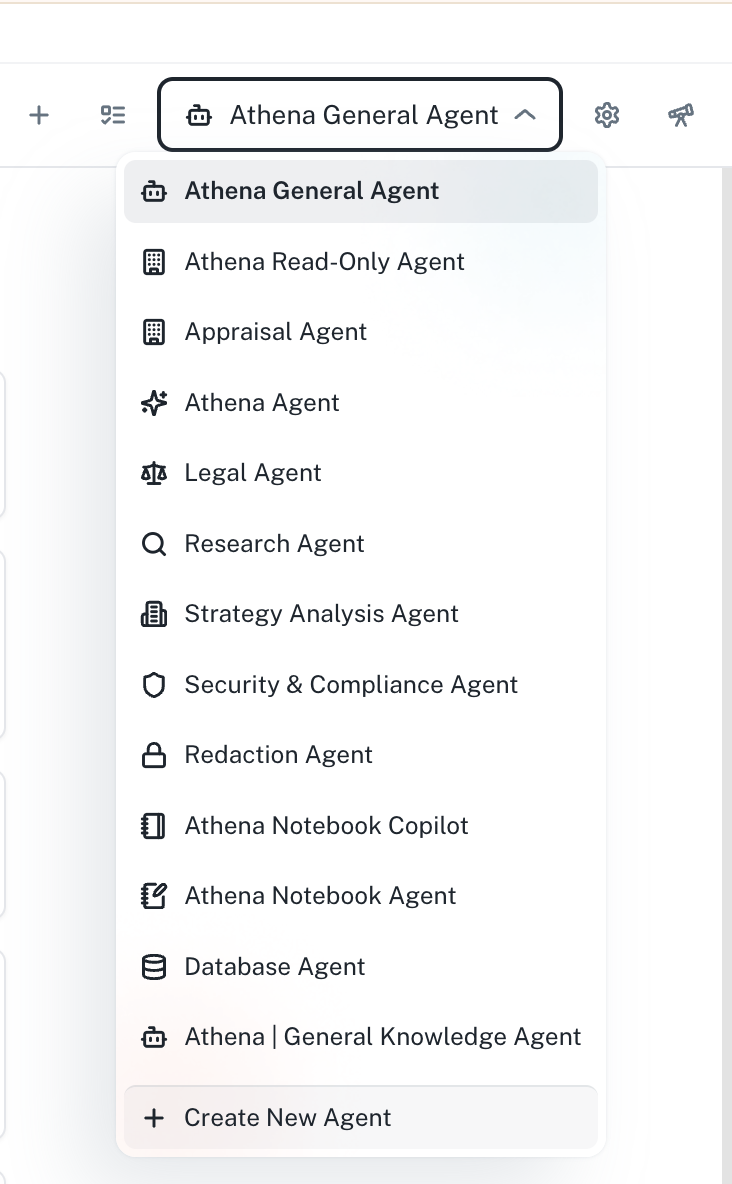 Click on **+ Add New Agent** and follow the steps below to configure the settings for your new agent.
In this exercise, we will create an **Insights Agent**.
Click on **+ Add New Agent** and follow the steps below to configure the settings for your new agent.
In this exercise, we will create an **Insights Agent**.
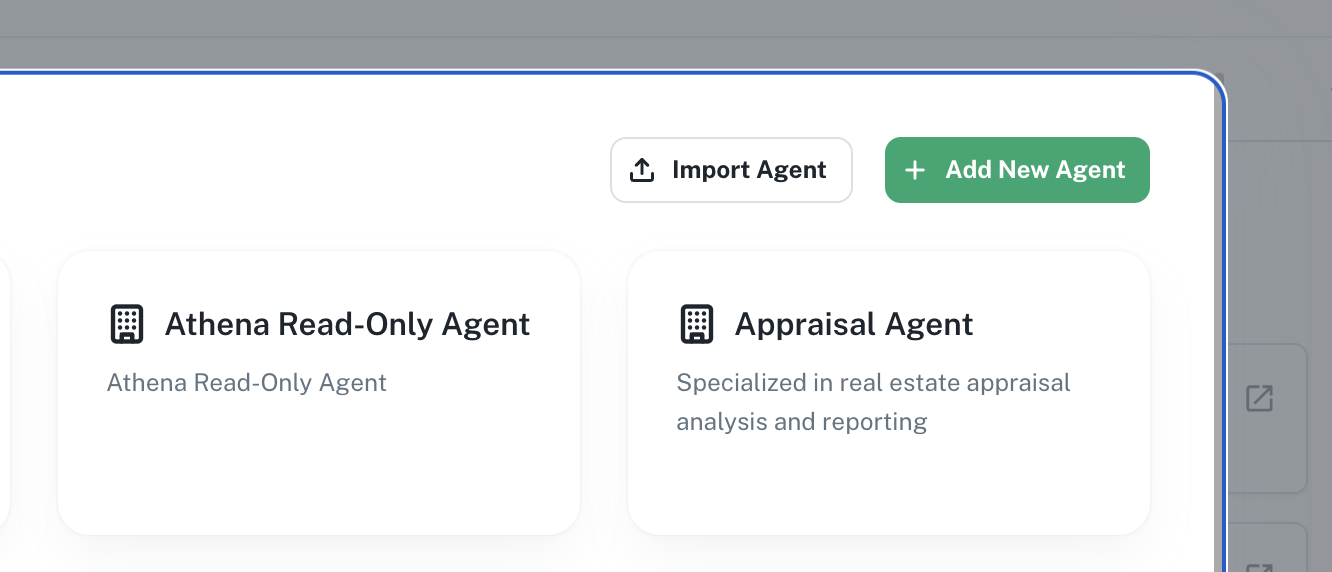 This setting requires you to add a Name, Description and System Prompt for your agent.
**Name** is the identifier for your assistant. Enter the following in the **Name** field.
Insights Agent
**Description** is a brief overview of the assistant’s purpose and capabilities. Enter the following in the **Description** field.
The Insights Agent efficiently scans documents, summarizes key information, and generates concise reports to streamline information management and decision-making.
**System Prompt** defines the agent's role and overall behavior. Enter the following in the **System Prompt** field.
The more precise your **System Prompt** is, the better the Agents’ performance will be to achieve the desired outcome.
As a best practice, after drafting an initial system prompt, test your agent and reiterate the prompt to improve it's performance.
You are the Insights Agent, an advanced AI designed to efficiently scan and analyze documents.
Your primary tasks include summarizing key information and generating concise reports to enhance information management and support effective decision-making.
Provide clear, accurate, and insightful summaries tailored to the user's needs.
This setting requires you to add a Name, Description and System Prompt for your agent.
**Name** is the identifier for your assistant. Enter the following in the **Name** field.
Insights Agent
**Description** is a brief overview of the assistant’s purpose and capabilities. Enter the following in the **Description** field.
The Insights Agent efficiently scans documents, summarizes key information, and generates concise reports to streamline information management and decision-making.
**System Prompt** defines the agent's role and overall behavior. Enter the following in the **System Prompt** field.
The more precise your **System Prompt** is, the better the Agents’ performance will be to achieve the desired outcome.
As a best practice, after drafting an initial system prompt, test your agent and reiterate the prompt to improve it's performance.
You are the Insights Agent, an advanced AI designed to efficiently scan and analyze documents.
Your primary tasks include summarizing key information and generating concise reports to enhance information management and support effective decision-making.
Provide clear, accurate, and insightful summaries tailored to the user's needs.
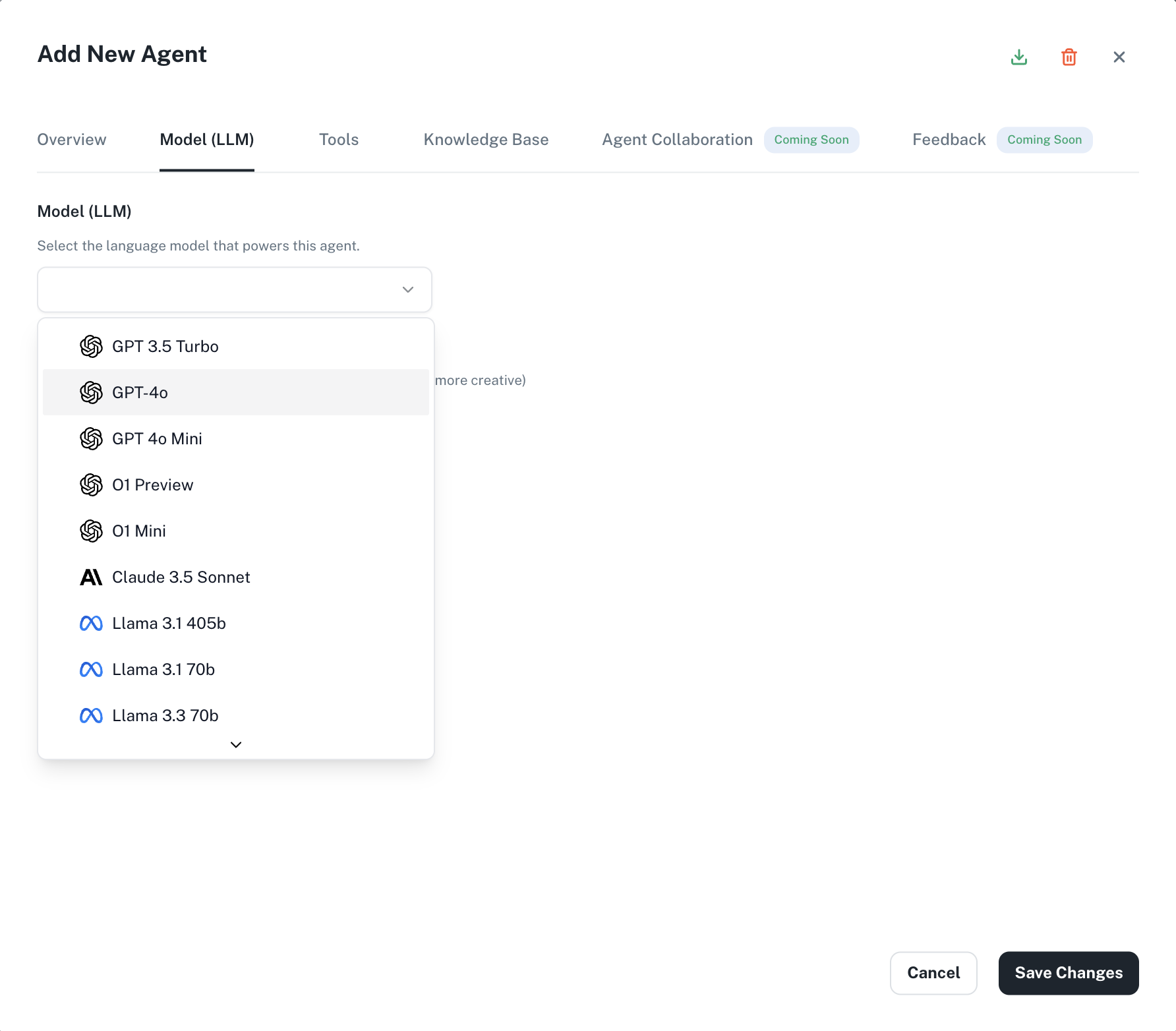
 **Model** is the LLM that will drive your agent. Choose your desired model from the dropdown.
For this case, let's choose **GPT-4o**.
**Model** is the LLM that will drive your agent. Choose your desired model from the dropdown.
For this case, let's choose **GPT-4o**.
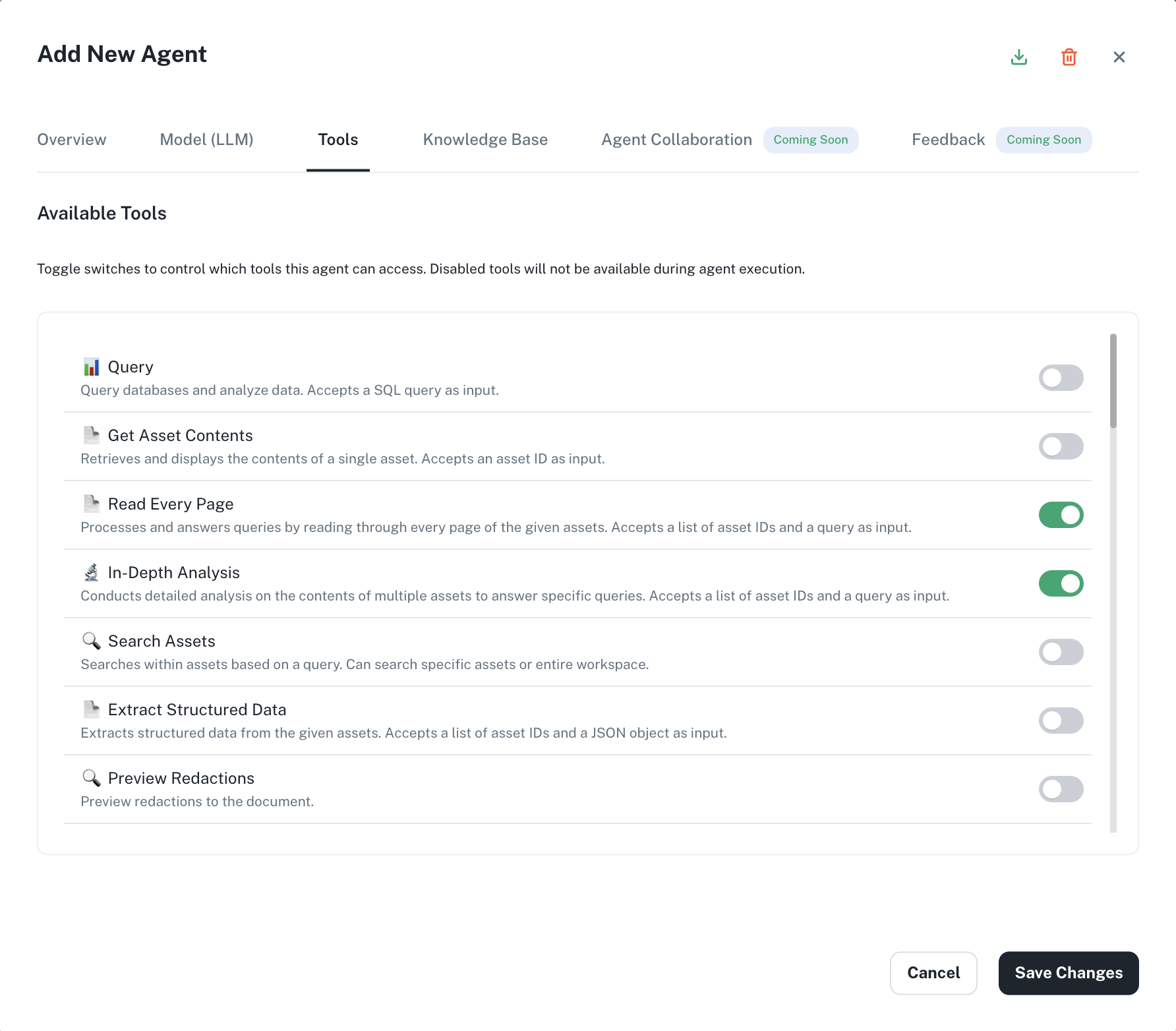
 **Tools** are the skills with which you equip your Agents. You can add existing **Tools** within Athena to power your agent with specific skills that come with each tool.
For this case, add the `Read Every Page` and `In-Depth Analysis` tools.
Learn more about what the **[Tools](https://resources.athenaintel.com/docs/pillars/applications/chat#versatile-tools-and-agents)** present in Athena do.
**Tools** are the skills with which you equip your Agents. You can add existing **Tools** within Athena to power your agent with specific skills that come with each tool.
For this case, add the `Read Every Page` and `In-Depth Analysis` tools.
Learn more about what the **[Tools](https://resources.athenaintel.com/docs/pillars/applications/chat#versatile-tools-and-agents)** present in Athena do.
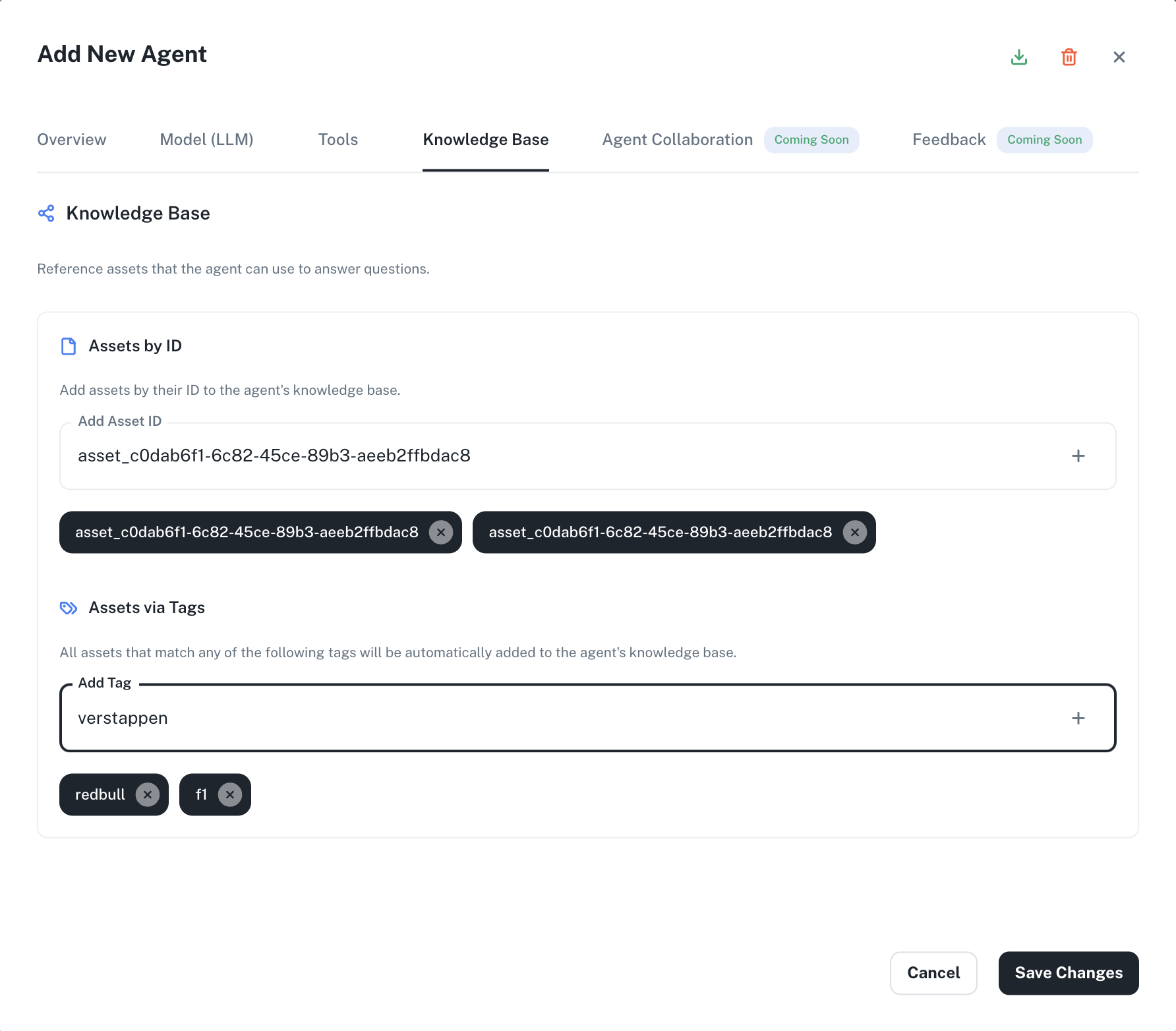
 **Knowledge Base** is a repository of information that enables your agent to reference and retrieve data from Athena or from data sources outside Athena. Add assets from your workspace by mentioning them as follows: `@your-asset-name` or drag and drop files from your local System.
For this case, you need not add any assets to the knowledge base, but for illustration this is how you can add assets from your workspace in your agent's knowledge base.
Incorporating a Knowledge Base helps an agent respond to queries using proprietary data, reference specific information, and execute tasks with current data from Athena.
We ensure that you only see and access the assets you have permission for in the knowledge base. If there's an asset you don't have access to, it will be removed from your view, even if it's listed in the agent's knowledge base.
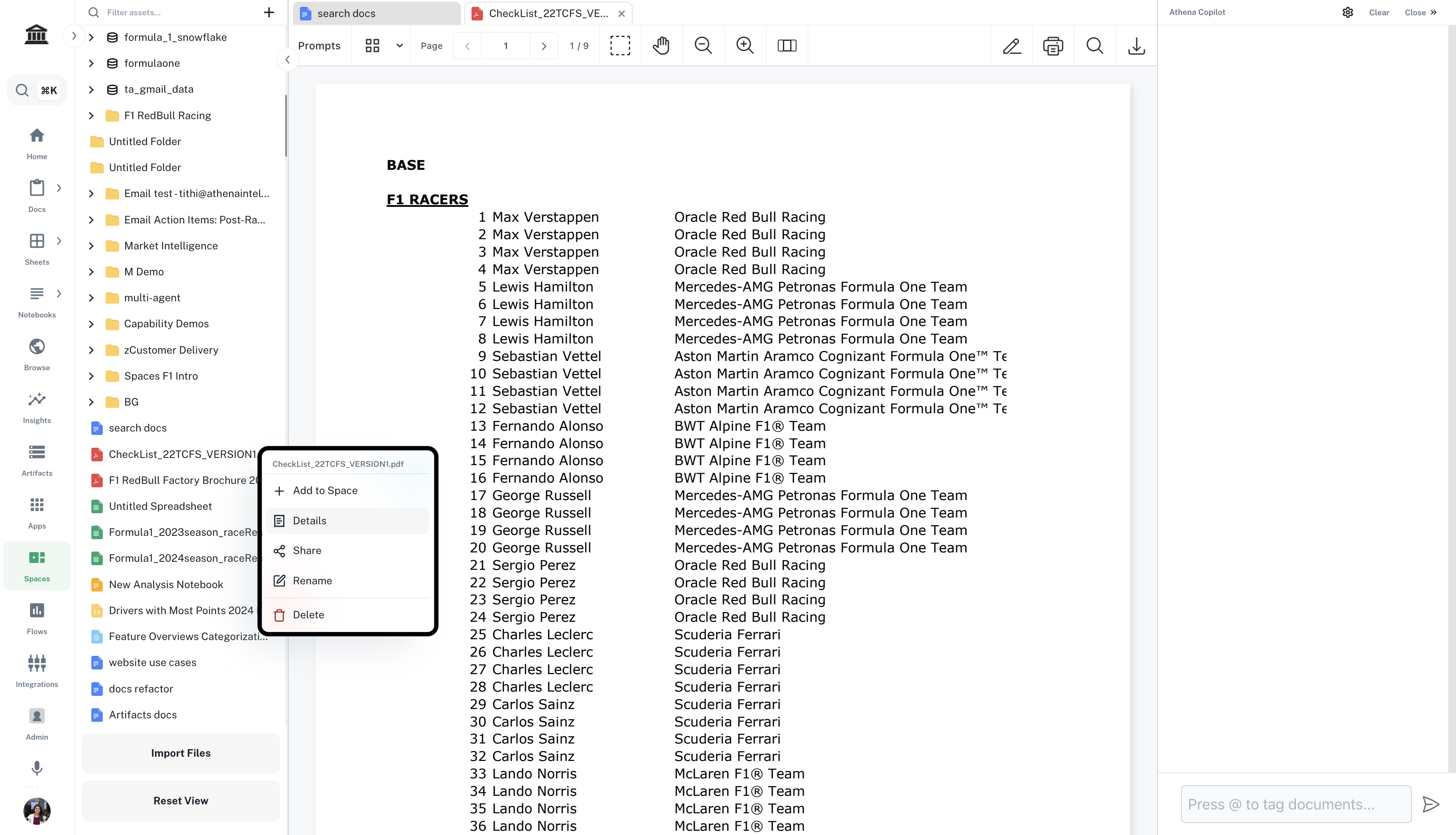
You can also reference assets in the Knowledge Base by **Tags**.
Tags are keywords assigned to assets that help categorize and improve searchability within Athena.
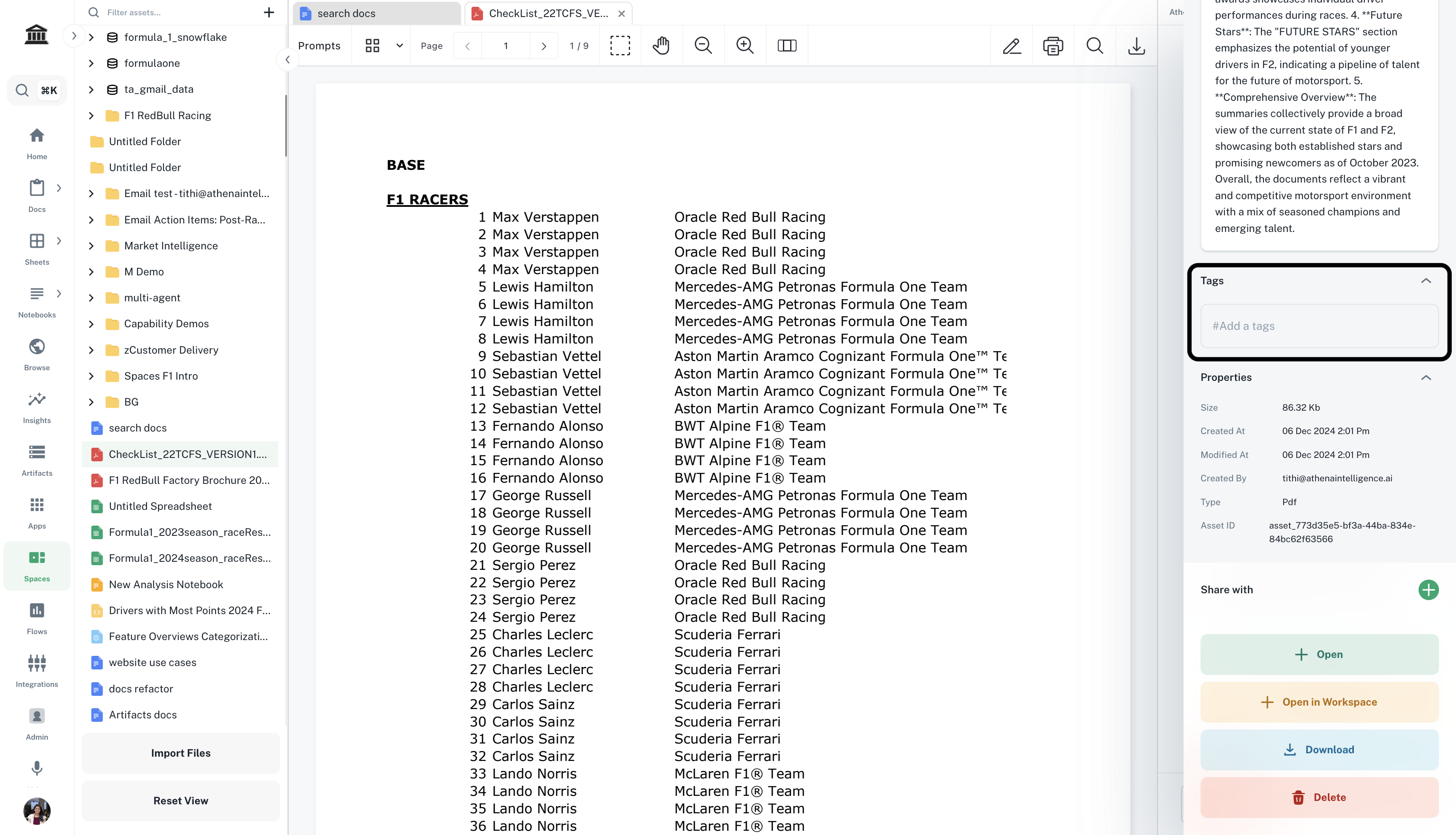
You can add tags to assets inside the Details pane of each asset.
**Knowledge Base** is a repository of information that enables your agent to reference and retrieve data from Athena or from data sources outside Athena. Add assets from your workspace by mentioning them as follows: `@your-asset-name` or drag and drop files from your local System.
For this case, you need not add any assets to the knowledge base, but for illustration this is how you can add assets from your workspace in your agent's knowledge base.
Incorporating a Knowledge Base helps an agent respond to queries using proprietary data, reference specific information, and execute tasks with current data from Athena.
We ensure that you only see and access the assets you have permission for in the knowledge base. If there's an asset you don't have access to, it will be removed from your view, even if it's listed in the agent's knowledge base.
You can also reference assets in the Knowledge Base by **Tags**.
Tags are keywords assigned to assets that help categorize and improve searchability within Athena.
You can add tags to assets inside the Details pane of each asset.
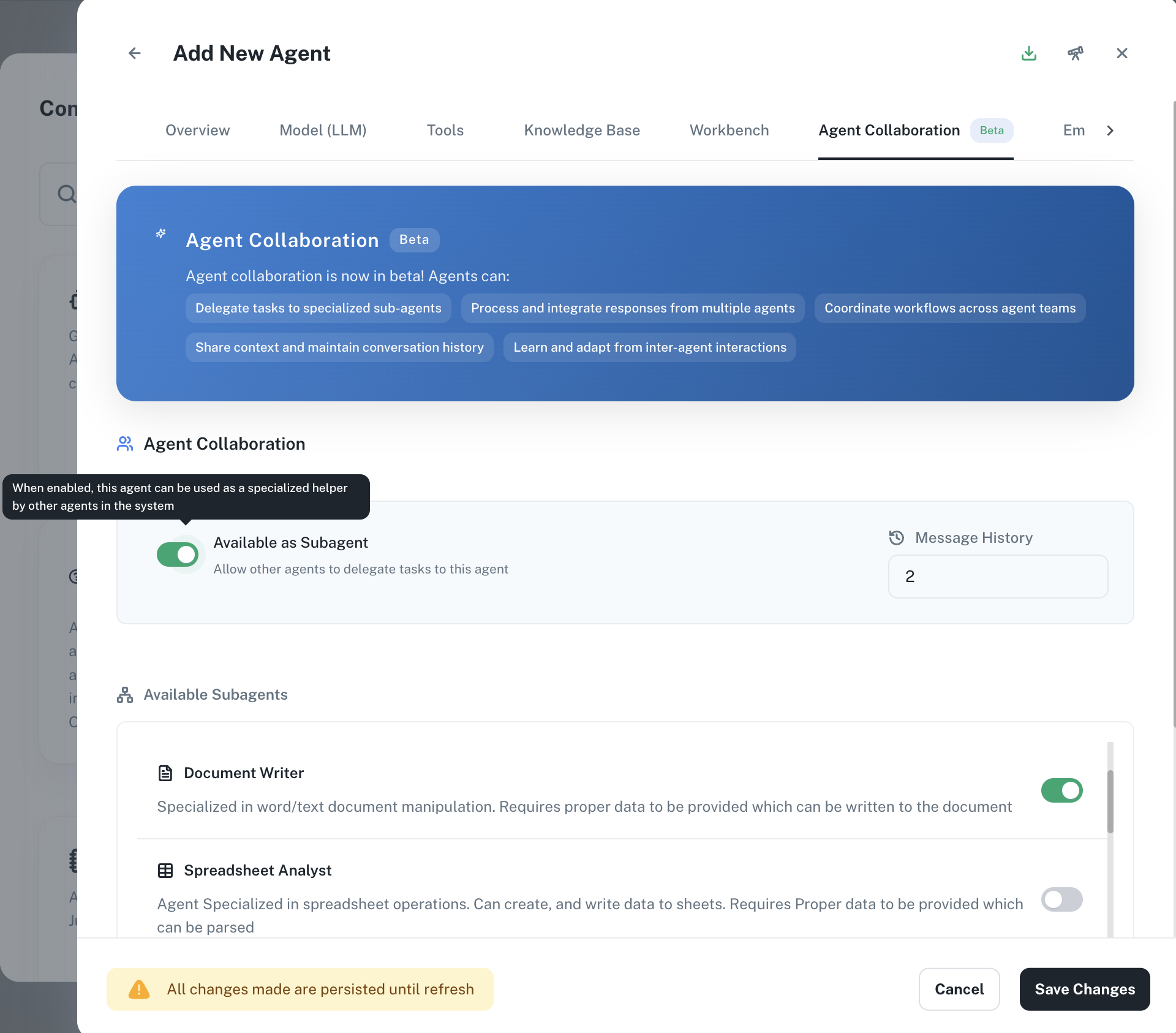
 Agent collaboration enables agents to delegate tasks to specialized sub-agents, process and integrate responses from multiple agents, and coordinate complex workflows across teams. Additionally, agents are capable of sharing context, maintaining conversation history, and learning from interactions with other agents.
You can also choose if your agent should be available as a sub-agent to other agents by toggling the **Available as Subagent** button.
For this example, select the **Document Writer** as a sub-agent.
Agent collaboration enables agents to delegate tasks to specialized sub-agents, process and integrate responses from multiple agents, and coordinate complex workflows across teams. Additionally, agents are capable of sharing context, maintaining conversation history, and learning from interactions with other agents.
You can also choose if your agent should be available as a sub-agent to other agents by toggling the **Available as Subagent** button.
For this example, select the **Document Writer** as a sub-agent.
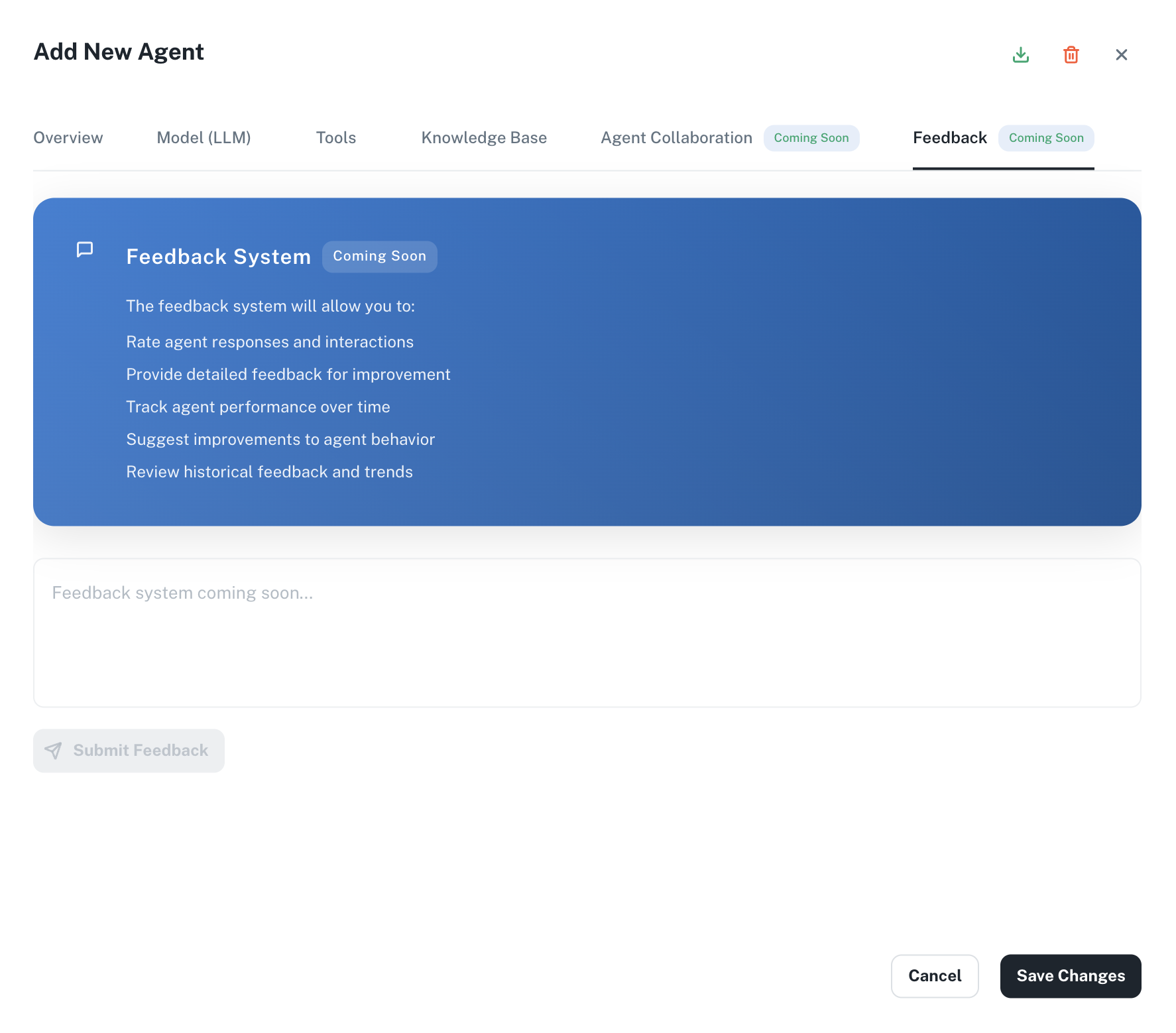
 The feedback system will enable you to rate agent responses and interactions, provide detailed feedback for improvement, and track agent performance over time. It will also allow you to suggest improvements to agent behavior and review historical feedback and trends.
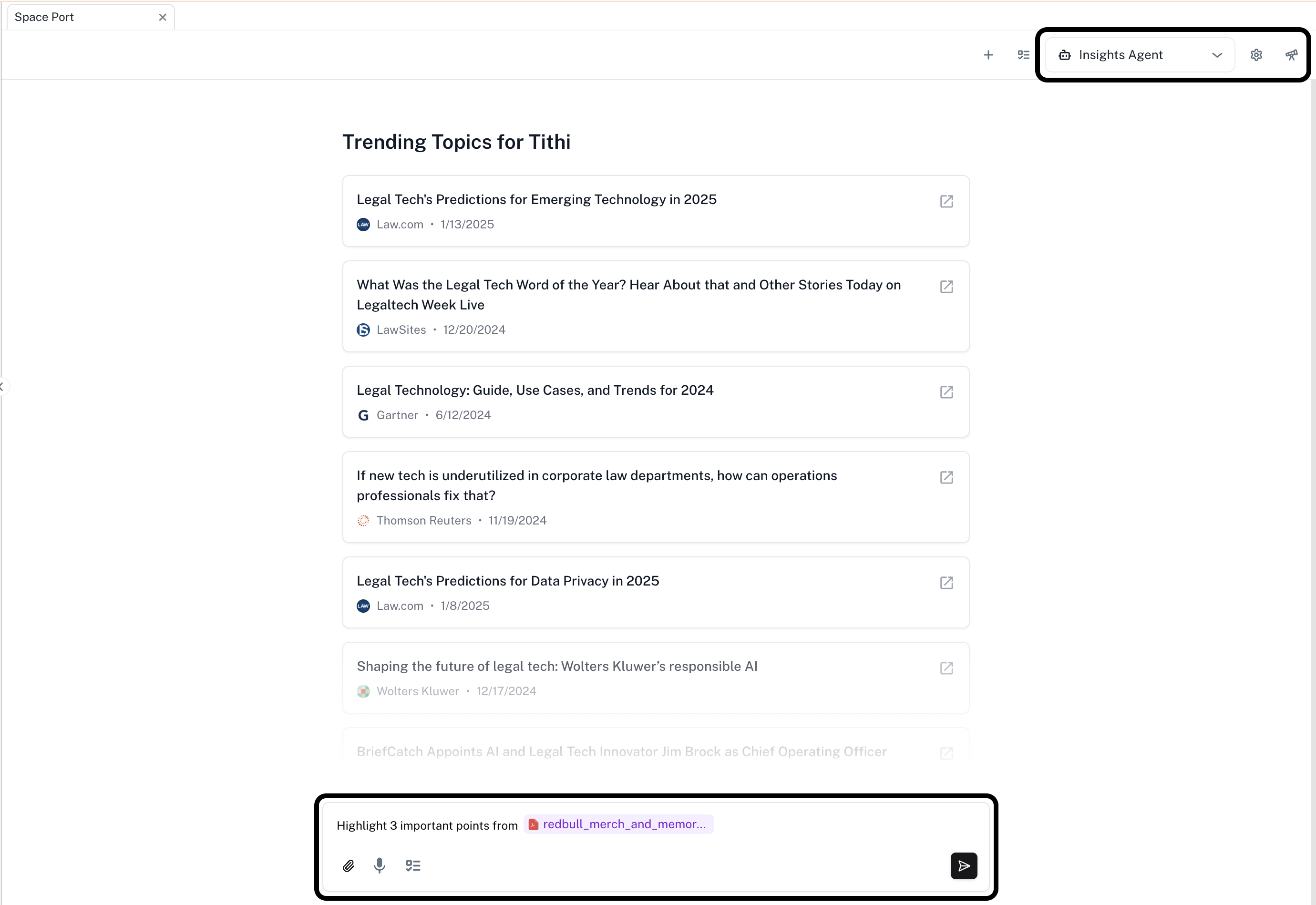
 Click on **Save Changes**. Choose the agent you just created from the Agents dropdown on the top-left of the **Chat** sidebar. Enter the following prompt and press **Enter**.
Highlight 3 important points from @your-document-name.
Replace `@your-document-name` by the name of the document you wish to summarize.
Click on **Save Changes**. Choose the agent you just created from the Agents dropdown on the top-left of the **Chat** sidebar. Enter the following prompt and press **Enter**.
Highlight 3 important points from @your-document-name.
Replace `@your-document-name` by the name of the document you wish to summarize.